How to Fix OBS Makes Both Screens Black When Full Screen Preview?

OBS Studio is one of the most popular free tools for screen recording and live streaming, trusted by gamers, educators, content creators, and professionals worldwide. Its flexibility and powerful customization options make it a go-to solution for recording gameplay, tutorials, webinars, and live events. However, this power also comes with complexity. One frustrating issue many users encounter is OBS making both screens black when switching to Full Screen Preview (Fullscreen Projector).
This problem is especially common on Windows systems with dual or multiple monitors, laptops with hybrid graphics (integrated + dedicated GPU), or displays using HDR and variable refresh rate technologies. When it happens, both monitors may briefly go dark, stay black, or only return after exiting OBS—interrupting recordings, streams, or presentations.
In this guide, we’ll explain why OBS fullscreen preview causes black screens, walk through step-by-step fixes.
1. How to Fix OBS Makes Both Screens Black When Full Screen Preview
Before switching tools, it’s worth trying the proven solutions below. In most cases, one or two of these fixes will resolve the issue.
1.1 Make OBS Use the Correct GPU
On systems with both integrated and dedicated GPUs, OBS may run on a different GPU than your displays. This mismatch often causes black screens during fullscreen preview.
Steps (Windows 10/11):
- Close OBS, then go to Settings → System → Display → Graphics.
- Click Browse and add
obs64.exe. - Select Options → High performance.
- Save changes and restart OBS.
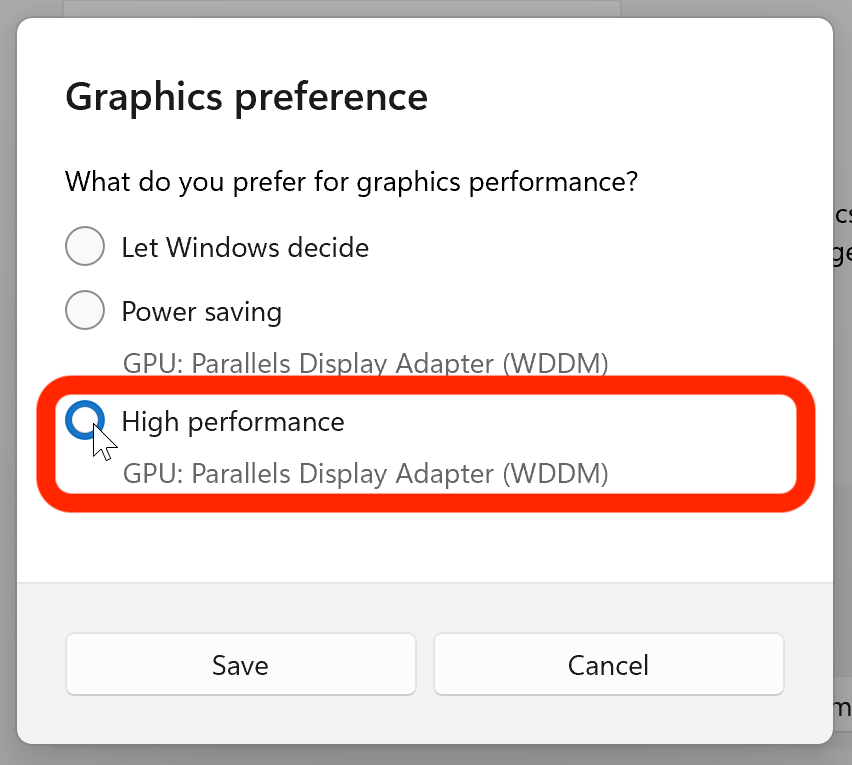
This ensures OBS uses the same GPU as your monitors.
1.2 Avoid Display Capture and Game Capture Conflicts
Using Display Capture and Game Capture in the same scene can cause rendering conflicts.
What to do:
- Remove one capture source temporarily.
- Test fullscreen preview with only Game Capture or Window Capture.
- Create separate scenes for different capture methods.
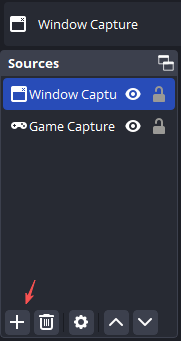
This separation prevents GPU and compositor conflicts.
1.3 Turn Off HDR on Your Monitors
HDR is a frequent culprit behind black screen issues in OBS fullscreen projector mode.
Disable HDR:
- Go to Settings → System → Display.
- Select each monitor, toggle HDR → Off, then Restart OBS.
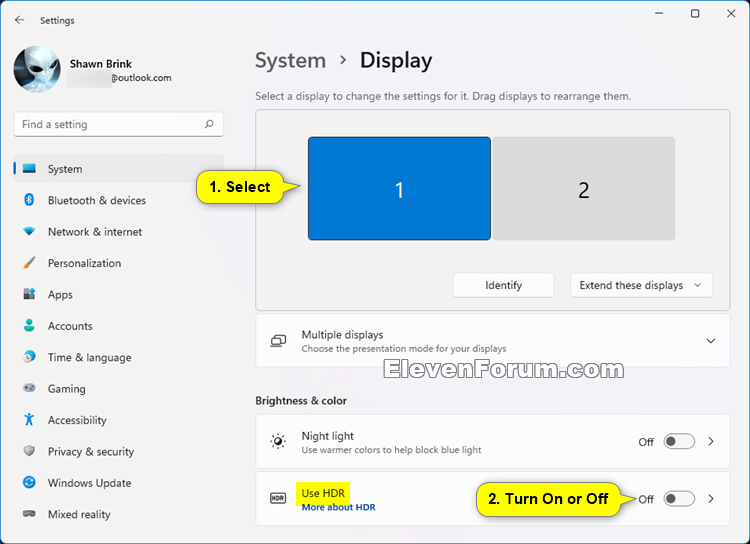
Many users report this fix instantly resolves the issue.
1.4 Change the Fullscreen Projector Monitor
Sometimes OBS attempts to project to a display with an incompatible refresh rate or color configuration.
Steps:
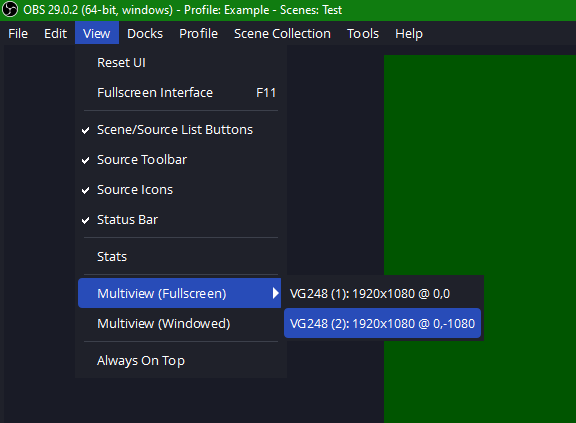
- Right-click inside OBS Preview.
- Choose Fullscreen Projector (Preview).
- Select a different monitor and test again.
1.5 Disable G-SYNC or FreeSync
Variable refresh rate technologies can cause both screens to go black when OBS enters fullscreen mode.
- NVIDIA: Disable G-SYNC in NVIDIA Control Panel.
- AMD: Disable FreeSync in Radeon Settings.
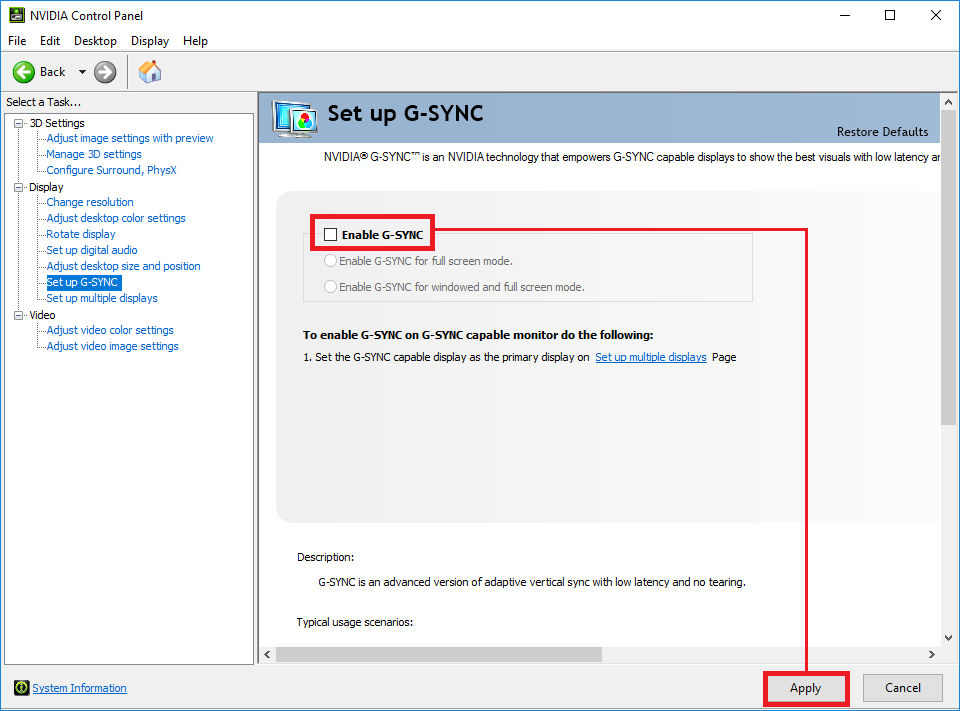
You can re-enable them later if needed.
1.6 Adjust OBS Color Settings
Incorrect color formats may cause preview rendering issues.
Recommended settings:
- Color Format: NV12
- Color Space: 709
- Color Range: Full
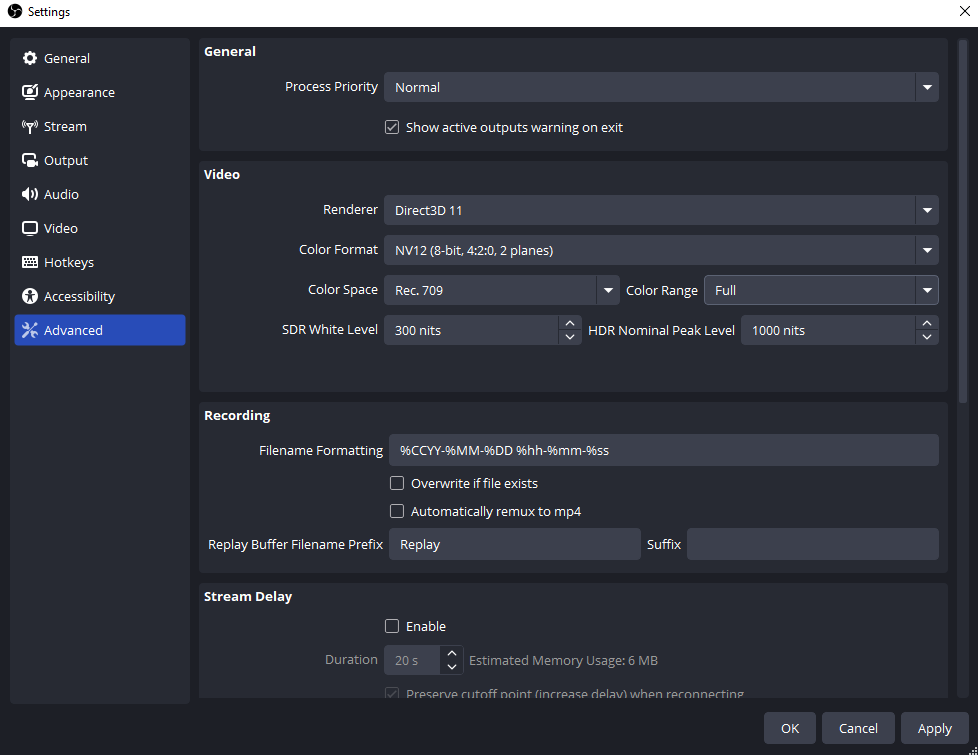
Restart OBS after applying changes.
1.7 Run OBS as Administrator
Running OBS with elevated privileges helps prevent conflicts with fullscreen applications and GPU access.
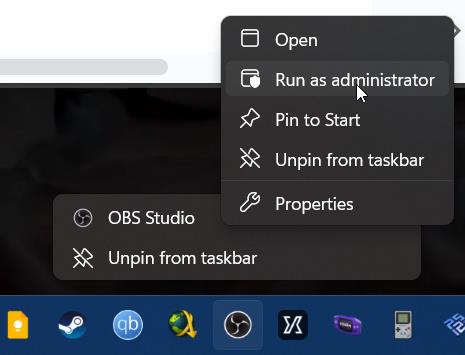
Even after fixing the black screen problem, many users find OBS:
- Too complex for quick recordings
- Time-consuming to troubleshoot
- Overkill for simple screen capture tasks
If you only need to record your screen reliably, an alternative may save you time and frustration.
2. Try the Simple but Powerful Alternative to OBS – Swyshare Recordit
If OBS fullscreen preview issues keep disrupting your workflow, Swyshare Recordit offers a cleaner, more beginner-friendly solution.
Swyshare Recordit is a lightweight screen recorder designed for users who want high-quality recording without complicated setup. It focuses on stability, ease of use, and practical recording features rather than advanced streaming configurations.
Key Features of Swyshare Recordit:
- Multiple Recording Modes: Record full screen, a specific window, or a custom region.
- Stable Performance: No GPU conflicts, black screens, or preview crashes.
- Instant Replay: Capture the last few seconds on demand—perfect for gameplay highlights.
- Scheduled Recording: Automatically record meetings, classes, or streams.
- Audio Control: Record system sound, microphone, or both.
- Built-in Annotation Tools: Add drawings, text, or highlights while recording.
- Beginner-Friendly Interface: Start recording in just a few clicks.
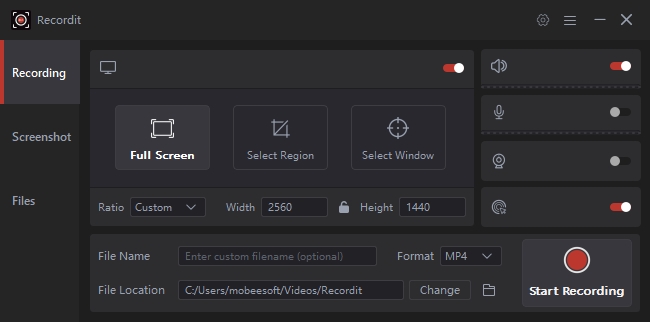
When to Choose OBS vs Recordit:
- Choose OBS if you need professional live streaming, complex overlays, or multi-source production.
- Choose Swyshare Recordit if you want fast, stable, and hassle-free screen recording.
3. Conclusion
The issue where OBS makes both screens black during fullscreen preview is common and usually caused by GPU mismatches, HDR settings, or capture source conflicts. While the fixes outlined above can often resolve the problem, they require time, technical knowledge, and ongoing troubleshooting.
If you’re tired of dealing with black screens, complex settings, and unexpected preview failures, Swyshare Recordit is a smarter alternative. Its simple interface, reliable performance, and powerful recording features make it ideal for anyone who wants to focus on creating content—not fixing software.
For smooth, stress-free screen recording, Swyshare Recordit is the clear recommendation.