 Recordit
 – 4K Screen Recorder for Windows & MacRecord your screen. Make it look great.
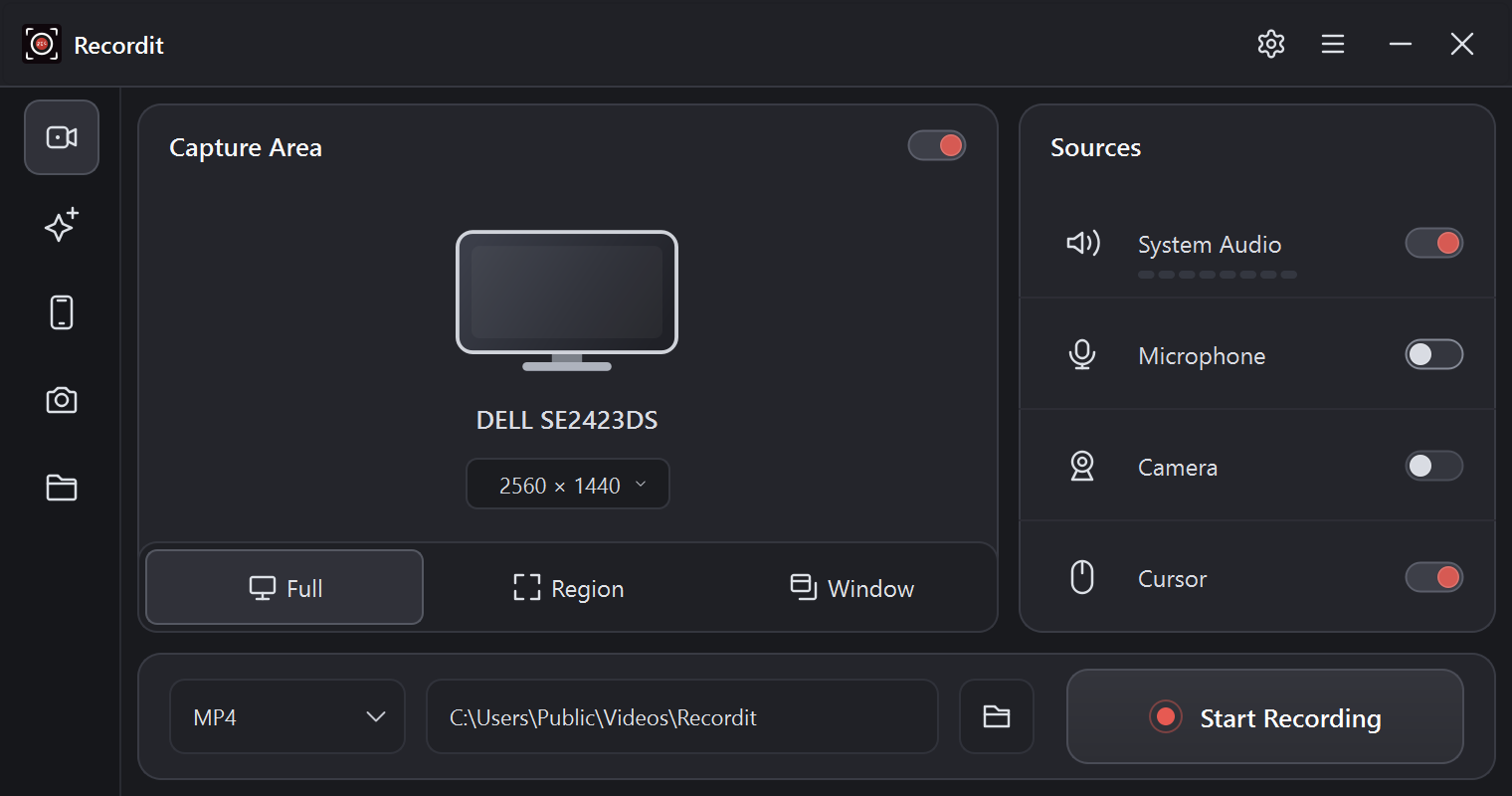
- Swyshare Recordit records your whole screen, a window or any area
- Capture system audio, your microphone and webcam
- Record in 2K or 4K at 60 fps, powered by your GPU
- Take screenshots and record your iPhone or Android
- Polish the result in the built-in editor

- 30-day money-back guarantee
- No watermark or time limit with a license
- Free updates, including major versions
- Windows 11 & 10 · macOS 11 or later
Screen, webcam, sound, phone and screenshots
Record the full screen, a window or any area, your webcam and your voice, or your phone, and grab a screenshot whenever you need one.
Record Screen
The full screen, a window, or any area you choose.
Record Webcam
Show yourself for presentations, tutorials and reactions.
Record Sound
System audio, your microphone, or both at once.
Record Phone
Your iPhone or Android screen, on your computer.
Take Screenshots
The full screen, a window or an area, in one click.
Everything you need to capture your screen
From a quick bug report to a full tutorial with your voice and face, Recordit records it in a few clicks, without lag or black screens.
Record the full screen, a window, or any area
Pick a display by name, click a window, or drag over exactly the part you want, and record it in the resolution you want, up to your screen’s full 2K or 4K. Lock it to 16:9, 4:3, 1:1, or 9:16 for vertical videos. Choose Standard, High or Best quality at 24, 30 or 60 fps, and Recordit keeps the file small when the screen stands still.
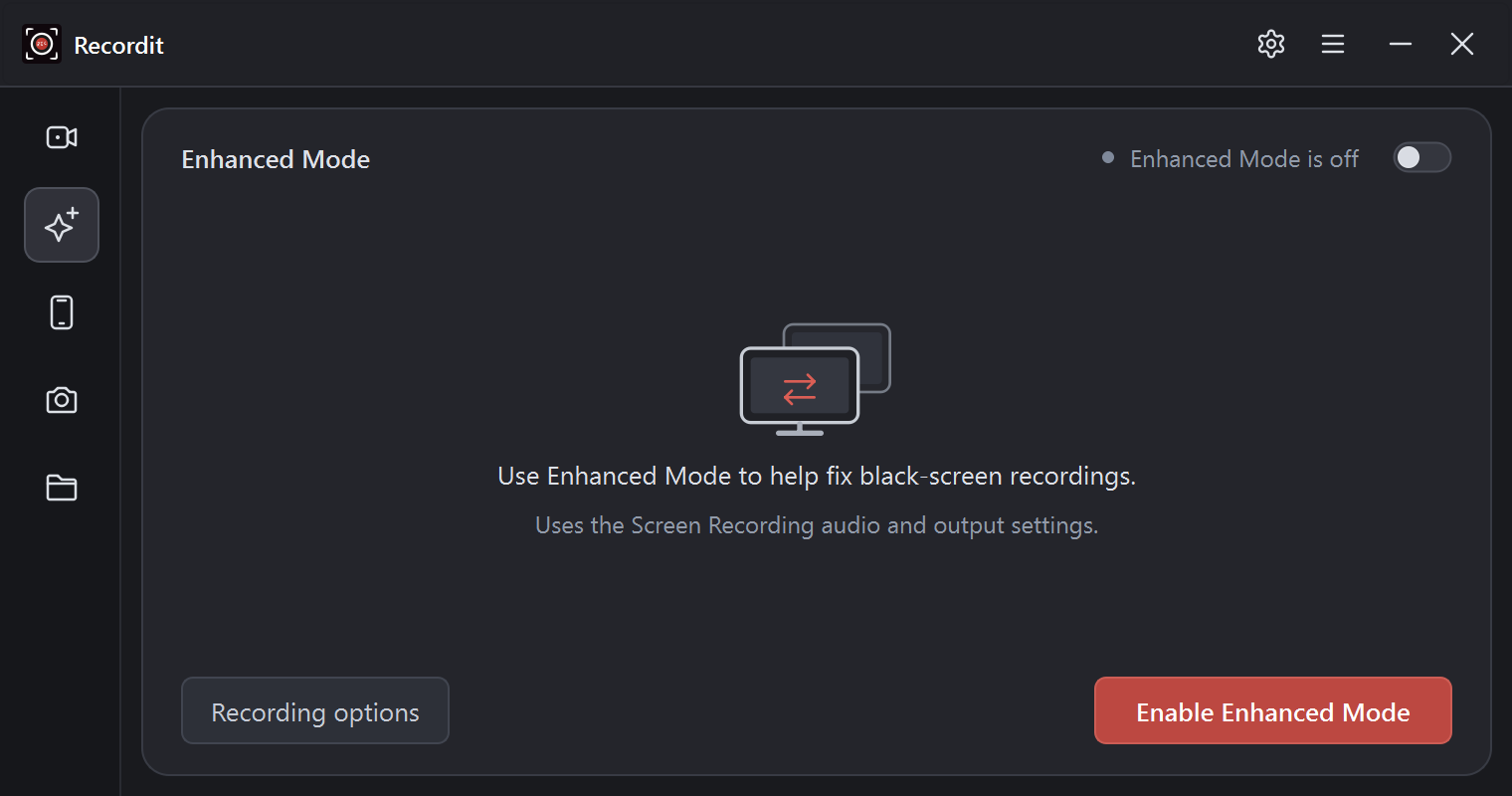
No more black screens, with Enhanced Mode
Some apps and video players turn black when you record them. On Windows, switch on Enhanced Mode and Recordit captures them through its own virtual display, so what you see is what you get, with the same audio and output settings as always.
Your voice, your face, and the sound on your computer
Record system audio, your microphone, or both at once, with live level meters so you know they’re working. On a Mac, Recordit installs its own audio driver, so it can record the sound on your computer, which macOS can’t do on its own. Turn on your webcam to show yourself in the corner, or record audio alone as MP3 or AAC.
Pause, resume, and keep the controls out of the way
Take a break mid-recording and pick up where you left off. The toolbar can hide until your mouse reaches the top of the screen, and stays out of the video. Minimize Recordit and a small floating bar keeps full-screen, window and region recording, and screenshots, one click away.
Save only the highlight with Record Last
Perfect for gaming: turn on Record Last, choose how many seconds to keep, and play as long as you like. When something great happens, stop, and Recordit saves just the final seconds, the play you want to share, instead of an hour of footage to cut down.
Record your iPhone or Android phone
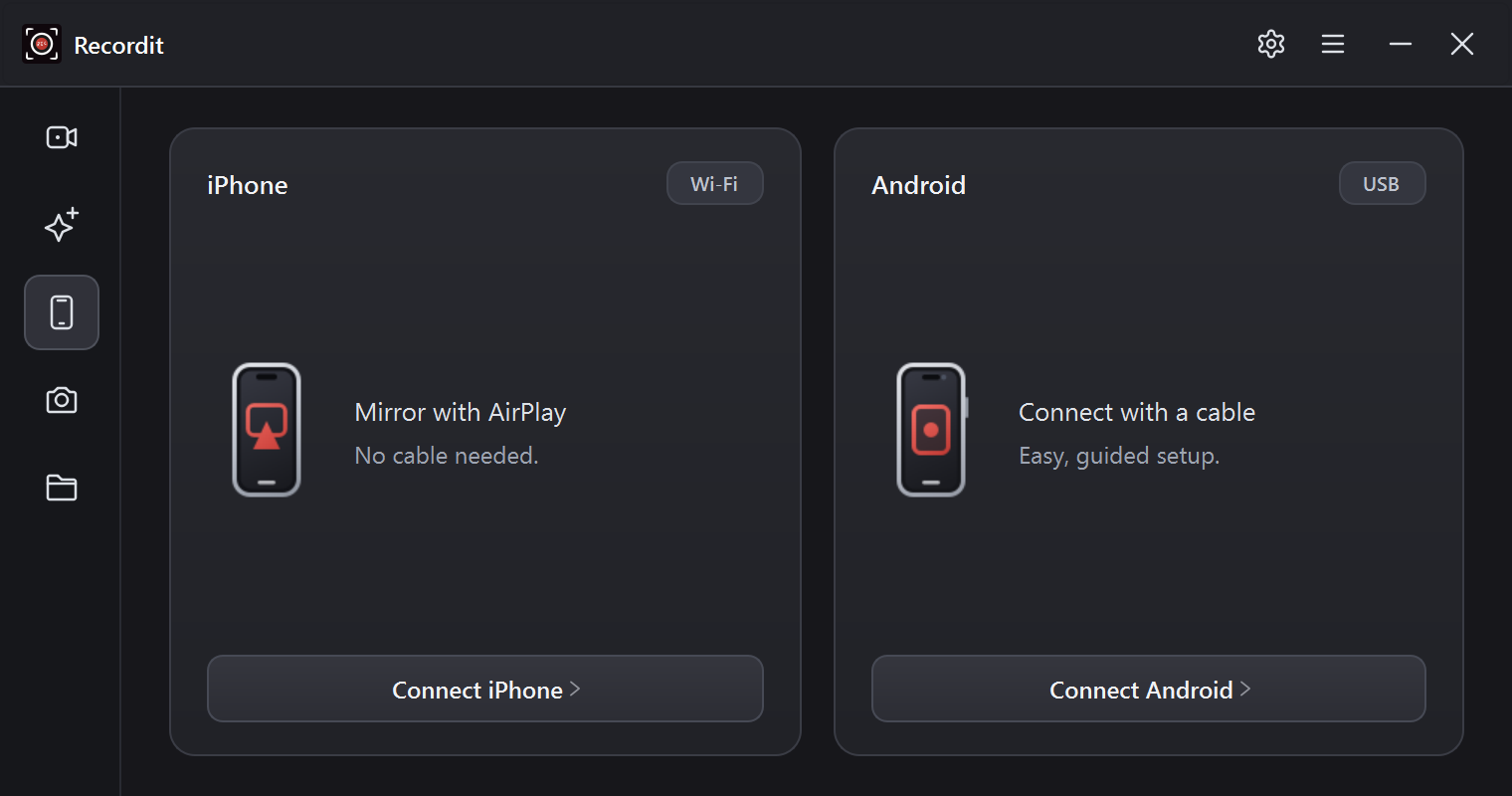
Mirror an iPhone over Wi-Fi with AirPlay, or connect an Android phone with a USB cable. A live preview you can resize shows the phone on your screen, and Recordit records it, with the phone’s own sound on Android 11 and later.
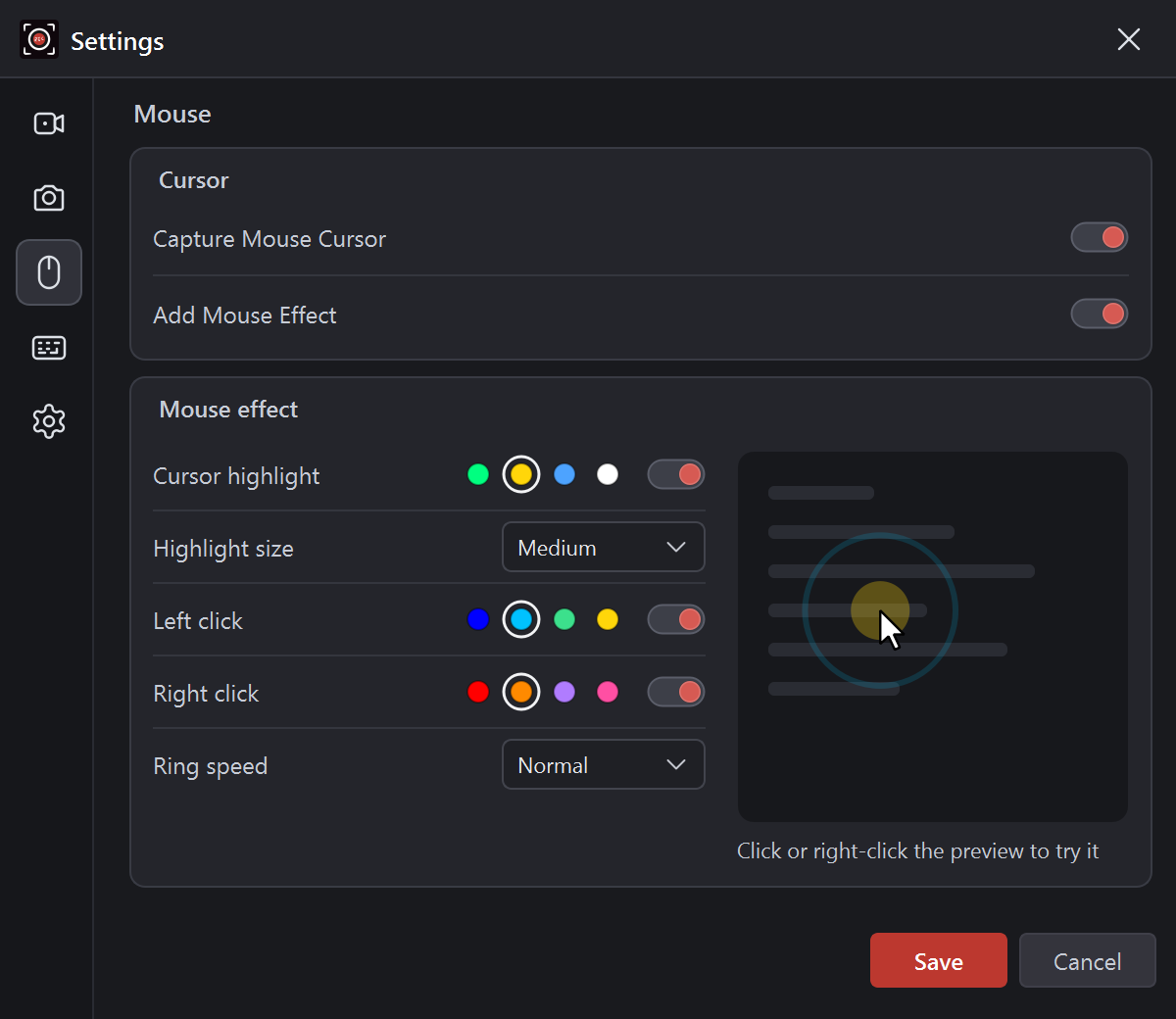
Show every click, and draw while you record
Highlight the cursor and show a ring on each left and right click, in the colours, size and speed you pick, and try it in a live preview first, so viewers can follow along. Grab the pen from the recording toolbar to circle or underline things on screen, then clear it with one click.
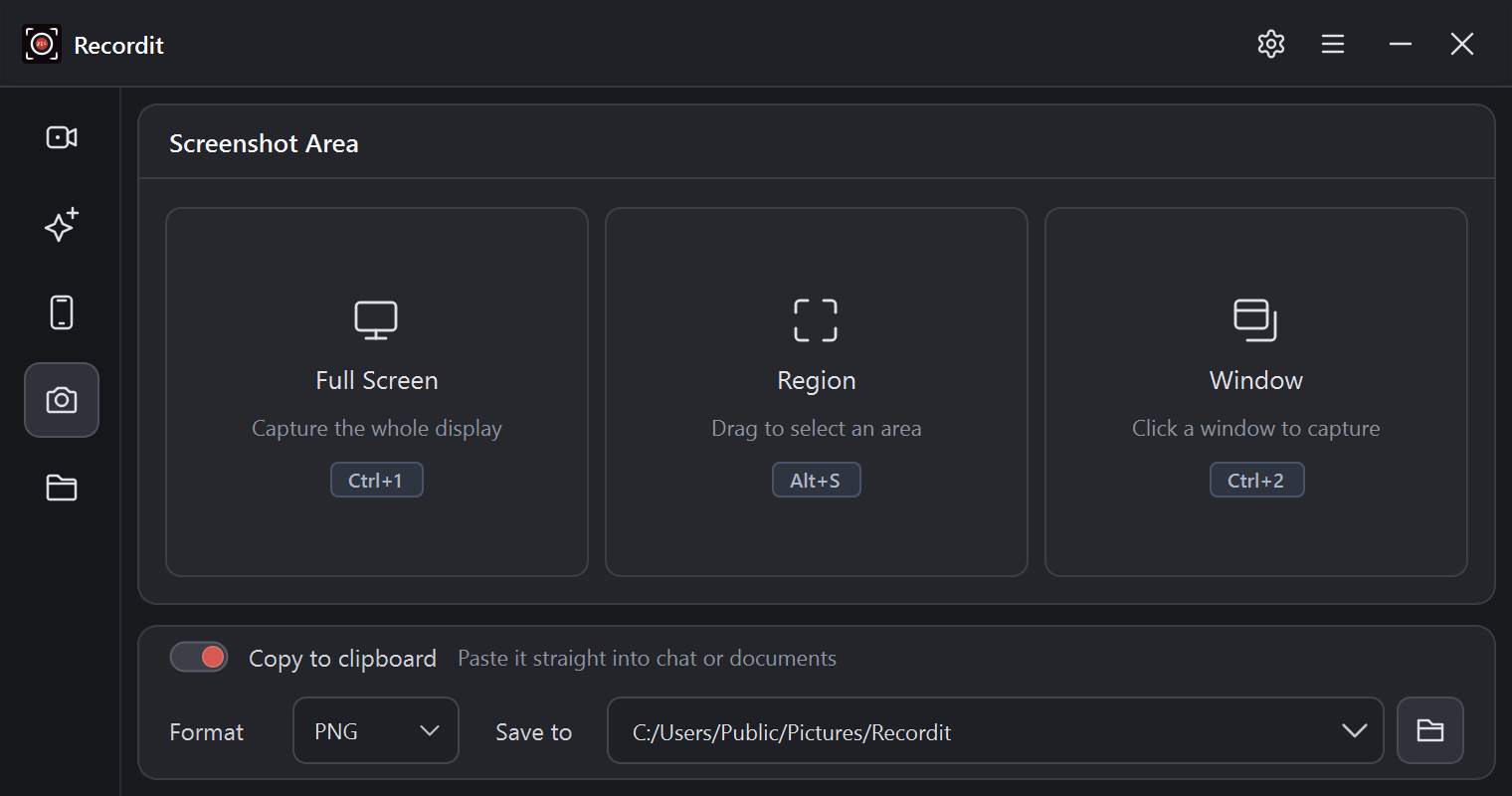
Take screenshots in one click
Capture the full screen, a window or a region as a sharp PNG or JPG, and copy it straight to the clipboard to paste into a chat or document. Take one from the Screenshot tab, the recording toolbar, or a hotkey for each kind, even in the middle of a recording.
Edit your recordings without another app
Ready to polish your video? Open any recording in the built-in editor and make it look the way you want.
- Cut video: trim the start and end, or cut out parts you don’t need.
- Resize canvas: fit the video to any platform or layout.
- Adjust resolution: export from 720p up to 4K.
- Add background: put an image behind the video for a polished look.
- Add watermark: brand your video with your logo or signature.
- Show camera: the webcam is recorded separately, so you can show or hide it.
- Add mouse image: show a clearer cursor and keep the view following it.
The little things that save time
Schedule recording
Set when to start and stop, and Recordit records on its own, for a webinar or live stream you can’t sit through.
Custom hotkeys
Start and stop recording, record a region, window or full screen, and take each kind of screenshot from any app. Recordit warns you if a shortcut is already taken.
Recording countdown
A countdown before recording starts gives you time to get ready. Set its length, or turn it off.
Start from the system traymenu bar
Start a full-screen, region or window recording, or a screenshot, without opening the main window.
GPU-accelerated 2K and 4K
Recordit encodes video on your NVIDIA, AMD or Intel graphics card, or your Mac’s built-in encoder, so even 2K and 4K recording at 60 fps stays smooth and leaves your computer free for what you’re doing.
Multiple monitors
Pick a display by its name. The floating bar records the monitor it sits on.
Webcam in its own file
Record your camera to a separate file, so you can move, resize or hide it later in the editor.
MP4, GIF, MP3 and AAC
Save video as MP4 or an animated GIF, and audio-only recordings as MP3 or AAC.
9 languages
English, 简体中文, 繁體中文, 日本語, Deutsch, Español, Français, Italiano and Português.
How to record your screen with Recordit
Record screen to meet all your needs
Whatever you need to capture, Recordit makes smooth, high-quality recordings of it.

For professionals
Record Zoom, Microsoft Teams and Google Meet meetings, training sessions, webinars and presentations with ease.
Record your screen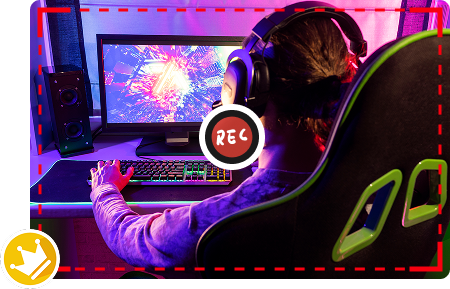
For gamers
Capture every moment in 2K or 4K at up to 60 fps, or keep just the last seconds as a highlight with Record Last. GPU encoding keeps your game smooth.
Record games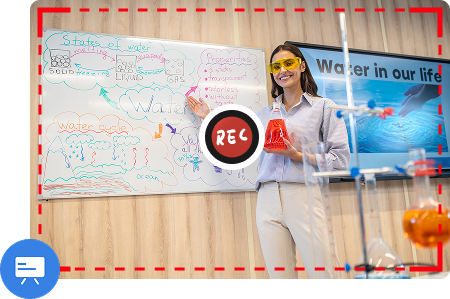
For students and educators
Record lectures, online classes and study sessions to review later.
Record lectures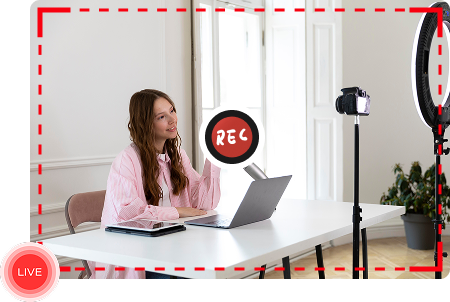
For content creators
Make demos, tutorials, walkthroughs and voice-overs with click highlights, drawing and your webcam.
Record your voice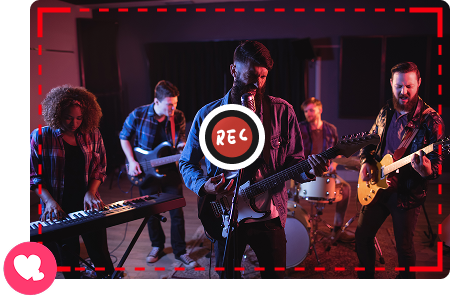
For fans and audiences
Record live streams, shows and movies on YouTube, Twitch and more to watch later.
Record live streams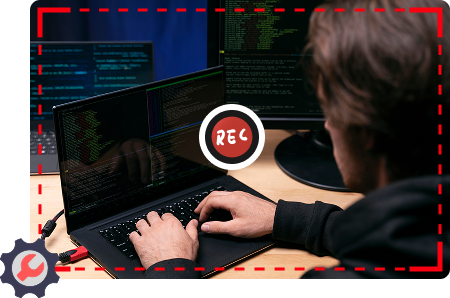
For troubleshooting
Capture technical issues, software bugs and error messages for quick fixes.
Fix recording issuesWorks on Windows and Mac
Windows
- Windows 11 or Windows 10, 64-bit
- GPU encoding on NVIDIA, AMD and Intel graphics
- Enhanced Mode needs administrator rights once, to set up
Mac
- macOS 11 Big Sur or later
- Apple silicon and Intel Macs, with hardware encoding
- Installs an audio driver to record your Mac’s sound
Both
- Records at your screen’s full resolution, up to 4K
- MP4, GIF, MP3 and AAC; PNG and JPG screenshots
- English, 简体中文, 繁體中文, 日本語, Deutsch, Español, Français, Italiano, Português
Frequently asked questions
What is Swyshare Recordit?
Swyshare Recordit is a screen recorder for Windows and Mac made by Swyshare. It records your screen, webcam, system audio and microphone in up to 4K at 60 fps, takes screenshots, records your iPhone or Android screen, and includes a built-in video editor.
Is Recordit free?
Recordit is free to download and try. The free trial records up to 10 minutes, and its videos have a watermark. Buying a license removes the limits and the watermark. See pricing.
Can I record Zoom, Microsoft Teams or Google Meet meetings?
Yes. Recordit records any meeting app or browser tab, with everyone’s voices through System Audio and your own through Microphone. Choose Window to record just the meeting, and always let other people know when you’re recording.
Can I record internal audio on a Mac?
Yes. macOS doesn’t let apps record the sound on your Mac by itself, so Recordit asks your permission to install its own audio driver. After that, it records your Mac’s sound along with your screen.
How is Recordit different from other screen recording tools?
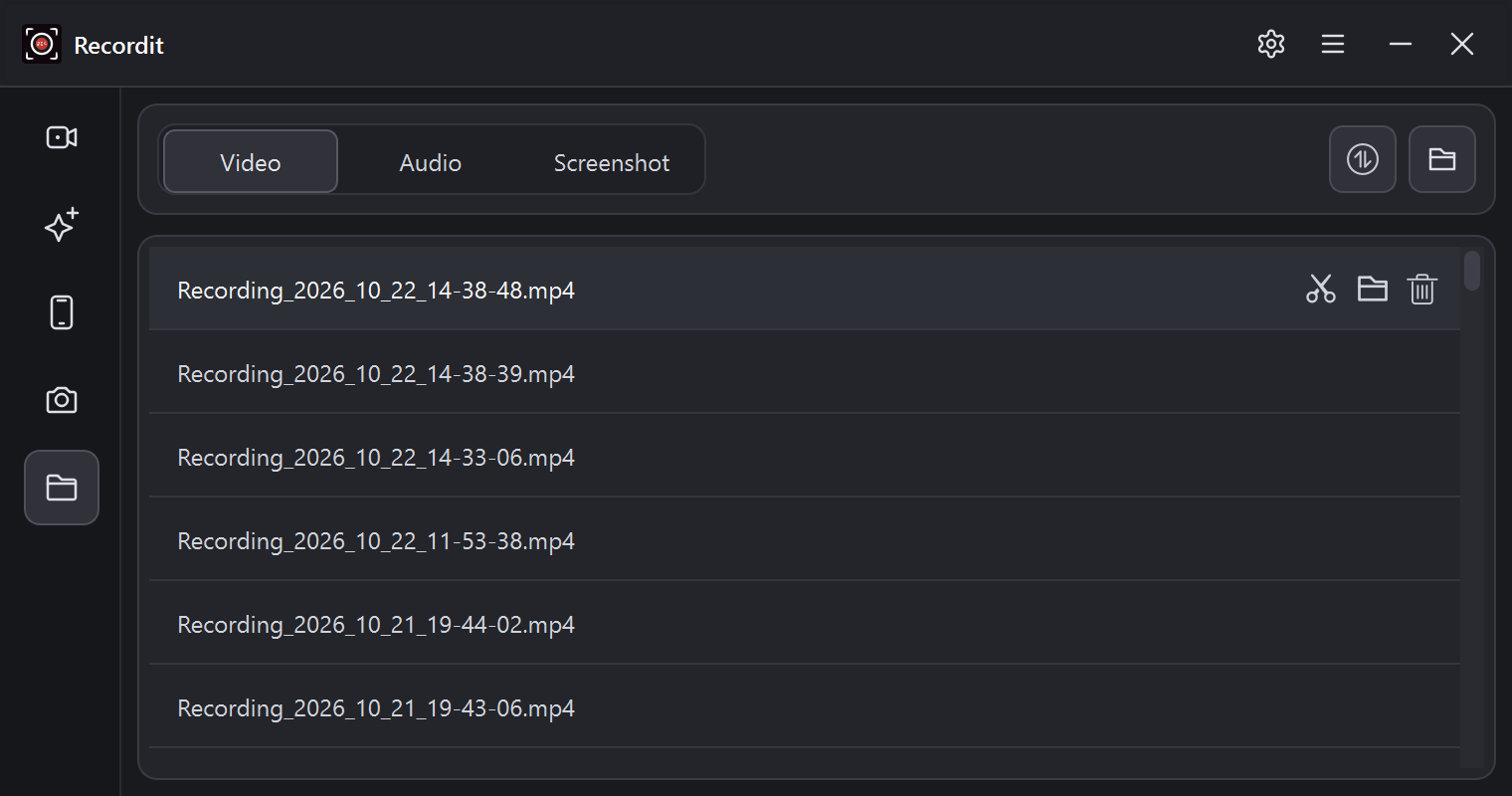
Recordit is built for speed and simplicity. Choose what to record, click Start, and your video is ready in the Files tab the moment you stop, with no exporting step. When you do want to polish it, the editor, screenshots and phone recording are all in the same app.
Can Recordit record system audio and my microphone at the same time?
Yes. Switch on System Audio and Microphone and Recordit records both into the same video, with level meters so you can check them before you start. You can also record audio only, as MP3 or AAC.
Will my recording have a black screen?
Recordit records apps, browsers, games and video players without a black screen in most cases. If an app still records black on Windows, switch on Enhanced Mode in the sidebar: Recordit then captures through its own virtual display. Our guide to fixing recording issues has more tips.
Can I save just a gaming highlight, without recording everything?
Yes. Turn on Record Last in Settings and choose how many seconds to keep (10 by default). Play as long as you like, and when you stop, Recordit saves only those final seconds, so your highlight is ready to share without editing.
Can I pause a recording?
Yes. Click Pause on the recording toolbar, and Resume when you’re ready. It all stays in the same recording.
Which formats can I save in?
Video as MP4 or GIF, audio as MP3 or AAC, and screenshots as PNG or JPG.
Can I record my phone?
Yes. Mirror an iPhone to Recordit with AirPlay over Wi-Fi, or connect an Android phone with a USB cable and allow USB debugging. Android 11 and later also records the phone’s sound.
Does screen recording slow down my computer?
Recordit encodes video on your graphics card (NVIDIA, AMD or Intel, or your Mac’s built-in encoder) when it can, so recording stays light, even in 2K or 4K and while you play games. On older computers, a lower resolution, quality or frame rate keeps things smooth.
Is screen recording legal?
Recording your own screen for your own use is legal. Before you record a call, a class or someone else’s content, check that you have permission, and follow the rules where you live.
Which versions of Windows and macOS does it work on?
Windows 11 and Windows 10 (64-bit), and macOS 11 Big Sur or later on Apple silicon and Intel Macs.
Start recording today
Download Recordit for free and record your first video in under a minute.
