CleanBee
“Your disk is almost full”
Get gigabytes back in a couple of clicks, and see what was filling it.
CleanBee finds the junk filling your disk: temporary files, app and browser caches, logs and update leftovers, and on a Mac, what’s hiding in System Data. It shows you what each one is before anything goes, and moves it to the Recycle BinTrash, so nothing is lost for good.
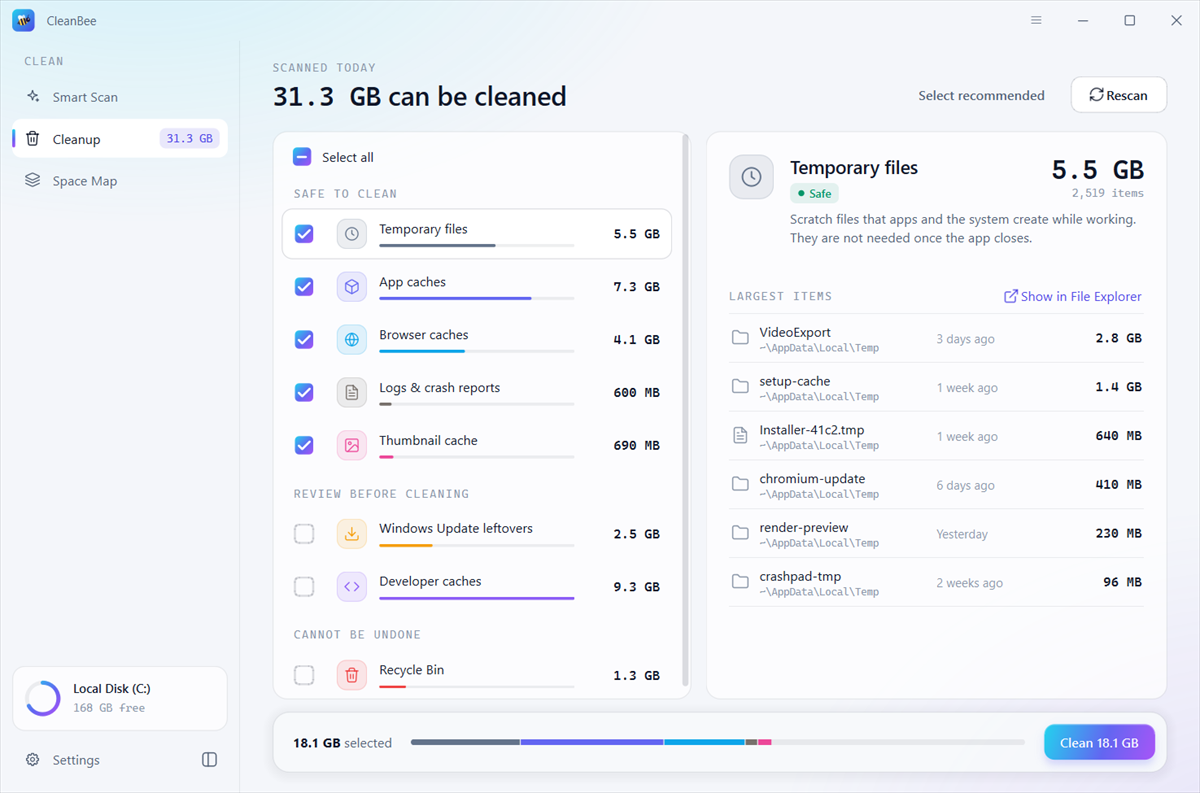
CleanBee only removes what apps and WindowsmacOS make again on their own, and always tells you what that is.
Smart Scan looks through temporary files, app and browser caches, logs and crash reports, thumbnail caches, old update files and installers, developer caches and the Recycle BinTrash, then shows how much you can get back and where it is.
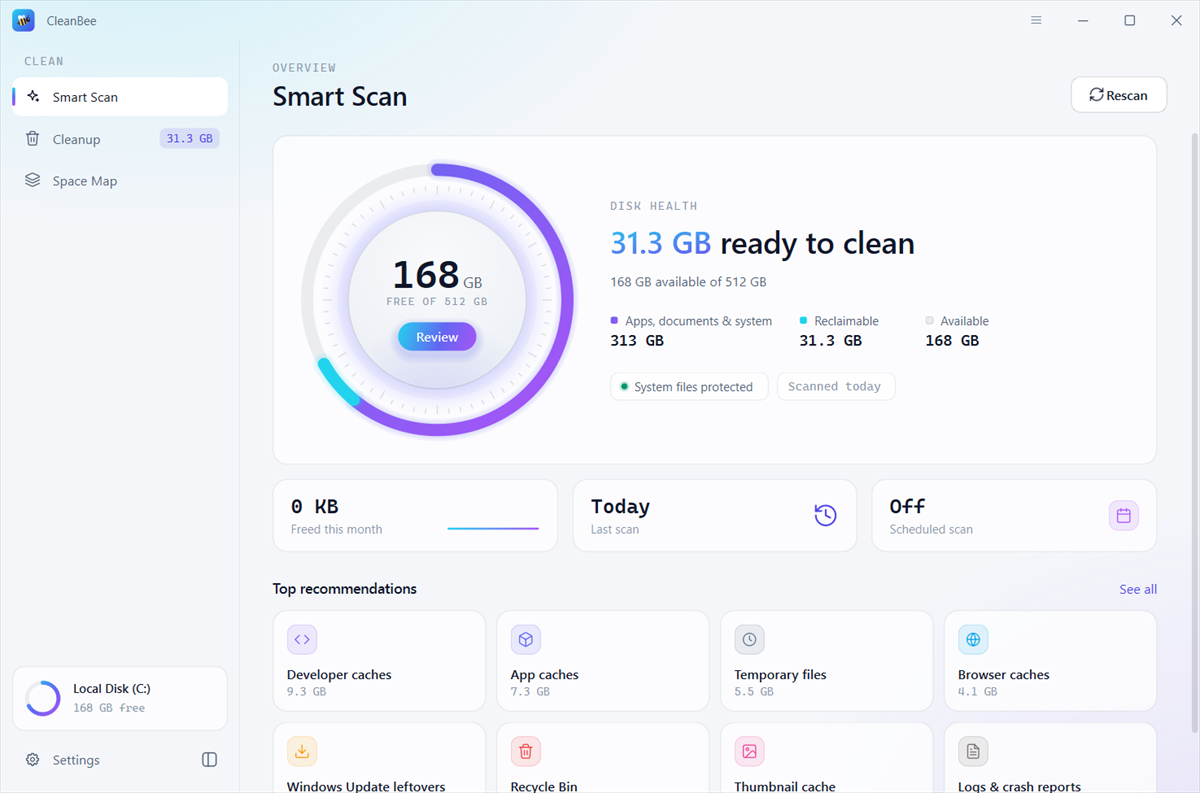
Every category says what it is and how safe it is to clean. Safe ones are picked for you; anything that needs a second look is never pre-selected. Open a category to see its biggest items, and show any of them in File ExplorerFinder.
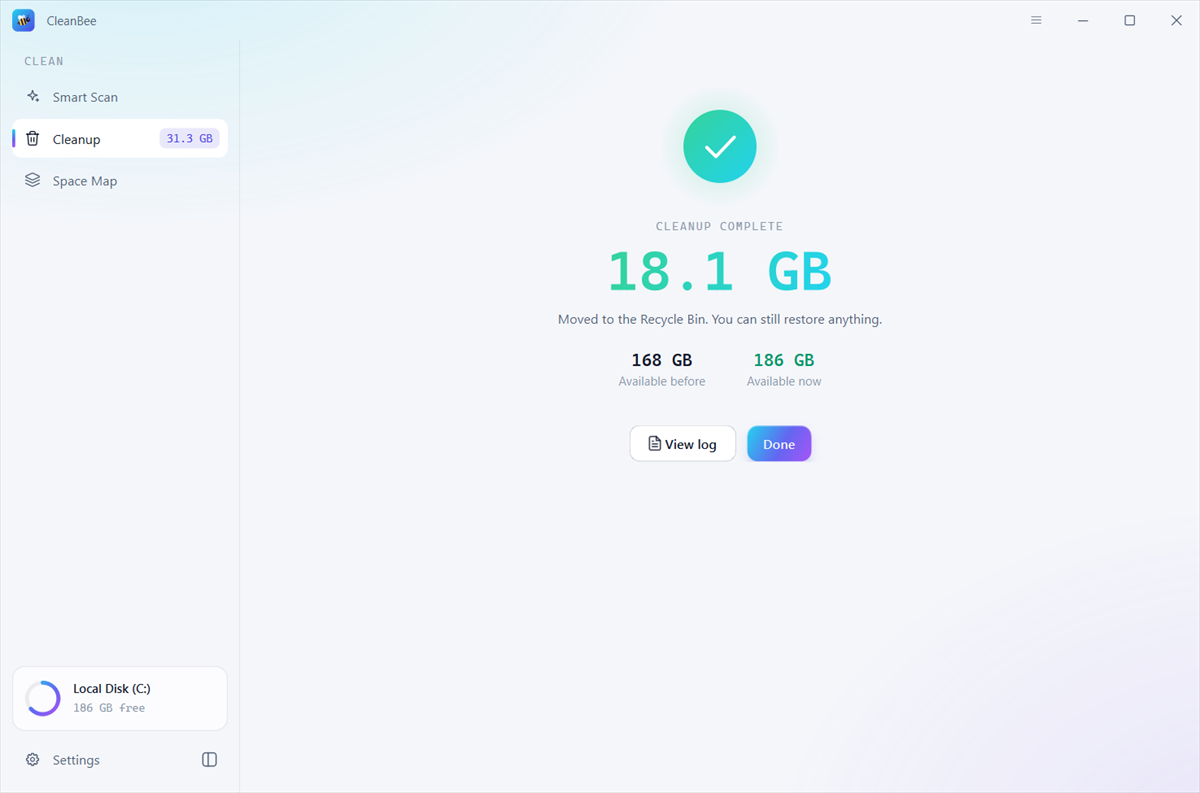
Cleaned files go to the Recycle BinTrash, so you can restore anything. System folders are never touched, caches of apps that are running and files in use are skipped, and data of password managers, security tools and VPNs is left alone. Every cleanup writes a log you can read.
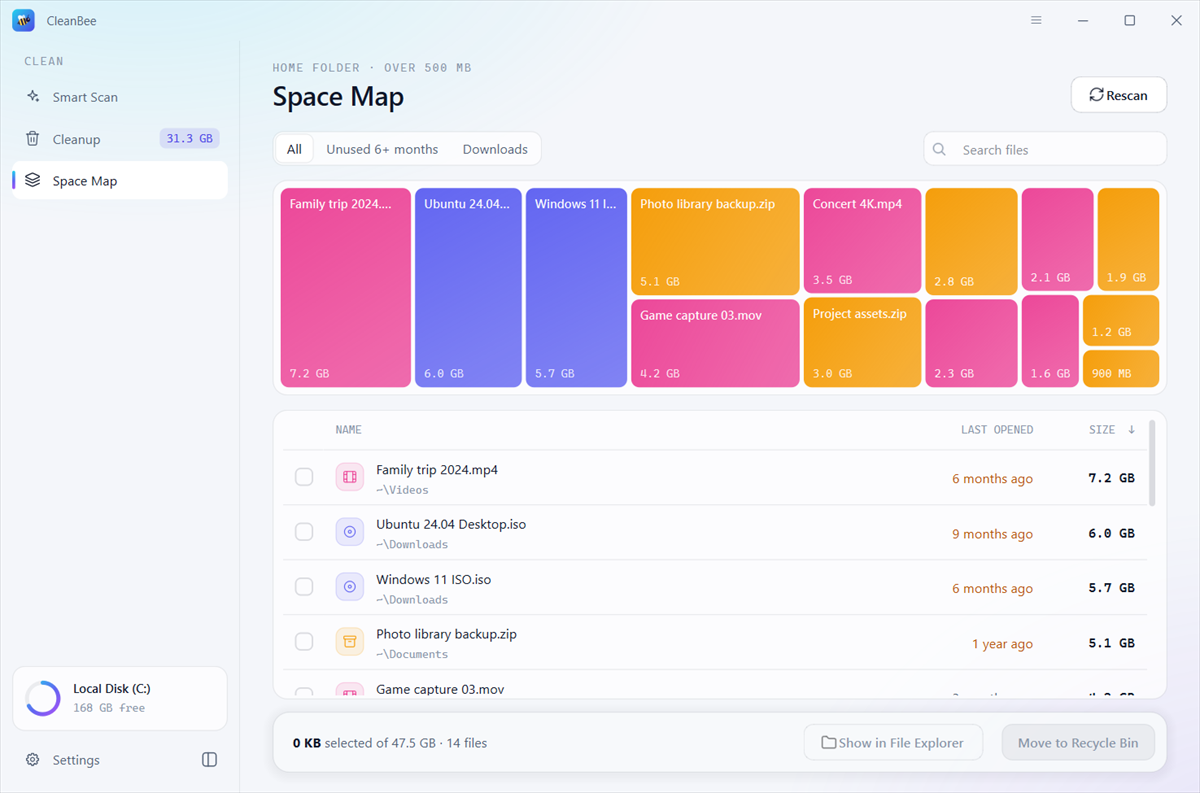
Space Map shows the largest files in your home folder at a glance: old videos, disk images, backups and downloads. Filter to files you haven’t opened in six months, then move the ones you don’t need to the Recycle BinTrash, with Undo.
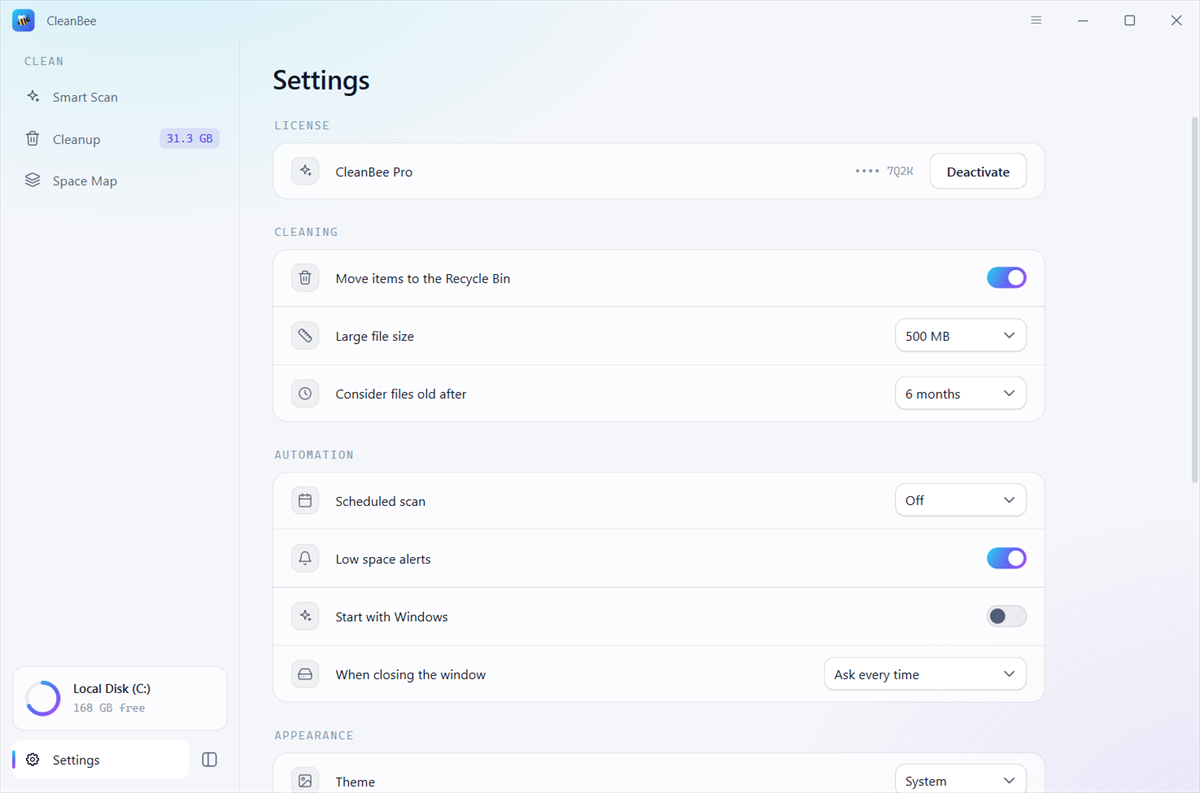
Scheduled scans and low space alerts tell you when it’s time to clean, from the system traymenu bar if you like, and CleanBee never cleans on its own. It keeps itself up to date, and speaks 10 languages.
In Storage settings, System Data is one grey bar that can grow past 100 GB, with no way to see what’s in it. CleanBee breaks it down into the parts you can act on, and the parts macOS looks after itself, so you know what to leave alone.

What CleanBee cleans goes to the Recycle BinTrash unless you choose otherwise, so a mistake is one restore away.
Smart Scan only looks at caches, temporary files and leftovers. Documents, photos and system files are never on the list.
Scheduled scans and alerts only tell you there is space to free. Nothing is removed until you click Clean.
Get gigabytes back in a couple of clicks, and see what was filling it.
See what’s inside it, and remove snapshots, old backups and Xcode leftovers you don’t need.
Windows and macOS updates need room to install. Clear old update files and caches first.
Keep a 128 or 256 GB drive breathing, on a PC or a MacBook, with alerts when space runs low.
Clear npm, pip and Gradle caches, Xcode DerivedData and simulator caches you no longer need.
Find forgotten exports, renders and recordings that take up gigabytes each.
CleanBee is free to download. The free version scans everything, shows every item and what’s in a Mac’s System Data, and cleans up to 500 MB. CleanBee Pro removes the limit, lets you move large files to the Recycle BinTrash from Space Map, and reclaims System Data on a Mac. See pricing.
System Data is what macOS counts as neither apps nor documents: Time Machine local snapshots, iPhone and iPad backups, Xcode and simulator files, caches, logs, swap and more. CleanBee measures each part. It removes Time Machine local snapshots, Xcode device support files and unavailable simulators for you, opens backups, Docker’s disk image and attachments in Finder so you can decide, and explains the parts macOS manages itself.
Yes. CleanBee only lists caches, temporary files, logs and leftovers that apps and your system make again when they need them. Cleaned items go to the Recycle BinTrash by default, system folders are never touched, and caches of apps that are running are skipped.
No. Smart Scan never lists your documents, photos or other personal files. Space Map shows your largest files so you can decide, but it only moves the ones you select, and Undo puts them back.
Yes. Everything CleanBee cleans goes to the Recycle BinTrash, so you can restore it from there. Only emptying the Recycle BinTrash itself can’t be undone, and CleanBee never selects that for you. Removing Time Machine local snapshots on a Mac can’t be undone either, and CleanBee asks first.
You get your license key by email right after buying. In CleanBee, open the menu at the top right, choose Upgrade to CleanBee Pro…, paste the key and click Activate.
Windows 11 and Windows 10 (64-bit), and macOS 12 Monterey or later.
CleanBee speaks English, 简体中文, 繁體中文, 日本語, 한국어, Español, Français, Deutsch, Português and Русский. It follows your system language, or you can choose one in Settings.
Scan your disk for free and see how much space you can get back, safely.