How to Fix Error Code 4 on YouTube?

YouTube is the go-to platform for watching videos online, offering everything from entertainment and music to tutorials and educational content. However, users occasionally run into playback issues that prevent videos from loading properly. One such issue is Error Code 4, which appears with the message “This video is unavailable. Error Code: 4.” This error can occur suddenly and may leave users wondering whether the problem is with the video itself or their device. In this guide, we’ll explain what YouTube Error Code 4 means and walk you through several effective methods to fix it.
1. What Is Error Code 4 in YouTube?
YouTube Error Code 4 is a playback error that prevents a video from loading and displays the message:
“This video is unavailable. Error Code: 4.”
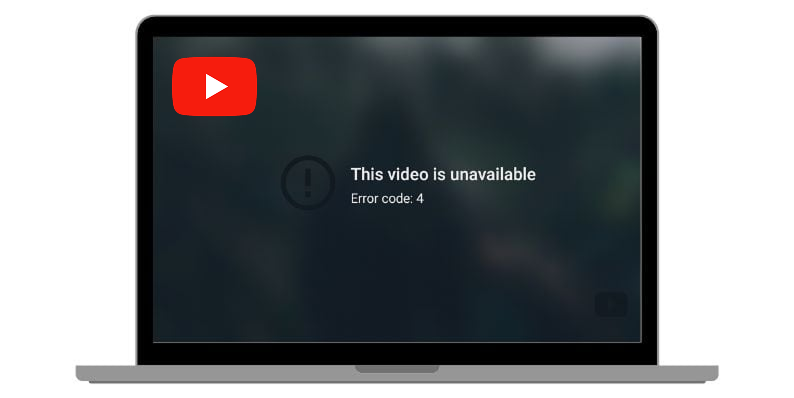
Unlike some other YouTube errors that relate to server issues, Error Code 4 usually occurs because the video player cannot properly load or communicate with the browser or network environment.
In many cases, the video itself is still available on YouTube, but something in the user’s browser or system prevents the player from displaying it.
2. Common Causes of YouTube Error Code 4
Several technical factors may trigger this error.
- Browser issues – Outdated or incompatible browsers may fail to load videos.
- Corrupted cache/cookies – Stored files can interfere with playback.
- Conflicting extensions – Ad blockers or privacy tools may block video scripts.
- Network problems – Unstable connections or incorrect DNS settings can prevent loading.
- Hardware acceleration – Can sometimes cause rendering conflicts.
- Regional restrictions or removed videos – Some content may be unavailable in your area or deleted by the uploader.
Understanding these causes can help you choose the right solution to fix the problem.
3. How to Fix Error Code 4 on YouTube?
Below are several effective methods you can try to resolve the issue.
3.1 Refresh the Page or Restart the Browser
Sometimes the error occurs due to temporary loading glitches.
Try these quick fixes first:
- Refresh the YouTube page
- Close and reopen the browser
- Restart your computer
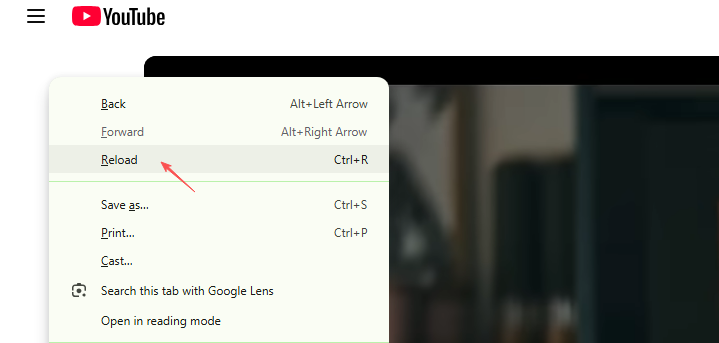
If the issue was temporary, this may resolve it immediately.
3.2 Update Your Browser
An outdated browser may not fully support YouTube’s current video playback system.
Steps to update Chrome:
Open Chrome and click the three-dot menu in the top-right corner → Select Help → About Google Chrome → Chrome will automatically check for updates → Restart the browser after updating.
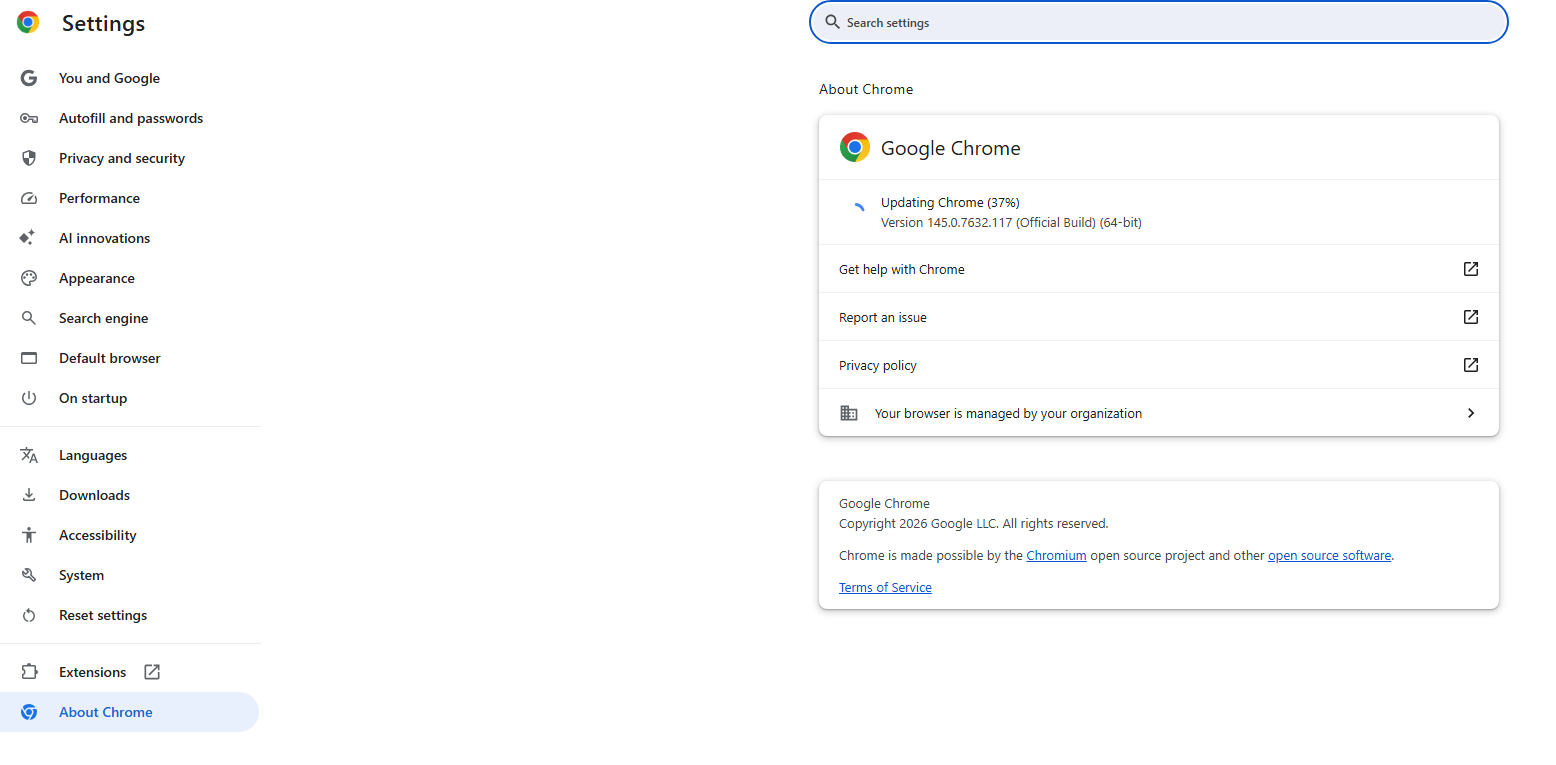
Keeping your browser updated ensures compatibility with YouTube’s latest features.
3.3 Clear Browser Cache and Cookies
Corrupted cache files are one of the most common causes of playback errors.
Steps:
Open Browser Settings → Go to Privacy and Security → Click Clear browsing data → Select Cookies and other site data and Cached images and files → Click Clear data.
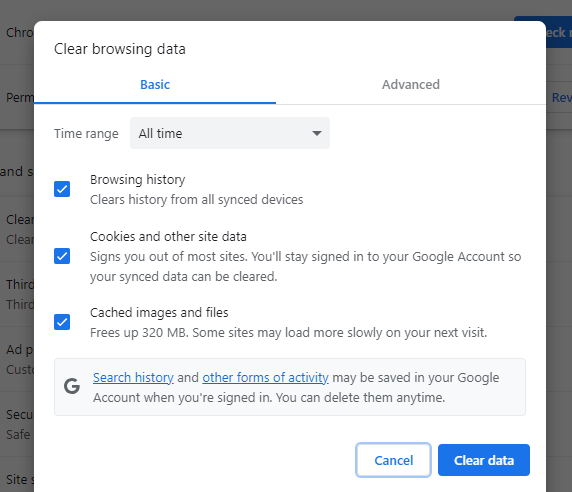
After clearing the cache, restart your browser and try playing the video again.
3.4 Disable Browser Extensions
Some extensions may block scripts required for YouTube videos.
To test this:
- Open the Extensions page in your browser, then disable all extensions temporarily.
- Restart the browser and try playing the YouTube video again.
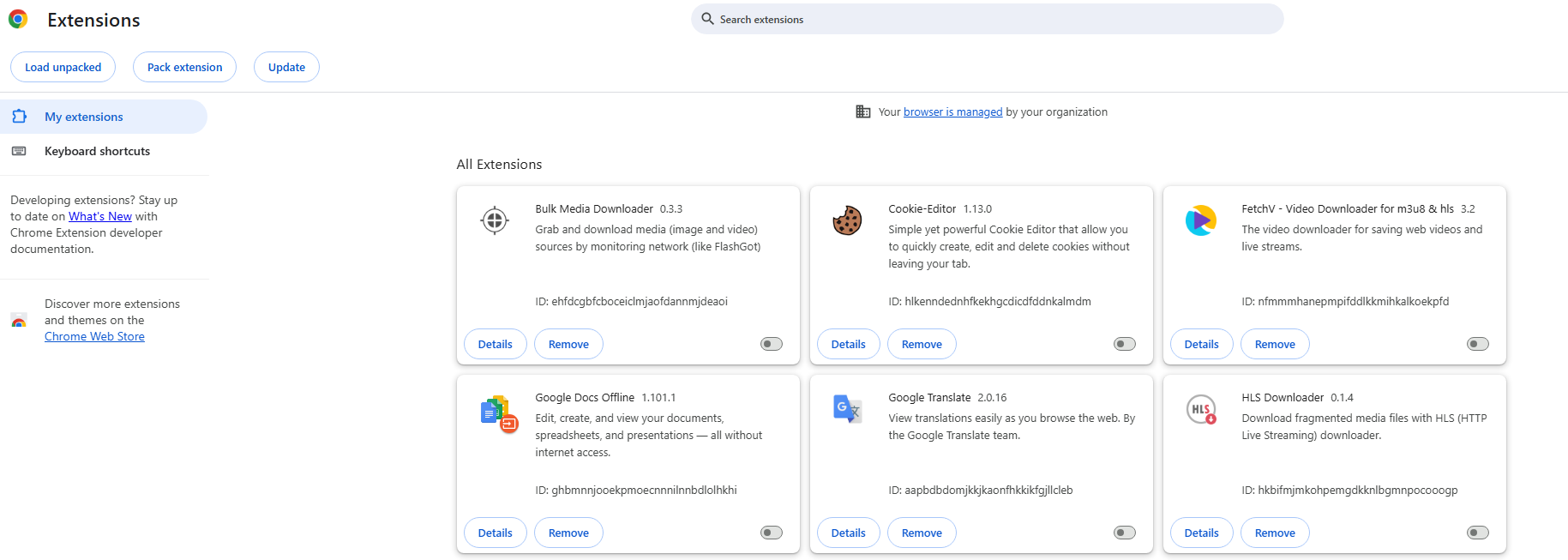
If the video works, re-enable extensions one by one to identify the extension causing the issue.
3.5 Disable Hardware Acceleration
Hardware acceleration can sometimes cause conflicts with video playback.
Steps in Chrome:
Open Settings → Scroll down and click System → Turn off Use hardware acceleration when available → Restart the browser.
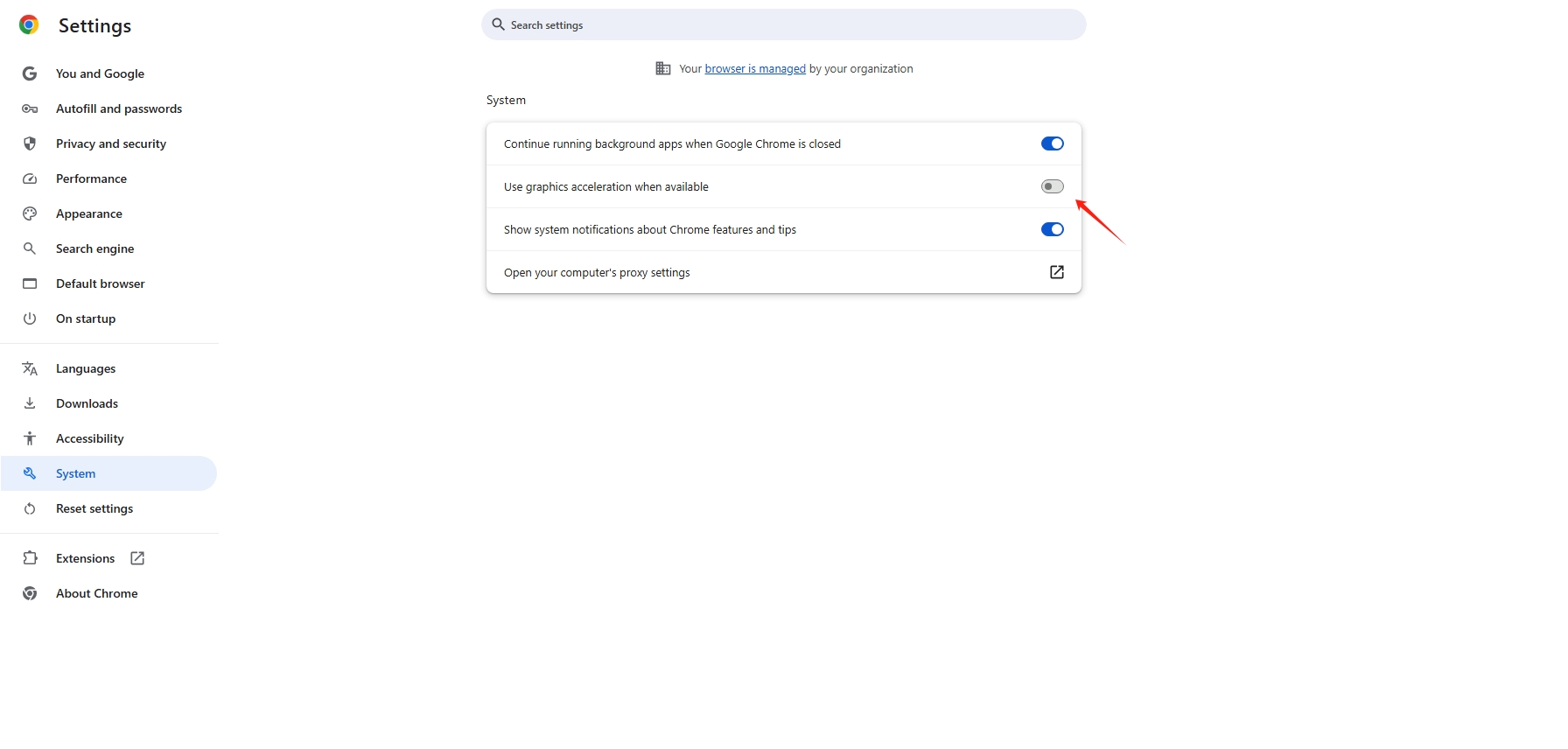
This can help resolve video rendering problems.
6. Change DNS Settings
Network configuration issues can sometimes trigger playback errors.
Switching to a public DNS service may improve connectivity.
Steps:
Open Network Settings → Click Change adapter options → Right-click your active network connection → Select Properties → Choose Internet Protocol Version 4 (IPv4) → Enter the following DNS addresses:
Primary DNS: 8.8.8.8
Secondary DNS: 8.8.4.4
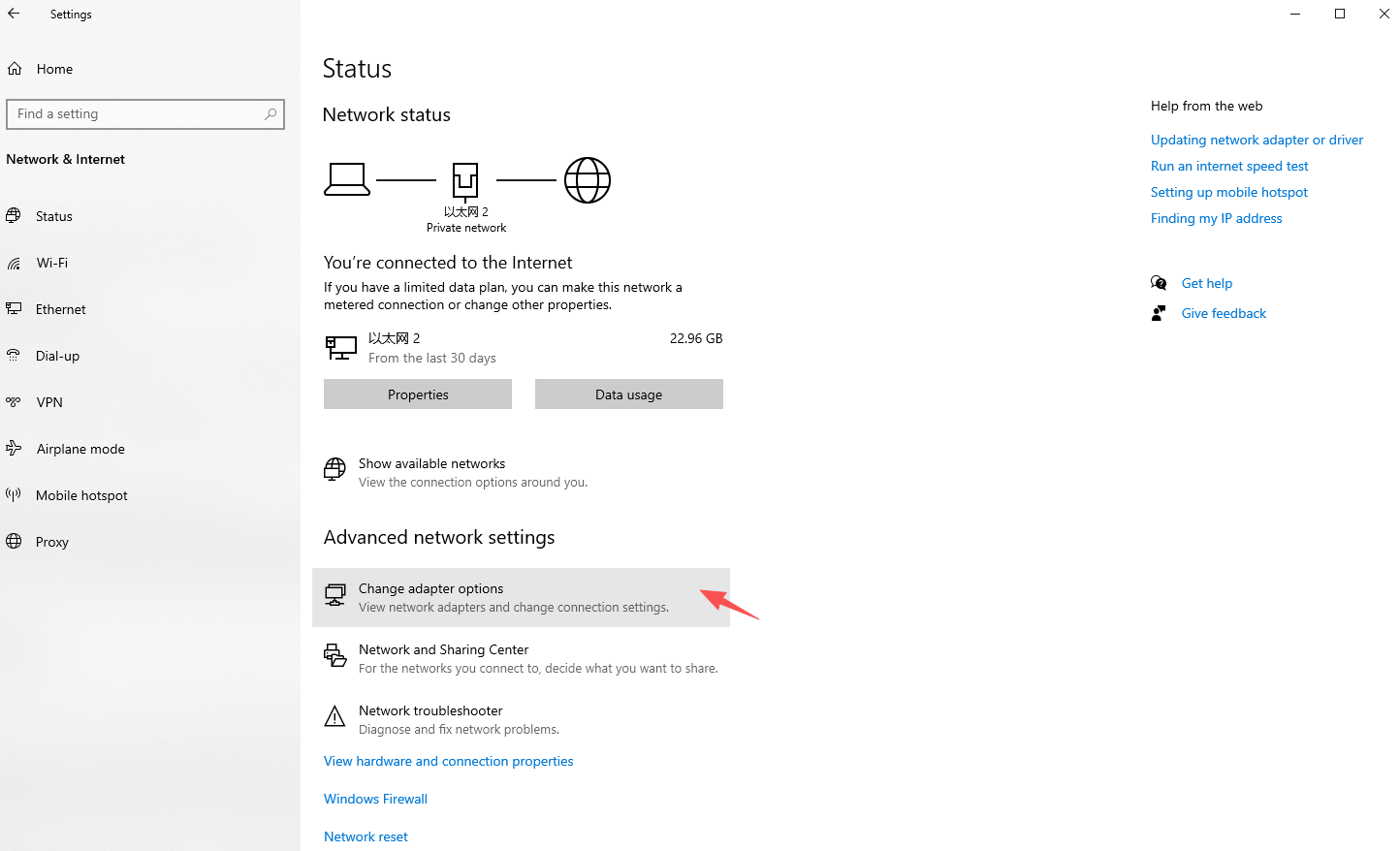
Restart your internet connection and test YouTube again.
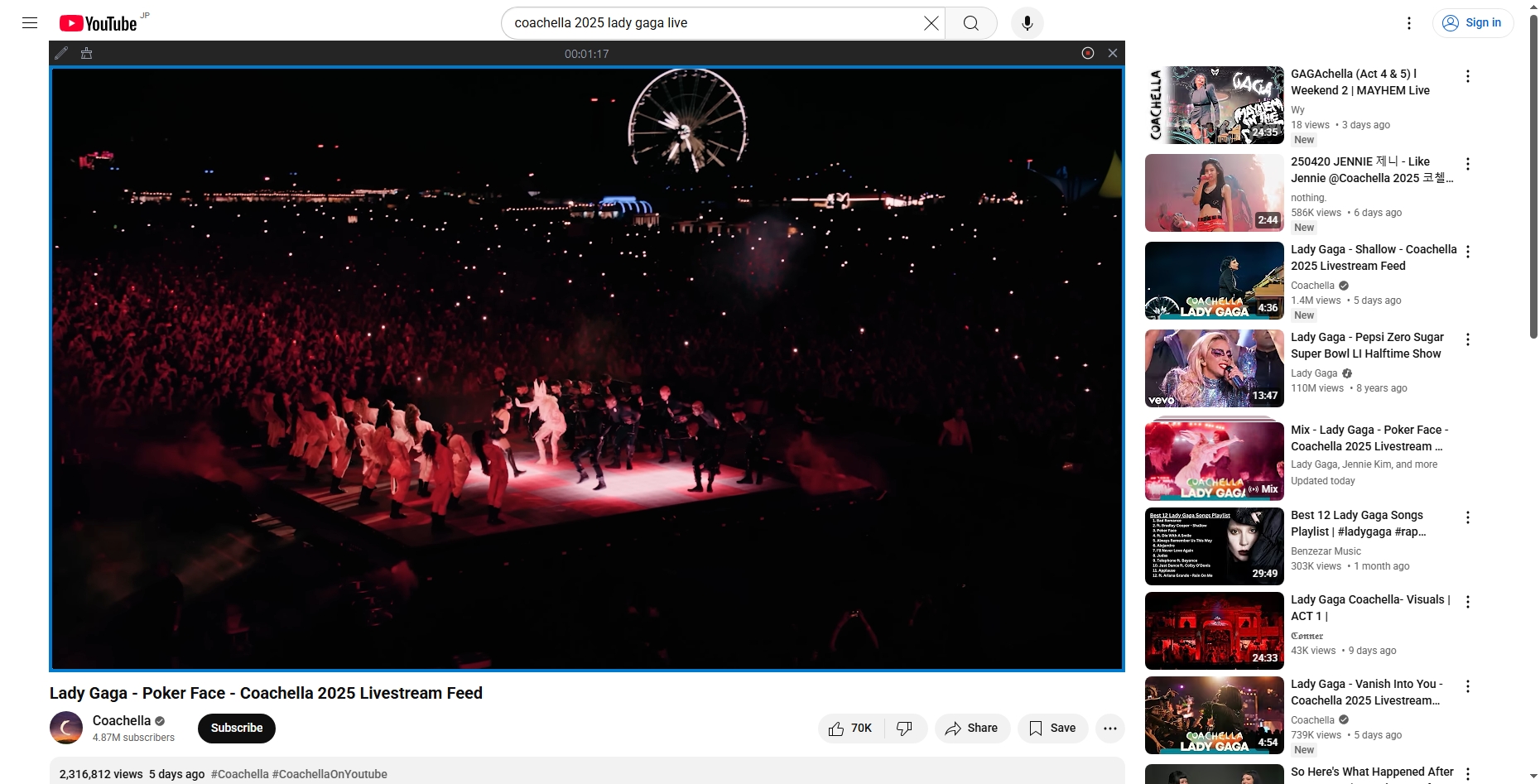
4. Bonus: Record YouTube Videos with Swyshare Recordit
Even after troubleshooting, there may still be situations where YouTube videos fail to load due to temporary platform issues or regional restrictions. In such cases, recording the video while it plays can be a practical solution.
Swyshare Recordit is a powerful screen recording tool that allows users to capture videos directly from their computer screen, including YouTube content.
Key Features of Swyshare Recordit:
- Flexible screen capture: full screen, individual windows, or custom-defined areas.
- Capture internal sound, microphone input, or both simultaneously.
- Add webcam overlay for tutorials, presentations, or reactions.
- Capture HD / 4K high-quality videos with clear visuals.
- Take high-resolution screenshots during or outside recordings.
- Resize canvas, adjust resolution, and add backgrounds or watermarks.
- Highlight clicks and draw on screen during recording.
- Save recordings in formats like MP4, GIF, MP3, and more.
How to Record YouTube Videos with Recordit:
- Download and install Swyshare Recordit on your computer (Windows pr Mac).
- Open the program and choose whether to record the entire screen or a custom area.
- Turn on system audio so the video sound is captured clearly.
- Start the video on YouTube, then click “Start Recording” to capture it.
- Once the video finishes, stop recording and find the recorder YouTube videos under the “Files” tab.
5. Conclusion
YouTube Error Code 4, which displays the message “This video is unavailable. Error Code: 4,” can interrupt your viewing experience, but it is usually easy to fix.
By refreshing the page, updating your browser, clearing cache and cookies, disabling extensions, adjusting hardware acceleration, and modifying DNS settings, most users can resolve the error quickly and continue watching videos without interruption.
If playback issues persist or you want a convenient way to capture YouTube videos for offline access, Swyshare Recordit offers a reliable solution. With its high-quality recording, flexible capture options, and easy-to-use interface, Recordit makes it simple to record YouTube videos whenever needed. For users looking for a practical way to save online videos and avoid playback disruptions, Swyshare Recordit is a highly recommended tool.