How to Fix YouTube Black Screen?

Opening a video on YouTube only to see a black screen can be incredibly frustrating. The page loads, the title appears, and sometimes you can even hear audio — but the video itself refuses to display. Whether you’re trying to watch a tutorial, stream music, attend an online lecture, or follow a live event, a black screen completely disrupts the experience.
A YouTube black screen can happen on Windows, Mac, Android, or iPhone, and it may appear in browsers like Chrome, Edge, or Firefox. The issue is usually caused by browser conflicts, outdated software, graphics problems, internet instability, or extension interference — not necessarily by YouTube itself.
The good news is that this problem is almost always fixable. In this guide, we’ll explain why your YouTube screen turns black, walk you through step-by-step solutions to restore normal playback, and share a bonus tip to avoid playback interruptions in the future.
1. Why Is My YouTube Screen Black?
A YouTube black screen usually means the video is not rendering properly. The page loads, the video title appears, and sometimes even the audio plays — but the screen stays black.
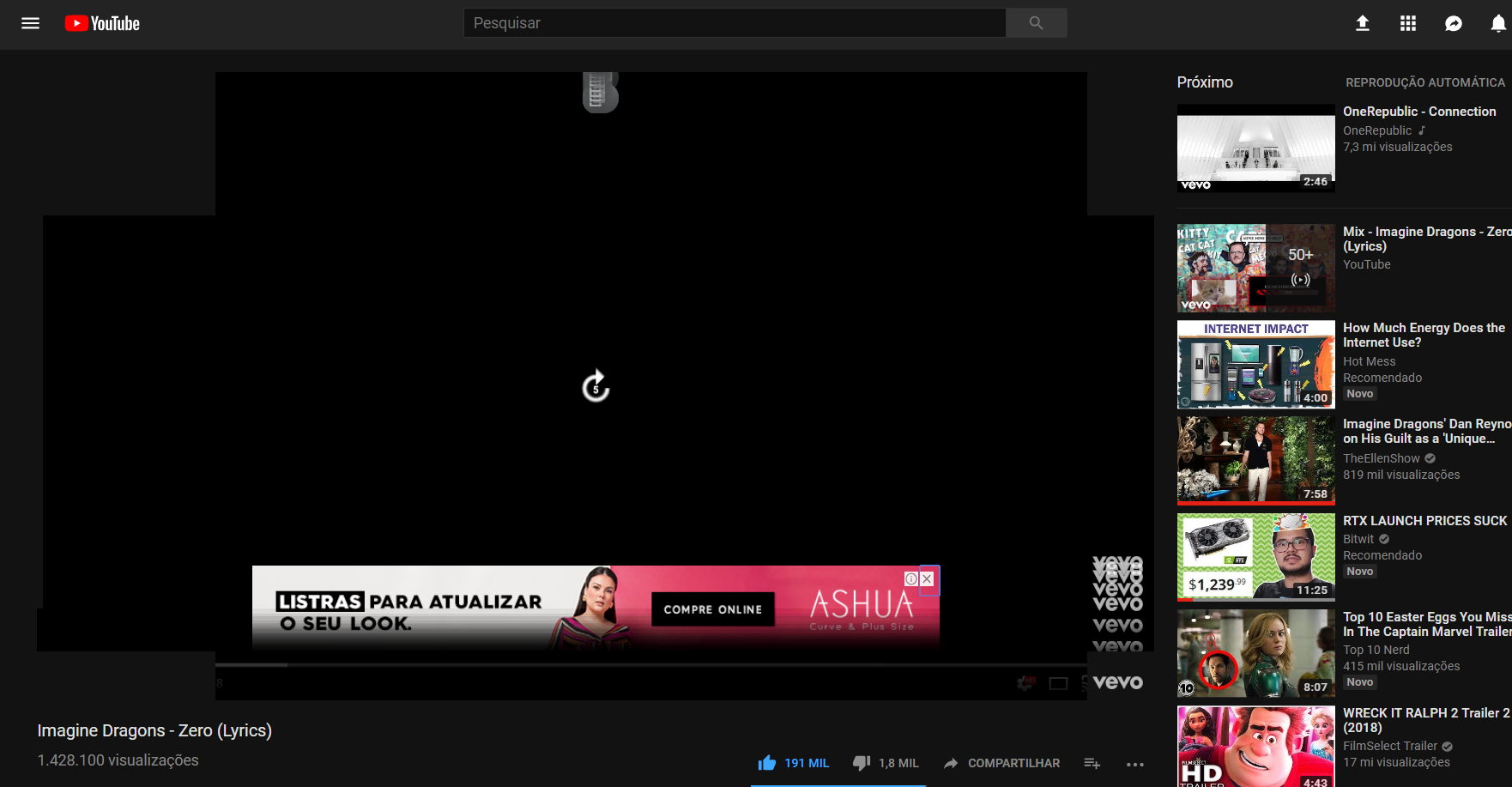
Here are the most common causes:
- Browser Cache and Cookies Problems
Overloaded or corrupted browser cache files can prevent YouTube’s video player from loading properly.
- Ad Blockers or Browser Extensions
Some extensions (especially ad blockers or privacy tools) interfere with YouTube’s scripts and cause playback issues.
- Hardware Acceleration Conflicts
Hardware acceleration helps browsers use your GPU for better performance. However, sometimes it causes rendering conflicts, leading to a black screen.
- Outdated Browser
If your browser version is outdated, it may not support the latest YouTube player updates.
- Graphics Driver Issues
Old or corrupted graphics drivers can prevent videos from rendering properly.
- Internet Connection Issues
A weak or unstable connection may cause the player to load incompletely.
- YouTube Server Glitch
Occasionally, the issue may be temporary and related to YouTube’s own servers.
Now that you know the causes, let’s fix it.
2. How to Fix YouTube Black Screen?
Follow these solutions in order. Most users solve the problem within the first few steps.
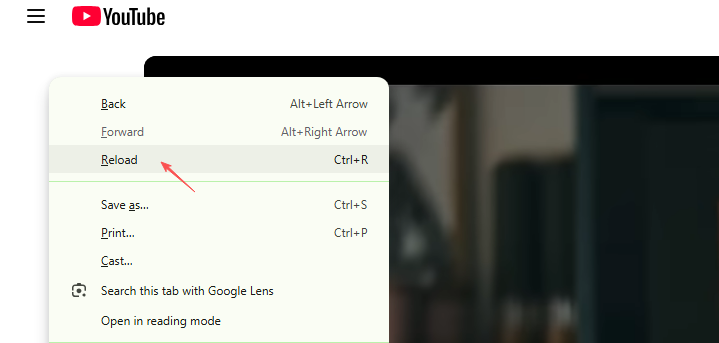
2.1 Refresh the Page
This sounds simple, but it works surprisingly often.
- Press F5 or Ctrl + R
- Or click the refresh button in your browser
If it’s a temporary loading issue, this may fix it instantly.
2.2 Clear Browser Cache and Cookies
Damaged or outdated cache files are among the most common reasons this issue occurs.
In Google Chrome:
- Click the three-dot menu → Go to Settings → Privacy and Security → Click Clear browsing data
- Check “Cookies and other site data” and “Cached images and files”, then click “Clear data.”
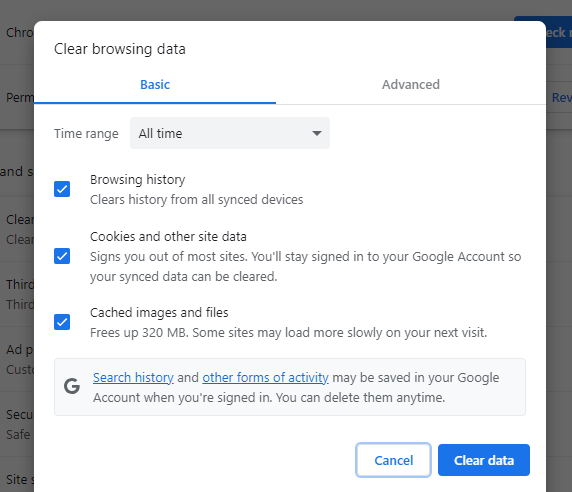
Restart your browser and try YouTube again.
2.3 Disable Browser Extensions
Ad blockers and script blockers frequently cause YouTube black screens.
Open your browser extensions page → Disable all extensions temporarily → Restart your browser and test YouTube.
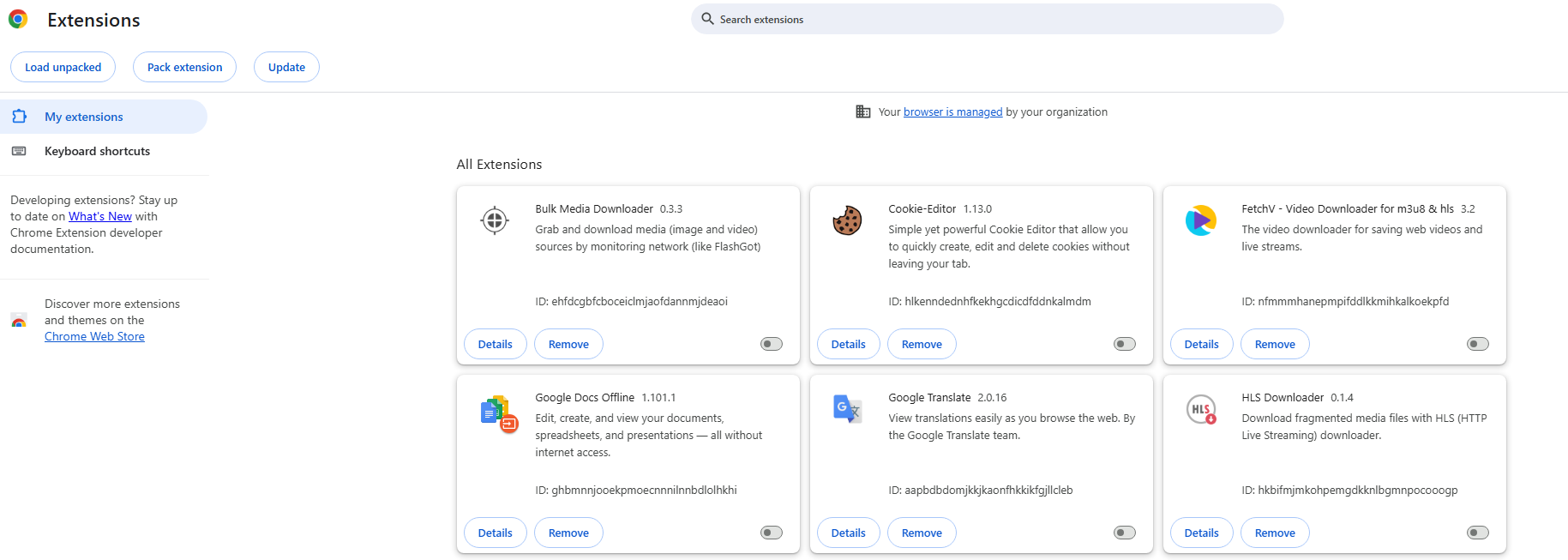
If YouTube starts working again, turn your extensions back on one at a time to pinpoint which one is causing the issue.
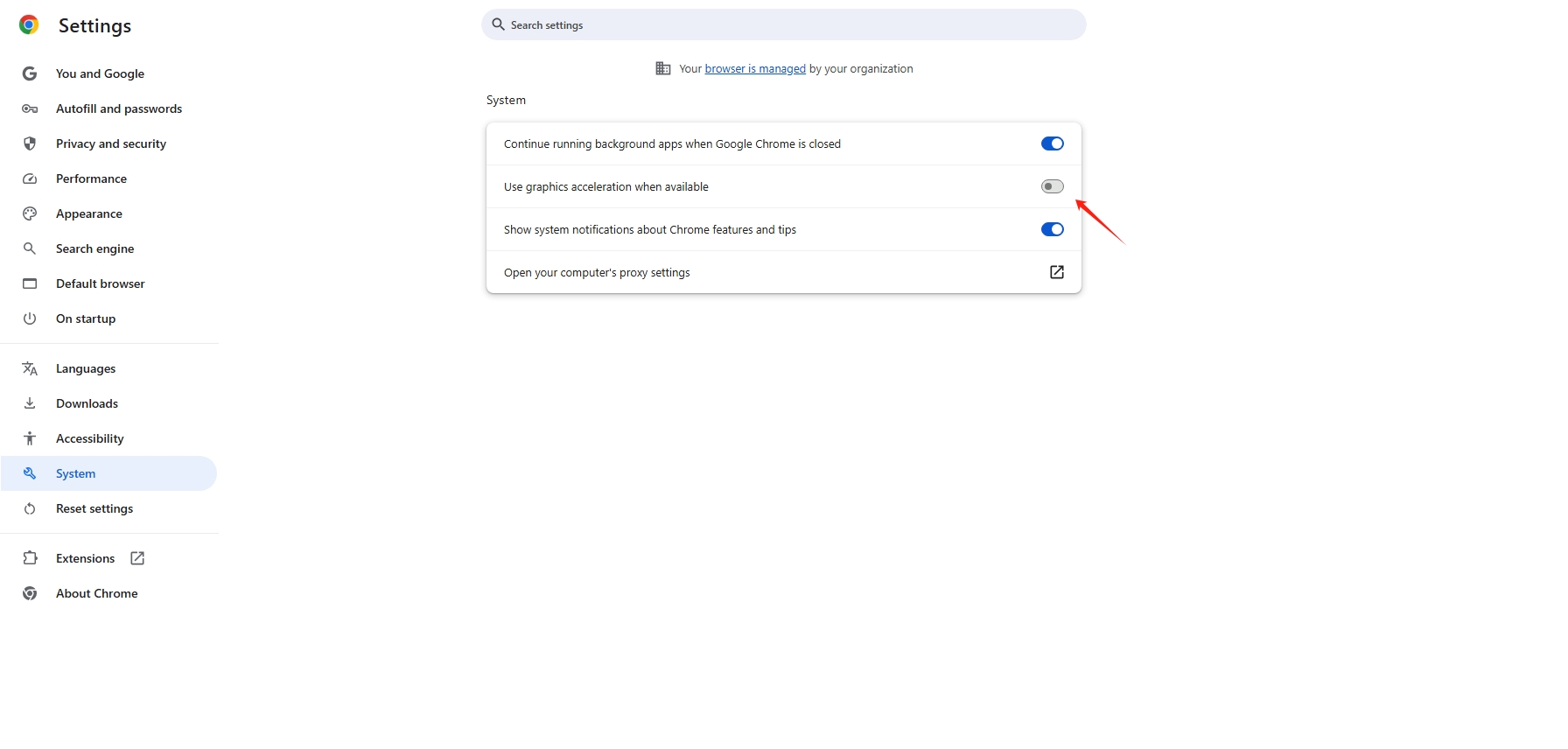
2.4 Turn Off Hardware Acceleration
Hardware acceleration sometimes causes video rendering issues.
In Chrome:
Go to Settings → Click System → Toggle off Use graphics acceleration when available → Restart the browser and check if the problem is resolved.
2.5 Update Your Browser
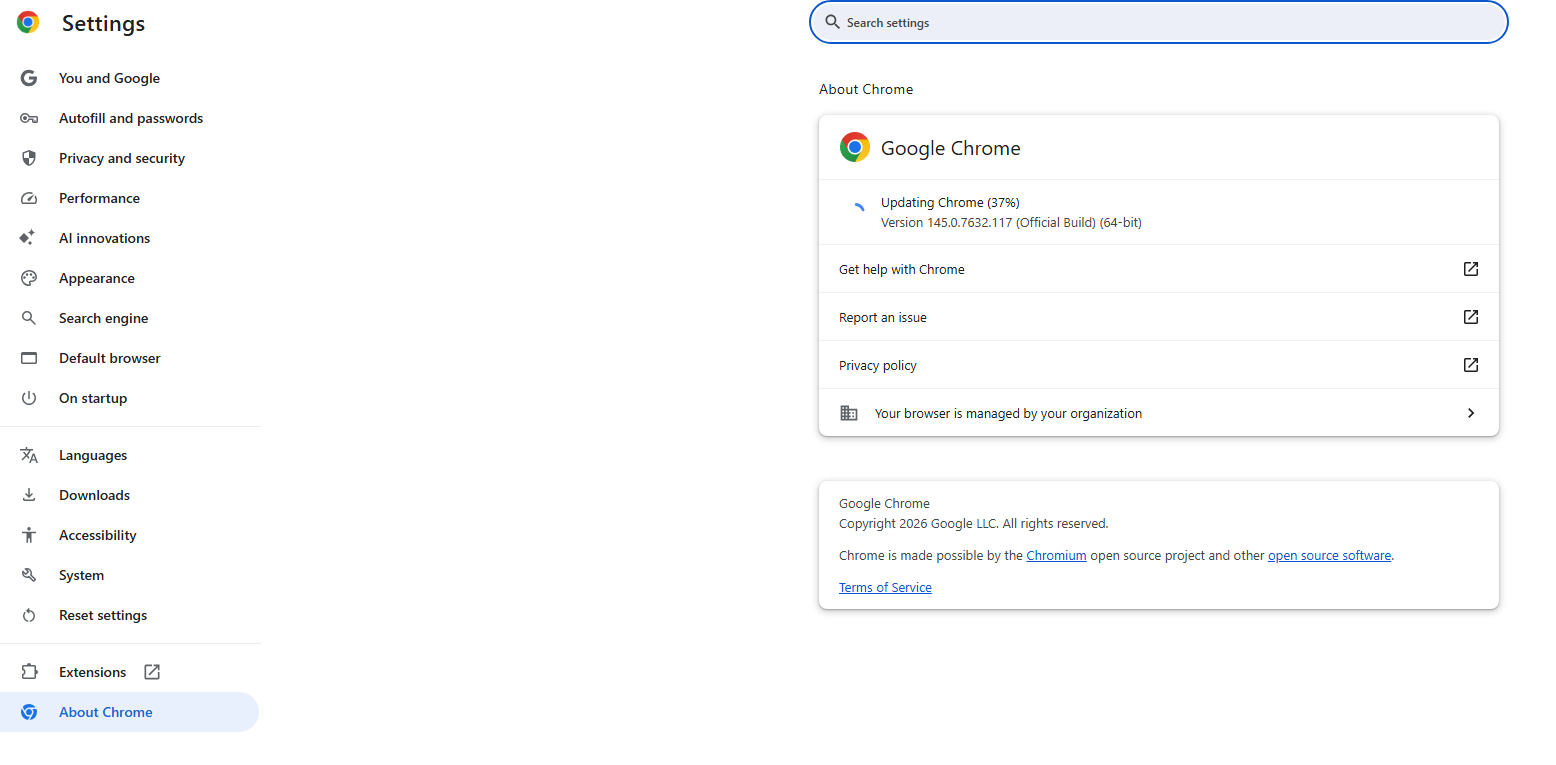
An outdated browser may not support YouTube’s video player.
In Chrome:
Click the three dots → Go to Help → About Google Chrome → Update if available → Restart and test again.
2.6 Try Incognito Mode
Open a private browsing window:
- Press Ctrl + Shift + N (Chrome)
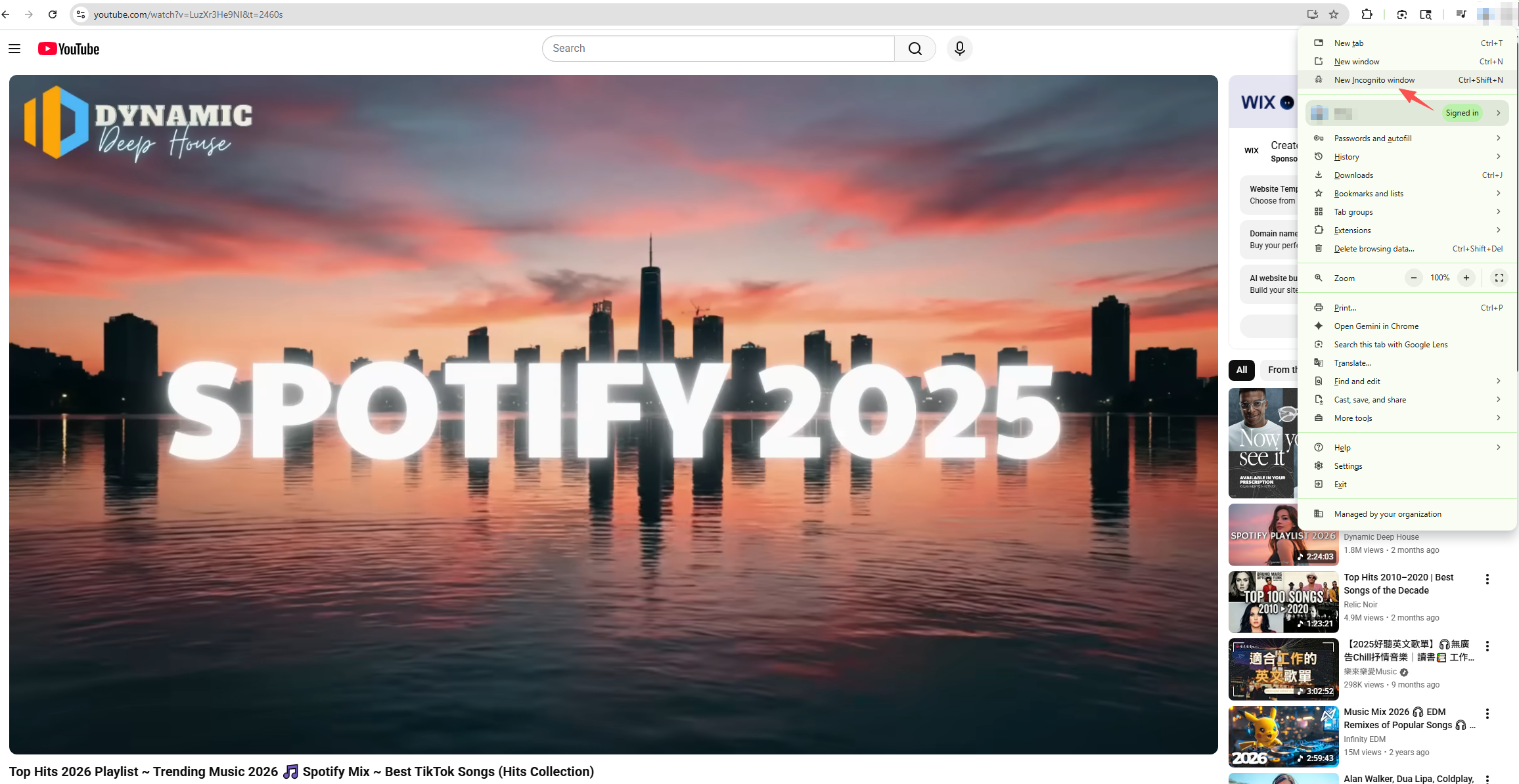
If YouTube works in incognito mode, the issue is likely related to extensions or cookies.
2.7 Update Graphics Drivers
If your screen stays black even though audio plays, your GPU driver might be outdated.
- Open Device Manager
- Expand Display adapters
- Right-click your graphics card
- Select Update driver
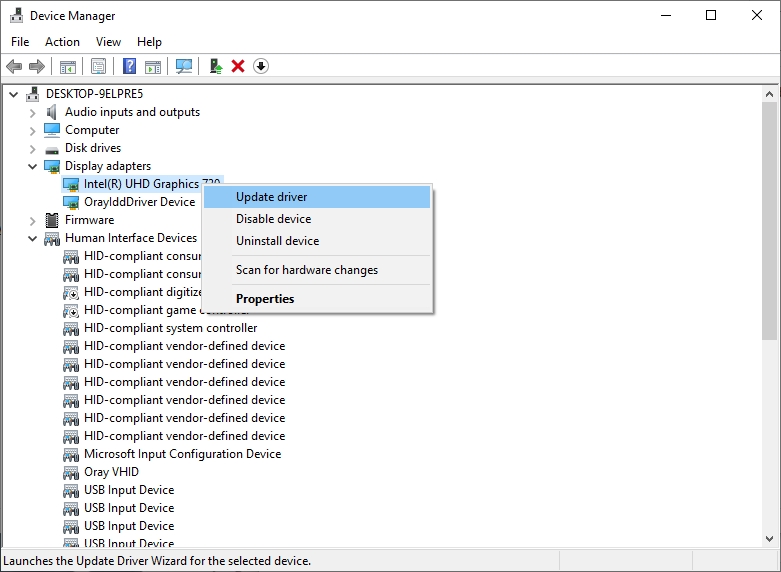
Restart your computer afterward.
2.8 Check Internet Connection
Try:
- Restarting your router
- Switching networks
- Testing other streaming sites
If other videos also fail to load, your connection may be unstable.
2.9 Disable VPN or Proxy
Some VPNs interfere with video streaming.
Temporarily disable your VPN and reload YouTube.
3. Bonus: Record YouTube Smoothly with Swyshare Recordit
If YouTube black screen issues happen frequently – or you want to save videos for offline use – recording can be a smart alternative.
Swyshare Recordit is a powerful screen recording tool that allows you to capture high-quality video and audio directly from your screen. Instead of relying on YouTube playback stability, you can record the video once and watch it offline anytime — without buffering or black screen problems.
Here are some key benefits of Recordit:
- Record YouTube videos in full HD or higher quality
- Capture system audio, microphone and webcam
- Record full screen or custom area
- Save videos in MP4 or other formats
- Schedule recording at specific start and end time
- Edit and export video after recording
How to Record YouTube with Swyshare Recordit:
- Download and install the software on your PC or Mac.
- Launch your browser and open the YouTube video you want to record.
- Use Recordit to set recording area, enable system audio and then start recording.
- When finished, stop the process and save your recording in your preferred format.
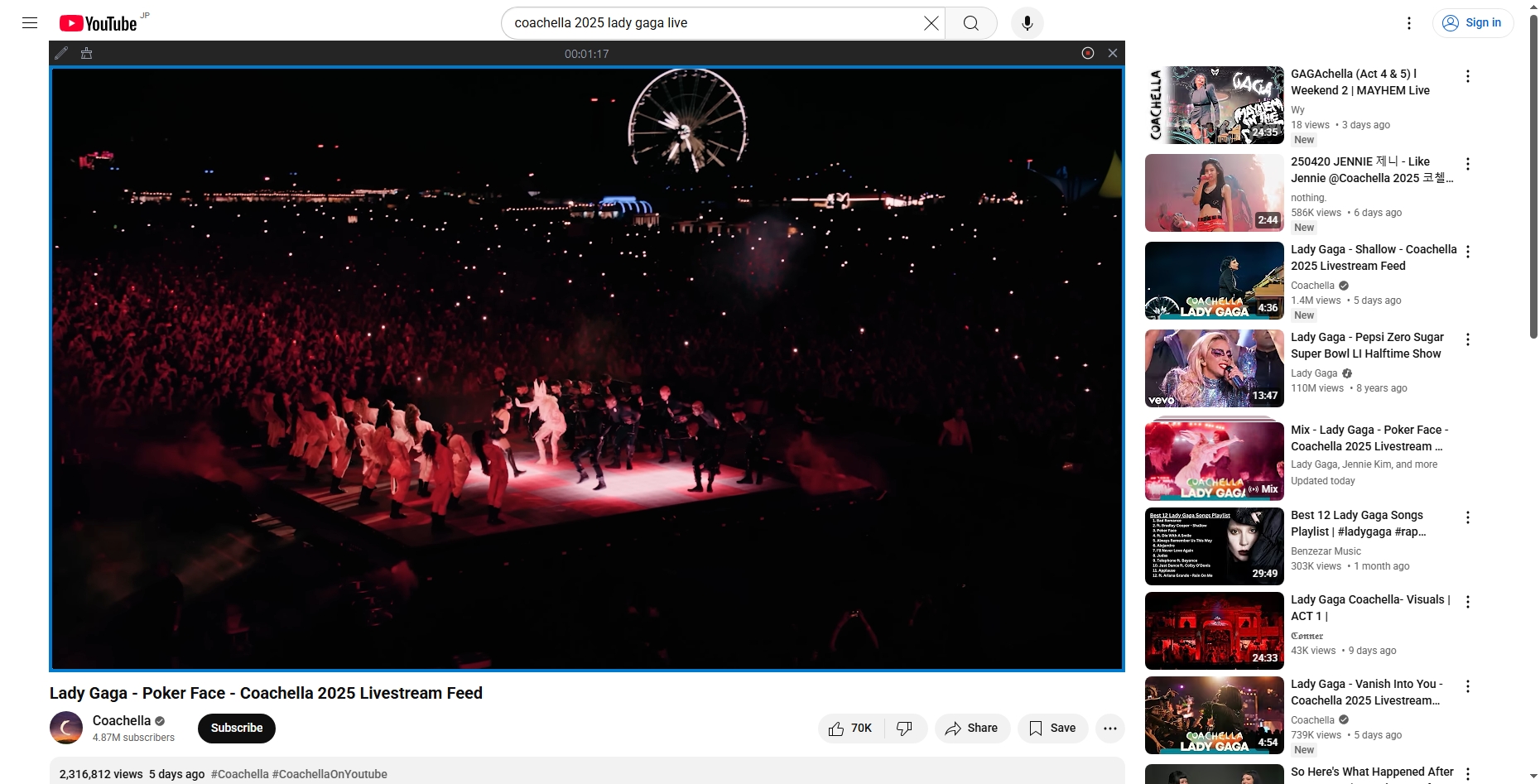
Now you can watch the video offline anytime — no black screens, no buffering.
4. Conclusion
A YouTube black screen can be annoying, but it’s usually easy to fix. By following the troubleshooting steps above, you should be able to restore normal playback quickly.
However, if you want a more stable and long-term solution – especially for important videos – recording them directly is a smart choice.
Swyshare Recordit stands out as a reliable, easy-to-use screen recorder that helps you capture YouTube videos smoothly in high quality. Instead of worrying about playback errors, buffering, or black screen issues, you can record once and enjoy unlimited offline viewing.
If you’re looking for a practical way to prevent YouTube black screen problems in the future, Swyshare Recordit is highly recommended.