How to Record a Video Chat on WhatsApp?

WhatsApp video calls have become one of the most popular ways to stay connected with friends, family, and colleagues around the world. From personal conversations and long-distance family chats to business meetings and interviews, WhatsApp video calls play an important role in everyday communication. In some situations, you may want to record a WhatsApp video chat—for example, to save important information, preserve special memories, review meeting discussions, or create tutorials.
However, WhatsApp does not provide a built-in recording feature for video calls. This means users must rely on native screen recording tools or third-party screen recorders, depending on their device. In this guide, we’ll walk you through how to record WhatsApp video calls on mobile devices, Mac, and Windows, covering both built-in solutions and advanced third-party tools.
1. Record WhatsApp Video Calls on Mobile Devices
Recording WhatsApp video calls on mobile is relatively straightforward, as both Android and iOS devices come with built-in screen recording features. However, audio recording behavior may vary depending on system restrictions.
Recording WhatsApp Video Calls on iPhone
Most modern iPhones (iOS 11 and later) include a built-in Screen Recording feature.
Steps:
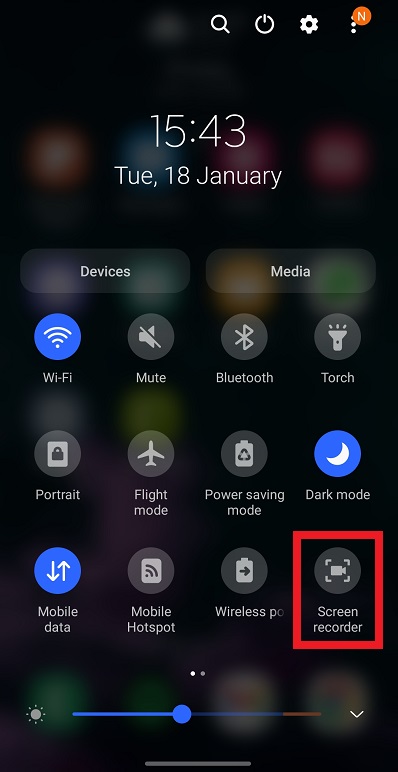
- Go to Settings > Control Center and add Screen Recording if it’s not already enabled.
- Open WhatsApp and start or answer a video call.
- Swipe down to open the Control Center > Tap the Screen Recording icon.
- After the call ends, stop the recording from the Control Center.
Notes:
- iOS may not record the other party’s audio due to privacy restrictions.
- For best results, use speaker mode and ensure microphone access is enabled.
Recording WhatsApp Video Calls on Android
Most Android devices (Android 10 and later) also include a native screen recorder.
Steps:
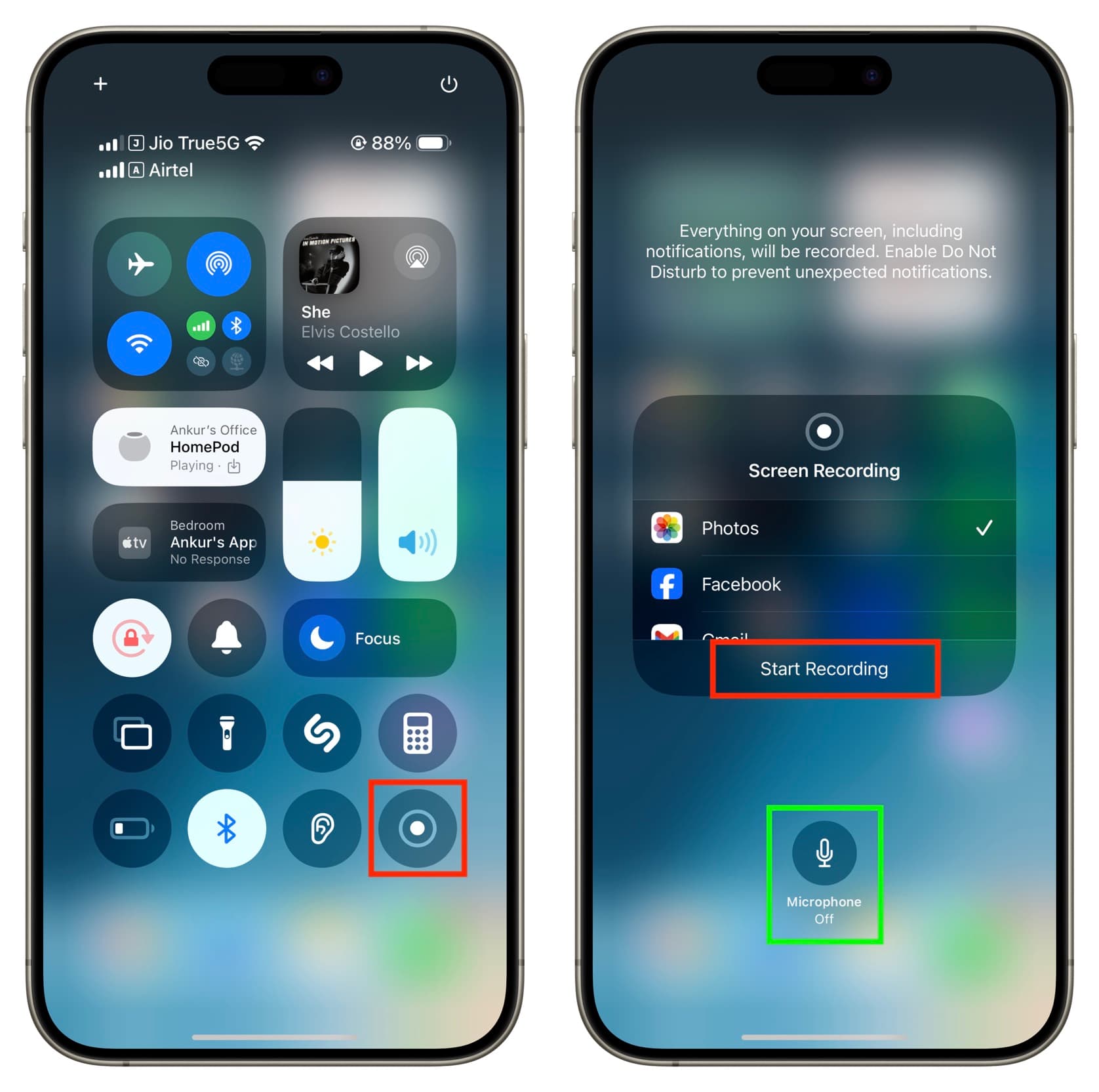
- Swipe down to open Quick Settings > Tap Screen Recorder to start recording.
- Start your WhatsApp video call, and stop recording when the call ends.
Notes:
- Audio capture options differ by manufacturer.
- Some Android phones allow recording system sound and microphone audio simultaneously.
While mobile recording is convenient, it often lacks advanced controls, stable audio capture, and high-quality output—especially for longer calls.
2. Record WhatsApp Video Calls on Mac
Mac users typically rely on either built-in tools or third-party software to record WhatsApp video calls made via WhatsApp Web or the WhatsApp desktop app.
2.1 Recording WhatsApp Video Calls Using QuickTime Player
QuickTime Player is a free, built-in macOS tool that can record your screen easily.
Steps:
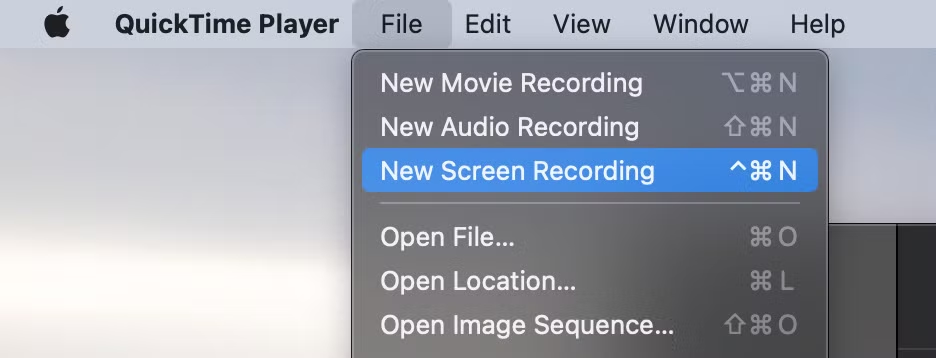
- Open QuickTime Player > Click File > New Screen Recording > Select microphone input for audio.
- Start a WhatsApp video call on WhatsApp Web or the desktop app.
- Click Record and select the screen area, stop recording when finished.
Pros:
- Free and built-in
- Simple to use
Cons:
- Limited audio recording options
- No advanced editing or annotation tools
2. Recording WhatsApp Video Calls Using Third-Party Screen Recorders
OBS Studio is a popular free third-party screen recorder for macOS.
Steps:
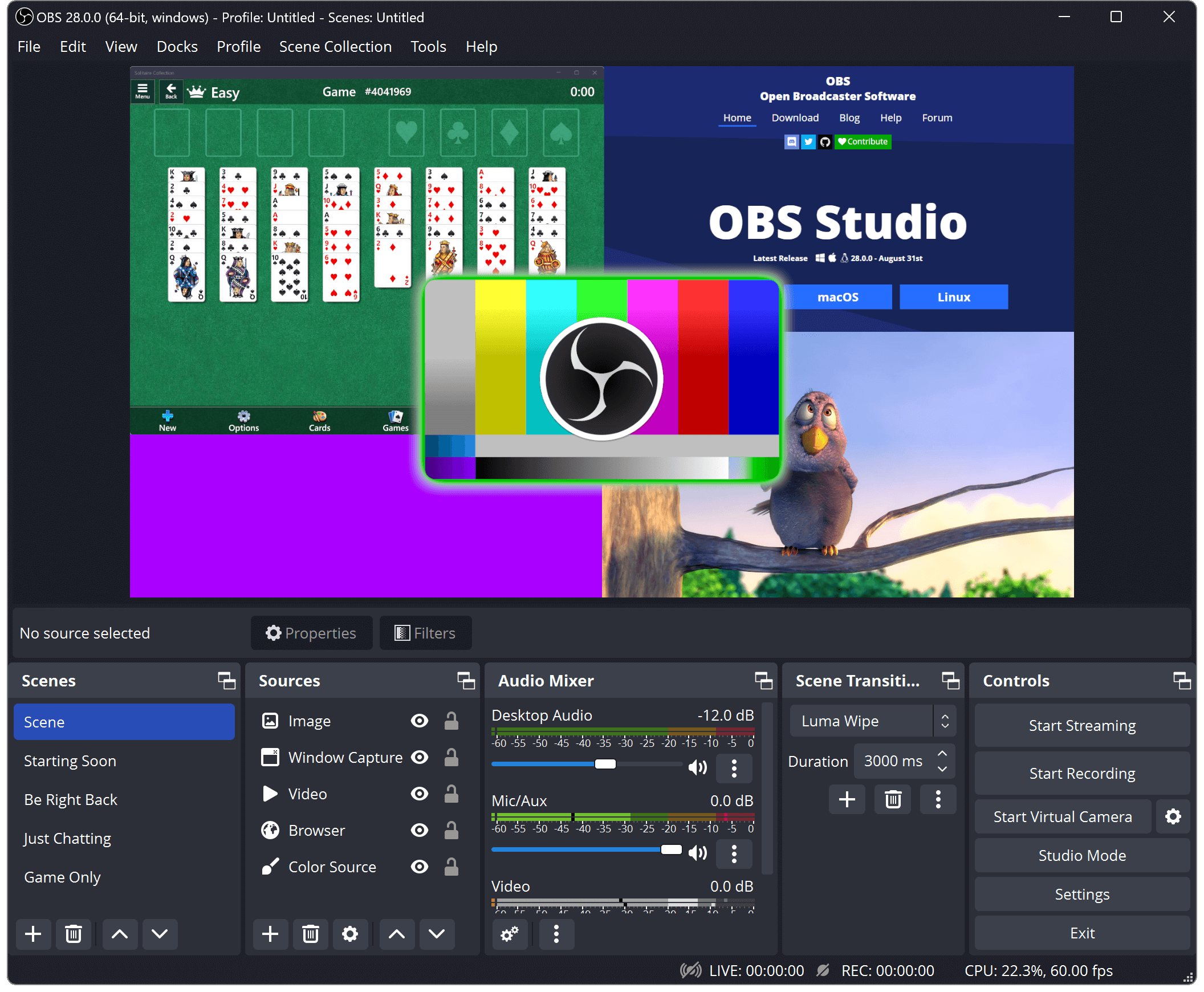
- Download and install OBS Studio, then open the software to add a Display Capture or Window Capture source.
- Configure audio input and output sources.
- Start recording, then begin your WhatsApp video call, and stop recording after the call.
Pros:
- High-quality recording
- Advanced audio and video controls
Cons:
- Steep learning curve
- Overkill for casual users
For users who need simple, fast, and reliable recording without complex setup, OBS may feel too technical.
3. Record WhatsApp Video Calls on Windows
Windows users have two main options: the built-in Xbox Game Bar or a dedicated third-party screen recorder.
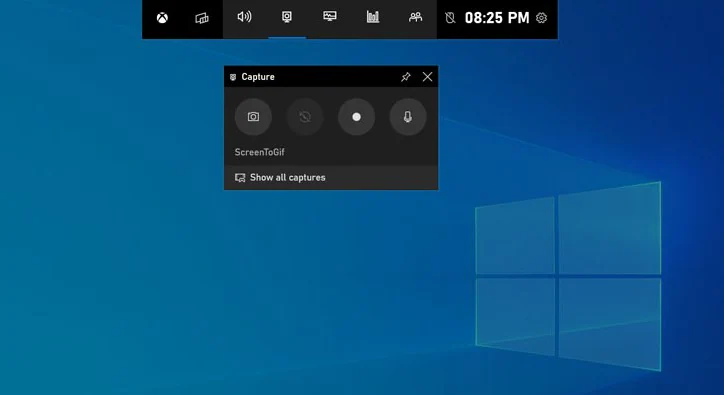
3.1 Xbox Game Bar
Pre-installed on Windows 10 and 11, Xbox Game Bar lets you record your screen right out of the box.
Steps:
- Press Win + G to open Xbox Game Bar, them start a WhatsApp video call via WhatsApp Web or the desktop app.
- Click Record or press Win + Alt + R, and stop recording when the call ends.
Pros:
- Free and built-in
- Easy to access
Cons:
- Limited recording controls
- Not designed specifically for video calls
- Audio capture can be inconsistent
3.2 Swyshare Recordit (Recommended)
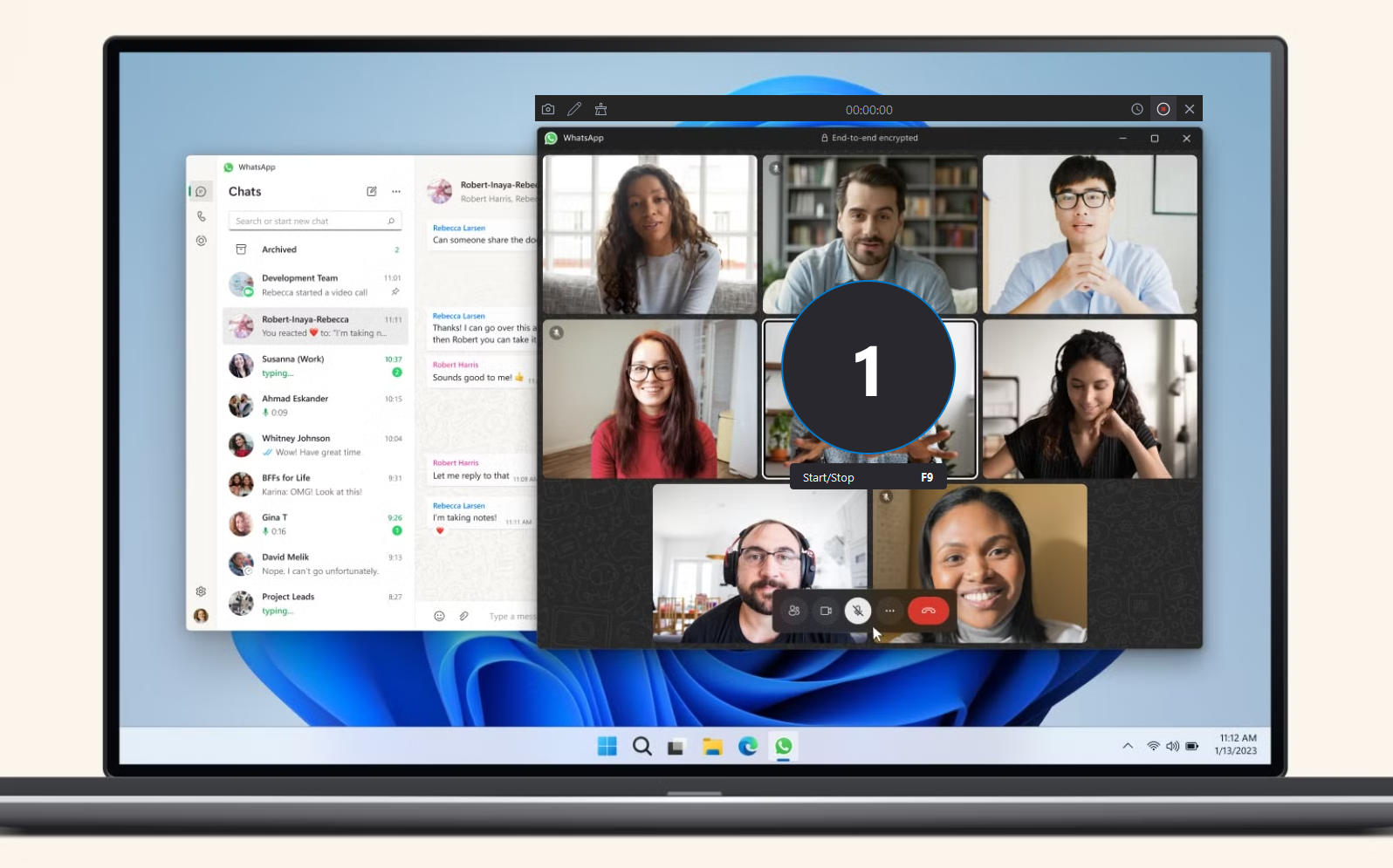
For users who want a smooth, professional, and beginner-friendly experience, Swyshare Recordit is an excellent choice for recording WhatsApp video calls on Windows.
Key features of Recordit:
- Flexible recording modes – full screen, single window, or a custom-selected area.
- Audio capture – record system sound and microphone
- Webcam overlay – picture-in-picture support
- Annotations & mouse effects – highlight key actions
- High-quality output – HD/4K, export in MP4, MOV, AVI, etc.
- Screenshots tool – capture still images quickly
- Built-in video editor – basic editing and watermarking
- Schedule Recording – automate screen capture at exact times
- Instant Replay – save the last few seconds of your screen anytime
- Cross-platform – works on Windows and Mac
How to Record WhatsApp Video Calls with Recordit:
- Download and install Swyshare Recordit on your Windows PC or Mac device.
- Launch the software and select recording area, then enable system audio, microphone, or both.
- Start your WhatsApp video call and click Start Recordings icon to begin capturing.
- Stop recording when the call ends and find the recorded video call in the “Files” section.
4. Conclusion
Recording WhatsApp video calls can be done in several ways depending on your device, from built-in screen recording tools on mobile phones to native options like QuickTime Player on macOS and Xbox Game Bar on Windows. However, these default tools often come with limitations in audio control, flexibility, or ease of use.
For users who want a simple, reliable, and more professional solution across platforms, Swyshare Recordit stands out as the best choice. Available for both Windows and macOS, Recordit offers intuitive controls, flexible recording modes, high-quality output, and independent audio source selection, making it ideal for recording WhatsApp video chats smoothly and efficiently on any desktop system.