How to Record the Last 30 Seconds on PC?

Sometimes, the most memorable moments happen unexpectedly — a spectacular gaming move, an important video call highlight, or a live stream moment you want to save. But what if you weren’t recording at that exact time? Fortunately, modern PCs offer tools that can record the last 30 seconds or even longer, so you can capture those moments retroactively without having to record continuously. This article will guide you step-by-step on how to record the last 30 seconds on your PC, and explain tips and tricks to make the process seamless.
1. What Does “Recording the Last 30 Seconds” Mean?
Unlike traditional screen recording, which records in real-time from the moment you start, “recording the last 30 seconds” refers to capturing a short clip retroactively. Essentially, your PC constantly buffers or temporarily saves your screen or gameplay activity in the background, allowing you to save the last few seconds or minutes after the moment has passed.
This feature is incredibly useful because it eliminates the need to keep recording everything, which can consume storage space and system resources. Instead, you activate the recording only when something worth saving happens.
2. Why Record the Last 30 Seconds on PC?
- Capture Unexpected Moments: In gaming, entertainment, or online meetings, you can instantly save surprising or important moments.
- Save Storage Space: Avoid recording hours of unnecessary footage by capturing only brief segments.
- Easy Sharing: Quickly save and share clips without extra editing.
- Efficiency: No need to plan ahead or predict when something will happen.
3. How Can I Record the Last 30 Seconds on PC?
Method 1: Record Last 30 Seconds on PC with Swyshare Recordit
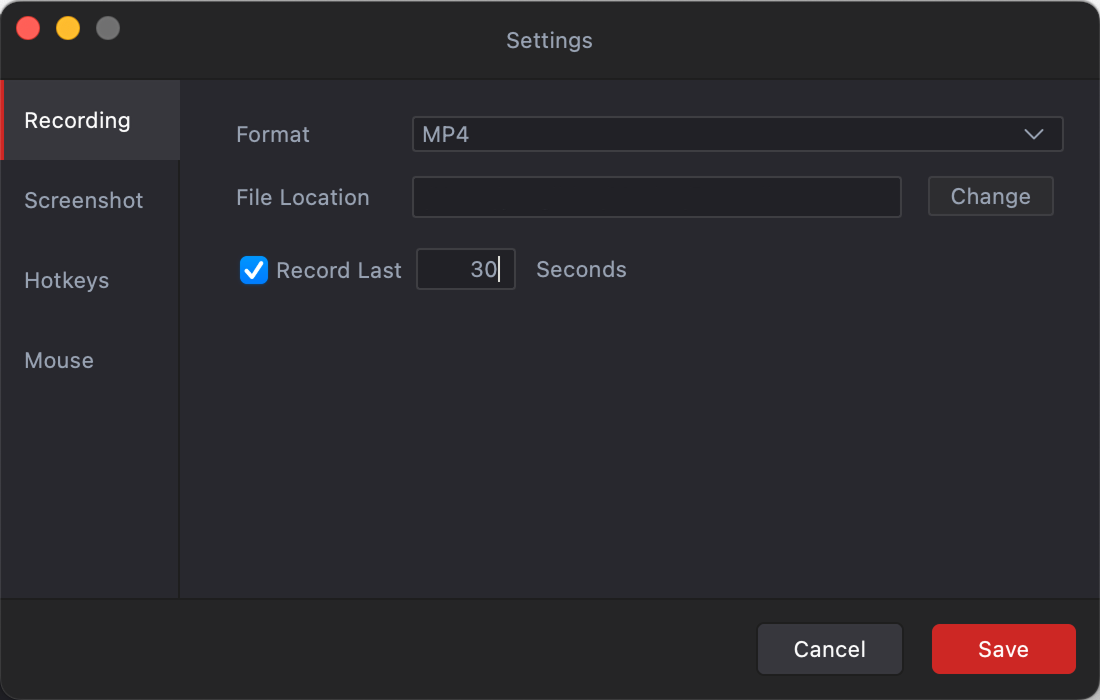
Swyshare Recordit is one of the simplest and most beginner-friendly screen recorders available today. With its Instant Replay–style feature, you can automatically save the last 30 seconds (or any custom duration) of your screen activity—perfect for capturing unexpected moments, gameplay highlights, tutorials, or anything that happens before you think to start recording.
How to record last 30 seconds on PC with Recordit:
- Download Recordit from the official site and install it following the on-screen instructions.
- Launch Recordit and open setting, find the “Record last ** seconds” feature and enter 30.
- Open your game and use Recordit to choose recording area, then start recording.
- Whenever something happens that you want to capture, stop recording and Recordit instantly saves the previous 30 seconds as a video file, showing it in the “Files” tab.
Method 2: Record Last 30 Seconds on PC with Xbox Game Bar
Windows PCs come with a powerful feature called Xbox Game Bar that includes a background recording function, which lets you capture the last 30 seconds of screen activity.
Steps:
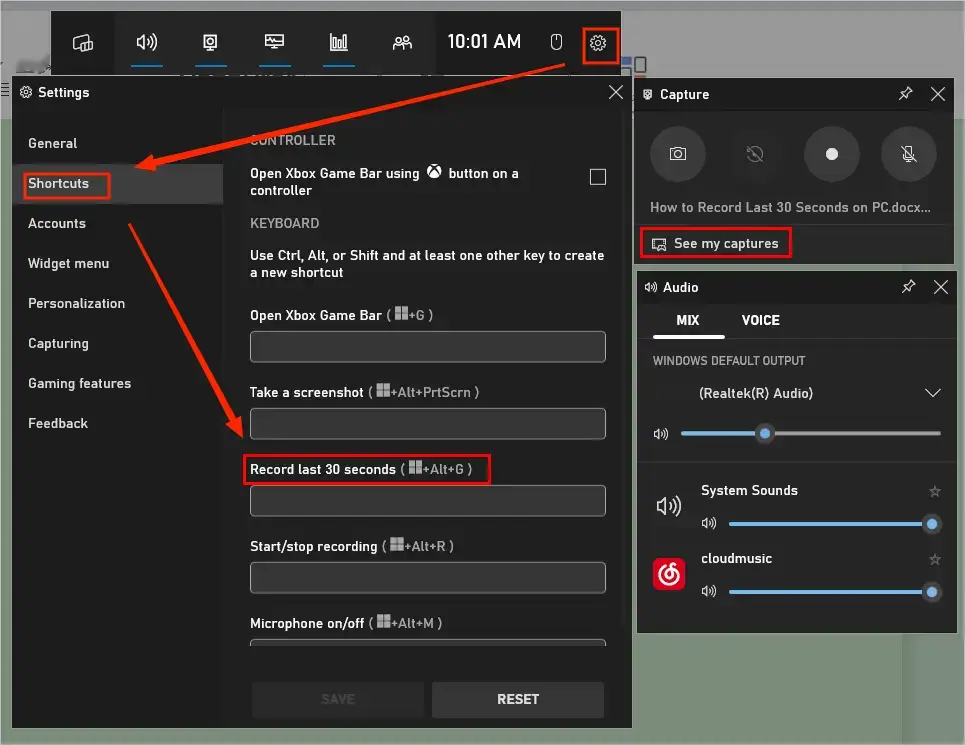
- Press Win + G on your keyboard, this opens the Xbox Game Bar overlay with widgets for capture, performance, audio, etc.
- Enable background recording by: Click Settings to go to the Capturing section > Enable the option “Record what happened” or “Record in the background while I’m playing a game”.
- Customize how much time gets recorded in the background — the default is 30 seconds, but you can extend it.
- To record what just happened, hit Win + Alt + G and save the past 30 seconds of screen content.
Method 3: Record Last 30 Seconds on PC with NVIDIA
NVIDIA ShadowPlay is a popular tool for gamers to record gameplay, and it supports instant replay mode to capture the last 30 seconds (or longer).
Steps:
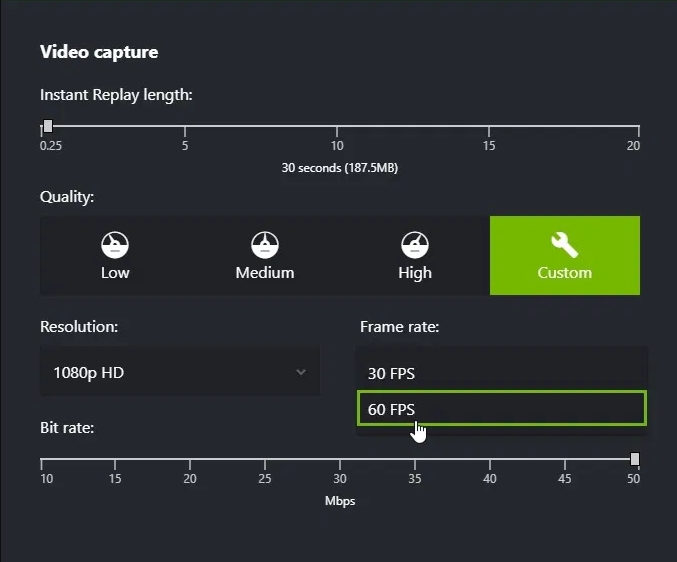
- Go to GeForce Experience > Settings, then switch on the In-Game Overlay option.
- Open the overlay with Alt + Z to tune on Instant Replay.
- Go to Settings > Privacy Control and ensure recording is enabled.
- Set the duration to 30 seconds by enabling the Instant Replay length to 0.25.
- When you want to save the last 30 seconds, press Alt + F10, and your clip will be saved to the Videos folder.
Method 4: Record Last 30 Seconds on PC with OBS Studio
OBS Studio is a free, open-source screen recorder and streaming software with a replay buffer feature.
Steps:
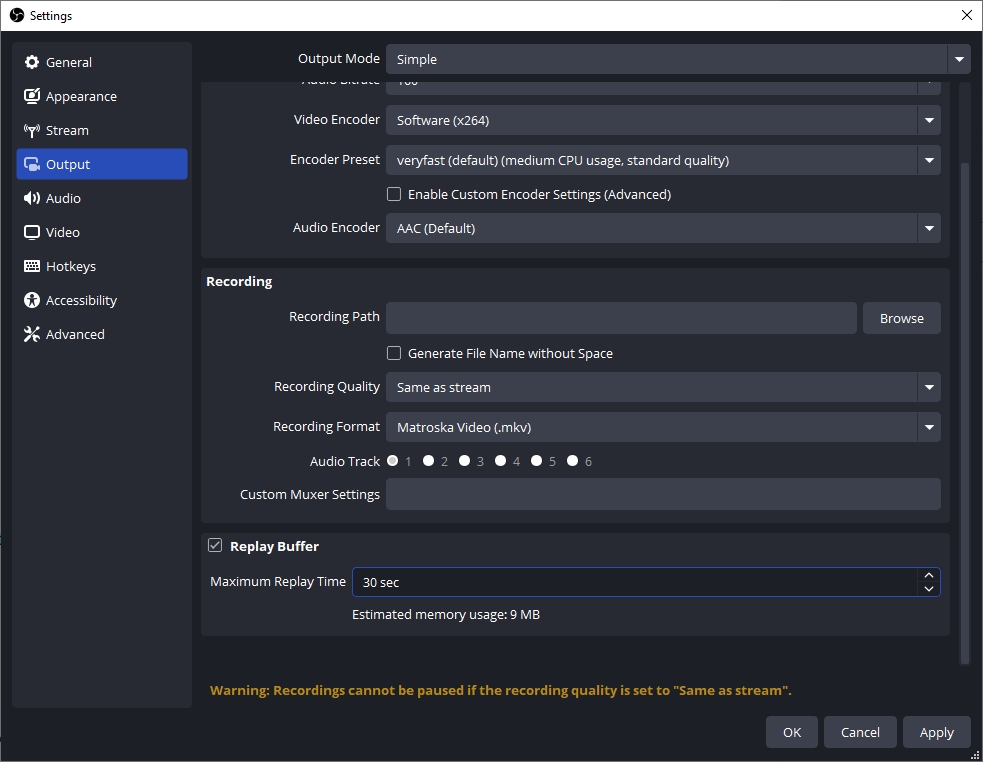
- Get OBS Studio installed, launch the program, and access Settings, then choose Output from the sidebar.
- Enable Replay Buffer and set the maximum replay time to 30 seconds.
- Go back to the main interface and start the replay buffer by clicking Start Replay Buffer.
- When you want to save the last 30 seconds, press the configured hotkey (set in Settings > Hotkeys) to save the replay buffer, and the clip will be saved in the output folder.
4. Conclusion
Capturing the last 30 seconds on your PC is incredibly useful for saving unexpected highlights—whether it’s a clutch gaming moment, an important discussion during a meeting, or a live stream snippet you didn’t see coming. With tools like Xbox Game Bar, NVIDIA ShadowPlay, and OBS Studio, you have several ways to record retroactively.
However, if you want the easiest, most beginner-friendly, and reliable option, Swyshare Recordit stands out as the top recommendation. Its clean interface, lightweight design, and dedicated “Record last ** seconds” feature make it far simpler than other complex recording tools. You don’t need advanced settings or technical knowledge—just set the duration once, and Recordit handles everything in the background. With one quick action, your last 30 seconds are saved instantly and neatly organized in the “Files” tab.
If you want a smooth, hassle-free recording experience that works for games, online meetings, tutorials, and everyday PC use, Recordit is the best tool to choose.