Best Tools to Batch Change File Names on Mac

When working with large numbers of files on a Mac, keeping file names organized can become a challenge. Whether you are managing photos, videos, documents, or downloaded media, renaming files individually can take a lot of time and effort. Batch renaming tools solve this problem by allowing users to rename multiple files at once using automated rules such as adding numbers, replacing text, or inserting dates.
Fortunately, Mac users have access to several powerful tools that make batch renaming quick and efficient. From built-in macOS features to advanced third-party applications and online utilities, these tools can help streamline file organization and improve productivity. In this article, we will explore some of the best tools to batch change file names on Mac and help you choose the right solution for your needs.
1. Best Recommended Bulk Rename Utility for Mac – Swyshare RenameKit
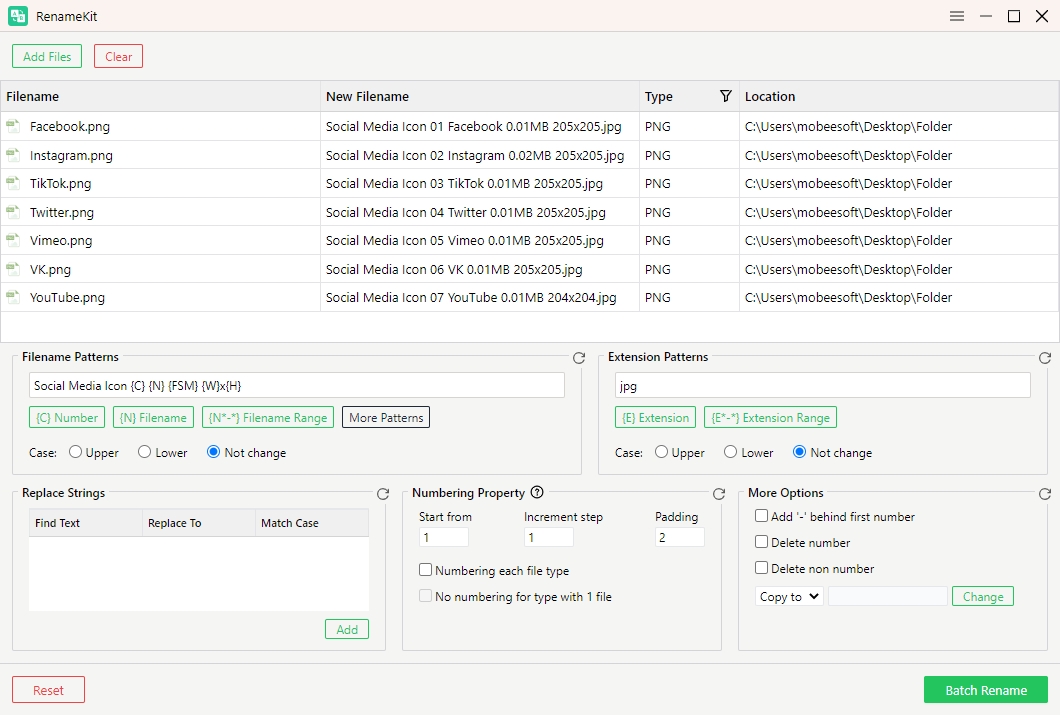
One of the most powerful and user-friendly tools for batch renaming files on Mac is Swyshare RenameKit. This software is designed specifically for efficiently renaming large numbers of files and folders with customizable naming rules.
RenameKit allows users to rename thousands of files at once, making it ideal for photographers, content creators, developers, and anyone who manages large file collections.
Key features of RenameKit include:
- Batch rename multiple files and folders simultaneously
- Add prefixes or suffixes to file names
- Find and replace specific text within file names
- Add sequential numbers or numbering patterns
- Modify text case (uppercase, lowercase, title case)
- Insert date and time information into file names
- Preview new file names before applying changes
- Support a wide variety of file types including images, videos, audio files, documents, archives, and code files
Because of its powerful renaming rules, intuitive interface, and cross-platform compatibility (Mac and Windows), RenameKit is one of the best tools available for batch renaming files on Mac.
2. Renamer 7
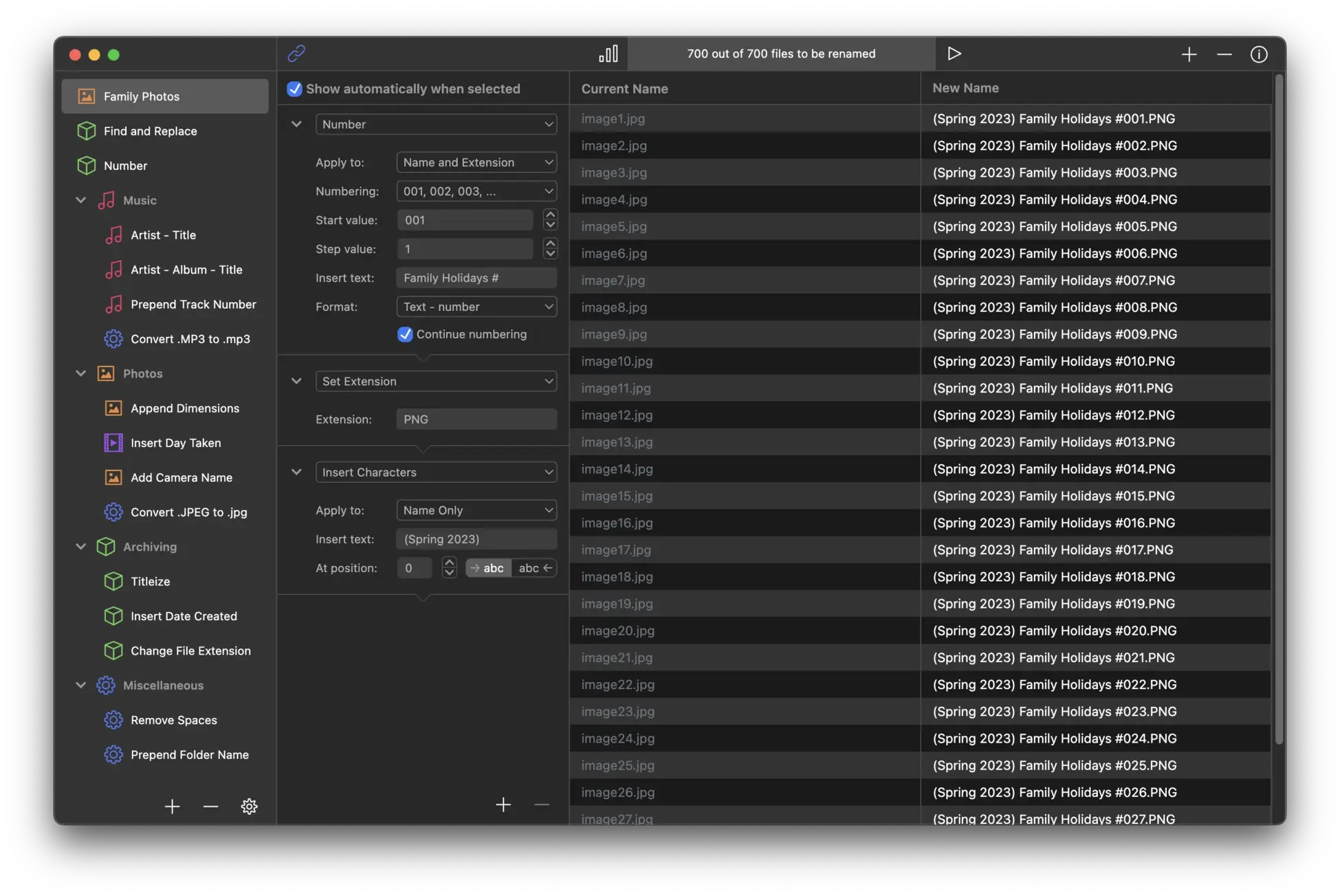
Renamer 7 is another popular batch file renaming application designed specifically for macOS. It offers a flexible rule-based system that allows users to create complex renaming workflows.
The software supports a variety of renaming actions, including:
- Text replacement
- Sequential numbering
- File extension modification
- Case conversion
- Metadata-based renaming
Renamer can also insert audio metadata such as artist, album name, track title, and track number directly into file names.
This feature is especially useful for users organizing music libraries or media collections. Renamer 7 also allows users to chain multiple renaming rules together, creating highly customized renaming patterns.
While Renamer 7 is powerful, it may take some time for beginners to fully understand all of its features.
3. Advanced Renamer
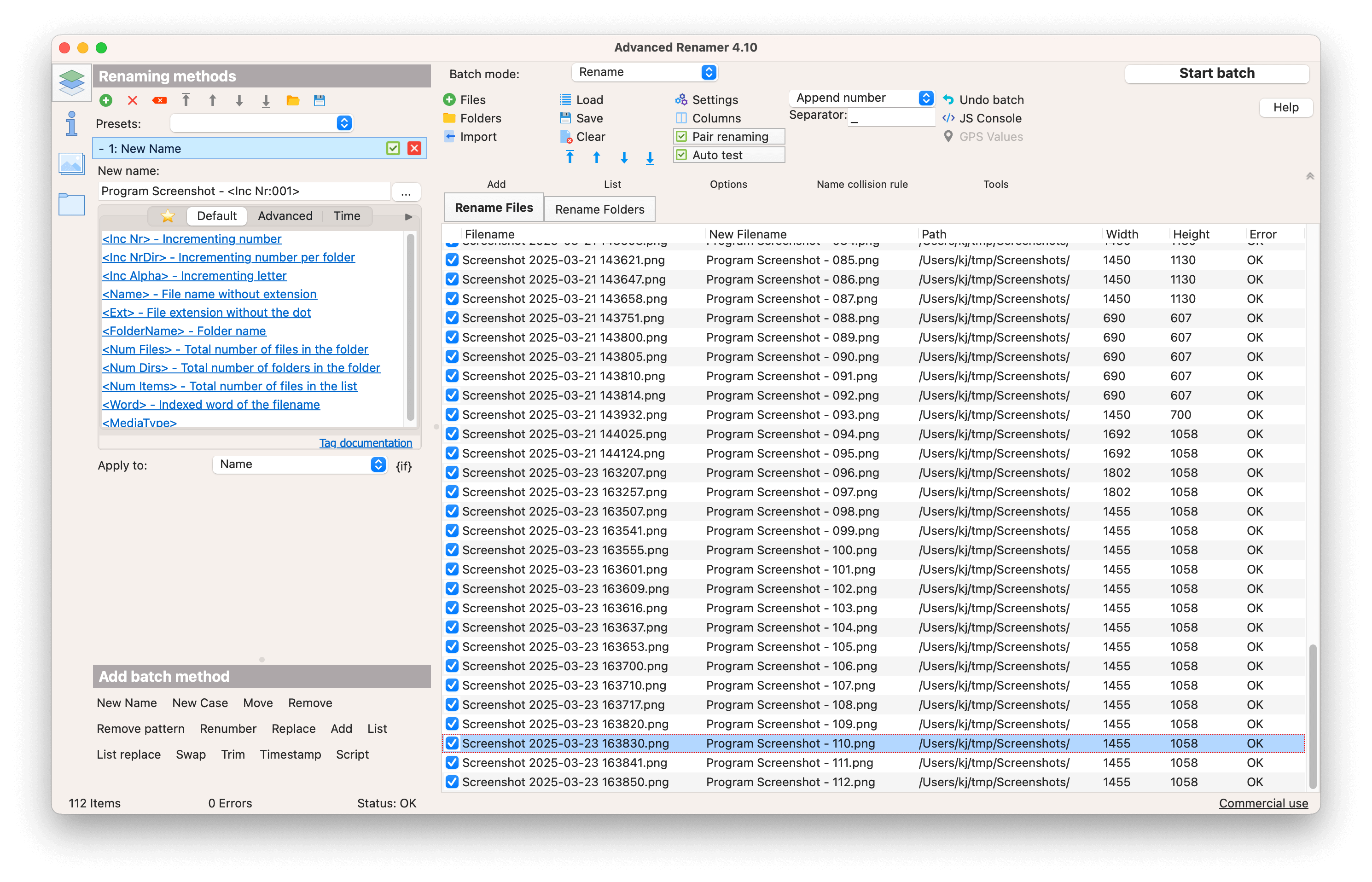
Advanced Renamer is another highly capable batch file renaming tool available for macOS. It is designed for users who need detailed control over how file names are generated.
One of its standout features is the ability to create multi-step renaming actions. Users can combine multiple rules in a sequence, allowing for very complex file renaming workflows.
For example, you could:
- Replace certain words in file names
- Add a sequential numbering system
- Insert metadata such as dates or camera information
- Reformat text styles
Advanced Renamer also allows users to save action sets, which means frequently used renaming workflows can be reused later without rebuilding them from scratch.
Because of its flexibility and automation features, Advanced Renamer is often used by professionals managing large image or video libraries.
4. Finder (Built-in macOS Tool)
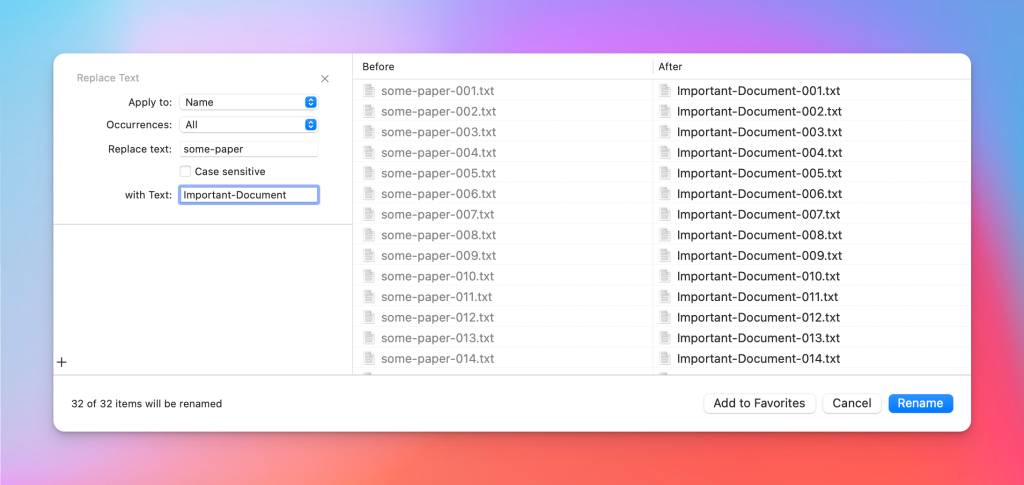
If you prefer not to install additional software, macOS already includes a simple batch renaming feature within Finder, the default file manager.
Using Finder, you can rename multiple files by:
- Selecting several files in a folder
- Right-clicking and choosing Rename X Items
- Selecting a renaming option
Finder supports three main renaming methods:
- Replace text in file names
- Add text before or after the file name
- Format names with numbers or dates
This built-in feature allows users to quickly rename multiple files without installing third-party tools.
However, Finder’s batch renaming capabilities are relatively basic compared to dedicated renaming software. It lacks advanced automation, metadata support, and complex renaming rules.
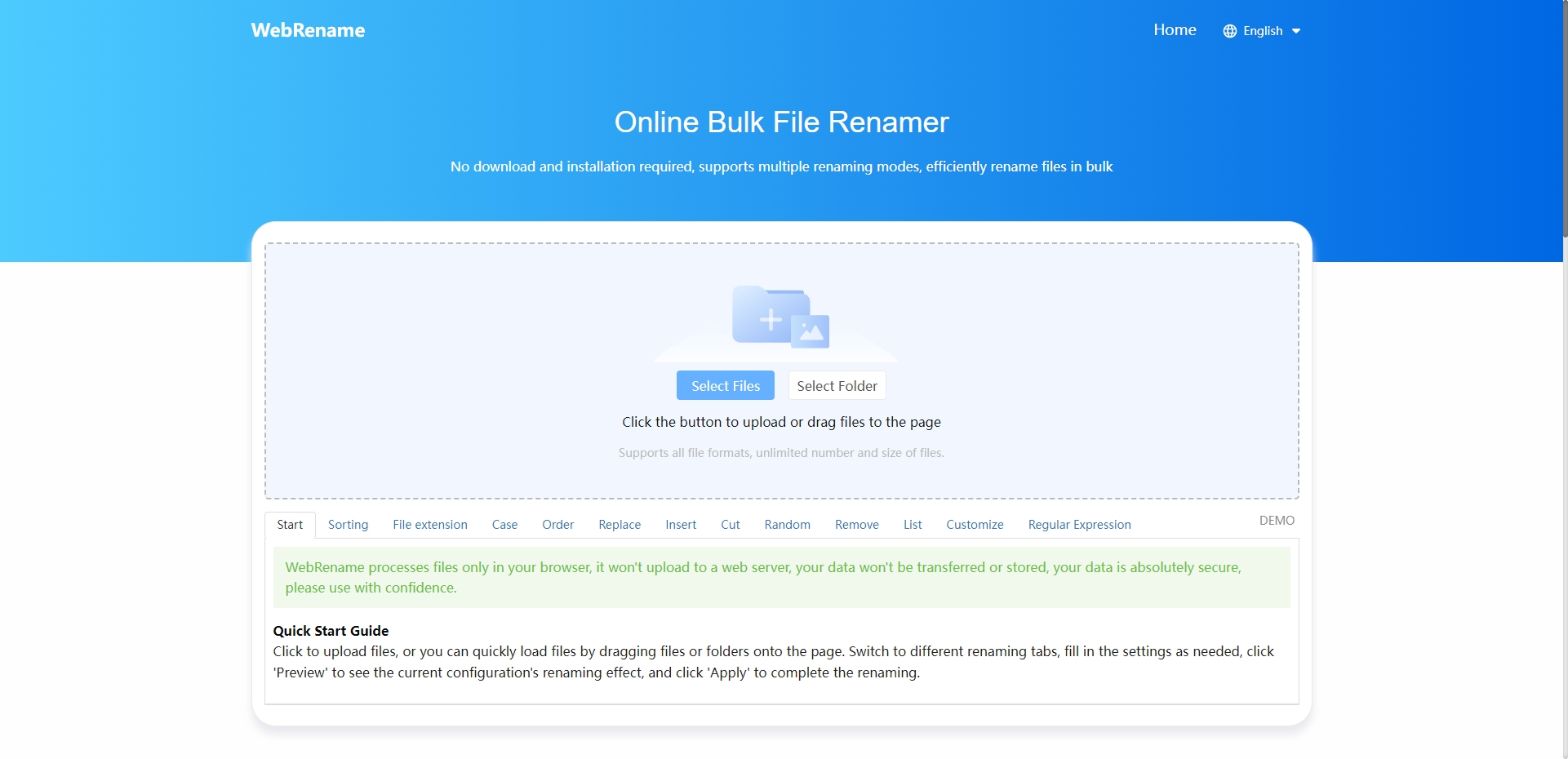
5. WebRename: Online Bulk File Renamer
For users who prefer not to install software, WebRename provides an online solution for batch renaming files directly in a browser.
WebRename allows users to upload files and apply renaming rules such as:
- Adding prefixes and suffixes
- Replacing specific words or characters
- Changing file extensions
- Adding numbering sequences
Online tools like WebRename can be convenient for quick renaming tasks or when working on a computer where software installation is not possible.
However, there are some limitations:
- File uploads may take time for large batches
- Some tools have file size limits
- Privacy concerns may arise when uploading sensitive files
6. Conclusion
Batch renaming tools can save a significant amount of time when organizing large numbers of files on a Mac. While Finder and online tools like WebRename are suitable for simple tasks, more advanced applications such as Renamer 7 and Advanced Renamer provide greater flexibility and control. Among these options, Swyshare RenameKit stands out as the best choice thanks to its powerful renaming rules, preview feature, and ability to rename thousands of files quickly. If you frequently manage large file collections on Mac, RenameKit is a reliable and efficient solution for keeping your files organized.