Bulk Rename Utility Overview: Is It the Best Mass File Renaming Tool?

Managing large numbers of files can quickly become frustrating if they are poorly named or disorganized. Whether you are dealing with thousands of photos, music files, documents, or downloaded media, manually renaming files one by one can be time-consuming and inefficient. This is where batch file renaming tools come in handy. They allow users to rename hundreds or even thousands of files simultaneously using customizable rules and automation features.
One of the most well-known tools for this task is Bulk Rename Utility. It has been widely used by Windows users for years because of its powerful renaming capabilities and flexible options. However, while the tool offers many advanced features, some users find its interface complex and difficult to learn.
In this article, we will take a closer look at what Bulk Rename Utility is, how it works, its pros and cons, and whether it is truly the best mass file renaming tool available today.
1. What Is Bulk Rename Utility?
Bulk Rename Utility (BRU) is a free file renaming program designed for the Windows operating system. It allows users to rename multiple files and folders at once using a wide variety of rules and parameters. Instead of manually editing each file name, users can define patterns and apply them to large batches of files in seconds.
The software supports numerous renaming options, including:
- Adding prefixes or suffixes to file names
- Replacing specific words or characters within file names
- Changing case formatting (uppercase, lowercase, title case)
- Inserting sequential numbering for ordered files
- Removing or trimming parts of file names
- Renaming files using metadata or file properties
One of the biggest advantages of Bulk Rename Utility is its level of customization. The tool provides many modules that allow users to combine different renaming rules in a single operation. For example, you can simultaneously replace certain words, add a prefix, and number files sequentially.
2. How to Use Bulk Rename Utility?
Step 1. Download and Install BRU
First, download the BRU installation file from the official website and install the program on your Windows computer. Once installed, launch BRU to access its main interface.

Step 2. Select the Folder Containing Your Files
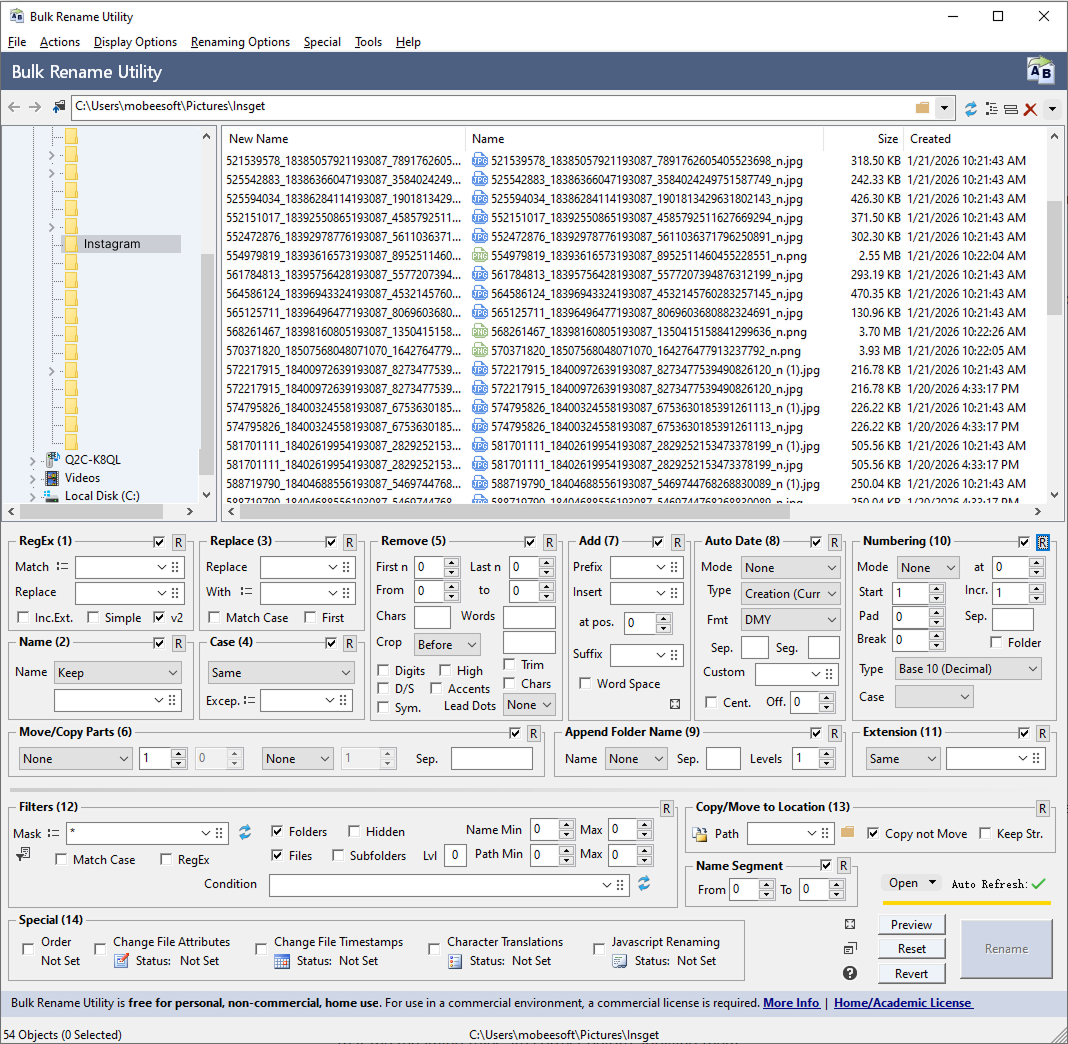
On the left side of the interface, navigate to the folder that contains the files you want to rename. The program will display all files in that directory.
Step 3. Configure Renaming Rules
At the bottom of the interface, you will find multiple sections that control how file names will be modified. These include options for:
- Replacing text
- Adding prefixes or suffixes
- Changing letter case
- Adding numbering
- Removing characters
As you configure these settings, the program shows a live preview of the new file names. This helps ensure that the renaming rules are correct before applying them.

Step 4. Apply the Renaming Operation
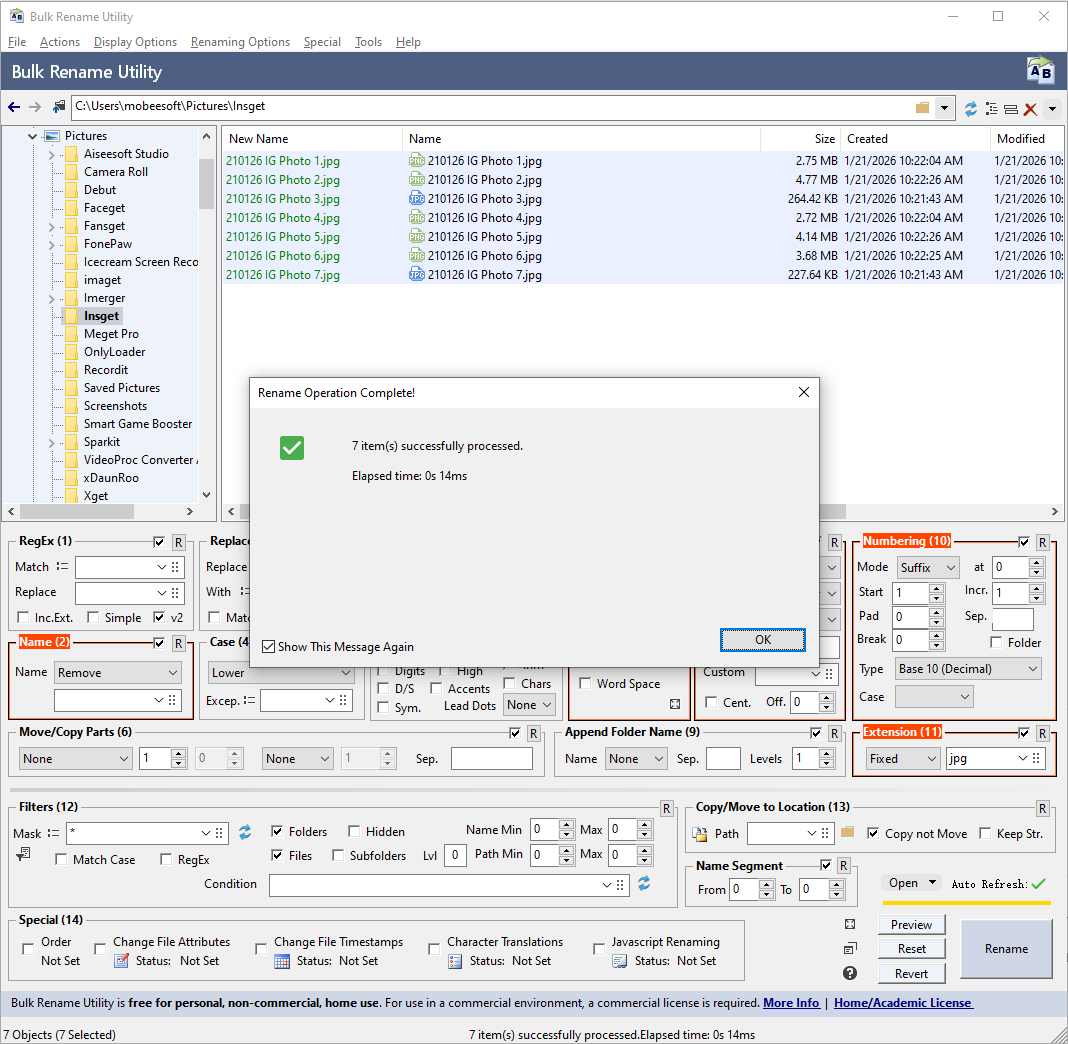
Once everything looks correct, click the Rename button to apply the changes to all selected files.
Within seconds, the files will be renamed according to the rules you configured.
3. Pros and Cons of Bulk Rename Utility
Like any software, Bulk Rename Utility has both strengths and limitations.
Pros:
- Powerful Renaming Features: The software offers a huge number of renaming options, allowing users to perform complex renaming tasks.
- Free for Personal Use: Bulk Rename Utility is available for free for personal users, which makes it appealing to individuals who need occasional batch renaming.
- Real-Time Preview: The preview feature helps users avoid mistakes by showing how the new file names will appear before applying the changes.
- Supports Large File Batches: The tool can process thousands of files at once, making it suitable for large-scale renaming tasks.
Cons:
- Complex Interface: The biggest drawback of Bulk Rename Utility is its crowded and technical interface. New users may feel overwhelmed by the large number of options.
- Steep Learning Curve: Understanding all the modules and renaming rules can take time, especially for beginners.
- Windows Only: The software is designed specifically for Windows, which means Mac users cannot use it.
- Outdated Design: Compared to modern tools, the interface looks outdated and less user-friendly.
- Expensive for Commercial Use: While Bulk Rename Utility is free for personal use, the licensing cost for businesses, companies, or commercial purposes is relatively high, which can be a barrier for organizations with multiple users.
4. Try the Simple and Affordable Alternative to BRU – Swyshare RenameKit
If you want a powerful batch renaming tool without the complexity of Bulk Rename Utility, Swyshare RenameKit is an excellent alternative.
Unlike Bulk Rename Utility, RenameKit focuses on simplicity and productivity. Even beginners can start renaming files in bulk within minutes.
Key features of RenameKit:
- Batch rename files and folders — Rename thousands of files at once.
- Custom renaming rules — Add prefixes/suffixes, numbering, and text replacements.
- Metadata-based renaming — Use file metadata such as date, size, image resolution, or media information.
- Multiple file type support — Works with images, videos, audio files, documents, and more.
- Real-time preview — See the new filenames before applying changes.
- Cross-platform compatibility — Available for both Windows and macOS.
How to use RenameKit to mass change filenames:
- Install and open RenameKit on your Windows or Mac computer.
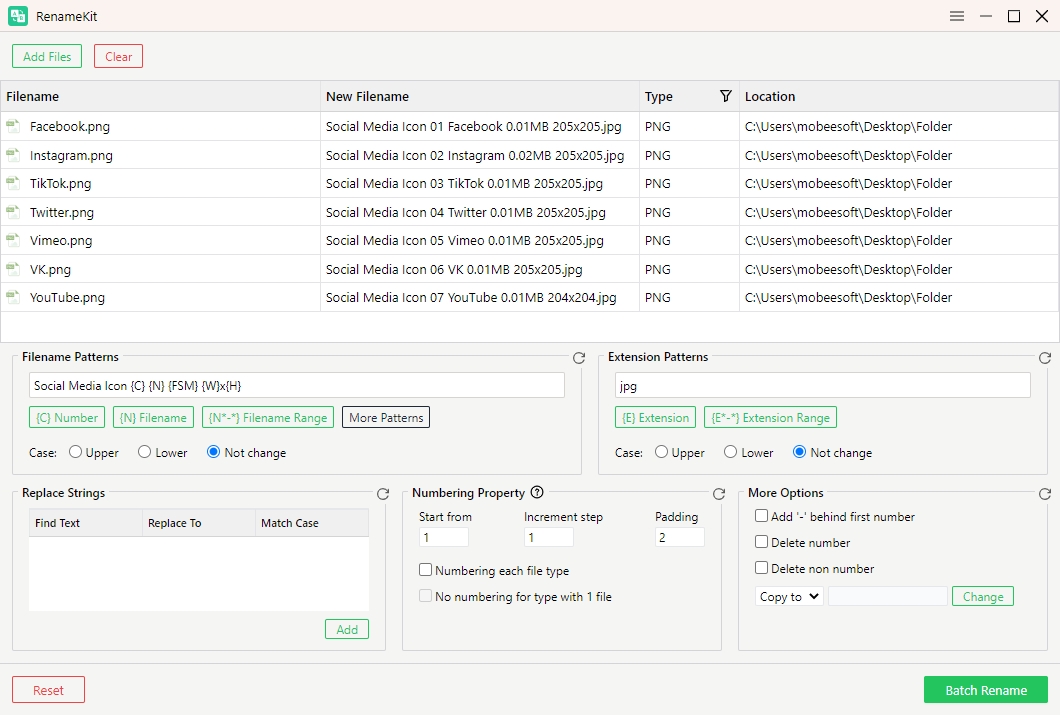
- Add the files or folders you want to rename by dragging them into the program or clicking Add Files.
- Choose a renaming rule (e.g., add prefix/suffix, replace text, add numbers, or use metadata).
- Preview the new filenames in the preview panel to make sure the results are correct.
- Click “Batch Rename” to apply the changes and instantly rename all selected files.
5. Conclusion
In summary, Bulk Rename Utility is a powerful tool for mass file renaming, but its complex interface and higher commercial licensing cost may not suit everyone. For users who prefer a simpler and more modern solution, Swyshare RenameKit offers an easier workflow, useful renaming features, and cross-platform support. If you want a fast and user-friendly way to rename files in bulk, RenameKit is a great alternative worth trying.