Best Twitch OBS Settings for Fast-Paced Games?

Streaming fast-paced games on Twitch—such as FPS titles, battle royales, racing games, fighting games, and high-action MOBAs—puts heavy demands on your streaming setup. Viewers expect smooth motion, sharp visuals, and minimal lag, but fast movement, explosions, and rapid camera turns can easily cause pixelation, dropped frames, or blurry output if OBS isn’t configured correctly.
OBS Studio is one of the most popular tools for Twitch streaming, but its flexibility also means there are many settings that need to be optimized. In this guide, we’ll break down the best Twitch OBS settings for fast-paced games, explain why each setting matters, and help you achieve smooth 60 FPS streaming.
1. Best Twitch OBS Settings for Fast-Paced Games
To get the best results on Twitch, you need to balance motion clarity, bitrate efficiency, and system performance. The settings below are optimized for fast action while staying within Twitch’s recommended limits.
1.1 Video Settings (Resolution & FPS)
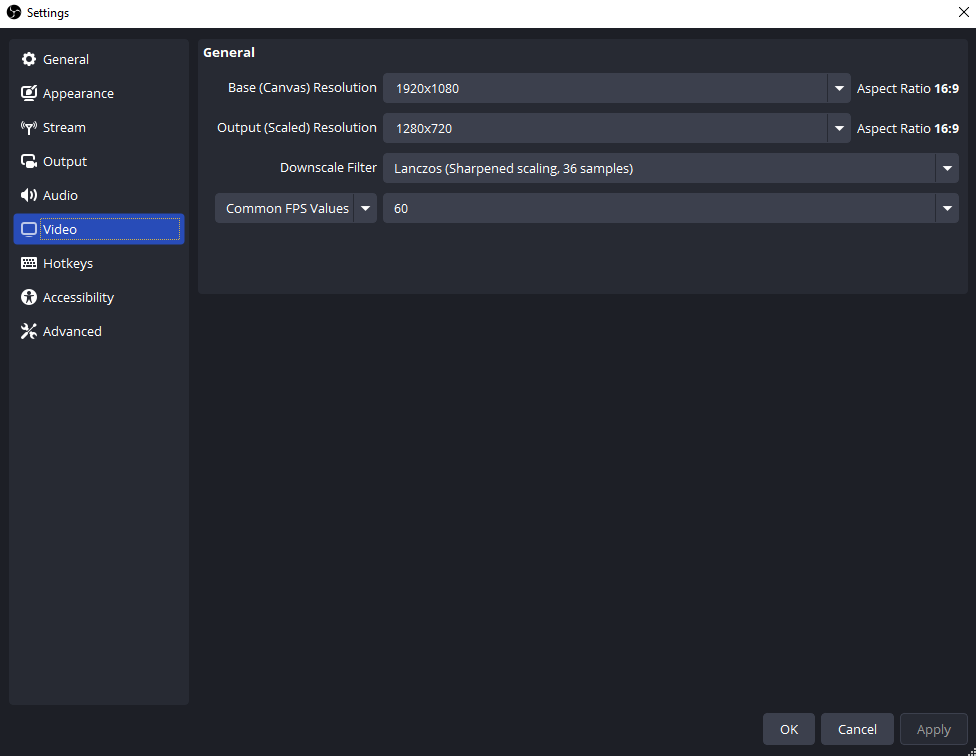
Navigate to Settings → Video in OBS.
Base (Canvas) Resolution
Set this to your monitor’s native resolution, commonly 1920×1080. This ensures OBS captures the game at full detail before scaling.
Output (Scaled) Resolution
- 1280×720 – Best choice for most streamers
- 1920×1080 – Only recommended if you have strong upload speed and hardware
For fast-paced games, 720p often looks better than 1080p on Twitch because the available bitrate is spread across fewer pixels, reducing compression artifacts during rapid motion.
Downscale Filter
- Lanczos (36 samples) – Best sharpness for moving scenes
Common FPS Values
- 60 FPS (mandatory for fast-paced games)
Fast shooters and action games look significantly smoother at 60 FPS, improving both gameplay readability and viewer experience.
1.2 Output Settings (Streaming Encoder & Bitrate)
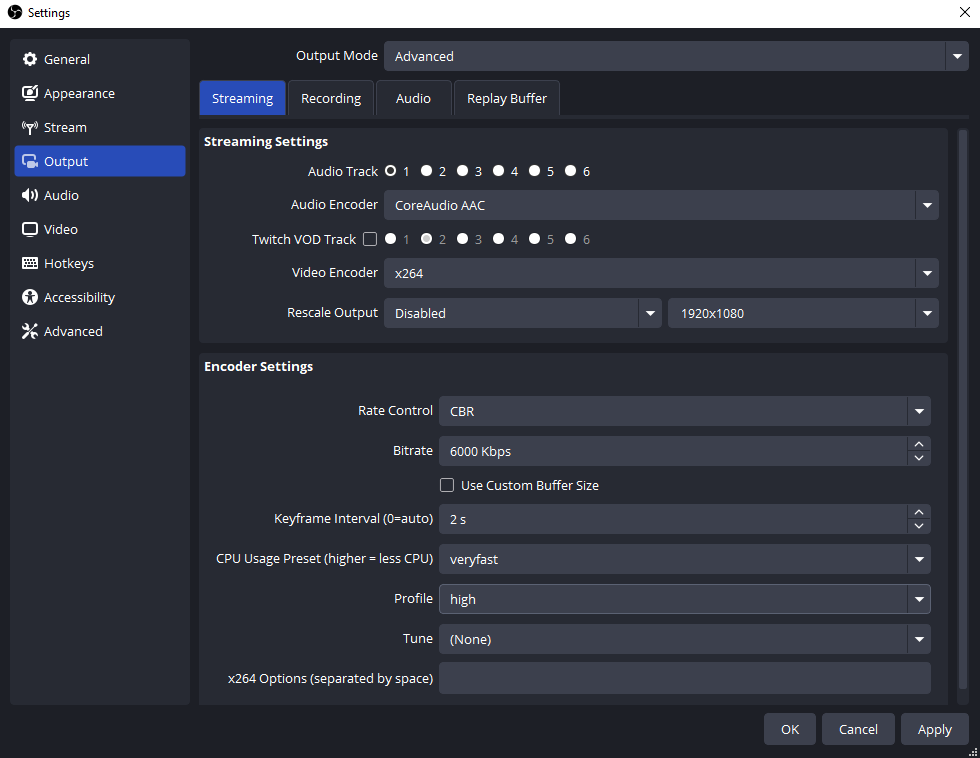
Go to Settings → Output, switch Output Mode to Advanced, then open the Streaming tab.
Encoder
- NVIDIA NVENC (new) – Recommended if you have an NVIDIA GPU
- x264 – Use only if you have a strong multi-core CPU
NVENC offloads encoding to the GPU, reducing CPU strain and improving stability during intense gameplay.
Rate Control
- CBR (Constant Bitrate) – Required by Twitch
Bitrate
- 720p 60 FPS: 4,500–6,000 kbps
- 1080p 60 FPS: 6,000 kbps (Twitch’s common cap)
For fast motion, it’s better to max out bitrate at 6,000 kbps and lower resolution if needed rather than pushing 1080p with insufficient bitrate.
Keyframe Interval
- 2 seconds (required by Twitch)
Preset
- NVENC: Quality (or Max Quality if GPU usage allows)
- x264: Veryfast (Fast if CPU is strong)
Profile
- High
1.3 Audio Settings
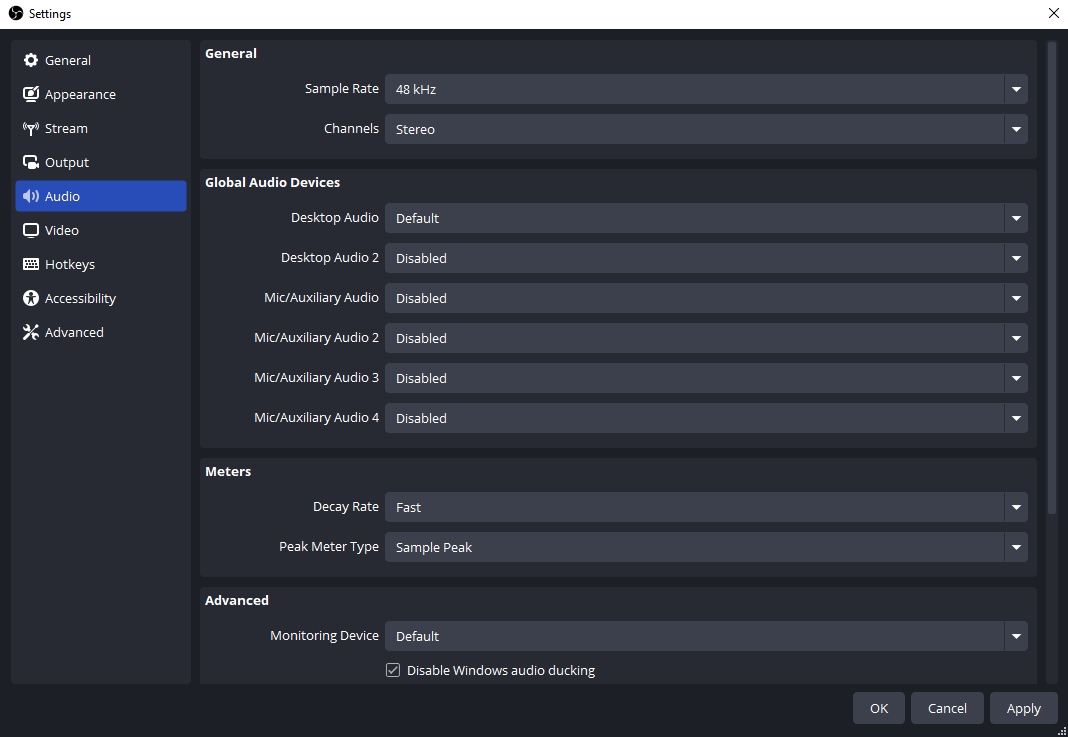
Navigate to Settings → Audio.
- Sample Rate: 48 kHz
- Channels: Stereo
In Output → Streaming, set:
- Audio Bitrate: 160 kbps
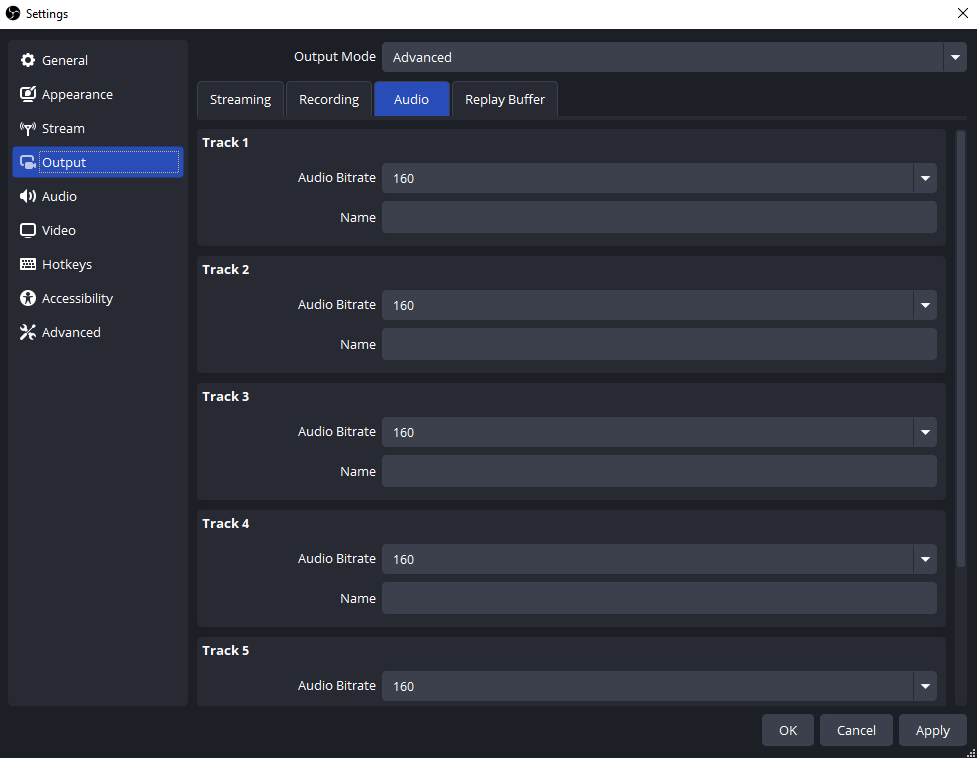
This ensures clear game sound and microphone quality without unnecessary bandwidth usage.
1.4 Advanced Tips for Fast-Paced Games
Lower Resolution Before Lowering FPS
If you experience blocky visuals during movement, drop from 1080p to 720p—but keep 60 FPS. Motion smoothness matters more than raw resolution.
Avoid Overloading the GPU
Running games on ultra settings while using NVENC can still overload your GPU. Lower in-game shadows, anti-aliasing, or reflections if you see encoding lag.
Use Game Capture
Always use Game Capture instead of Display Capture for best performance and lowest latency.
1.5 Recommended OBS Presets (Quick Reference)
Best Overall (Most Streamers)
- 1280×720
- 60 FPS
- 6,000 kbps
- NVENC (new), Quality
- Keyframe Interval: 2
High-End Setup
- 1920×1080
- 60 FPS
- 6,000 kbps
- NVENC (new), Max Quality
CPU-Only Setup
- 1280×720
- 60 FPS
- 4,500–6,000 kbps
- x264 Veryfast
2. Try the Simple OBS Alternative to Record Twitch – Swyshare Recordit
While OBS is powerful, it can feel overwhelming – especially if your goal is to record Twitch streams or gameplay rather than manage a full live broadcast. This is where Swyshare Recordit stands out as a simple and effective alternative.
Swyshare Recordit is designed for users who want high-quality Twitch recordings without complex configuration.
Why Choose Swyshare Recordit:
- Capture the full screen, a window, or a specific region.
- Capture system sound and microphone audio simultaneously for complete stream recordings.
- Save recordings in HD and up to 4K resolution.
- Export recordings as MP4, AVI, FLV, GIF, and audio formats like MP3/AAC/FLAC.
- Draw or add mouse effects during recording.
- Schedule recordings or save the last few seconds after the fact.
- Instant replay to save game hightlights.
- Take high-quality still screenshots (PNG/JPG) with hotkeys.
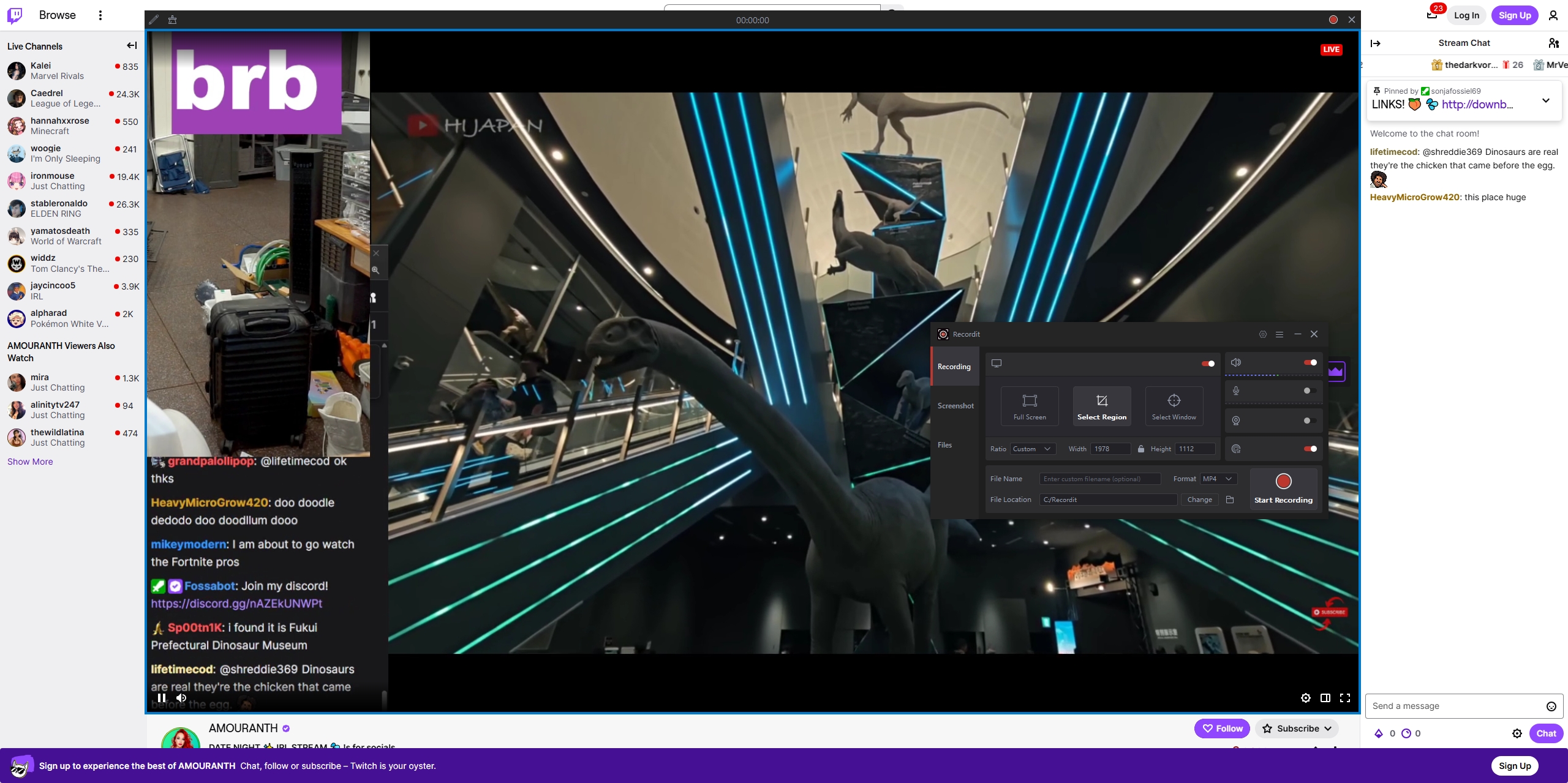
Unlike OBS, Recordit doesn’t require you to adjust bitrate, encoder profiles, or keyframe intervals. It’s perfect for creators who want to save Twitch streams, record highlights, or capture gameplay footage without the learning curve.
3. Conclusion
Getting the best Twitch OBS settings for fast-paced games comes down to one key principle: prioritize smooth motion over raw resolution. Using 720p at 60 FPS with a high bitrate often delivers better results than pushing 1080p beyond Twitch’s limits. Pairing the right resolution, bitrate, encoder, and FPS ensures your fast-action streams remain sharp, smooth, and enjoyable to watch.
That said, OBS isn’t the right tool for everyone. If you’re primarily interested in recording Twitch streams or gameplay without dealing with advanced settings, Swyshare Recordit is a highly recommended alternative. Its simplicity, performance, and recording quality make it an excellent choice for capturing fast-paced content effortlessly.
Whether you’re fine-tuning OBS for live streaming or choosing an easier recording solution, the right setup will help you showcase fast-paced games at their best—and keep your audience coming back for more.