How to Resolve Game Recording Has High Contrast After Instant Replay NVIDIA?

Gaming today is about more than just playing; sharing gameplay highlights has become an essential part of the experience. NVIDIA’s Instant Replay feature, part of GeForce Experience, allows gamers to retroactively record their gameplay, capturing those spontaneous moments that can’t be planned. While this feature is highly convenient, some users encounter a frustrating issue: high contrast in game recordings. Footage may appear unnaturally bright or dark, making colors look exaggerated or washed out. This problem can significantly affect the quality of shared content or streaming clips. Fortunately, there are ways to understand and fix this issue, ensuring your recordings match the in-game experience.
1. Why Game Recording Has High Contrast After Instant Replay NVIDIA?
Several factors can cause high contrast in NVIDIA Instant Replay recordings. These reasons can often be summarized as:
- HDR Conflicts – Games using High Dynamic Range (HDR) may produce recordings that don’t match what you see on screen, leading to overly bright or dark footage.
- NVIDIA Control Panel Settings – Adjustments to brightness, contrast, or digital vibrance can affect recordings differently than live gameplay.
- Game Color Profiles – Some games apply color grading, tonemapping, or other post-processing effects that may not translate correctly in recorded clips.
- Codec and Rendering Differences – Instant Replay relies on hardware-accelerated capture. Discrepancies between software and hardware rendering pipelines can distort colors and contrast.
Understanding these causes is the first step in achieving recordings that look as intended.
2. How to Resolve Game Recording Has High Contrast After Instant Replay NVIDIA?
Fixing high contrast recordings typically involves adjusting settings both in NVIDIA and within your games. Here’s a step-by-step approach:
2.1 Adjust NVIDIA Control Panel Settings
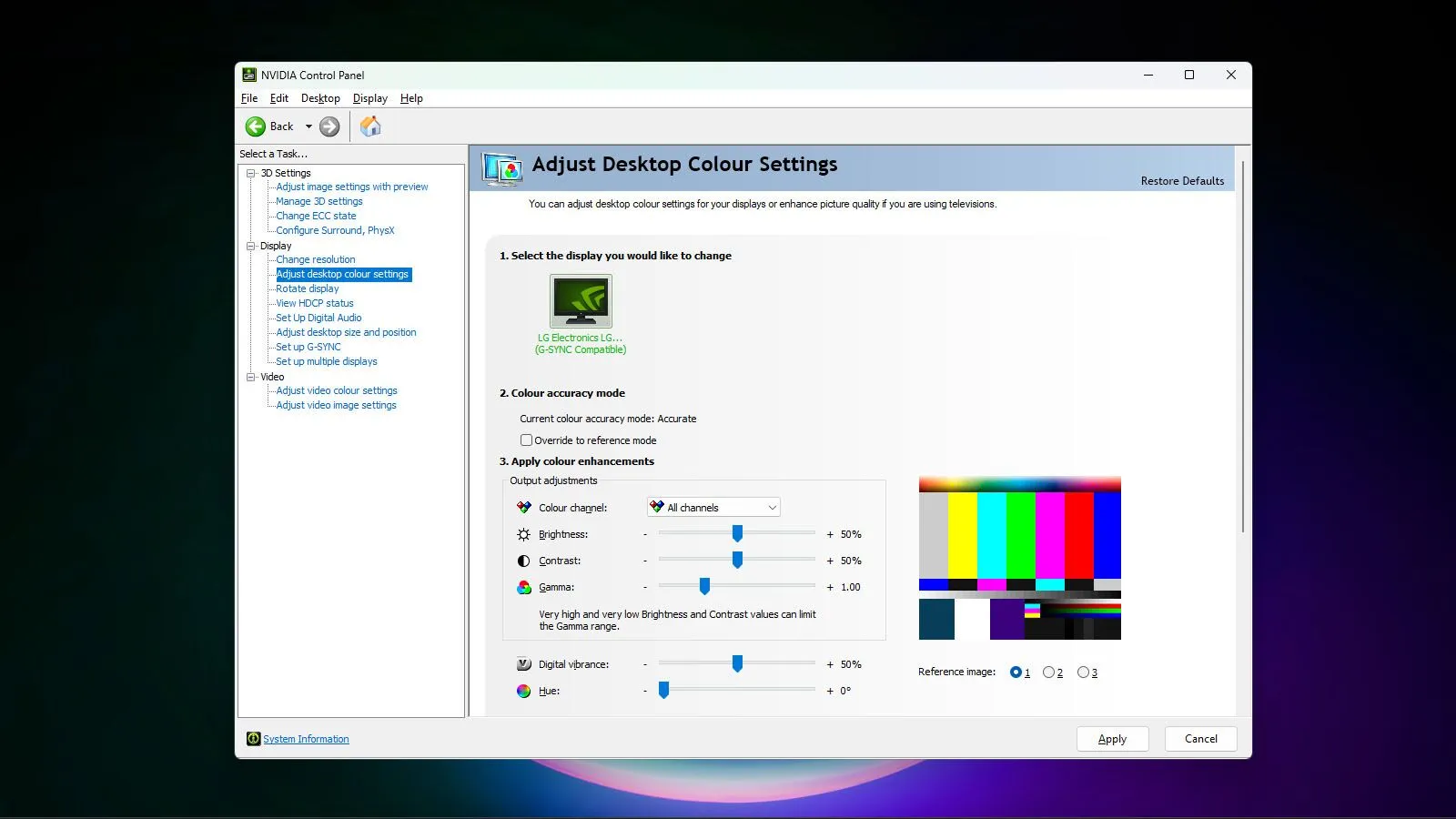
- Open NVIDIA Control Panel and go to Display > Adjust desktop color settings.
- Ensure digital vibrance, brightness, and contrast are set to default or moderate levels.
- Switch between “Use NVIDIA settings” and “Use the display’s color settings” to find the option that produces correct recording colors.
2.2 Disable HDR for Recording
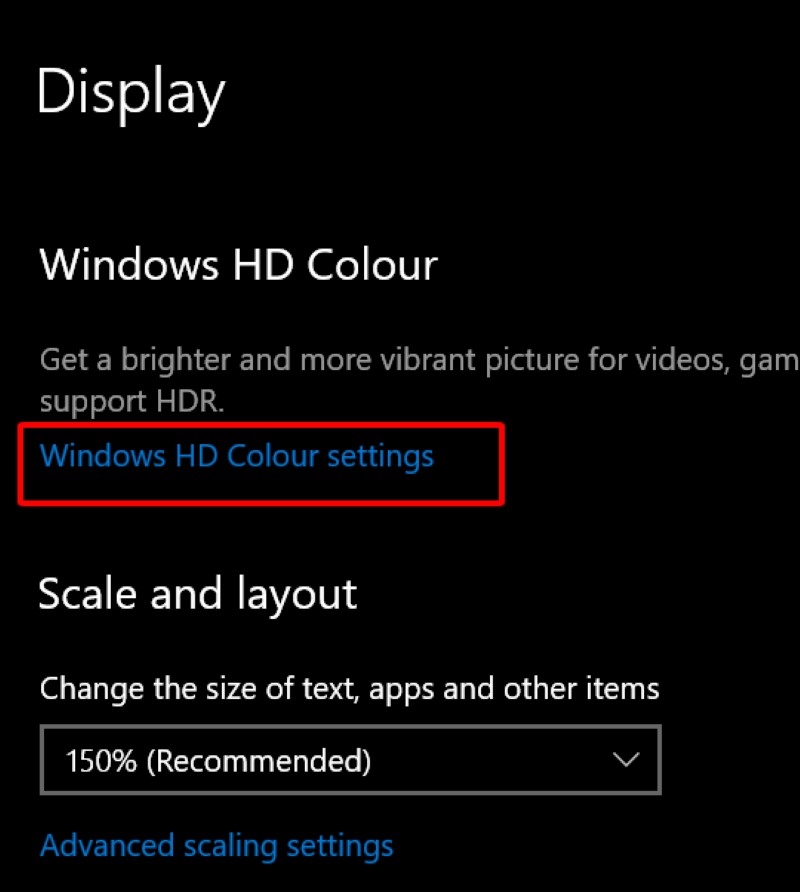
- HDR can cause conflicts in captured footage. To turn it off:
- Access Settings, select System, then Display, and finally Windows HD Color settings.
- Toggle Play HDR games and apps off while recording.
- This prevents HDR from exaggerating contrast or altering color representation in saved clips.
2.3 Update Drivers and GeForce Experience
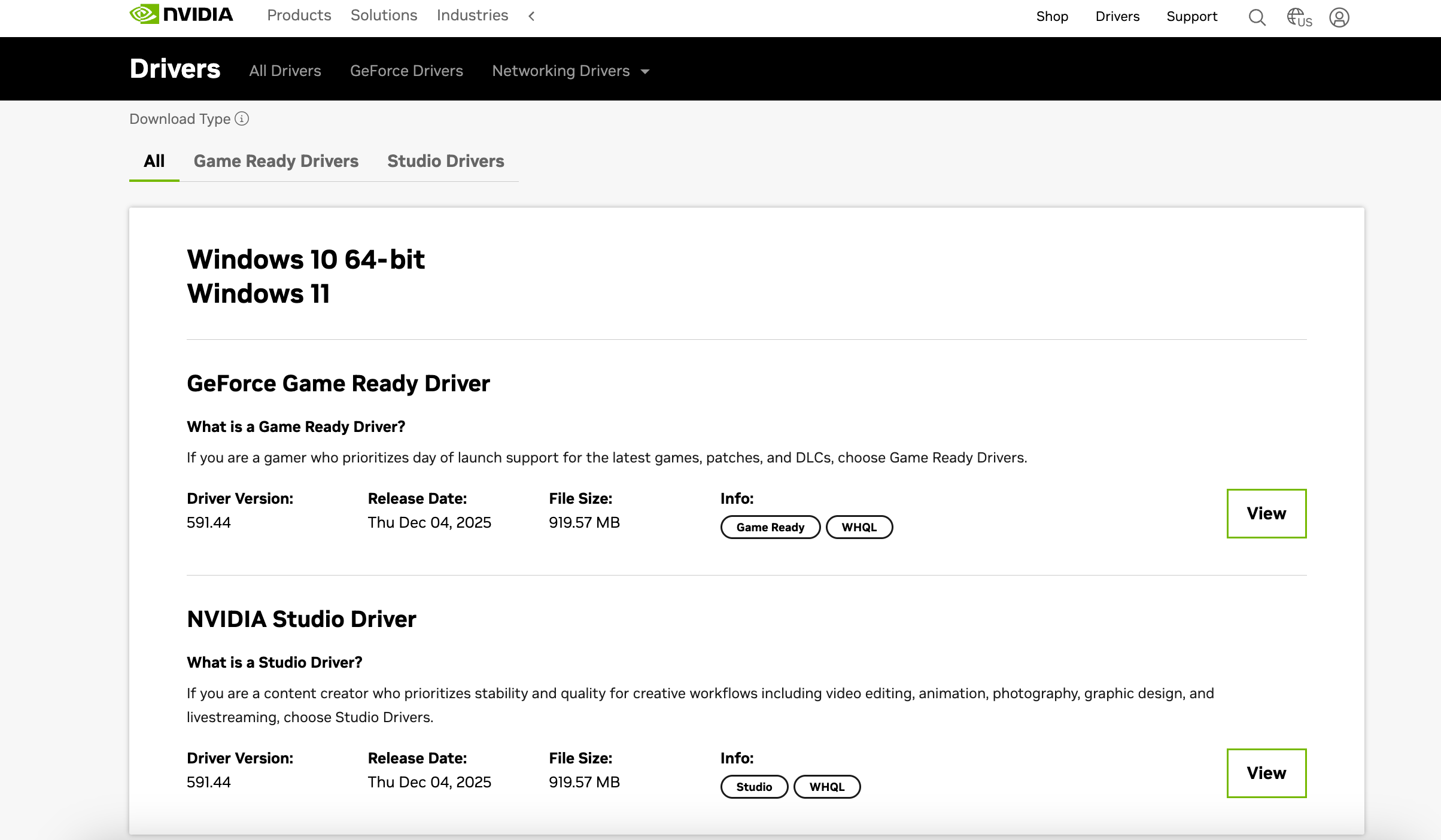
- Outdated NVIDIA drivers may lead to recording inconsistencies.
- Use GeForce Experience to download the latest drivers.
- After updating, restart your system and test the Instant Replay recordings again.
2.4 Adjust In-Game Color Settings
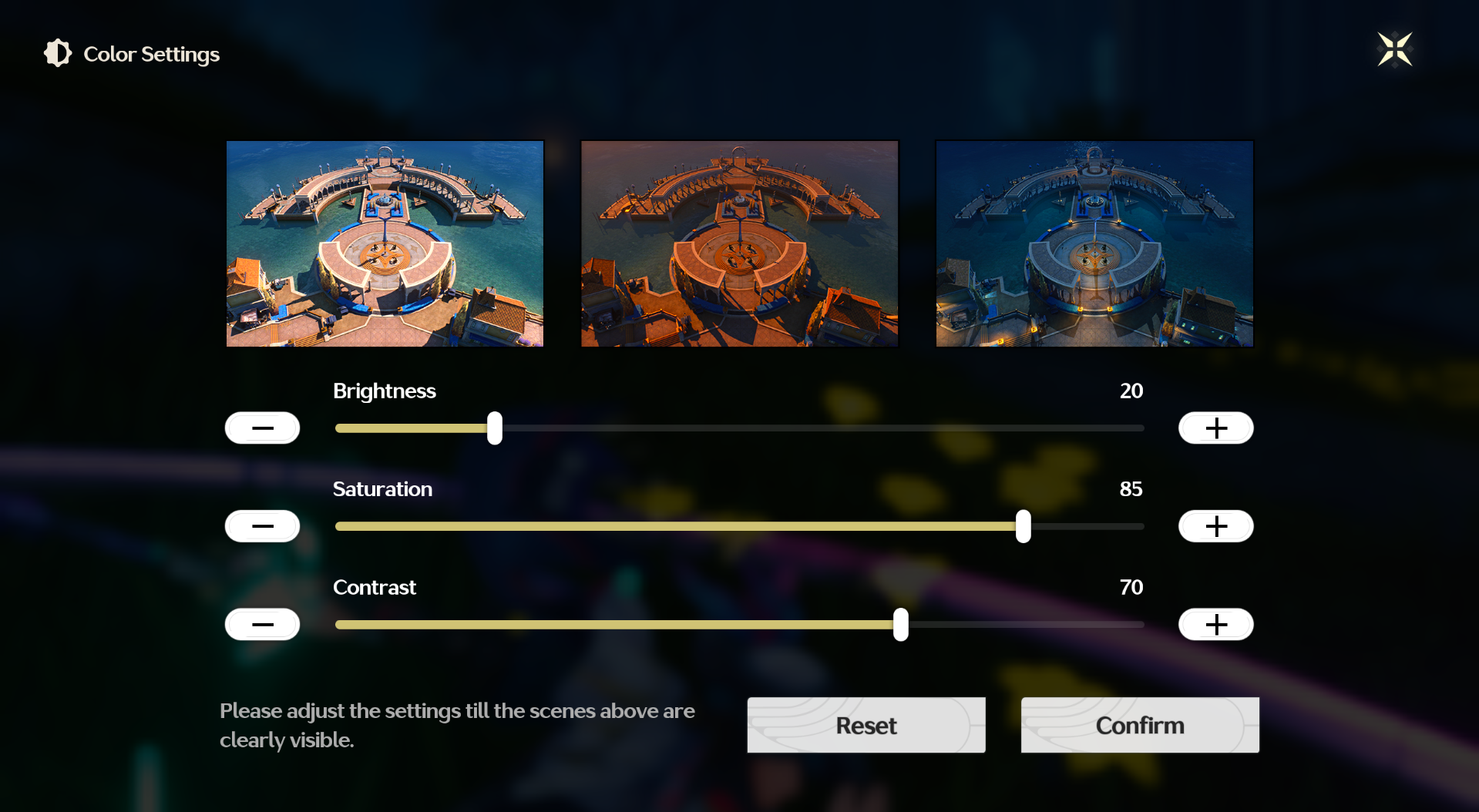
- Many games allow you to tweak brightness, gamma, and saturation.
- Small adjustments can prevent overexposure or overly dark areas in recordings.
- Avoid extreme settings that might exaggerate contrast in captured footage.
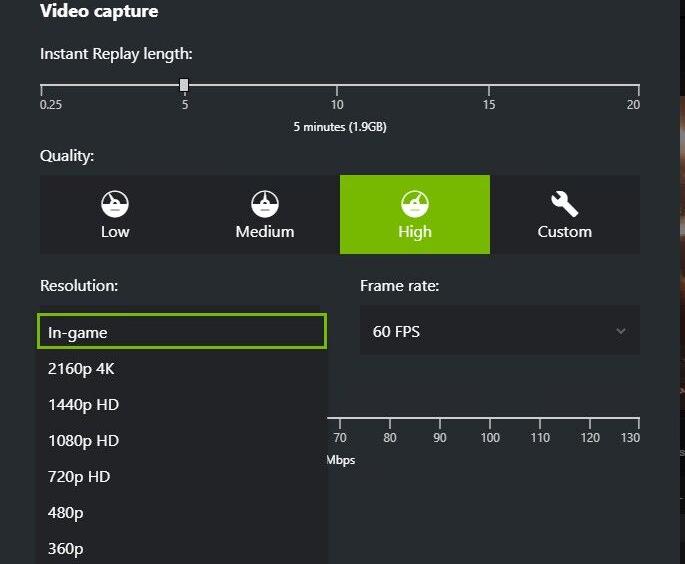
2.5 Check Recording Codec and Quality Settings
- Instant Replay typically records in H.264 or H.265.
- Navigate to GeForce Experience > Settings > In-Game Overlay > Video Capture.
- Increase bitrate if colors appear distorted. Higher bitrates preserve detail and maintain accurate color reproduction.
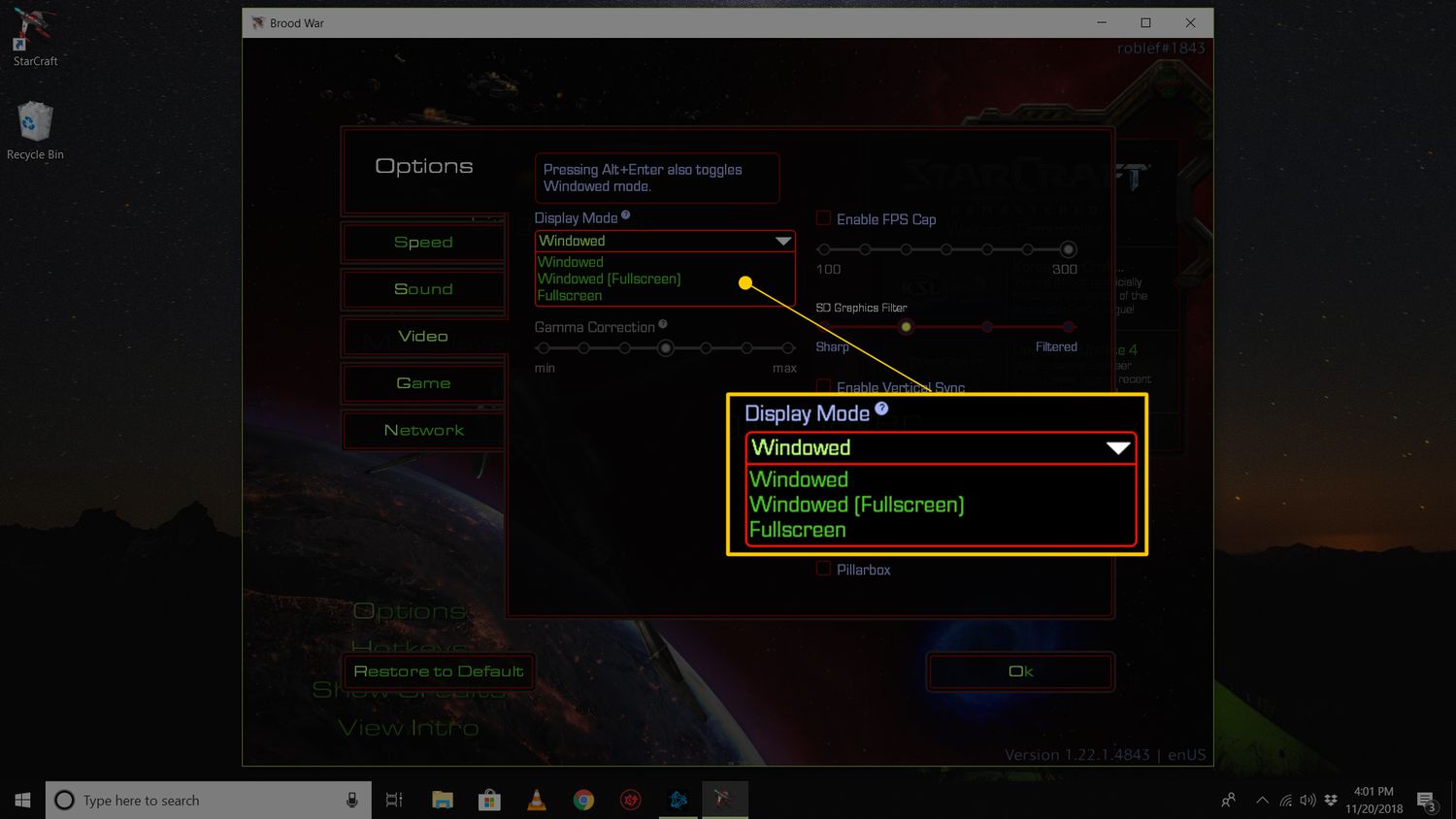
2.6 Experiment with Display Modes
- Recording in full-screen versus windowed mode can affect color output.
- Test both modes to see which produces the most accurate recordings.
3. Try the Instant Replay of the Best Easy-to-Use Screen Recorder – Swyshare Recordit
If NVIDIA Instant Replay continues to produce high-contrast footage despite troubleshooting, you can try a reliable alternative – Swyshare Recordit. It combines ease of use with advanced recording features that ensure accurate color representation.
Key features of Recordit:
- Instant Replay – Capture the last few seconds or minutes of gameplay retroactively.
- Accurate Color Management – Maintain true-to-game contrast and saturation.
- Flexible Recording Options – Full screen, specific windows, or custom regions.
- High-Quality Audio Capture – Record game sound and microphone simultaneously.
- Easy Editing & Export – Export without losing quality and edit within the software.
- Multi-Platform Support – Work on Windows and Mac.
- User-Friendly Interface – Simple setup and intuitive controls.
How to use the Recordit instant replay feature:
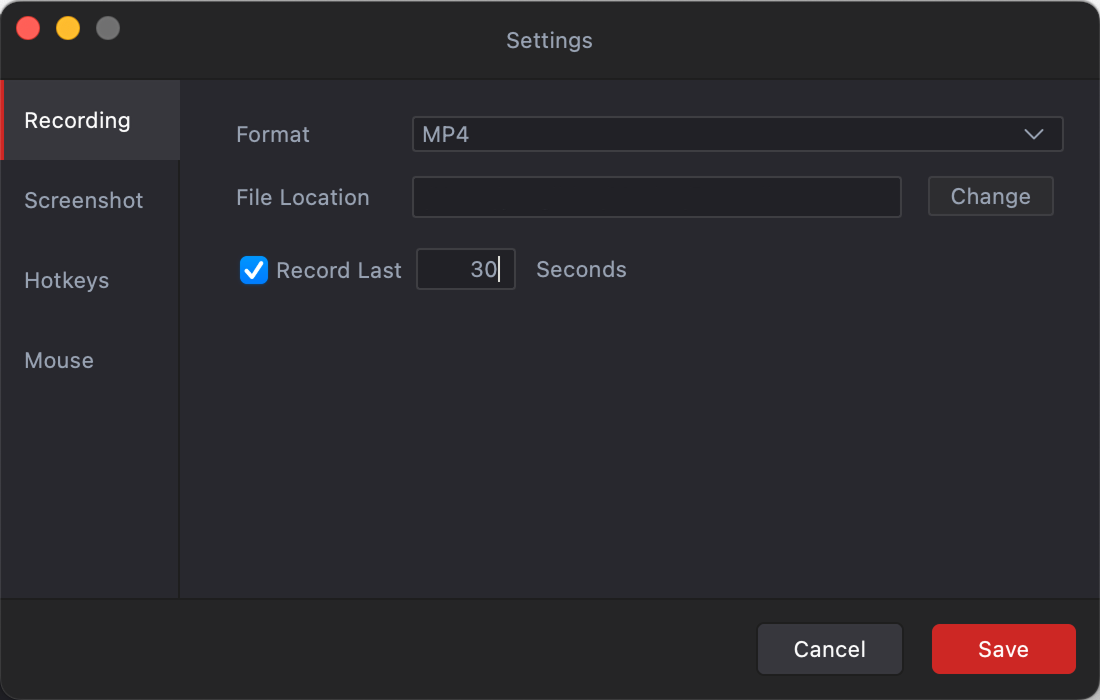
- Launch Recordit, go settings, find “Record last ** reconds” and set how many seconds of gameplay to capture retroactively.
- Open your game, then use Recordit to choose recording area, turn on audio and webcan if needed, then choose output resolution, format and file location.
- Play you game and start recording, Recordit runs in the background while you play.
- When occurs hightlights, stop recording to save the last moments of gameplay.
4. Conclusion
High contrast in game recordings after NVIDIA Instant Replay can be frustrating, but it’s usually caused by HDR conflicts, NVIDIA Control Panel settings, game-specific color profiles, or hardware/software rendering differences. Adjusting display settings, turning off HDR, updating drivers, tweaking in-game color options, and increasing recording bitrate can often resolve the issue.
For a simpler and more reliable solution, Swyshare Recordit is highly recommended. Its instant replay capability, advanced color handling, and user-friendly interface make it an excellent tool for gamers who want professional-quality recordings without constantly troubleshooting NVIDIA settings. With Swyshare Recordit, every gaming moment—whether unexpected or planned—can be captured exactly as it appeared in-game, vibrant, balanced, and ready to share.