Why Is Roblox Not Showing in OBS? A Complete Guide to Recording Roblox Gameplay

Recording your Roblox gameplay can be an exciting way to share your gaming experience, create tutorials, or archive memorable moments. OBS Studio, short for Open Broadcaster Software, is one of the most popular tools for screen recording and live streaming due to its flexibility and free access. However, many Roblox players face a common problem: the game doesn’t appear in OBS, making recording nearly impossible.
In this article, we’ll explore why Roblox might not show in OBS, how to record Roblox properly, and practical solutions to fix this issue.
1. How to Record Roblox on OBS?
Before diving into troubleshooting, it’s essential to understand the correct way to record Roblox in OBS.
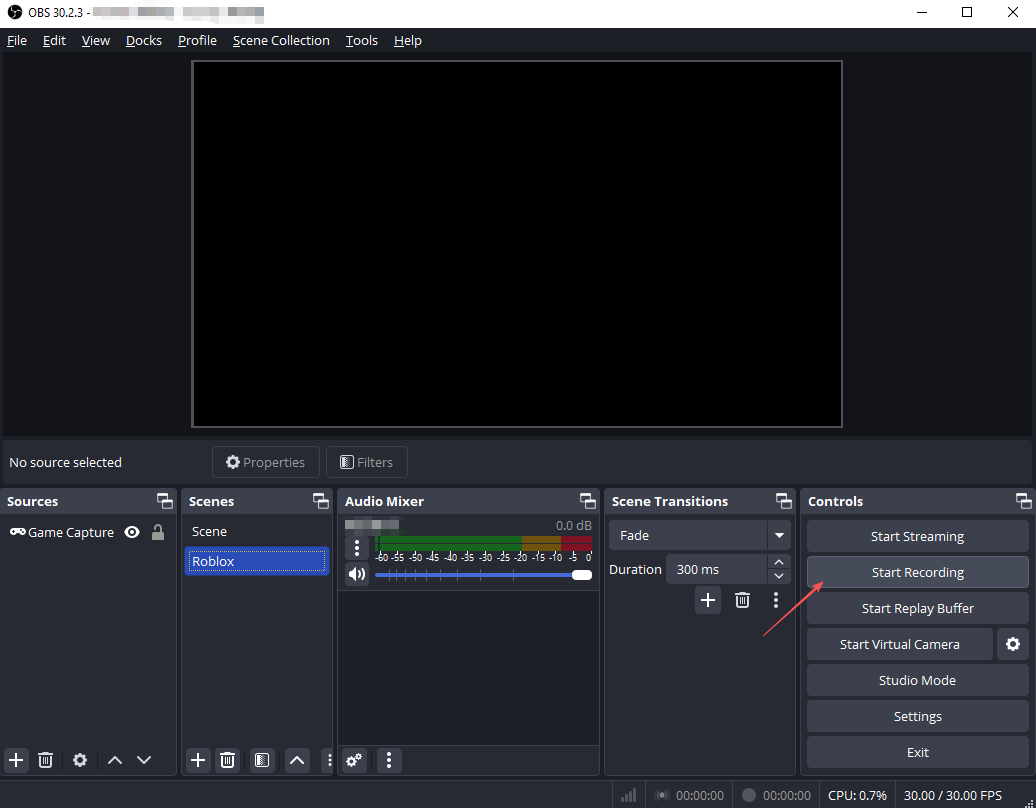
Step 1: Install OBS Studio
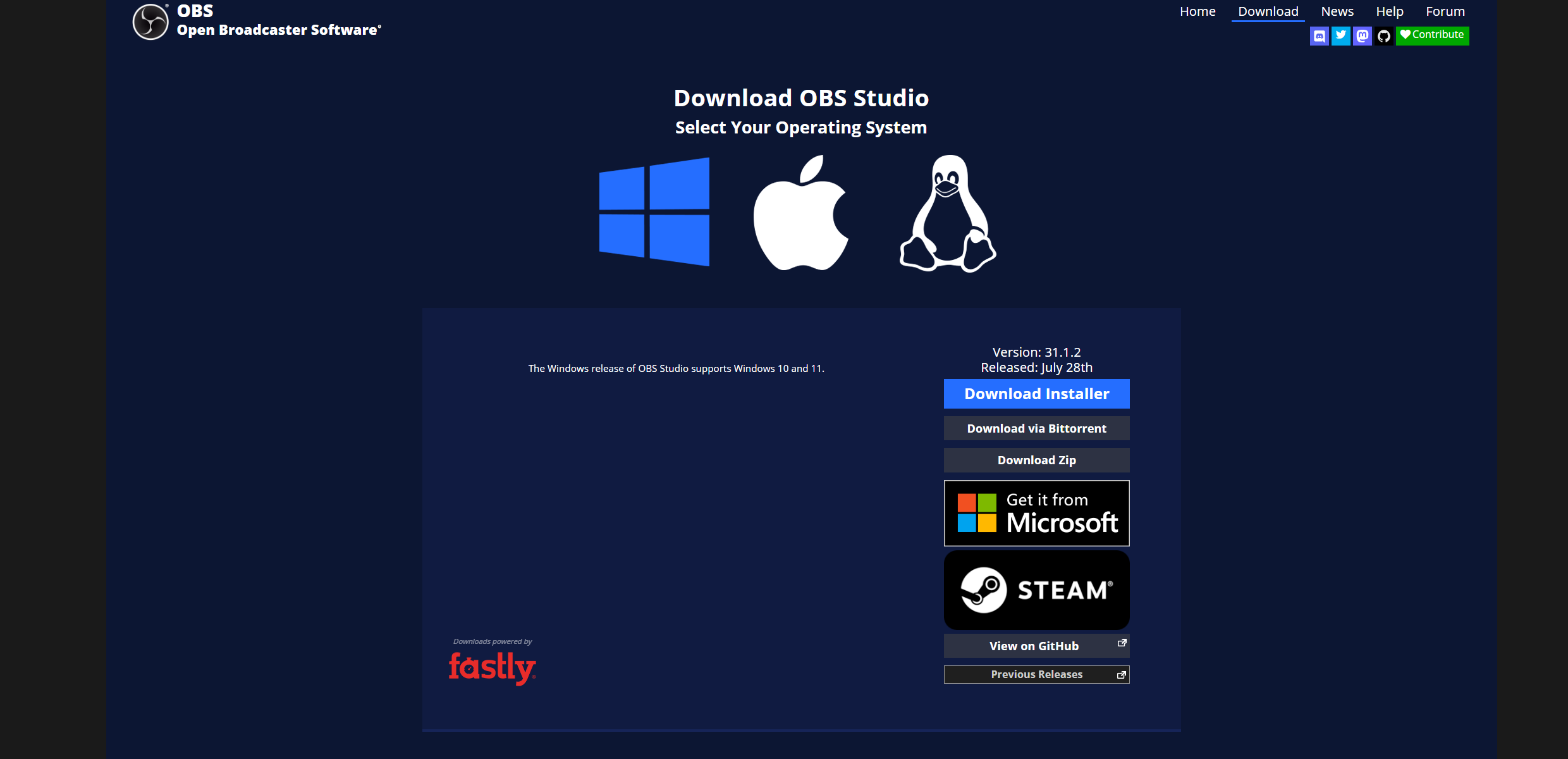
Download OBS from the official website and install it on your computer (The software is free and works on Windows, macOS, and Linux).
Step 2: Set Up a Scene
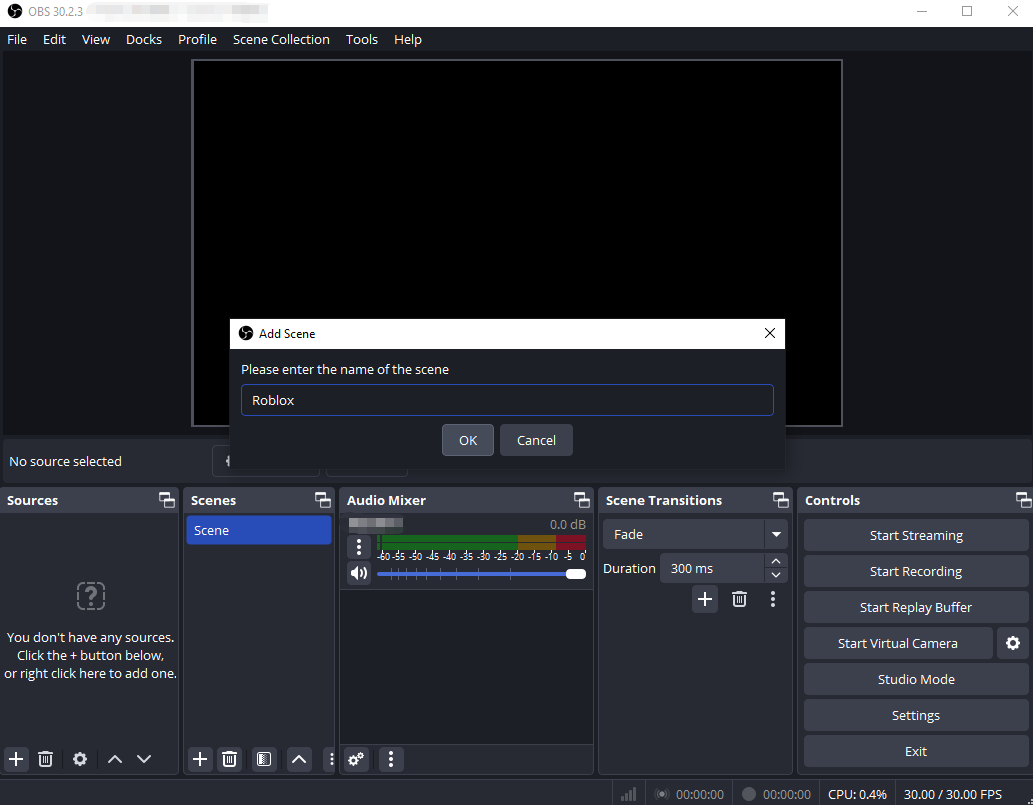
Open OBS and create a new scene. Scenes act as containers for all your sources, like games, webcams, and overlays.
Step 3: Add a Source
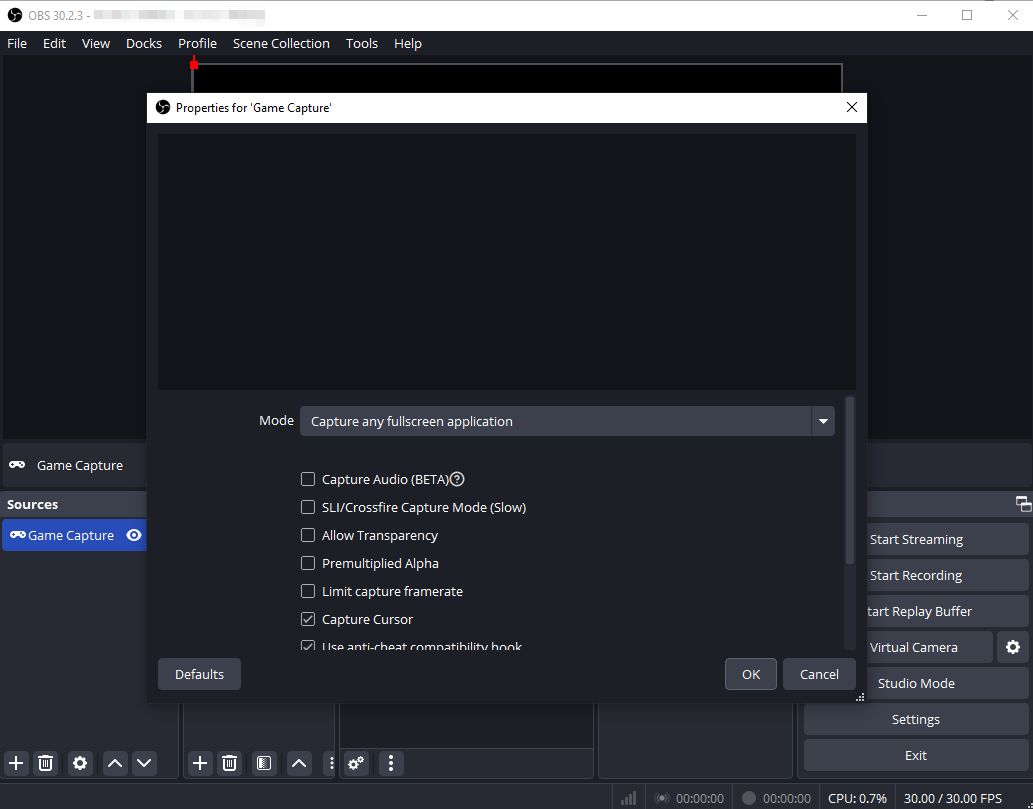
- Game Capture: The most efficient method for capturing Roblox.
- Click the + icon under Sources → select Game Capture.
- Set the Mode to Capture any fullscreen application or Capture specific window, then choose Roblox.
- Display Capture: If Game Capture fails, this option records your entire screen. You can crop it later to focus on Roblox.
Step 4: Adjust Audio Settings
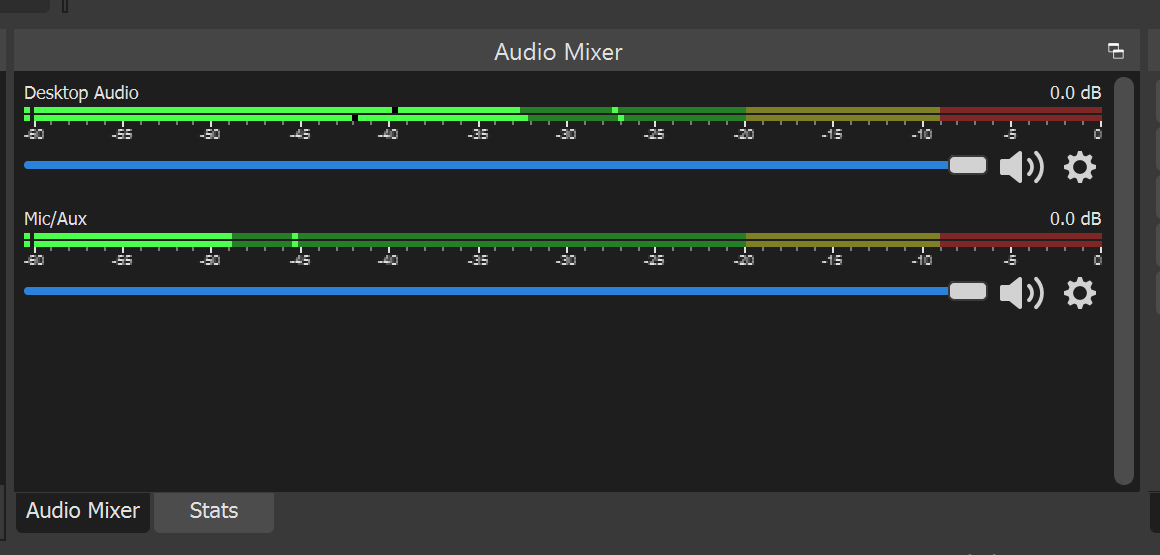
Ensure OBS is capturing both system sound (game audio) and your microphone if you want commentary.
Step 5: Record
Click Start Recording and launch Roblox. After finishing, click Stop Recording. Your gameplay video will be saved in the folder specified under File → Settings → Output → Recording Path.
2. Why Is Roblox Not Showing in OBS?
There are several reasons why Roblox might not appear in OBS. Understanding these helps you troubleshoot effectively.
- Roblox Running as Administrator: OBS may not detect Roblox if Roblox is running with administrator privileges while OBS is not.
- Fullscreen Mode Issues: Roblox running in exclusive fullscreen mode can prevent OBS from capturing the game properly.
- Wrong Capture Mode: Using Game Capture with incorrect settings or trying to capture a minimized window can cause OBS not to display Roblox.
- GPU Conflicts: On laptops with dual GPUs (integrated Intel + dedicated NVIDIA/AMD), Roblox and OBS might run on different GPUs, causing OBS to fail in capturing the game.
- OBS Permissions: Sometimes, OBS itself needs administrator privileges to access certain applications on your system.
3. How to Resolve Roblox Not Showing in OBS?
Here are practical solutions to ensure OBS captures Roblox successfully.
3.1 Match Administrator Privileges
- Make sure OBS is running with admin rights by right-clicking it and selecting Run as administrator.
- Avoid running Roblox as administrator unless necessary.
3.2 Switch Roblox to Windowed or Windowed Fullscreen
- Open Roblox → Settings → Graphics → Display Mode → select Windowed or Windowed Fullscreen.
- This mode allows OBS to detect the game more reliably.
3.3 Adjust Capture Mode
- In OBS, go to your Game Capture source.
- Set Mode to Capture any fullscreen application for maximum compatibility.
- If that fails, use Display Capture as a fallback. Crop the screen in OBS to focus on Roblox.
3.4 Resolve GPU Conflicts
- On NVIDIA laptops: Open NVIDIA Control Panel → Manage 3D settings → Program Settings.
- Set both OBS and Roblox to run on the same GPU (preferably the dedicated GPU).
- Similar steps apply for AMD users.
3.5 Check OBS Permissions
Ensure OBS has the required permissions, especially on Windows 10/11, to capture games. Running OBS as administrator often resolves this.
3.6 Update Software
- Make sure Roblox, OBS, and your graphics drivers are up to date. Compatibility issues are common when one component is outdated.
4. Bonus: Record Roblox with Swyshare Recordit Instead of OBS
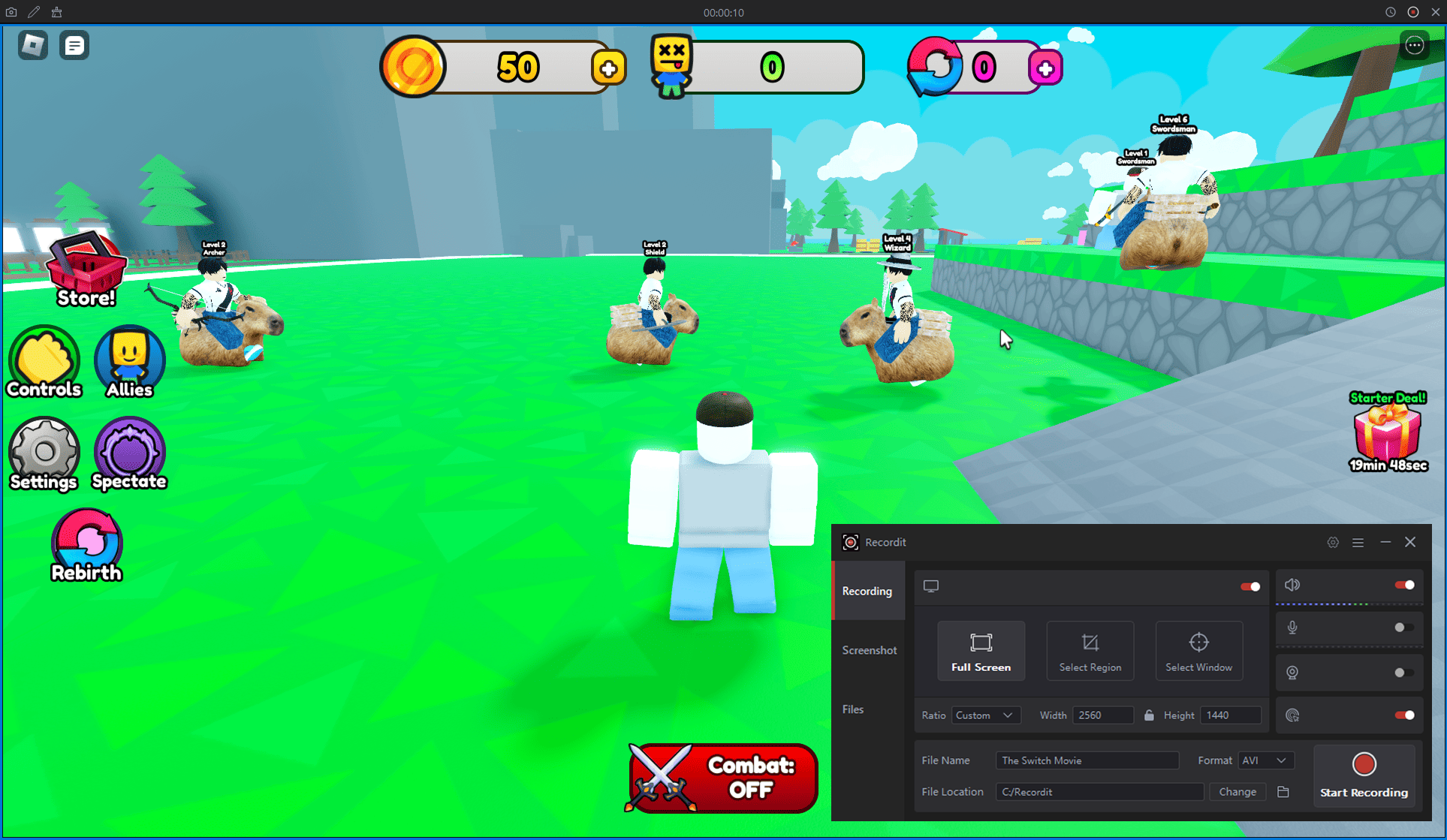
If troubleshooting OBS seems complicated or you want a more straightforward recording solution, Swyshare Recordit is an excellent alternative. Recordit works on both Windows and Mac, offering an intuitive interface and powerful recording features without complex settings.
Key Benefits of Recordit for Roblox:
- Flexible capture options: Full screen, single window, and custom region.
- Audio Capture: Record system audio and microphone simultaneously.
- Webcam Overlay: Add a picture-in-picture webcam feed for commentary.
- High-Quality Output: HD and 4K recording, export in MP4, MOV, AVI, and more.
- Instant Replay & Schedule Recording: Capture what just happened and automate recordings at predefined times.
- Annotations & Mouse Effects: Draw directly on the screen and emphasize clicks to make important actions easier to follow.
- Cross-Platform: Works seamlessly on both Windows and macOS.
- Built-in Video Editor: Trim, add watermarks, or perform basic edits without external software.
5. Conclusion
Recording Roblox gameplay is a fun way to share your gaming experience, but technical issues with OBS—like the game not appearing—can be frustrating. Common problems include administrator privilege mismatches, fullscreen conflicts, incorrect capture modes, and GPU mismatches. While these issues can often be resolved with proper settings, they require time and technical know-how.
For a simpler, hassle-free solution, Swyshare Recordit is highly recommended. With an intuitive design, versatile capture options, built-in editing, and support for both Windows and Mac, Recordit is perfect for hassle-free Roblox recording. Whether you’re a beginner or an experienced gamer, Recordit ensures your gameplay is captured smoothly and professionally.