Best Tools for Full Page Screenshot on Chrome

Capturing a full webpage screenshot has become increasingly important for students, designers, marketers, developers, researchers, and everyday internet users. Whether you want to save an online article, archive research materials, capture webpage designs, or store important information for offline access, full page screenshot tools make the process much easier.
Unlike regular screenshots that only capture the visible area of a webpage, full page screenshot tools can automatically scroll and capture the entire webpage from top to bottom. This is especially useful for long webpages, social media feeds, online receipts, tutorials, and landing pages.
Fortunately, Google Chrome supports many extensions and built-in features that allow users to capture full-page screenshots quickly and efficiently. In this guide, we’ll explore some of the best tools for taking full page screenshots in Chrome, along with an alternative method for archiving webpages permanently.
1. Best Tools for Full Page Screenshot on Chrome
1.1 GoFullPage
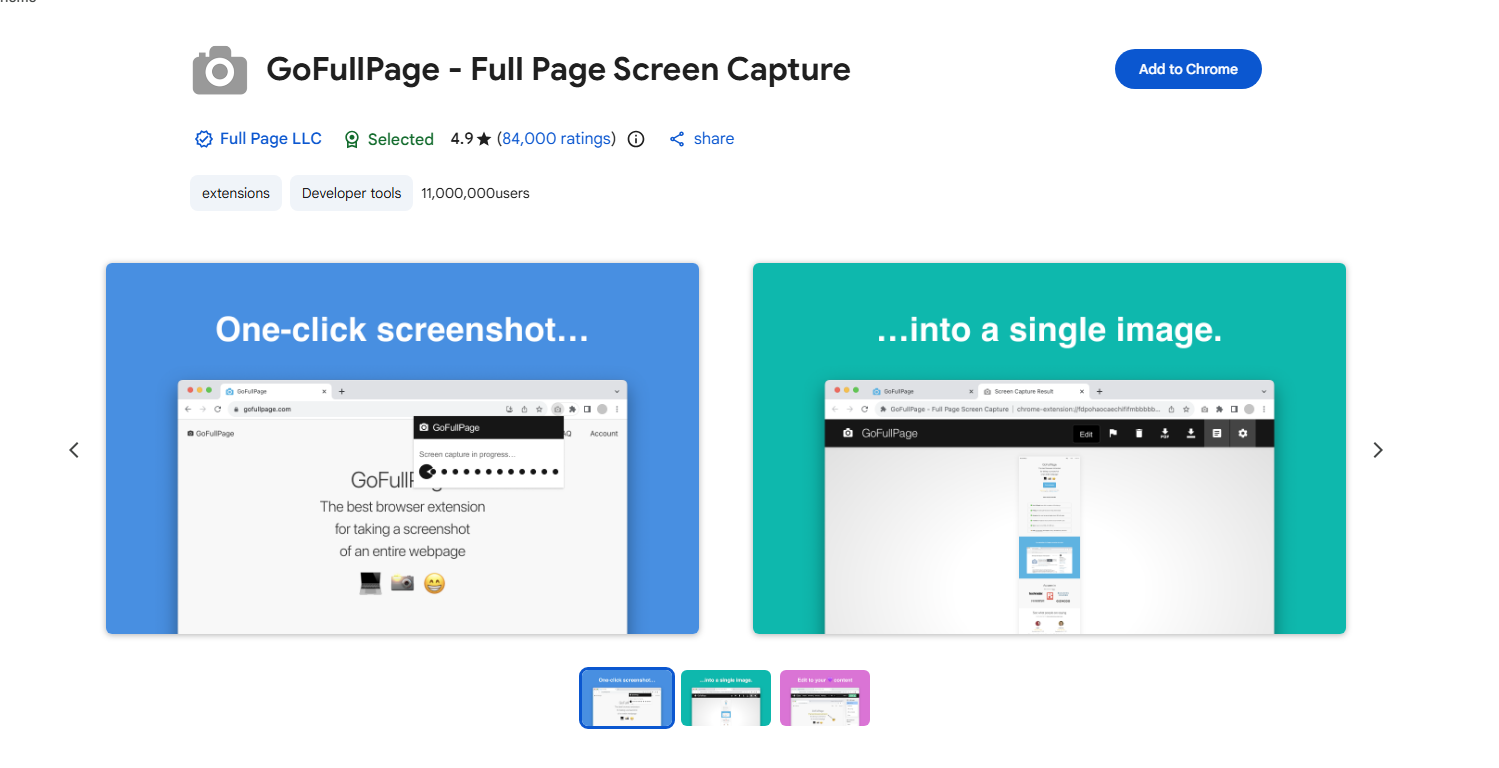
GoFullPage is one of the most popular Chrome extensions for capturing full-page screenshots.
Main Features:
- Capture entire webpages with one click
- Automatic scrolling and stitching
- Export screenshots as PNG, JPG, or PDF
- No account required
- Simple user interface
How It Works:
After installing the extension, users simply open a webpage and click the GoFullPage icon. The extension automatically scrolls through the webpage and generates a complete screenshot.
Advantages:
- Very easy to use
- Fast processing
- Supports long webpages
- Lightweight extension
Limitations:
- Large webpages can produce massive image files
- Dynamic webpage elements may not capture perfectly
- Screenshots are static images only
GoFullPage is ideal for users who need quick and simple webpage captures.
1.2 Awesome Screenshot
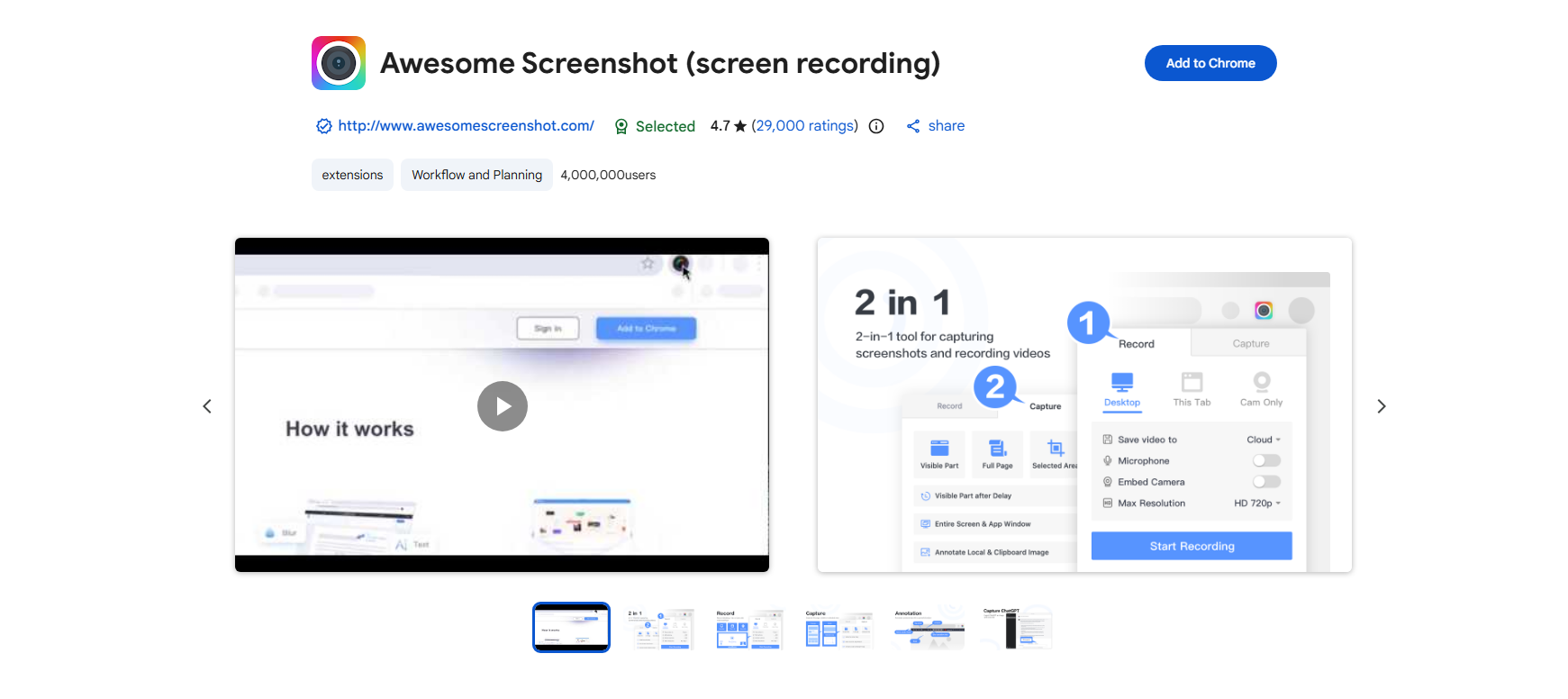
Awesome Screenshot is a powerful screenshot and screen recording tool available for Chrome.
Main Features:
- Full-page screenshots
- Screen recording
- Annotation tools
- Cloud storage support
- Blur sensitive information
Advantages:
- Excellent editing features
- Useful for tutorials and presentations
- Supports video recording
- Easy sharing options
Limitations:
- Some advanced features require a paid plan
- Can use more browser resources
This tool works well for professionals, educators, and teams collaborating online.
1.3 Full Page Screenshot: ScreenTool.io
ScreenTool.io is another web-based tool that allows users to capture full-page screenshots directly from the browser without installing extensions.
Main Features:
- Capture full-length webpages instantly
- No installation required
- Works directly in Chrome and other browsers
- Simple and fast interface
- Download screenshots in high quality
Advantages:
- Lightweight and easy to use
- No browser extension needed
- Good for quick one-time captures
- Accessible on any device with a browser
Limitations:
- Requires internet connection
- Fewer advanced editing features compared to extensions
1.4 Capture webpage screenshots – FireShot
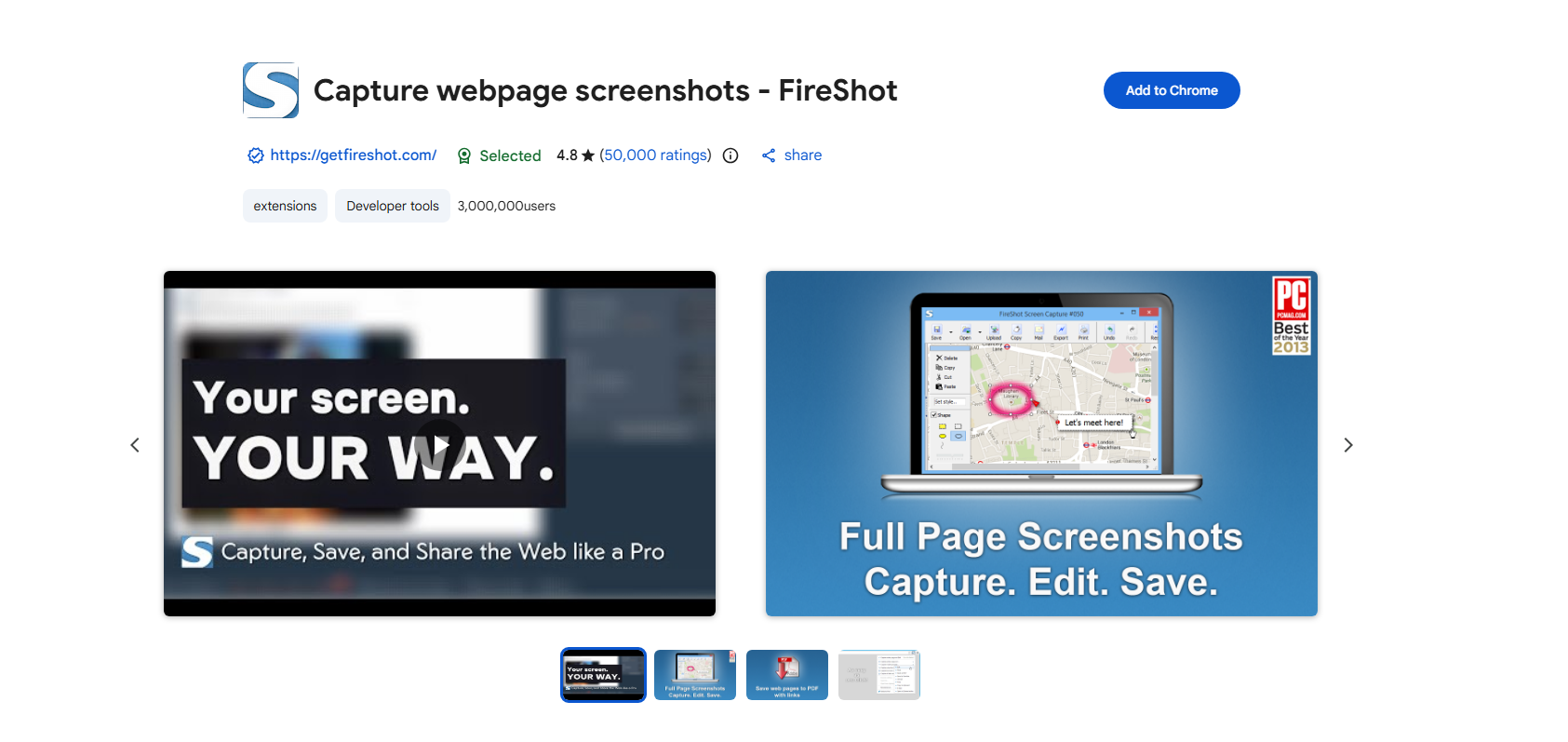
FireShot is also another popular full-page capture extension for Chrome.
Main Features:
- Capture full webpages
- Save as PDF or image
- Annotation tools
- Offline saving
- Browser integration
Advantages:
- Reliable webpage capture
- Supports multiple export formats
- Works well with long webpages
Limitations:
- Some advanced tools are premium-only
- Interface may feel outdated
FireShot remains a solid option for users who frequently capture webpages.
1.5 Chrome Built-in Full Page Screenshot Tool
Many users don’t realize that Google Chrome already includes a hidden built-in full-page screenshot feature.
How to Use It:
- Open the webpage.
- Press:
- Ctrl + Shift + I (Windows)
- Cmd + Option + I (Mac)
- Open the Command Menu:
- Ctrl + Shift + P
- Type:
- “Capture full size screenshot”
- Press Enter.
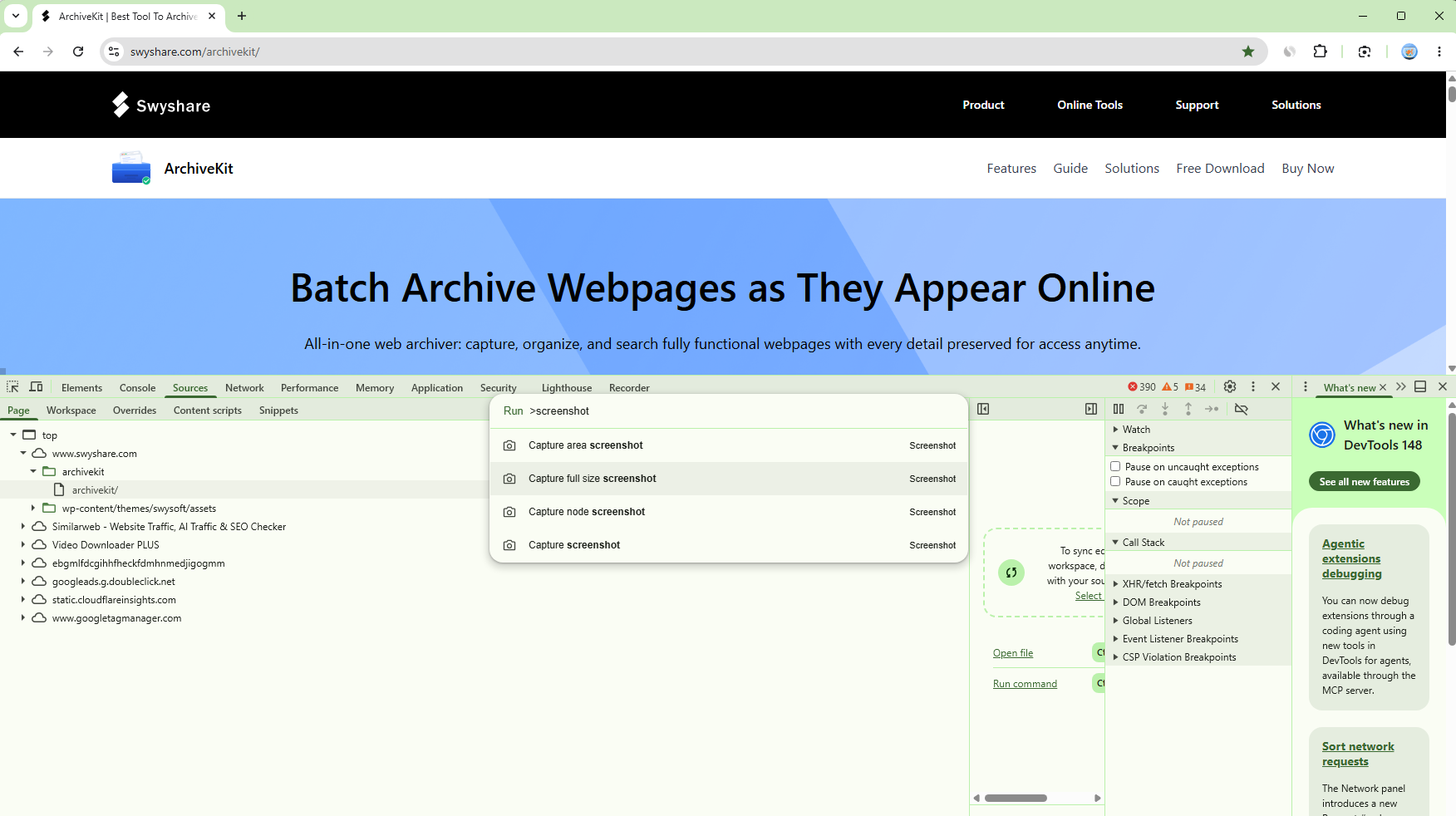
Chrome will automatically download a full-page screenshot.
Advantages:
- No extension installation required
- Completely free
- Built directly into Chrome
Limitations:
- Hidden feature many users don’t know about
- Limited editing capabilities
- Screenshots only, no webpage preservation
This option is perfect for occasional screenshot needs.
2. Limitations of Full Page Screenshots
Although screenshot tools are useful, they also have several important limitations.
- Static Images Only
Screenshots capture webpages as flat images. Users cannot interact with the content afterward.
- Large File Sizes
Long webpages often produce massive image files that are difficult to manage.
- Dynamic Content Problems
Modern websites frequently use animations, lazy loading, videos, and interactive elements that screenshots may not capture correctly.
- No Search Functionality
Text inside screenshots usually cannot be searched unless OCR is used.
- Difficult Organization
Managing hundreds of screenshot files can quickly become messy.
Because of these limitations, some users prefer webpage archiving instead of traditional screenshots.
3. Archiving Chrome Pages Instead of Screenshoting
Instead of capturing static screenshots, users can archive entire webpages using Swyshare ArchiveKit. ArchiveKit is designed to preserve webpages in a much more complete and accessible format than ordinary screenshots.
3.1 Why Archive Webpages Instead of Taking Screenshots?
Unlike screenshots, webpage archiving preserves:
- Full webpage structure
- Images and media
- Scrollable layouts
- Dynamic content
- Website formatting
- Offline accessibility
This allows users to revisit webpages later with a browsing experience similar to the original online version.
3.2 Key Features of Swyshare ArchiveKit:
- Save complete webpages instead of static screenshots
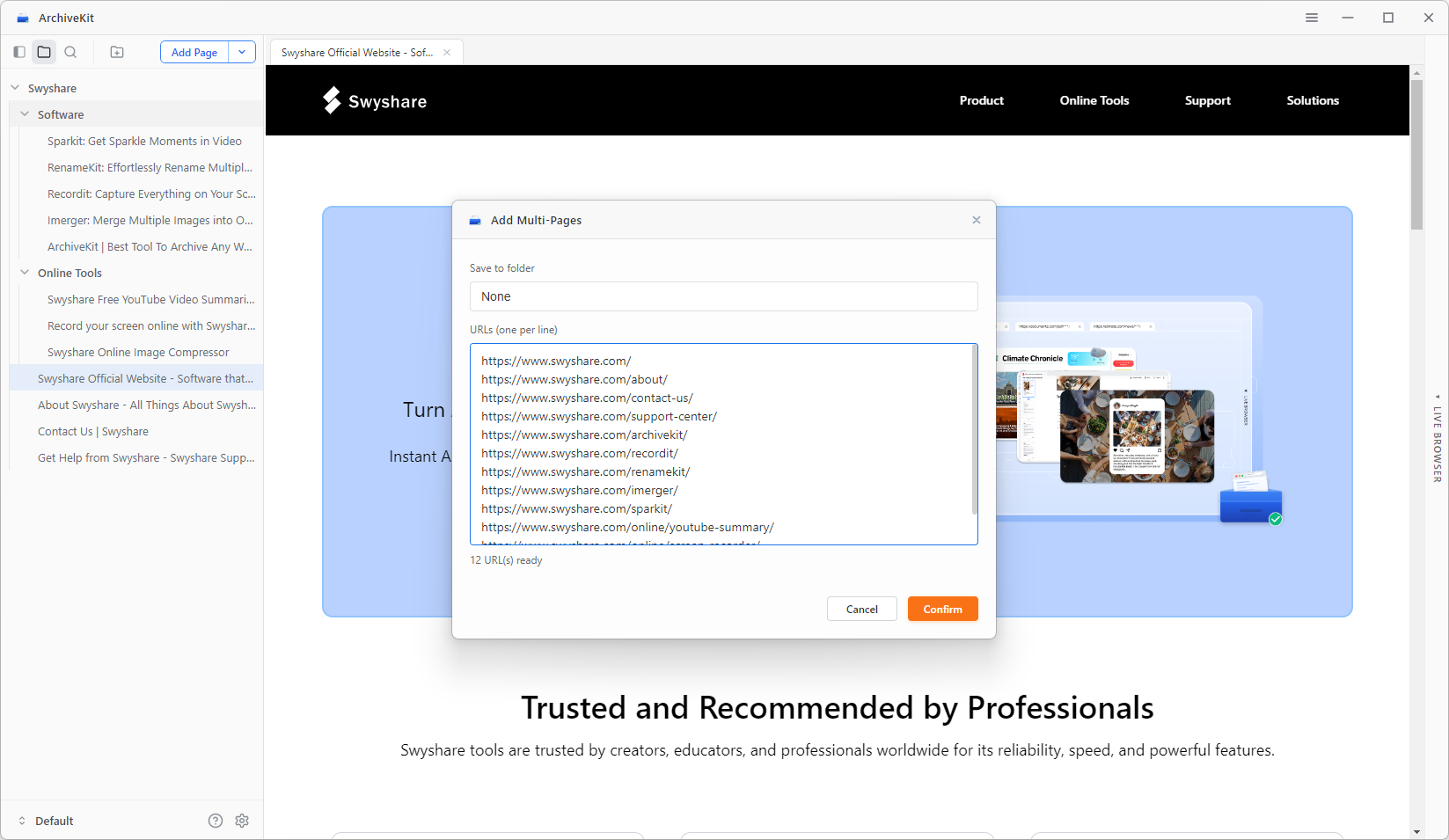
- Batch archive multiple webpages by importing URLs
- Use Live Browser Mode to archive logged-in content
- Preserve webpages with their original appearance and layout
- Search through archived webpage collections and access archived pages offline anytime
3.3 How to Archive Chrome Pages with ArchiveKit?
- Simply download and set up Swyshare ArchiveKit on a Windows or Mac device.
- Copy the URLs of the Chrome pages you want to archive and add them into ArchiveKit.
- Scroll the page to load all content, then ArchiveKit will auto save all pages as they appear online.
- Once archived, you can easily search saved pages, view them offline, manage collections, and revisit them whenever needed.
4. Conclusion
There are many excellent tools available for taking full-page screenshots in Google Chrome. Extensions like GoFullPage, Awesome Screenshot, Nimbus Screenshot, and FireShot make it easy to capture entire webpages quickly.
However, screenshots are still limited because they create static image files rather than preserving actual webpage functionality and content.
For users who want a more advanced solution, Swyshare ArchiveKit is highly recommended. Its ability to archive complete webpages, preserve layouts, support offline viewing and organize archived collections makes it a better long-term alternative to ordinary screenshot tools.