Website to JPG: Best Tools to Convert Webpages into Images

There are many reasons why you might want to convert a website into a JPG image. Whether you’re saving a webpage for documentation, creating tutorials, sharing visual content, archiving web pages, or preserving online information before it changes, a JPG image offers a convenient and widely compatible format.
Unlike saving a webpage as HTML or PDF, a JPG captures exactly how the page appears at a specific moment. This makes it ideal for presentations, reports, design inspiration, and offline reference. Depending on your needs, you can capture just the visible screen or an entire scrolling webpage.
In this guide, we’ll explore the best tools and methods to convert webpages into JPG images quickly and efficiently.
1. Convert Website to JPG Using Browser Screenshot
The easiest way to convert a website into a JPG is by using your web browser’s built-in screenshot capabilities. Most modern browsers, including Google Chrome, Microsoft Edge, and Mozilla Firefox, support capturing webpages without requiring additional software.
For example, Chrome includes a hidden “Capture full size screenshot” feature within its Developer Tools. This allows users to capture an entire webpage, including content that extends beyond the visible screen. Microsoft Edge offers a similar feature called Web Capture, while Firefox provides a screenshot tool that can save either the visible area or the entire page.
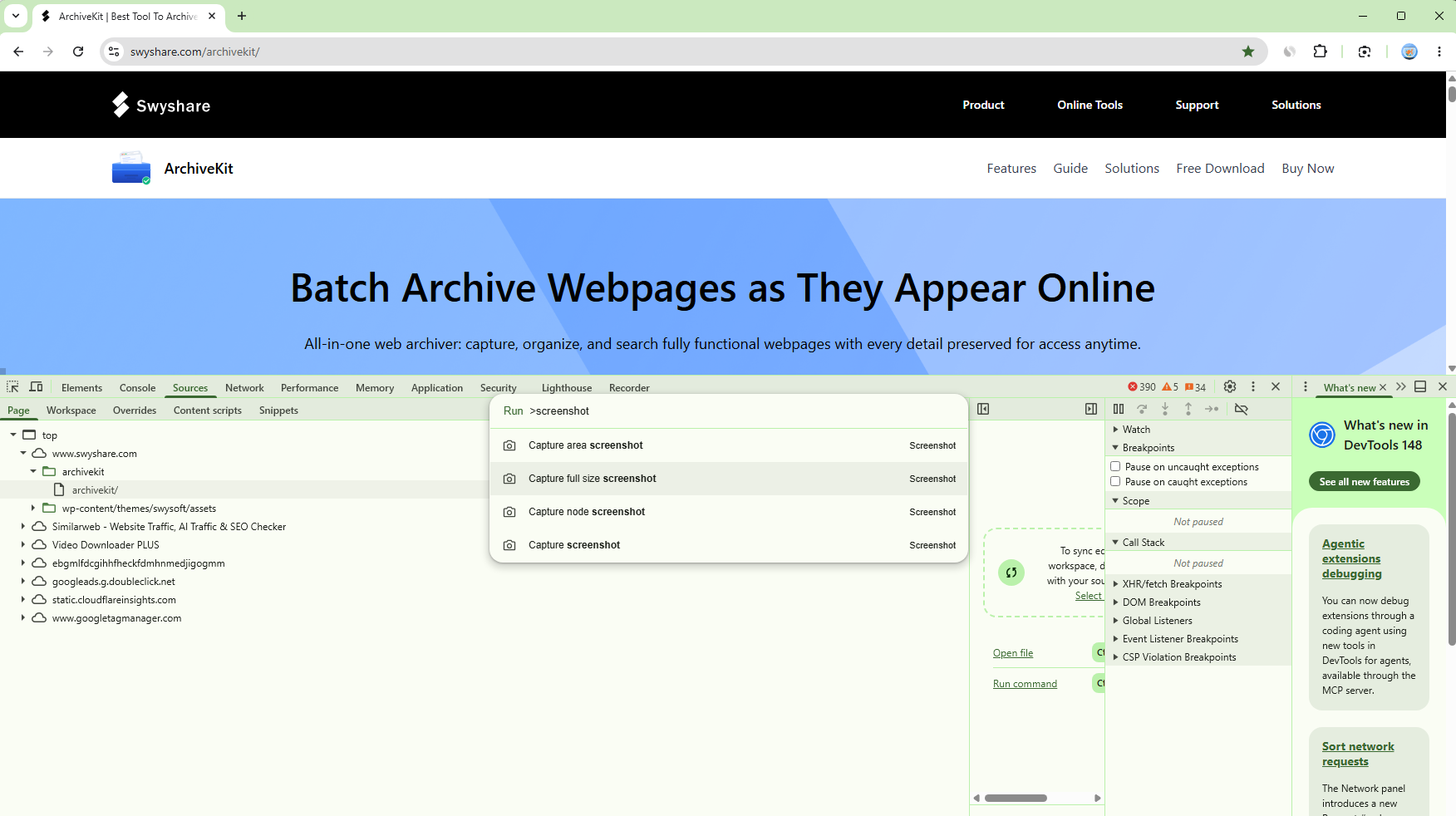
Although these tools typically save screenshots as PNG files, converting them to JPG is simple using built-in image editors like Paint or Preview, or through free online image converters.
Pros:
- Completely free
- No software installation required
- Can capture full webpages
- Produces high-quality screenshots
Cons:
- Usually exports PNG instead of JPG
- Limited editing and annotation features
- Not suitable for batch webpage capture
2. Convert Website to JPG Using Online Website Screenshot Tools
Online website screenshot services are another convenient way to convert webpages into JPG images. These tools work directly from your browser—you simply enter a webpage URL, wait for the service to generate a screenshot, and download the resulting image.
Popular online screenshot tools include:
- CloudConvert Website JPG Screenshot
- Screenshot Guru
- URLbox
- Website Screenshot API
- Site-Shot
- Browserling Screenshot Generator
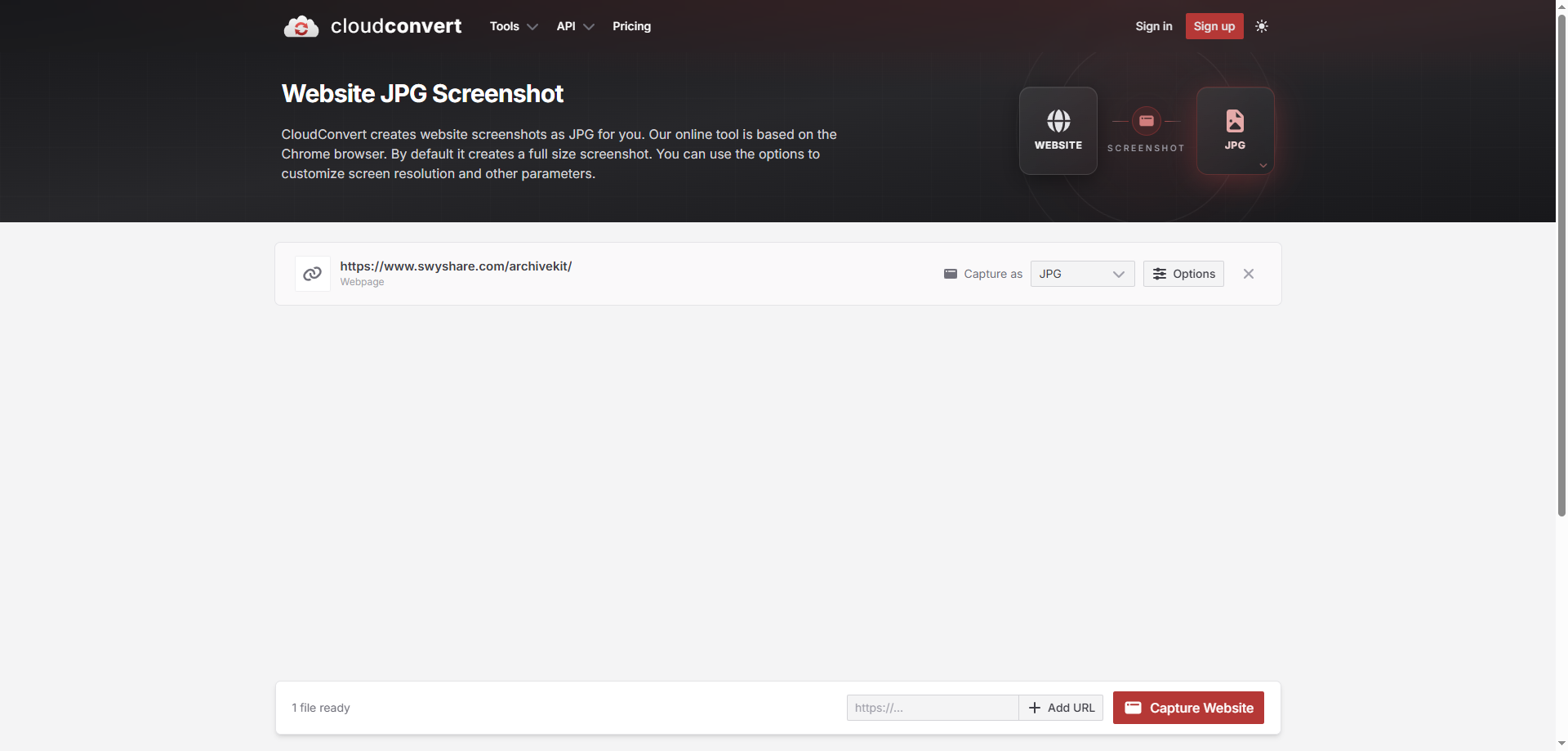
Many of these services support both PNG and JPG output formats, while some allow you to customize browser size, image quality, device type, and full-page capture settings.
These tools are particularly useful if you only need occasional screenshots without installing desktop software.
Pros:
- Easy to use
- No installation required
- Supports full-page screenshots
- Some services offer direct JPG downloads
Cons:
- Free versions often have limitations
- Some websites may not render dynamic content correctly
- Privacy concerns when capturing sensitive webpages
- Batch processing usually requires a paid subscription
3. Convert Website to JPG Using Desktop Screenshot Software
If you frequently capture webpages or require higher-quality images, desktop screenshot software provides greater flexibility than browser-based solutions.
You can use built-in tools such as Snipping Tool on Windows or Screenshot on macOS to take an image of the visible section of a webpage. Third-party applications like ShareX, Snagit, Greenshot, and PicPick add advanced features including scrolling screenshots, annotations, automatic saving, and image editing.
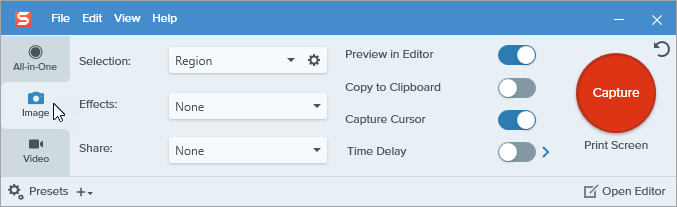
Desktop software is especially valuable for professionals who create documentation, tutorials, or marketing materials because it offers precise control over image quality and workflow.
Many applications also allow exporting screenshots directly as JPG with adjustable compression settings, helping reduce file size while maintaining image quality.
Pros:
- More editing options
- High-quality image output
- Supports scrolling screenshots
- Fast workflow for frequent use
- Direct JPG export
Cons:
- Some software requires installation
- Premium tools may require a license
- May not preserve interactive webpage elements
4. Archive and Screenshot Webpages with Swyshare ArchiveKit
A screenshot saves what you see, while Swyshare ArchiveKit saves the entire webpage for long-term preservation.
ArchiveKit is a webpage archiving tool designed to save complete webpages for offline access before converting them into images. Instead of simply taking a screenshot, it preserves the webpage’s structure, images, formatting, and other resources, allowing you to revisit the page even without an internet connection.
Once archived, you can open the saved webpage within ArchiveKit or your browser and capture high-resolution JPG screenshots whenever needed. This workflow is especially useful for researchers, designers, journalists, educators, and anyone who needs long-term access to web content.
Key Features of Swyshare ArchiveKit:
- Save complete webpages for offline viewing.
- Import multiple webpage URLs for batch archiving.
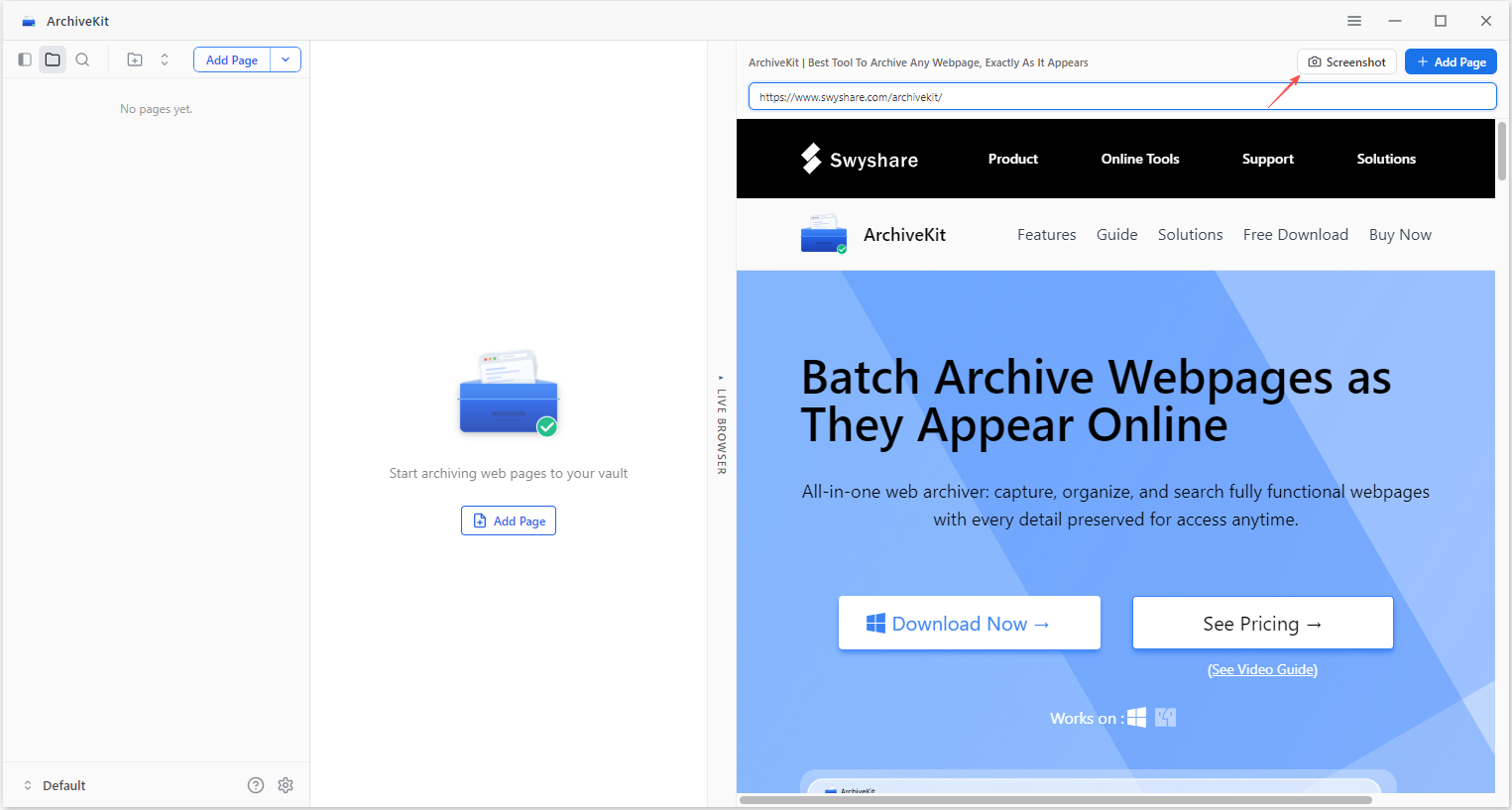
- Built-in live browser mode for loading dynamic websites.
- Organize archived pages into folders and collections.
- Highlight important content and use Reader View for distraction-free reading.
- Compatible with both Windows and macOS.
How to Archive Website and Convert it to JPG:
- Install and launch Swyshare ArchiveKit on your Windows or Mac computer, then copy and paste the webpage URL into ArchiveKit’s live browser.
- Let the webpage fully load and wait the software to archive the webpage for offline access.
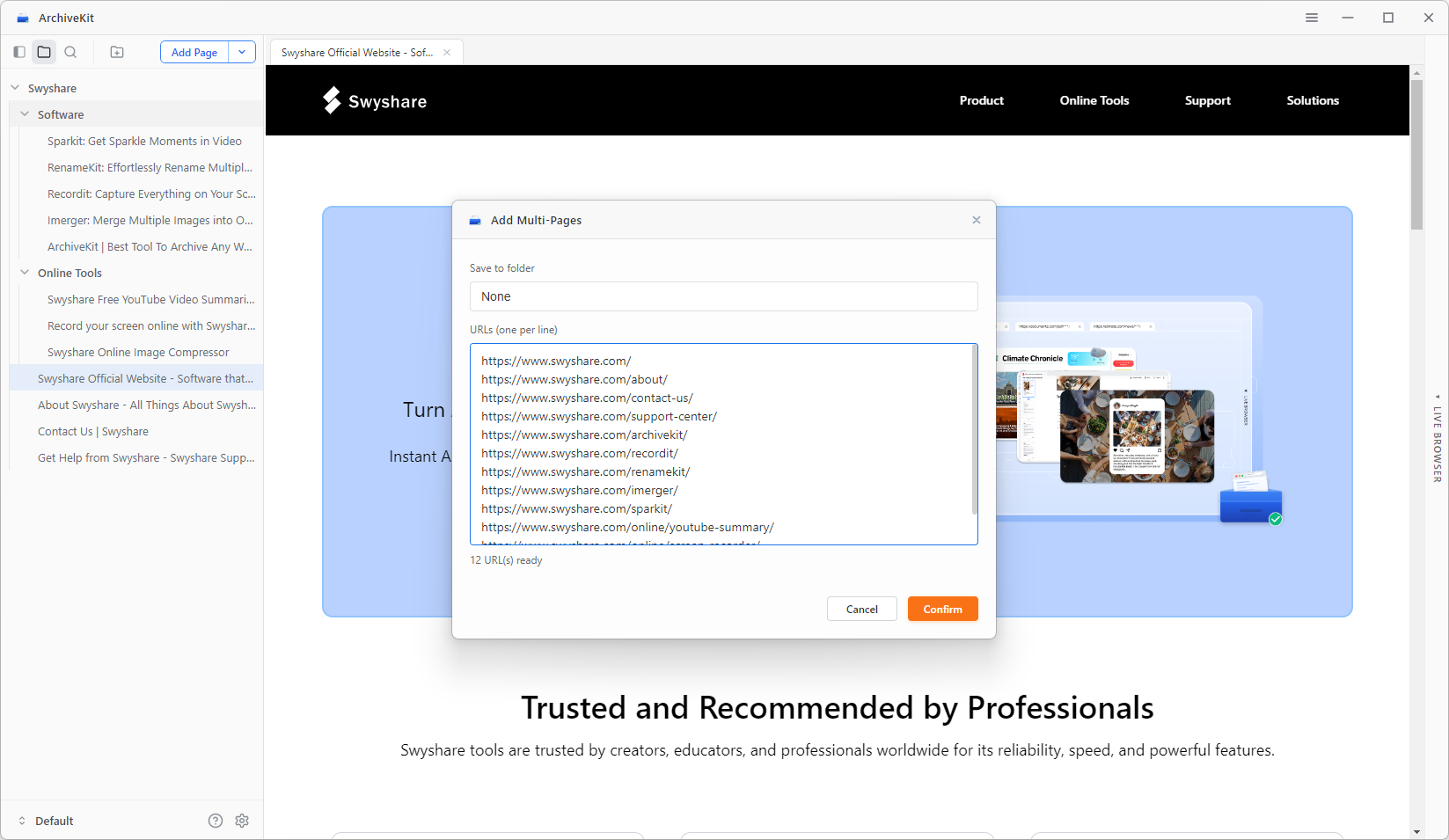
- To convert website to JPG, just scroll the full page and click the “Screenshot” icon.
5. Conclusion
There are many effective ways to convert a website into a JPG image, and the best choice depends on your specific needs. Browser screenshot tools are perfect for quick captures, online screenshot services provide convenient URL-to-image conversion, and desktop screenshot software offers advanced editing features and greater control over image quality.
However, if you want more than just a static screenshot, Swyshare ArchiveKit is the most comprehensive solution. With features like batch webpage archiving, live browser mode, organized collections, and offline viewing, ArchiveKit provides a reliable workflow for anyone who regularly saves or documents web content. If you’re looking for a dependable way to convert websites into JPG images while also preserving valuable webpages, Swyshare ArchiveKit is the tool worth considering.