How to Bookmark Web Pages?

Whether you’re researching a topic, collecting learning resources, saving recipes, or keeping track of your favorite websites, it’s important to have an easy way to revisit useful web pages. The most common solution is bookmarking—a built-in browser feature that lets you save links for quick access later.
Bookmarks are fast, convenient, and available in virtually every modern web browser, including Google Chrome, Microsoft Edge, Mozilla Firefox, and Safari. With a single click or keyboard shortcut, you can add a webpage to your bookmarks and organize it into folders for future reference.
In this guide, you’ll learn how to bookmark web pages in different browsers, now let’s dive in.
1. How to Bookmark Web Pages?
Bookmarking a webpage is quick and easy, regardless of which browser you use.
1.1 Bookmark a Webpage in Google Chrome
Google Chrome makes bookmarking simple.
Steps:
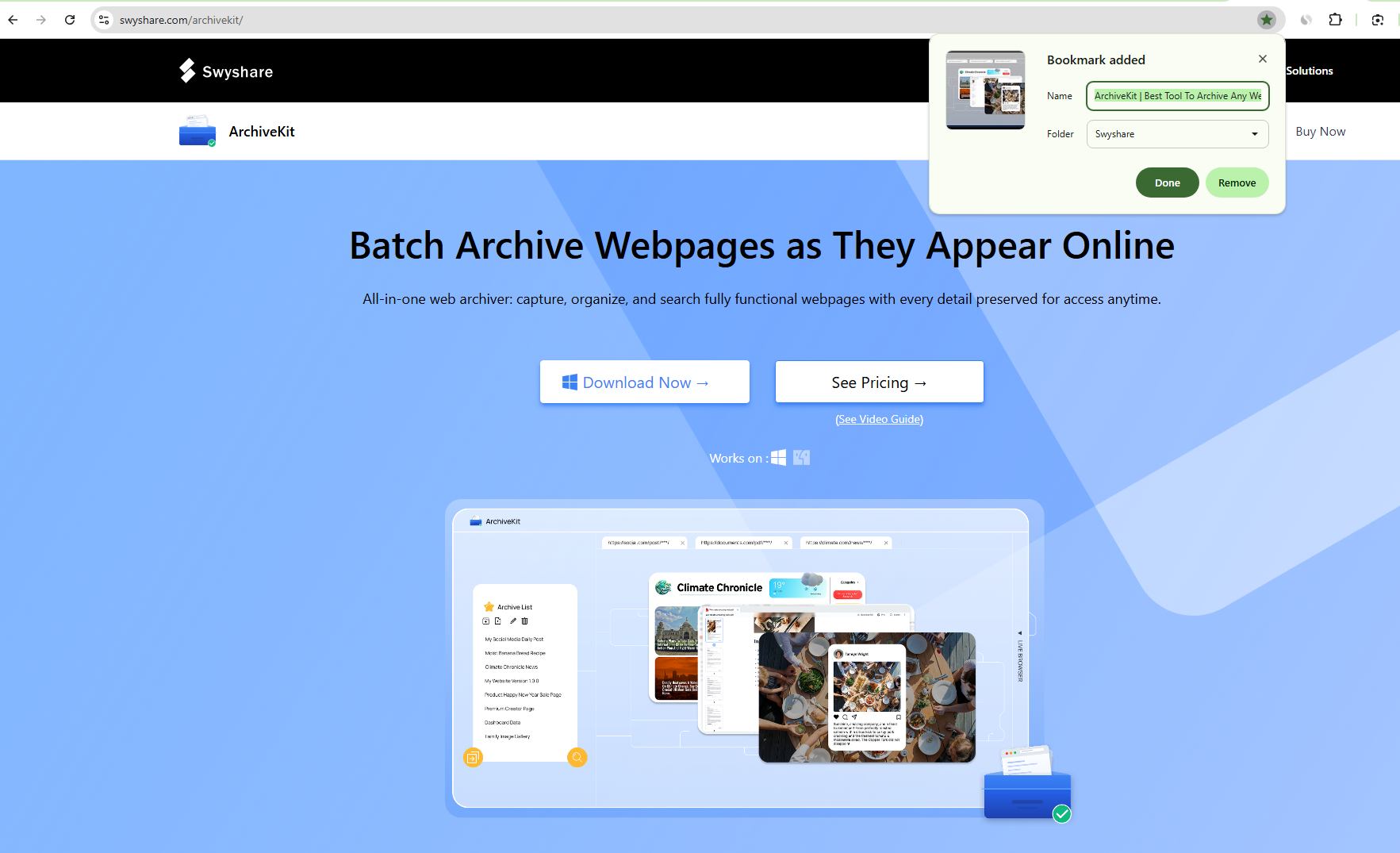
- Open the webpage you want to save, then click the Star icon at the right end of the address bar.
- Edit the bookmark name if desired.
- Select a folder, such as Bookmarks Bar or Other Bookmarks, then click Done.
Keyboard shortcut:
- Windows/Linux: Ctrl + D
- Mac: Command + D
You can also display the Bookmarks Bar using Ctrl + Shift + B (Windows) or Command + Shift + B (Mac) for faster access to your favorite websites.
1.2 Bookmark a Webpage in Microsoft Edge
Microsoft Edge refers to bookmarks as Favorites, but the process is nearly identical.
Steps:
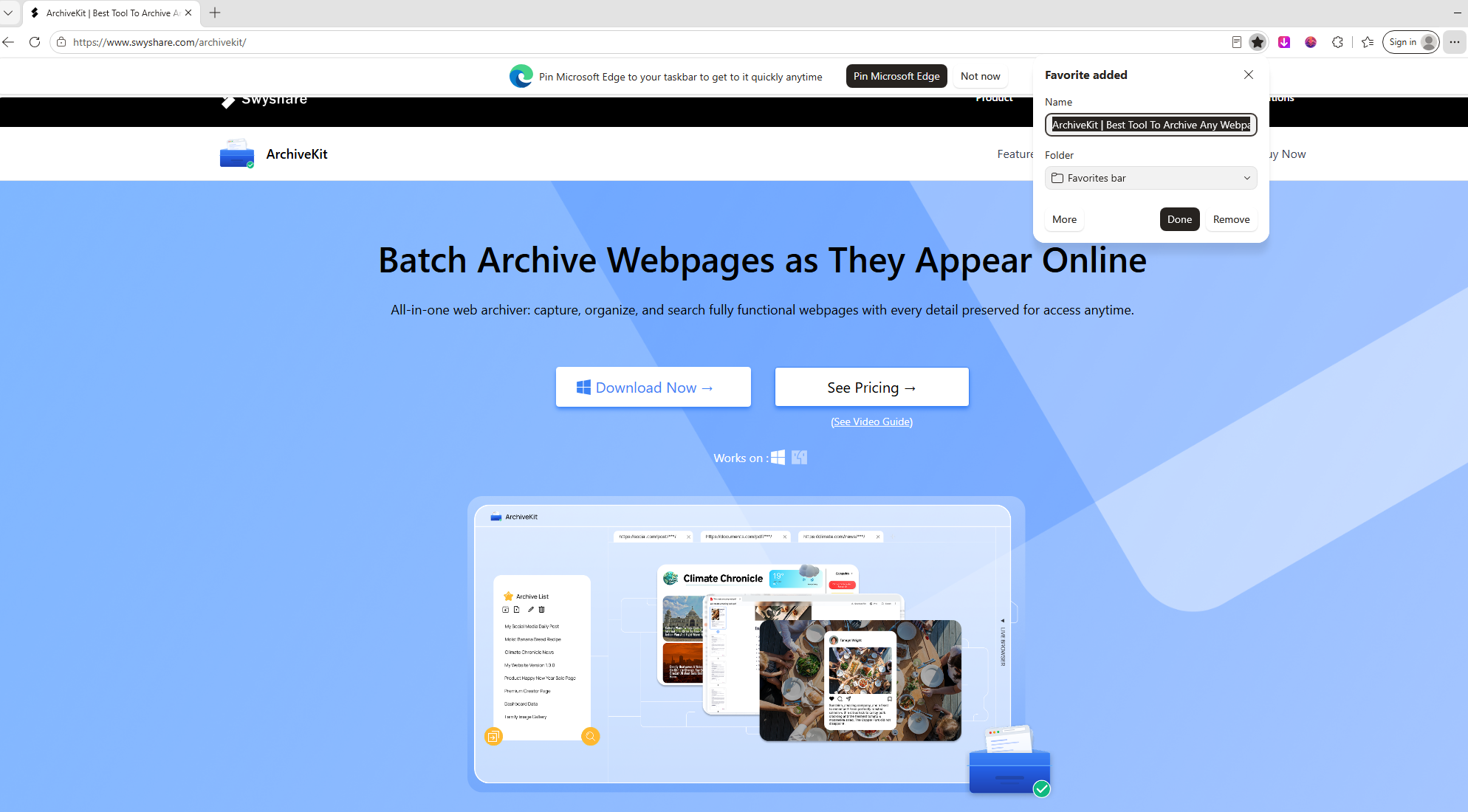
- Visit the webpage and lick the Favorites (Star) icon.
- Customize the bookmark name if necessary.
- Choose a folder and click Done.
Shortcut:
- Windows: Ctrl + D
- Mac: Command + D
1.3 Bookmark a Webpage in Mozilla Firefox
Firefox provides flexible bookmark management.
Steps:
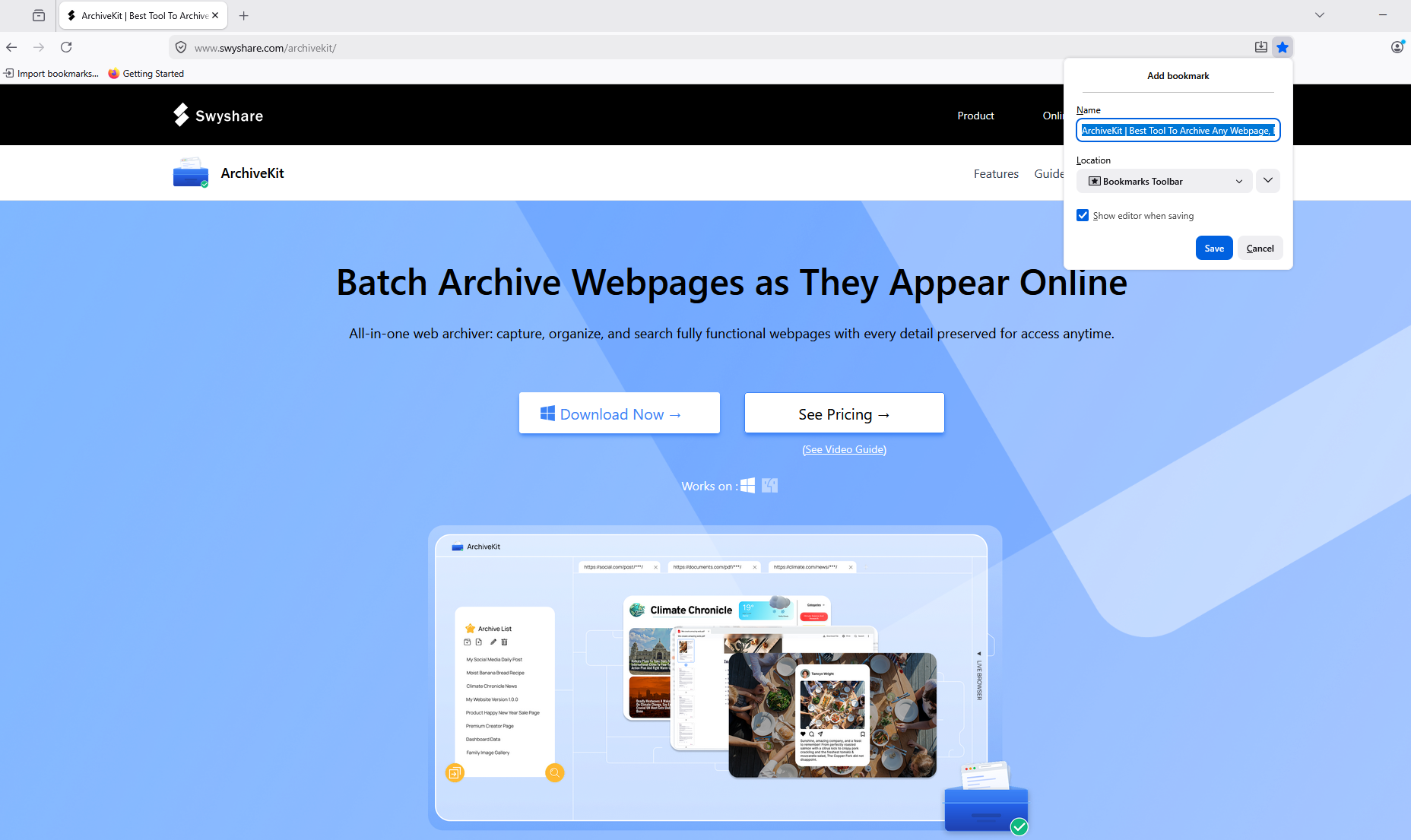
- Open the webpage and click the Star icon in the address bar.
- Rename the bookmark if you’d like.
- Select a destination folder and click Done.
Firefox also supports tags, making bookmarks easier to search and organize.
1.4 Bookmark a Webpage in Safari
Safari users can bookmark pages on macOS with just a few clicks.
Steps:
- Open the webpage.
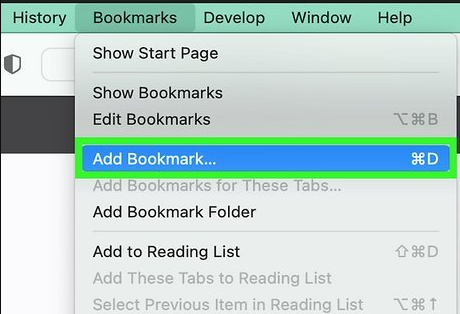
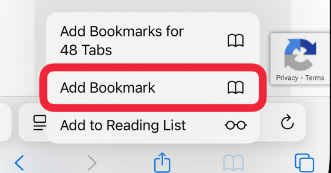
- Select Bookmarks > Add Bookmark from the menu bar, or click the Share button and choose Add Bookmark.
- Choose where to save the bookmark and click Add.
Shortcut:
- Command + D
1.5 Bookmark Web Pages on Mobile Devices
Chrome for Android:
Open the webpage > Tap the three-dot menu > Tap the Star icon.
Safari on iPhone or iPad:
Open the webpage > Tap the Share button > Select Add Bookmark > Choose a folder and tap Save.
2. The Limitations of Bookmarking
Bookmarks are excellent for quickly saving links, but they have important limitations.
A bookmark stores only the webpage’s address. It doesn’t preserve the content displayed when you saved it. If the webpage changes or disappears, the bookmark points to a page that may no longer contain the information you need.
Some common issues include:
- Websites remove old articles.
- Product pages are updated or discontinued.
- Documentation changes after software updates.
- News stories are edited after publication.
- URLs change during website redesigns.
- Pages return 404 errors after being deleted.
In these situations, bookmarks become far less useful because the original content is no longer available.
If preserving information matters, bookmarking alone isn’t enough.
3. Archive Webpages with Swyshare ArchiveKit Instead of Bookmarking
For webpages you want to keep permanently, archiving is a much more reliable solution than bookmarking.
Unlike bookmarks, which simply save a link, Swyshare ArchiveKit saves the webpage itself. This allows you to preserve the content as it appeared when you archived it, helping protect against future changes or removal.
Key features of ArchiveKit:
- Save entire webpages as they appear online.
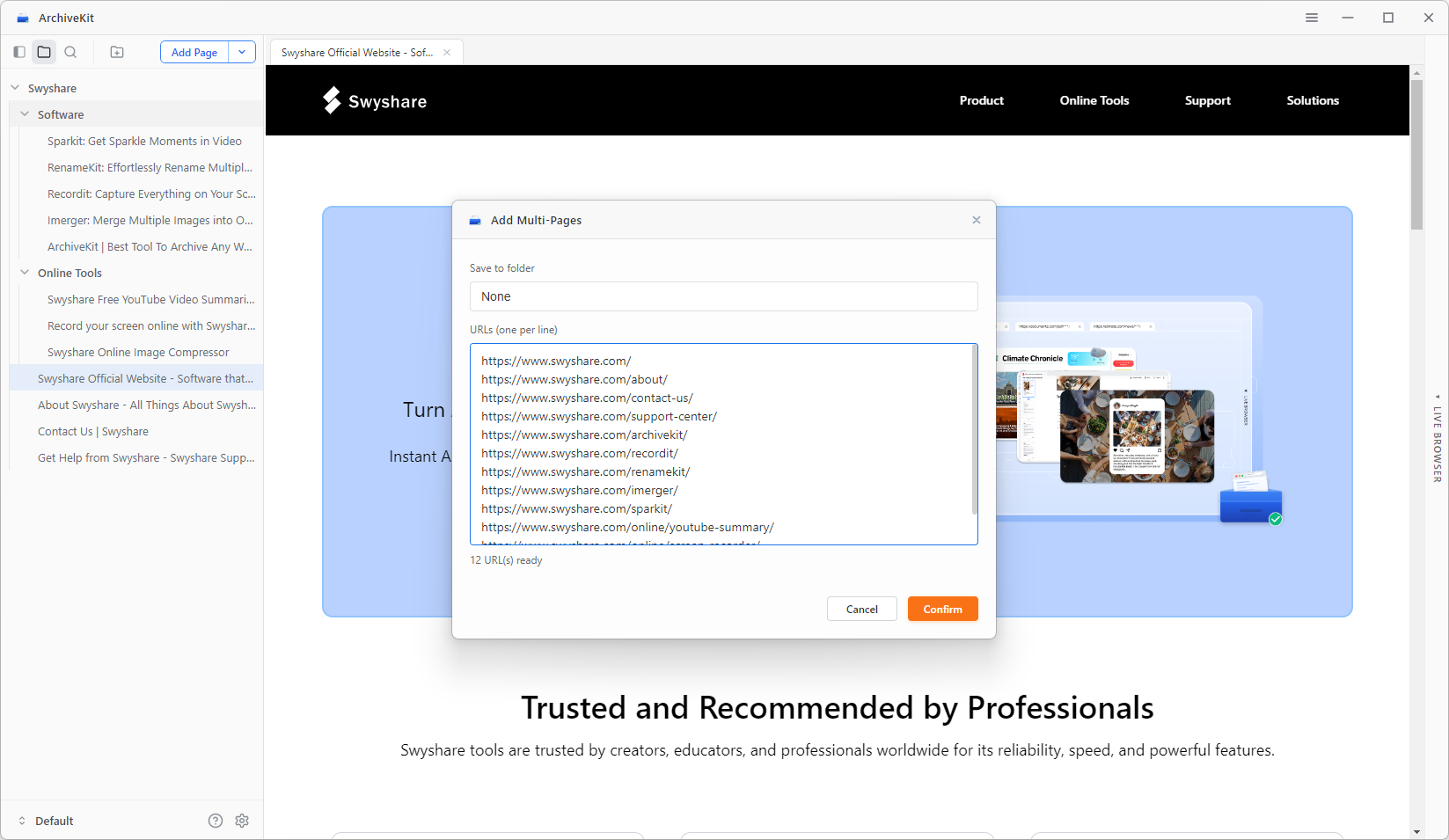
- Import webpage URL list for batch archiving.
- Live browser mode to access and archive webpages directly within the app.
- Easily manage and locate your saved webpages.
- Highlight important text and switch to Reader View for a cleaner reading experience.
- Available on both Windows and macOS platforms.
How to archive webpages with ArchiveKit:
- Download and install ArchiveKit, then launch it on your Windows or macOS computer.
- Copy the URLs of the webpages you’d like to preserve and paste them into ArchiveKit’s built-in browser or URL import panel.
- Let each webpage load completely so that all text, images, and interactive content are fully rendered, then start the archiving process to save a complete offline copy.
- Keep your archived webpages organized by sorting them into folders or collections, making them easy to browse, search, and revisit whenever you need them.
4. Conclusion
Bookmarking web pages is one of the easiest ways to save websites for future visits. Every major browser offers built-in bookmarking tools that make it simple to organize your favorite sites and access them with just a click. For everyday browsing, bookmarks remain a convenient and effective feature.
However, bookmarks only save URLs—not the webpages themselves. If content changes, moves, or disappears, the bookmark may no longer provide access to the information you wanted to keep.
That’s where Swyshare ArchiveKit stands out. Instead of relying on links that may eventually break, ArchiveKit preserves complete webpages, allowing you to revisit important online content even if the original site changes or goes offline. With support for archiving full webpages, offline access, and organized storage, ArchiveKit offers a far more dependable solution for anyone who wants to preserve valuable web resources for the long term. If you need more than a simple bookmark, Swyshare ArchiveKit is the ideal tool for safeguarding the webpages that matter most.