How to Resolve Arc Browser Capture Full Page Screenshot Cuts Off Bottom Part?

Arc Browser has gained popularity thanks to its modern interface, innovative tab management, and productivity-focused features. Among its useful tools is the ability to capture full-page screenshots, allowing users to save an entire webpage as a single image. This feature is particularly helpful for researchers, students, marketers, developers, and anyone who needs to preserve web content for future reference.
However, some users encounter a common problem: Arc Browser’s full-page screenshot feature cuts off the bottom portion of the webpage. Instead of capturing the complete page, the screenshot ends prematurely, leaving important content missing. This can be frustrating when you’re trying to save lengthy articles, documentation, reports, receipts, social media posts, or research materials.
In this guide, we’ll explore the common reasons why Arc Browser full-page screenshots get cut off and how to fix the problem.
1. Why Arc Browser Capture Full Page Screenshot Cuts Off Bottom Part?
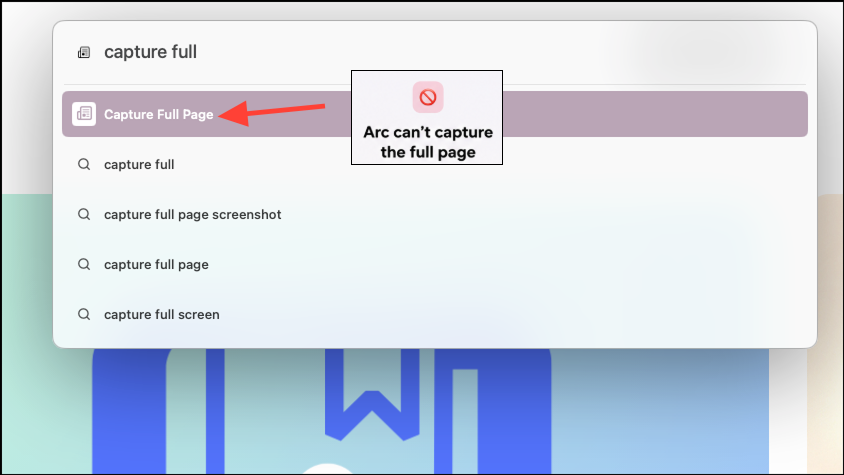
The issue can occur for several reasons, including:
- Lazy-loaded content that doesn’t fully load before the screenshot is generated.
- Infinite scrolling pages that continuously load new content.
- Complex JavaScript-based websites that render content dynamically.
- Browser image size limitations when capturing very long pages.
- Temporary rendering glitches caused by cache or browser bugs.
- Interference from browser extensions such as ad blockers or script blockers.
- Unstable internet connections that prevent all page elements from loading completely.
Understanding the cause can help you choose the most effective solution.
2. How to Resolve Arc Browser Capture Full Page Screenshot Cuts Off Bottom Part
Method 1: Fully Load the Entire Webpage
One of the most common reasons for incomplete screenshots is that the page hasn’t finished loading.
Before capturing:
- Open the webpage in Arc Browser.
- Scroll slowly to the bottom of the page.
- Wait for all images, videos, and content sections to load.
- Return to the top of the page.
- Capture the full-page screenshot again.
This ensures that lazy-loaded content has already been rendered before Arc begins generating the screenshot.
Method 2: Refresh the Page Before Capturing
Sometimes the issue is caused by a temporary rendering problem.
To fix it:
- Refresh the webpage.
- Wait for all page elements to load.
- Scroll through the page once.
- Attempt another full-page capture.
A fresh render often resolves incomplete screenshot issues.
Method 3: Disable Browser Extensions
Extensions can occasionally interfere with page rendering and screenshot generation.
Try temporarily disabling:
- Ad blockers
- Privacy protection extensions
- Script blockers
- Website customization tools
After disabling the extensions:
- Reload the webpage.
- Capture the page again.
- Check whether the entire page is included.
If the screenshot works correctly, you can re-enable extensions one at a time to identify the culprit.
Method 4: Reduce Browser Zoom
Non-standard zoom levels can affect webpage rendering and screenshot accuracy.
For best results:
- Set Arc Browser zoom to 100%.
- Refresh the webpage.
- Capture the page again.
Many screenshot-related issues disappear when the page is viewed at its default zoom level.
Method 5: Use Chromium’s Built-In Full-Page Screenshot Tool
Since Arc is built on Chromium, you can access Chromium’s native screenshot functionality.
To do this:
- Open Developer Tools.
- Open the Command Menu.
- Search for “Capture full size screenshot.”
- Select the command.
This method often handles long webpages more effectively than standard screenshot tools.
Method 6: Capture the Page in Sections
If the webpage is exceptionally long, browser limitations may prevent a successful single-image capture.
As a workaround:
- Capture the top section.
- Scroll down and capture the middle section.
- Capture the bottom section.
- Combine the screenshots using an image editor.
Although less convenient, this guarantees that no content is lost.
Method 7: Clear Browser Cache
Corrupted cache files can sometimes affect webpage rendering.
To clear cache:
- Open Arc settings.
- Clear browsing data and cached files.
- Restart the browser.
- Reload the webpage.
- Capture the screenshot again.
This can eliminate rendering issues caused by outdated or damaged cached resources.
Method 8: Update Arc Browser
Browser developers frequently release bug fixes and performance improvements.
To update Arc:
- Open Arc settings.
- Check for available updates.
- Install the latest version.
- Restart the browser.
Running the latest version ensures you benefit from the newest screenshot-related fixes.
3. Archive Full Page Instead of Screenshotting
While screenshots are useful for quickly saving visual content, they aren’t always the best solution for preserving webpages.
Screenshots have several limitations:
- Content may be cut off.
- Text cannot be easily searched.
- Hyperlinks become inactive.
- Large pages produce extremely large image files.
- Interactive content is lost.
- Multiple screenshots may be required for long pages.
A better way to preserve web content is to save the webpage as an archive.
Why Archiving Is Better
Archiving preserves much more than a screenshot:
- Complete webpage content
- Original formatting
- Searchable text
- Embedded images
- Internal links
- Long-form articles and documentation
Instead of saving a static image, archiving stores a more complete version of the webpage for future reference.
Save Complete Webpages with ArchiveKit
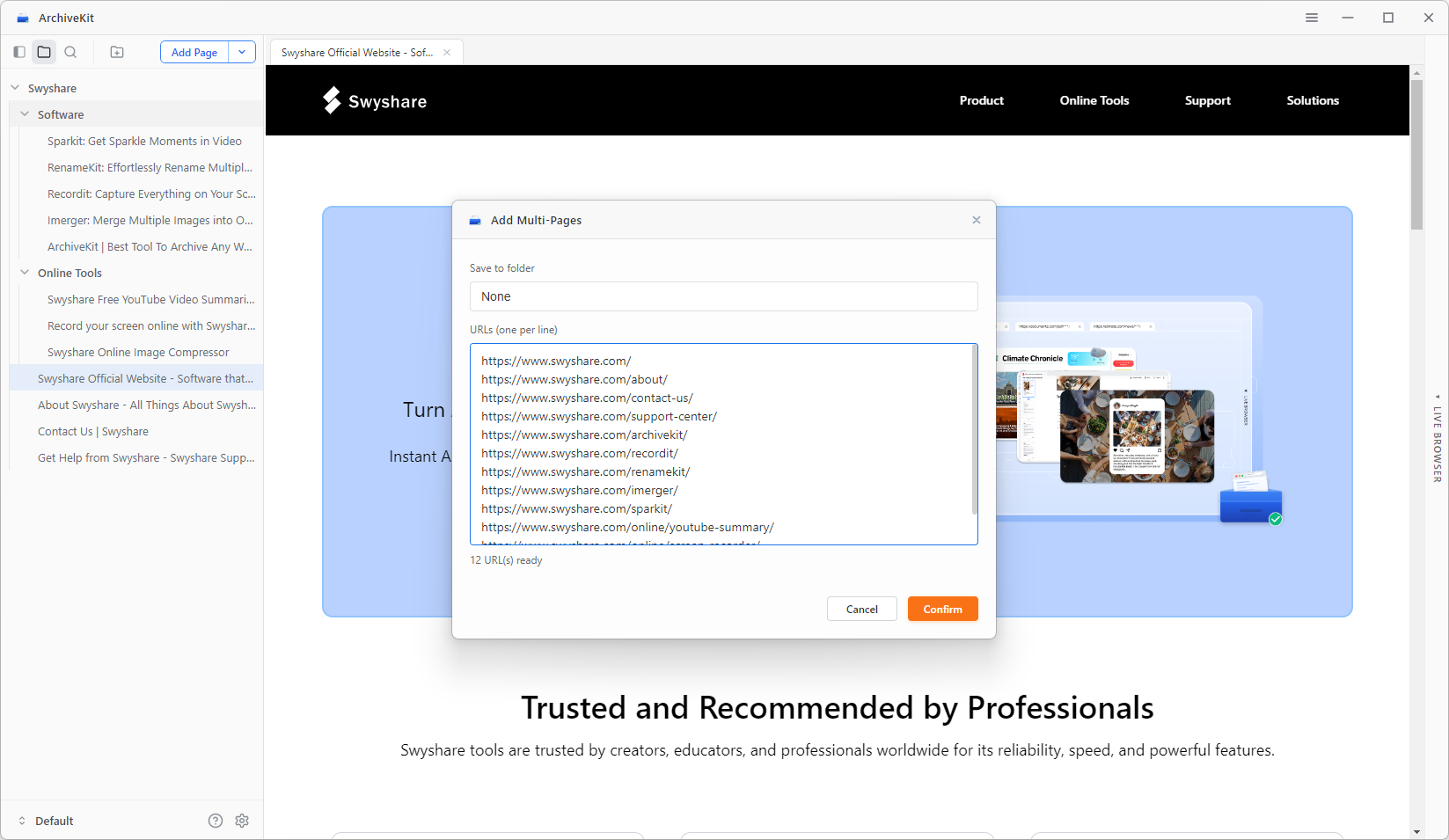
ArchiveKit is designed specifically for preserving webpages as they appear online.
With ArchiveKit, you can:
- Save webpages in their entirety.
- Archive multiple pages by importing URLs.
- Preserve layouts, images, and content.
- Organize saved pages into searchable collections.
- Quickly find archived content later.
- Highlight important information for future reference.
4. Conclusion
If Arc Browser’s full-page screenshots are cutting off the bottom of a webpage, the issue is usually caused by lazy-loaded content, infinite scrolling, browser limitations, extensions, or temporary glitches. Try fully loading the page, refreshing it, disabling extensions, clearing the cache, updating Arc, or using an alternative capture method to capture the entire webpage successfully.
However, screenshots are not always the most effective way to preserve online content. They can miss information, create large image files, and make future searching difficult. For a more complete and reliable solution, consider using ArchiveKit. It allows you to archive entire webpages exactly as they appear online, keep content searchable, organize your saved pages, and avoid the limitations that often come with full-page screenshots.