How to Save All Tabs in Chrome?

If you regularly browse dozens of webpages at once, you’ve probably faced the problem of losing important tabs after accidentally closing Chrome, restarting your computer, or simply wanting to organize your research for later. Fortunately, Google Chrome offers several easy ways to save all open tabs so you can quickly restore them whenever needed.
Saving tabs is useful for students collecting research materials, professionals managing multiple projects, online shoppers comparing products, or anyone who wants to keep browsing sessions organized. Chrome includes built-in features like bookmarks and tab groups, while third-party tools can help you archive entire webpages for permanent offline access.
In this guide, you’ll learn multiple methods to save all tabs in Chrome, along with a bonus solution for archiving complete webpages.
1. How to Save All Tabs in Chrome?
Method 1: Bookmark All Open Tabs
A quick and convenient way to save all open tabs in Chrome is to use the “Bookmark All Tabs” feature.
Steps to Bookmark All Tabs:
Open all the tabs you want to save > Right-click any tab at the top of Chrome > Select Bookmark All Tabs > Create a new folder and give it a name > Click Save.
Chrome will save all your open tabs inside a bookmark folder.
How to Reopen Saved Tabs:
Open Chrome bookmarks > Locate the folder you created > Right-click the folder > Choose Open All in new tab group.
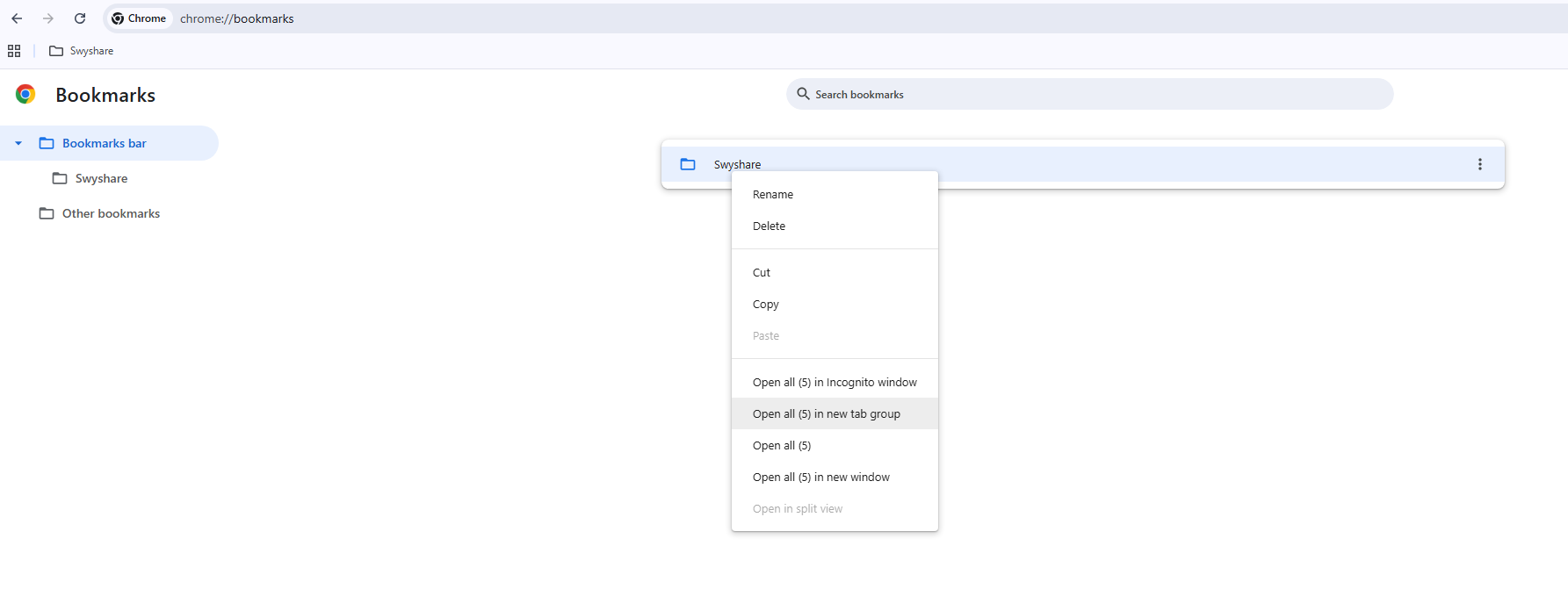
All saved tabs will reopen instantly.
Advantages:
- Quick and simple
- Built into Chrome
- Easy to organize with folders
Limitations:
- Only saves links, not webpage content
- Pages may change or disappear later
- Cannot save dynamic webpage states
This method works best for temporary tab management and basic organization.
Method 2: Use Chrome’s “Continue Where You Left Off”
Chrome can automatically reopen previously opened tabs after restarting the browser.
Steps to Enable It:
Open Chrome settings > Navigate to On Startup > Select Continue where you left off.
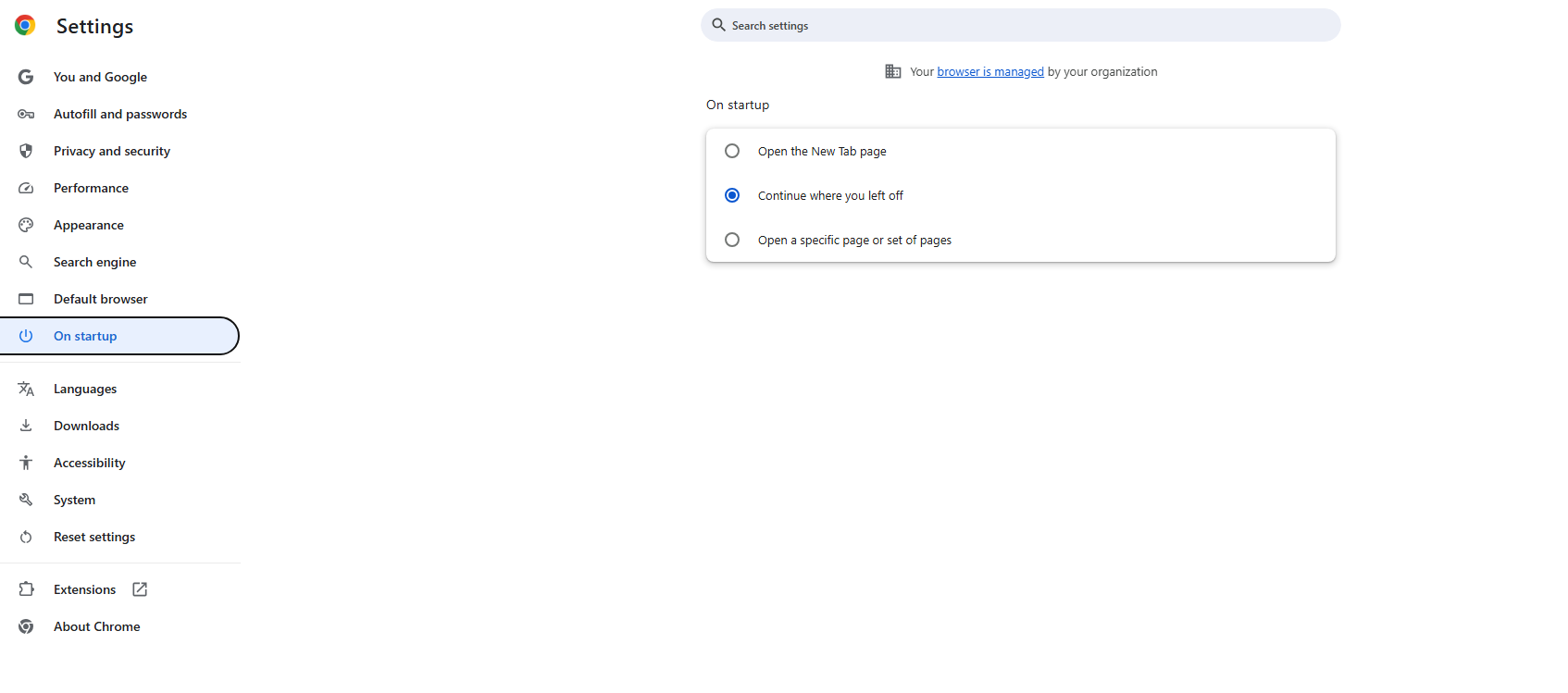
The next time Chrome launches, your previous tabs will automatically reopen.
Advantages:
- Fully automatic
- No manual saving required
- Great for daily workflows
Limitations:
- Tabs may be lost after crashes
- Not suitable for long-term storage
- Cannot organize multiple sessions
This option is ideal for users who want Chrome to restore their recent browsing session automatically.
Method 3: Save Tabs Using Tab Groups
Chrome’s tab groups help organize tabs by category or project.
Steps to Create a Tab Group:
Right-click a tab > Select Add Tab to New Group > Name the group and choose a color > Drag additional tabs into the group.
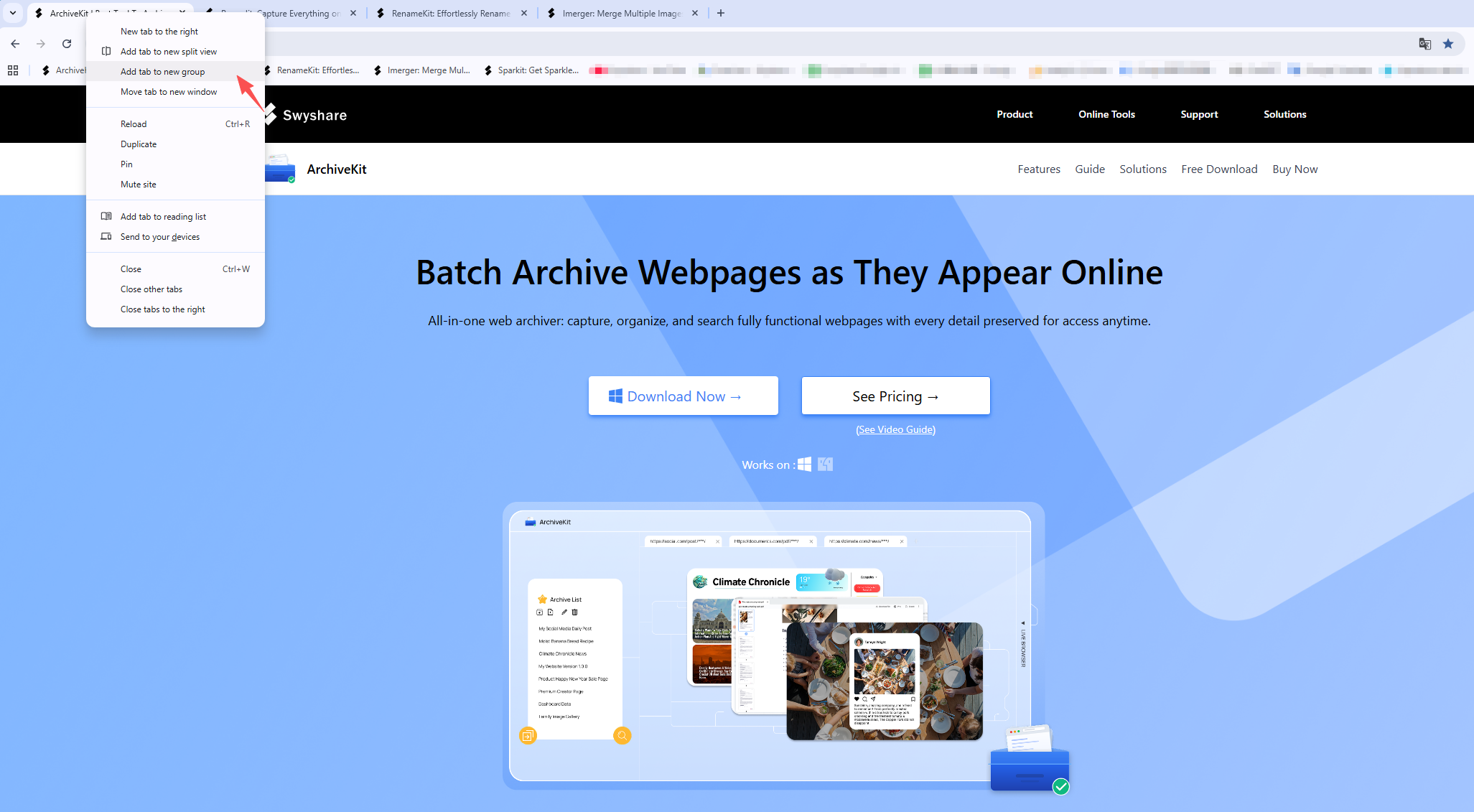
You can collapse groups to reduce clutter and save workspace organization.
Advantages:
- Better organization
- Easy project management
- Reduces browser clutter
Limitations:
- Groups are not permanent backups
- Tabs can still disappear if Chrome data is cleared
Tab groups work well when managing multiple research or work sessions.
Method 4: Use Chrome Extensions to Save Sessions
Several Chrome extensions are designed specifically for saving and restoring tabs.
Popular extensions include:
- OneTab
- Session Buddy
- Tab Session Manager
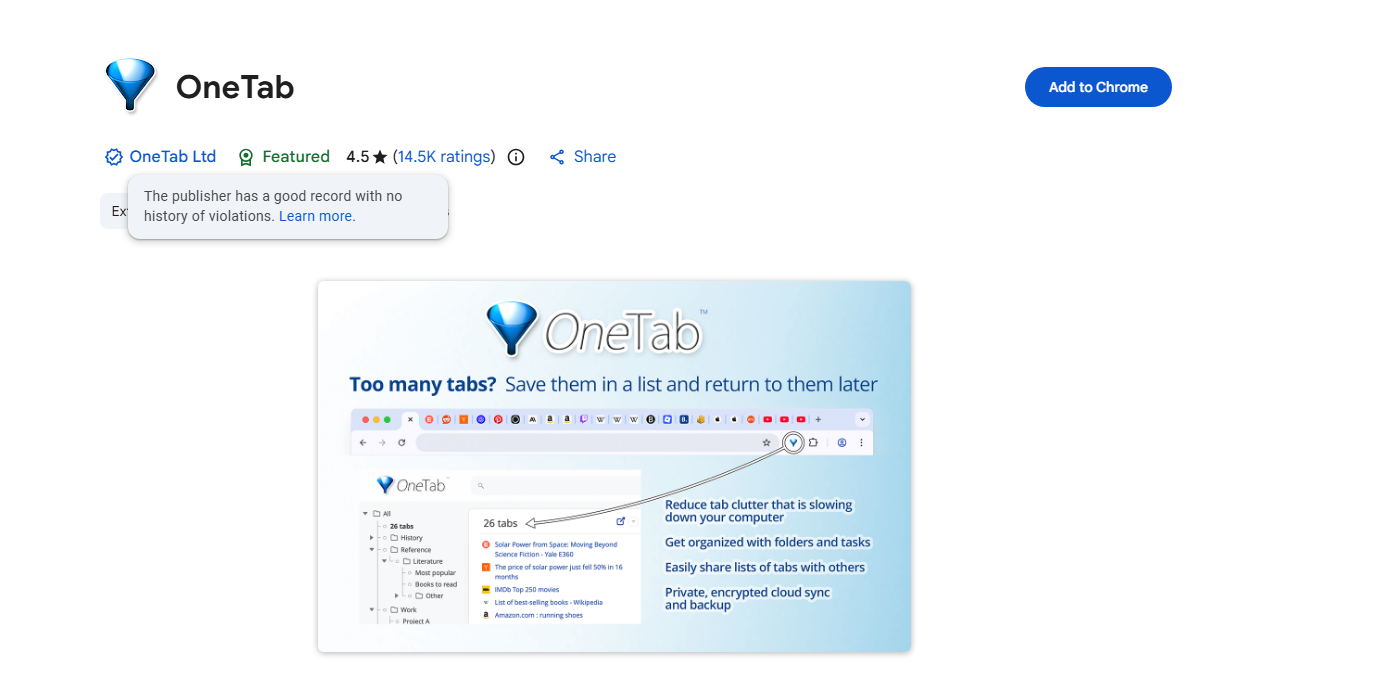
These tools can save entire browsing sessions with one click.
Features Offered by Session Extensions:
- Save multiple tab sessions
- Restore sessions anytime
- Export tab lists
- Reduce memory usage
- Organize tabs into categories
Advantages:
- More advanced than bookmarks
- Excellent for power users
- Supports multiple saved sessions
Limitations:
- Some extensions collect browsing data
- Extensions may stop working after updates
- Usually save URLs only, not full webpages
These tools are helpful if you frequently manage large numbers of tabs.
Method 5: Save Tabs Manually as URLs
You can also create a manual backup of your tabs by copying their URLs into a document.
Steps:
Use a tab management extension or Chrome developer tools > Copy all open URLs > Paste them into text documents, spreadsheets or note-taking apps
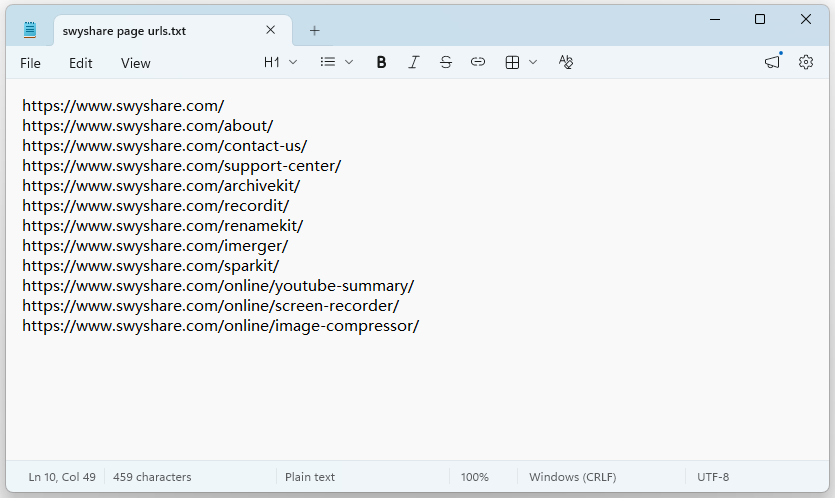
This creates a portable list of webpages you can reopen later.
Advantages:
- Simple backup method
- Easy to share
- Works across devices
Limitations:
- Time-consuming
- No webpage content saved
- Manual organization required
This method is best for lightweight tab backups.
2. Bonus: Archive All Webpages with Swyshare ArchiveKit
While Chrome’s built-in features mainly save webpage links, they do not preserve the actual content of webpages. If a webpage changes, gets deleted, or becomes unavailable, your saved tabs may no longer be useful. That’s where Swyshare ArchiveKit becomes a powerful solution.
ArchiveKit is a professional webpage archiving tool that allows users to save complete webpages locally for offline viewing and permanent access.
Key features of ArchiveKit:
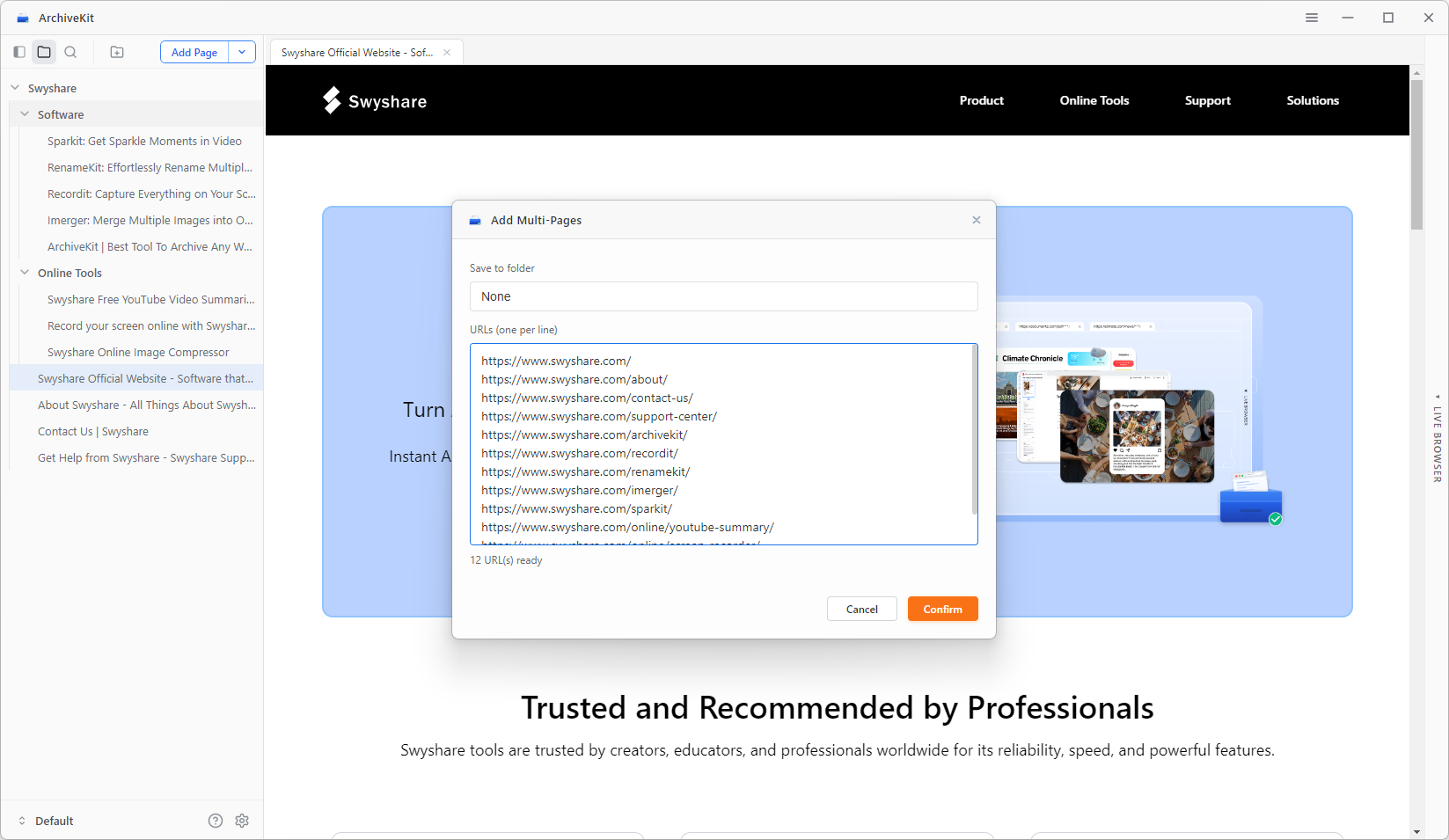
- Import multiple URLs and archive them all at once
- Maintain the original design and appearance of webpage
- Live browser mode to log into websites and archive protected or personalized content
- Create new folders to manage archivedpages
- Quickly locate saved webpages using ArchiveKit’s built-in search tools
How to archive all webpages with ArchiveKit:
- Download and install Swyshare ArchiveKit on your Windows or Mac computer.
- Copy the URLs of all currently open tabs and add them into ArchiveKit.
- Scroll all pages, ArchiveKit will process and store each webpage for offline access.
- After archiving, you can search saved pages, open archived webpages offline, organize collections, and revisit webpages anytime.
Benefits of Using ArchiveKit
ArchiveKit offers several advantages over traditional Chrome tab-saving methods:
| Feature | Chrome Bookmarks | Session Extensions | ArchiveKit |
|---|---|---|---|
| Save webpage URLs | Yes | Yes | Yes |
| Save full webpage content | No | No | Yes |
| Offline viewing | Limited | Limited | Yes |
| Batch processing | Limited | Yes | Yes |
| Preserve webpage layout | No | No | Yes |
| Archive dynamic pages | No | Limited | Yes |
3. Conclusion
There are many ways to save all tabs in Google Chrome, depending on your needs. Built-in methods like bookmarks, startup restoration, and tab groups work well for basic tab management, while session extensions provide more advanced organization features.
However, these methods mainly save webpage links rather than preserving actual webpage content. If webpages change or disappear, your saved tabs may no longer be accessible.
For users who want permanent offline access and complete webpage preservation, Swyshare ArchiveKit is the recommended solution. Its batch archiving, dynamic content support, offline viewing, and webpage preservation features make it an excellent tool for saving entire browsing sessions safely and efficiently.