How to Fix OBS Source Keeps Resetting?

OBS Studio is a popular screen recording and live streaming application that allows users to capture gameplay, record tutorials, and manage multiple video sources. However, some users experience a frustrating issue where OBS sources keep resetting. For example, a window capture source may switch to another application, a camera source may lose its settings, or a source may return to its default configuration after restarting OBS.
In this guide, we will explain why OBS sources keep resetting and introduce several practical solutions with simple steps.
1. Why Does OBS Source Keep Resetting?
OBS sources may reset for several reasons:
- Incorrect scene collection or profile: Switching configurations may make your usual sources appear missing or different.
- Changing device connections: Cameras, microphones, and capture cards may become unavailable or change their device names.
- Incorrect source settings: Window Capture or Game Capture may fail to recognize the intended application.
- Permission conflicts: OBS may have difficulty capturing applications running with different privileges.
- Outdated software or incompatible plugins: Bugs and plugin conflicts can interfere with source behavior.
- Corrupted configuration files: Damaged settings may prevent OBS from saving or restoring source configurations correctly.
2. How to Fix OBS Source Keeps Resetting?
Try the following solutions in order. Test the affected source after each fix to determine whether the problem has been resolved.
Method 1: Check Your Profile and Scene Collection
OBS uses profiles for output and streaming settings, while scene collections store scenes and their sources. Selecting the wrong configuration can make your sources appear to have reset.
Steps:
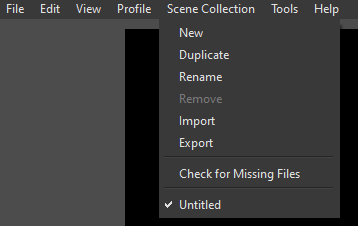
- Open OBS Studio, click Profile and select your usual profile.
- Open Scene Collection and choose the collection containing your sources.
- Verify that your desired sources are listed in the Sources panel.
- Save your changes and restart OBS to test whether the configuration persists.
Method 2: Reconfigure the Affected Source
A source may reset because its selected window or capture device is no longer available.
Steps:
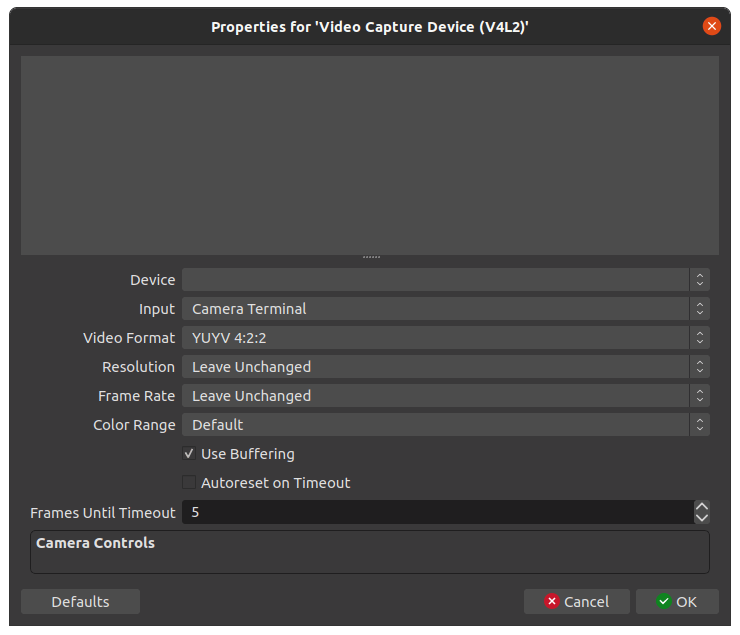
- Select the problematic source in the Sources panel.
- Click Properties and re-select the correct application window, camera, or capture device.
- Click OK and verify that the source works.
- If the problem continues, recreate the source and configure it again.
Method 3: Run OBS with Appropriate Permissions
Permission conflicts can prevent OBS from capturing certain applications correctly, particularly games and programs running as administrator.
Steps:
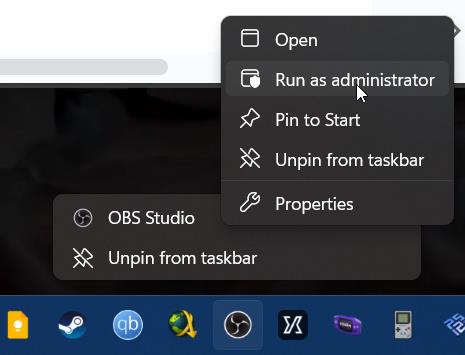
- Close OBS Studio, right-click the OBS shortcut and select Run as administrator, if appropriate.
- Open your scene and test the affected source.
Method 4: Update OBS and Disable Conflicting Plugins
Outdated software or incompatible plugins may cause unexpected source behavior.
Steps:
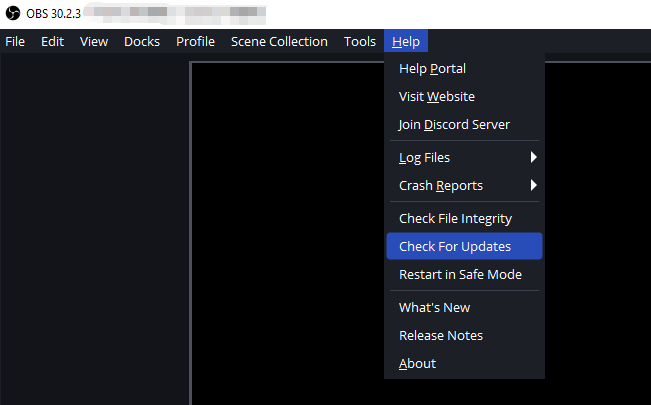
- Check your OBS version and install an available stable update from the official OBS website.
- Review any recently installed or updated plugins.
- Temporarily disable potentially conflicting third-party plugins according to their documentation.
- Restart OBS and test the source again.
- If the issue started after a particular update, investigate whether that version or plugin is responsible.
Method 5: Check Your Capture Device and Connections
If a camera or capture card keeps resetting, the problem may be related to its connection or availability.
Steps:
- Check whether Windows recognizes the connected device.
- Disconnect and reconnect the camera or capture card when it is safe to do so.
- Open the source’s Properties and select the correct device.
- Close other applications that may be using the same camera or capture card.
- Test the source again.
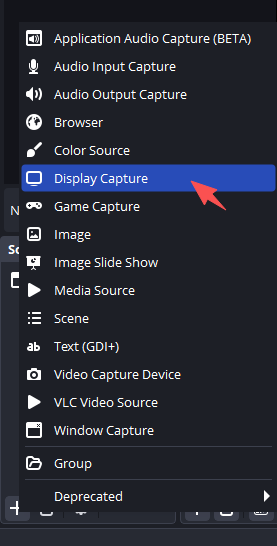
Method 6: Try Another Capture Method
Some applications and games may not work properly with all capture methods. Switching sources may resolve the issue.
Steps:
- Open the affected scene in OBS.
- Check which capture method the source uses.
- If Game Capture fails, try Window Capture or Display Capture where appropriate.
- Select the correct application or display.
- Preview the source and test a short recording.
Method 7: Test a Fresh OBS Configuration
If none of the previous solutions works, the existing configuration may be damaged.
Steps:
- Close OBS completely.
- Back up your profiles, scene collections, and other important settings.
- Use OBS’s supported portable mode or another documented method to test a clean configuration.
- Create a new scene and add the problematic source.
- If the source works correctly, restore your settings carefully to identify the cause.
3. Bonus: Try the Simple OBS Alternative – Swyshare Recordit
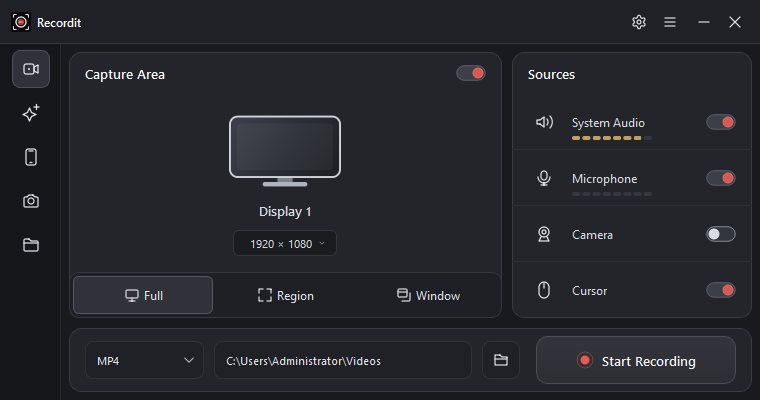
If you frequently encounter OBS source issues and mainly need to record your screen, switching to a simpler tool may save time. Swyshare Recordit is a screen recording alternative designed to provide a more straightforward recording workflow without requiring users to manage complex OBS scenes.
Key Features of Swyshare Recordit:
- Select full-screen, window, or region-based recording to suit your needs.
- Record system sound, microphone, and webcam.
- Capture iPhone and Android screens on a computer.
- Record screen at high frame rates and save recordings as MP4, GIF, or MP3
- Automate recordings and use Instant Replay.
- Trim videos, add watermarks, and adjust resolution.
How to Record Your Screen with Recordit
- Download Recordit from its official website and install it on your computer (Windows/Mac).
- Choose the available capture mode, adjust the audio and more options you need.
- Open the content you want to capture and start the recording.
- Finish the recording and find it within the “Files” tab, then edit it if needed.
4. Conclusion
OBS sources may keep resetting due to incorrect scene collections, changing device connections, permission conflicts, outdated plugins, or corrupted settings. To fix the issue, check your active profile, reconfigure the affected source, update OBS, and verify your capture devices and connections. If the problem persists, back up your settings and test a clean OBS configuration.
However, if you want to avoid repeatedly troubleshooting OBS and prefer a more straightforward way to capture your screen, Swyshare Recordit is an alternative worth considering. Its simple recording workflow can make everyday screen capture more convenient for tutorials, demonstrations, and other desktop activities. For users who value simplicity and reliable day-to-day recording over advanced streaming features, Recordit is a practical option to try.