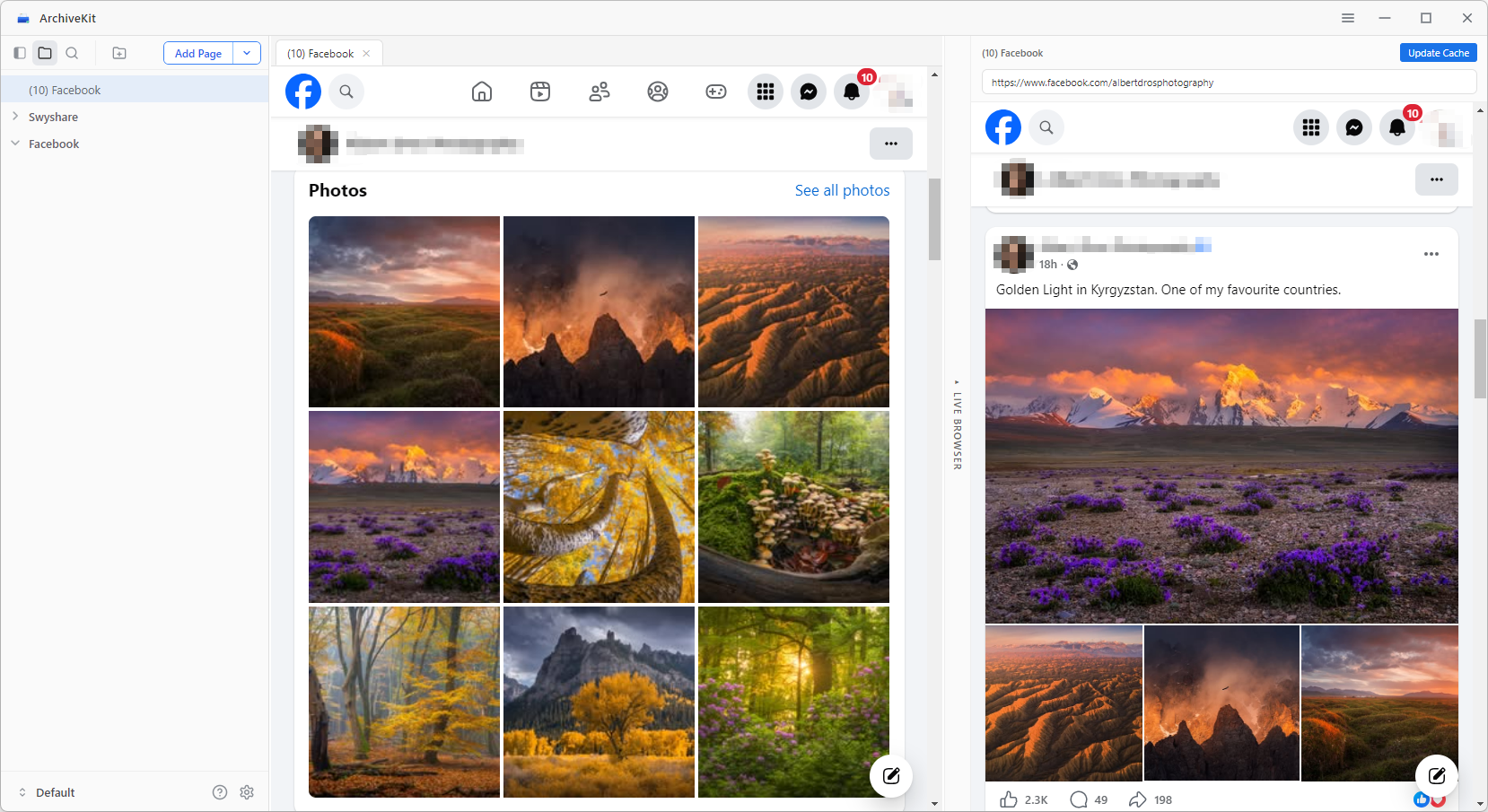
Welcome to ArchiveKit – a powerful tool that lets you save, capture, and organize full webpages exactly as they appear online. This guide will help you get started and make full use of ArchiveKit’s features.
1. Download & Install ArchiveKit
1.1 Download ArchiveKit
ArchiveKit is available for both Windows and macOS. Please select the appropriate version for your device and click the “Free Download” button below to begin the download process.
1.2 Install ArchiveKit
1) Install on Windows
To install ArchiveKit on Windows:
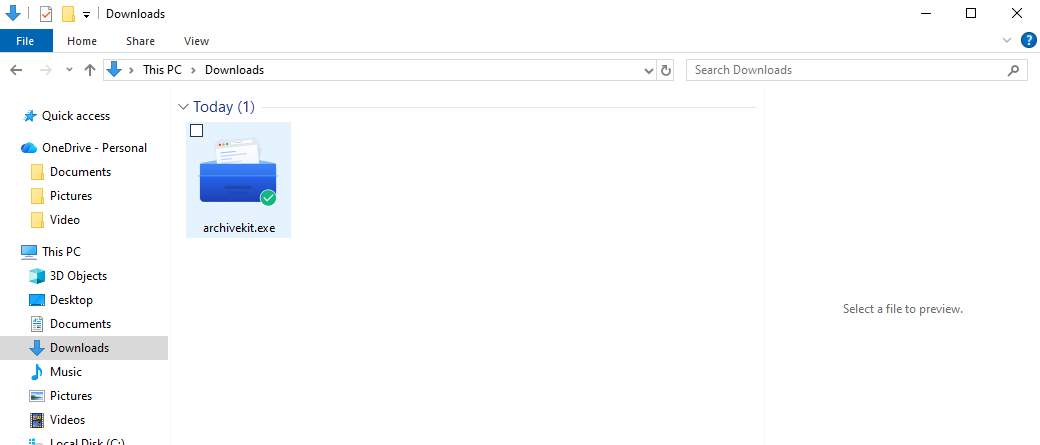
Locate the downloaded ArchiveKit.exe file in your Downloads folder, then double-click it to run the installer.
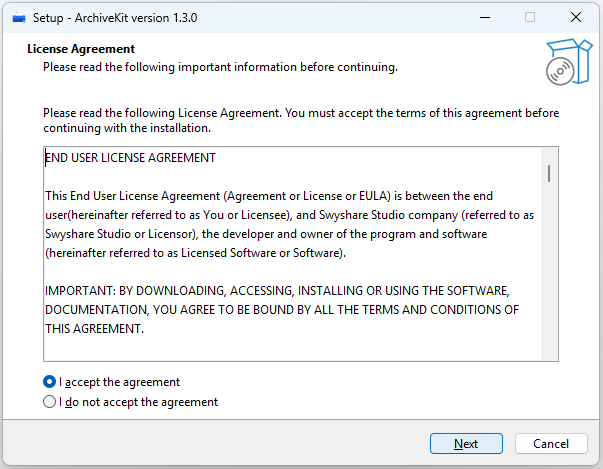
Choose your preferred language and agree to the terms of the License Agreement to proceed.
Configure any additional tasks if necessary, then proceed to start the setup process.
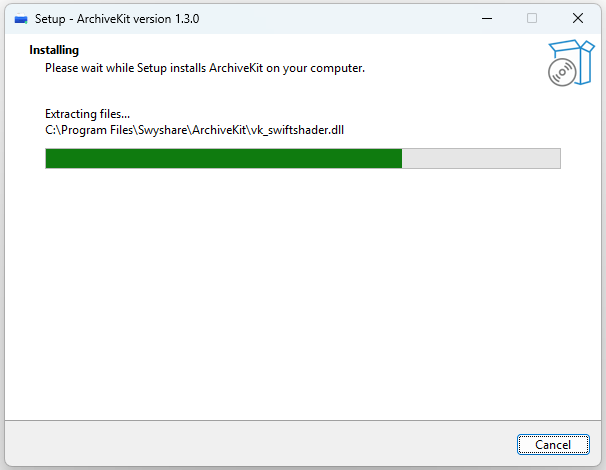
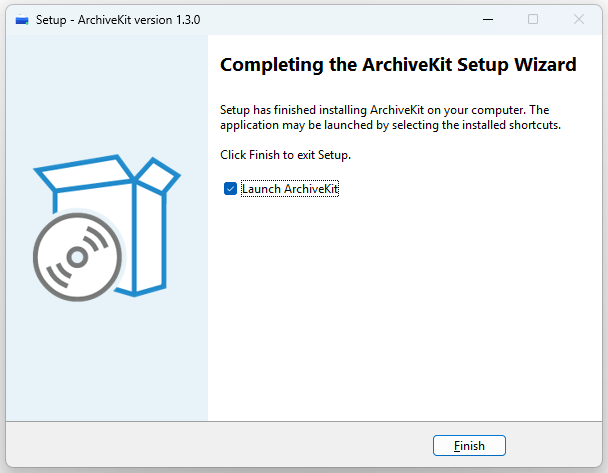
After the installation is complete, click Finish, then launch ArchiveKit from the Start menu or desktop shortcut.
2) Install on Mac
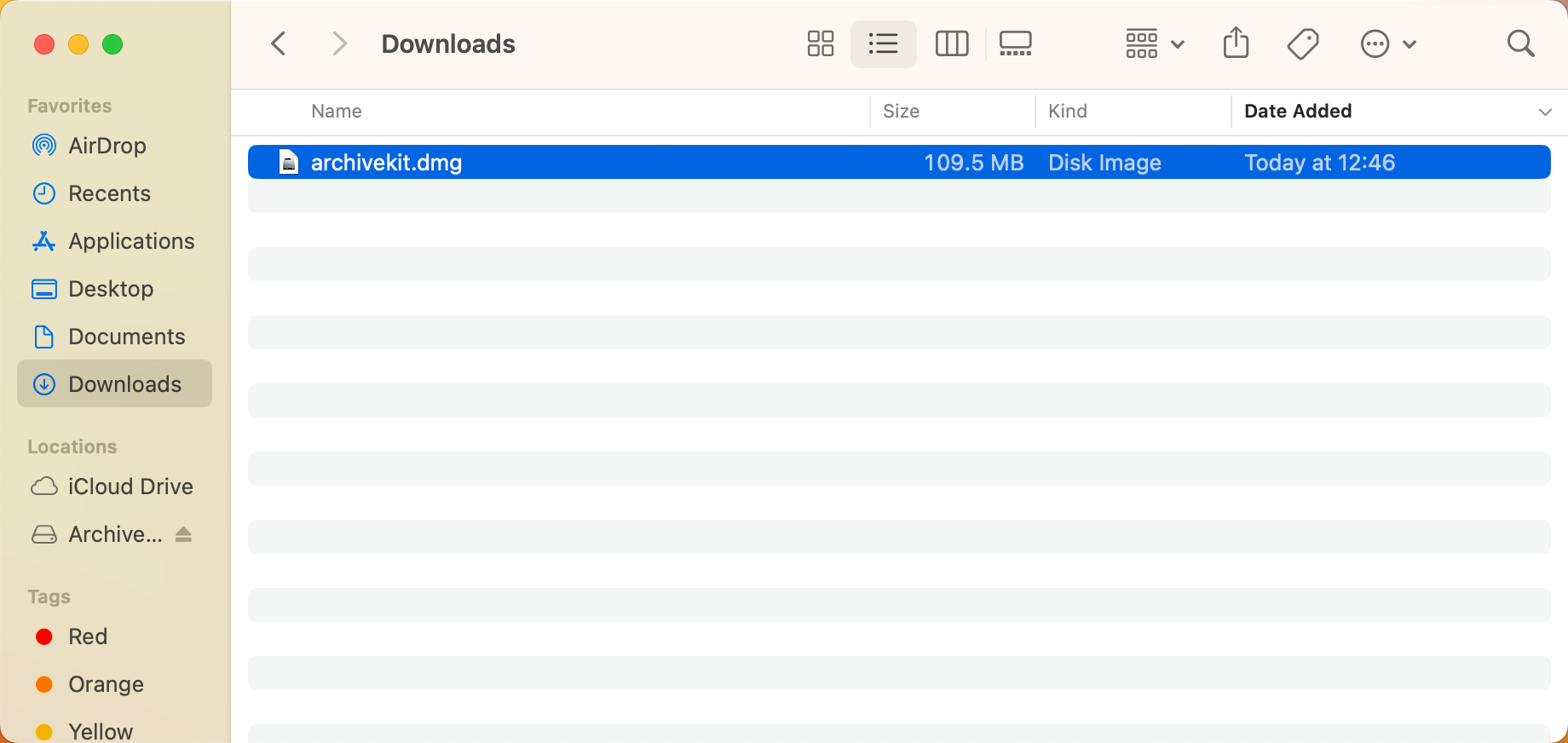
Open the downloaded archivekit.dmg file to begin extracting the application.
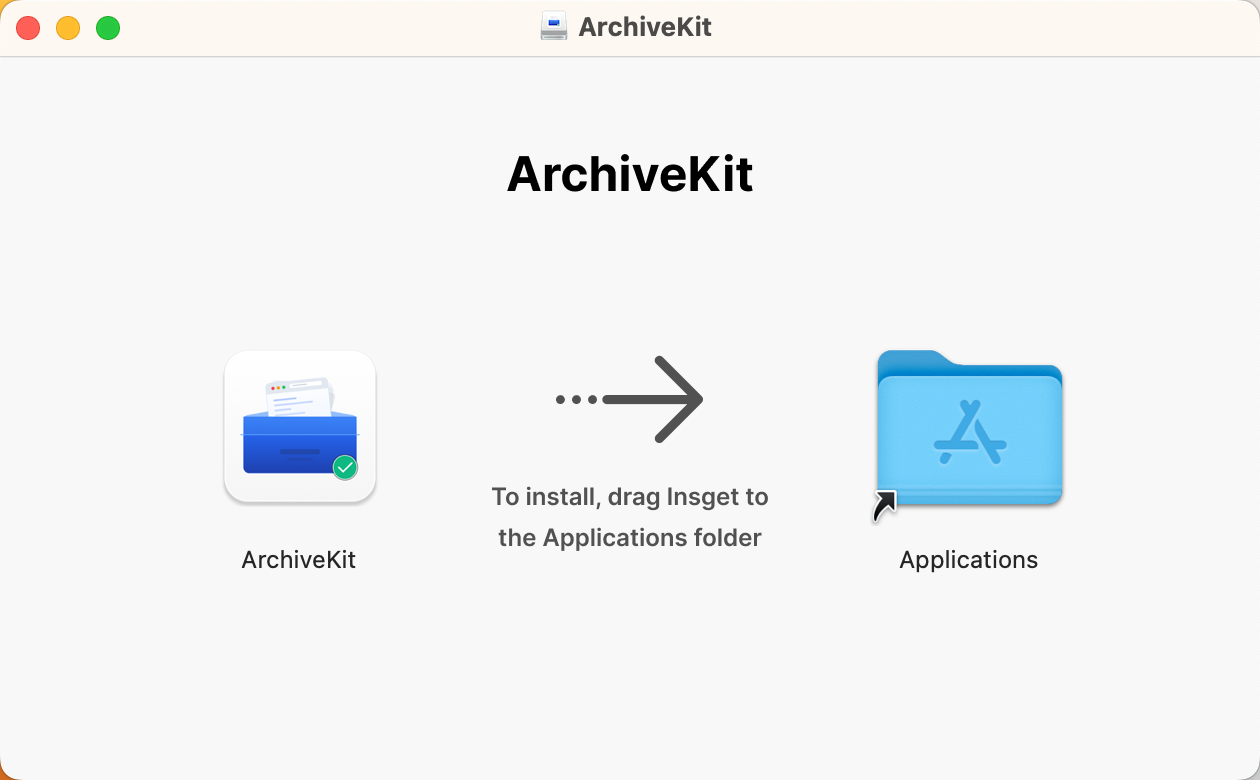
Simply drag ArchiveKit into the Applications folder to complete installation.
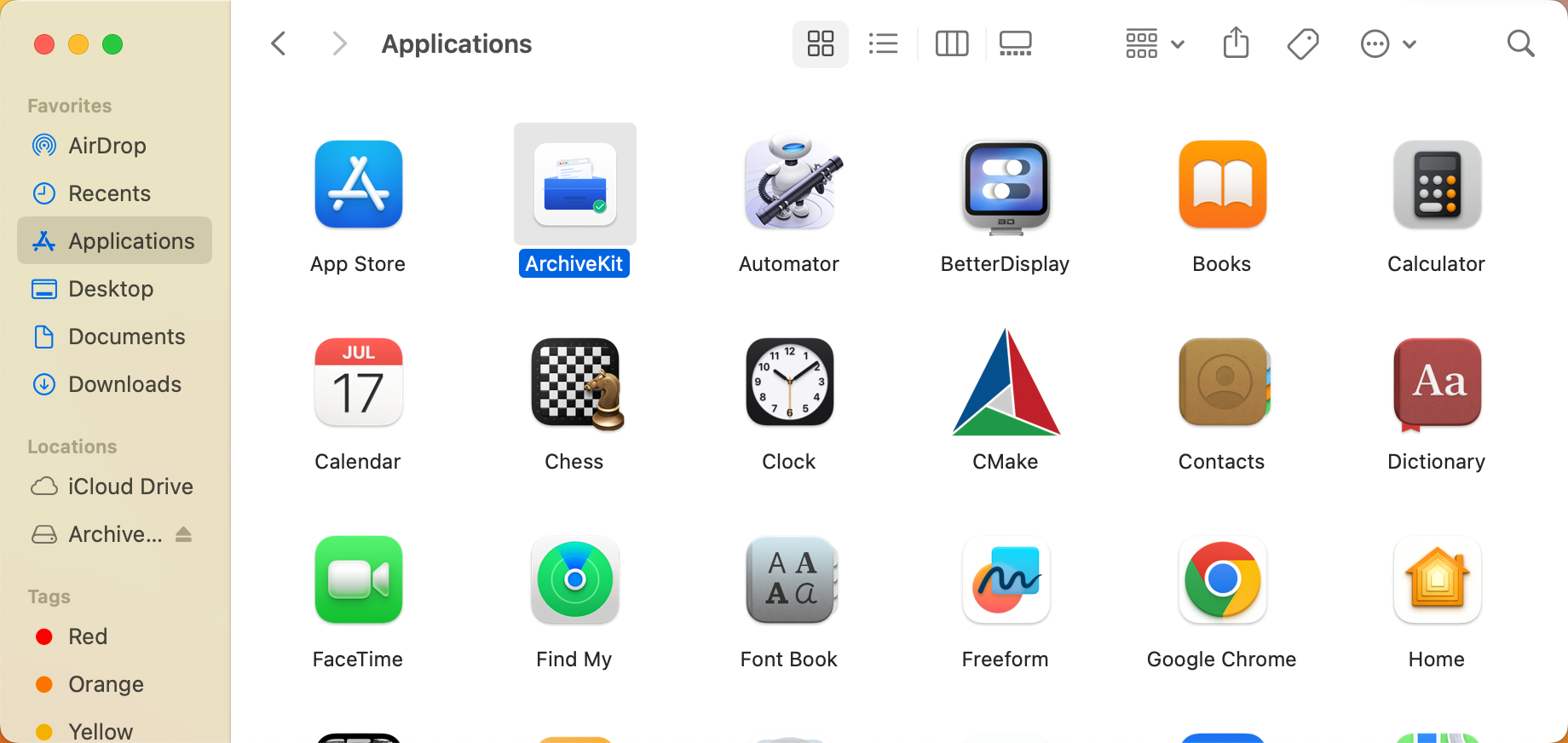
Navigate to the Applications folder and double-click ArchiveKit to start the application.
2. Register ArchiveKit
ArchiveKit offers a 7-day full-feature trial so you can test the product before paying.
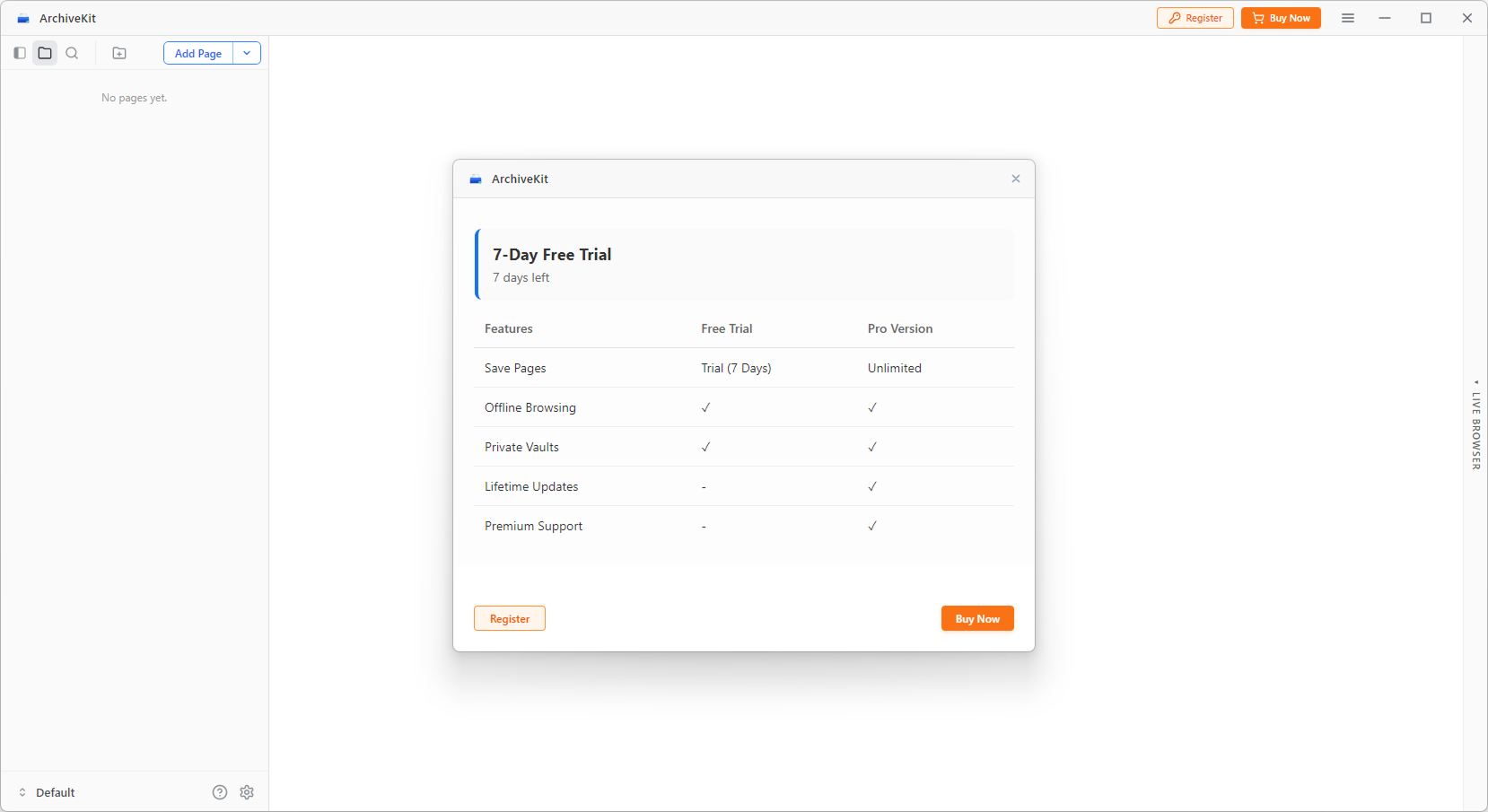
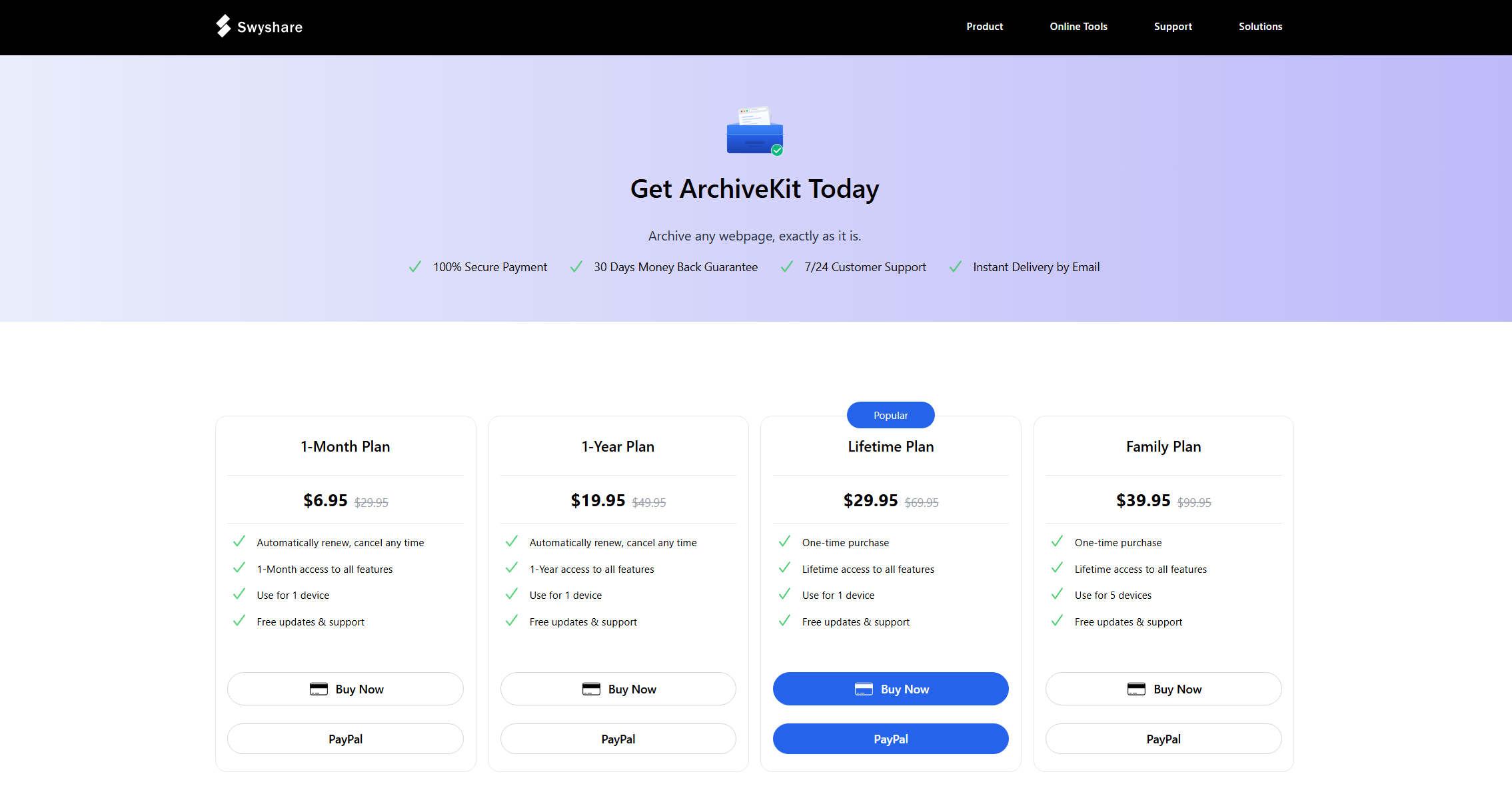
Once the trial expires (or even before it ends), you can visit the official ArchiveKit website and choose a plan, then click “Buy Now” and complete the payment.
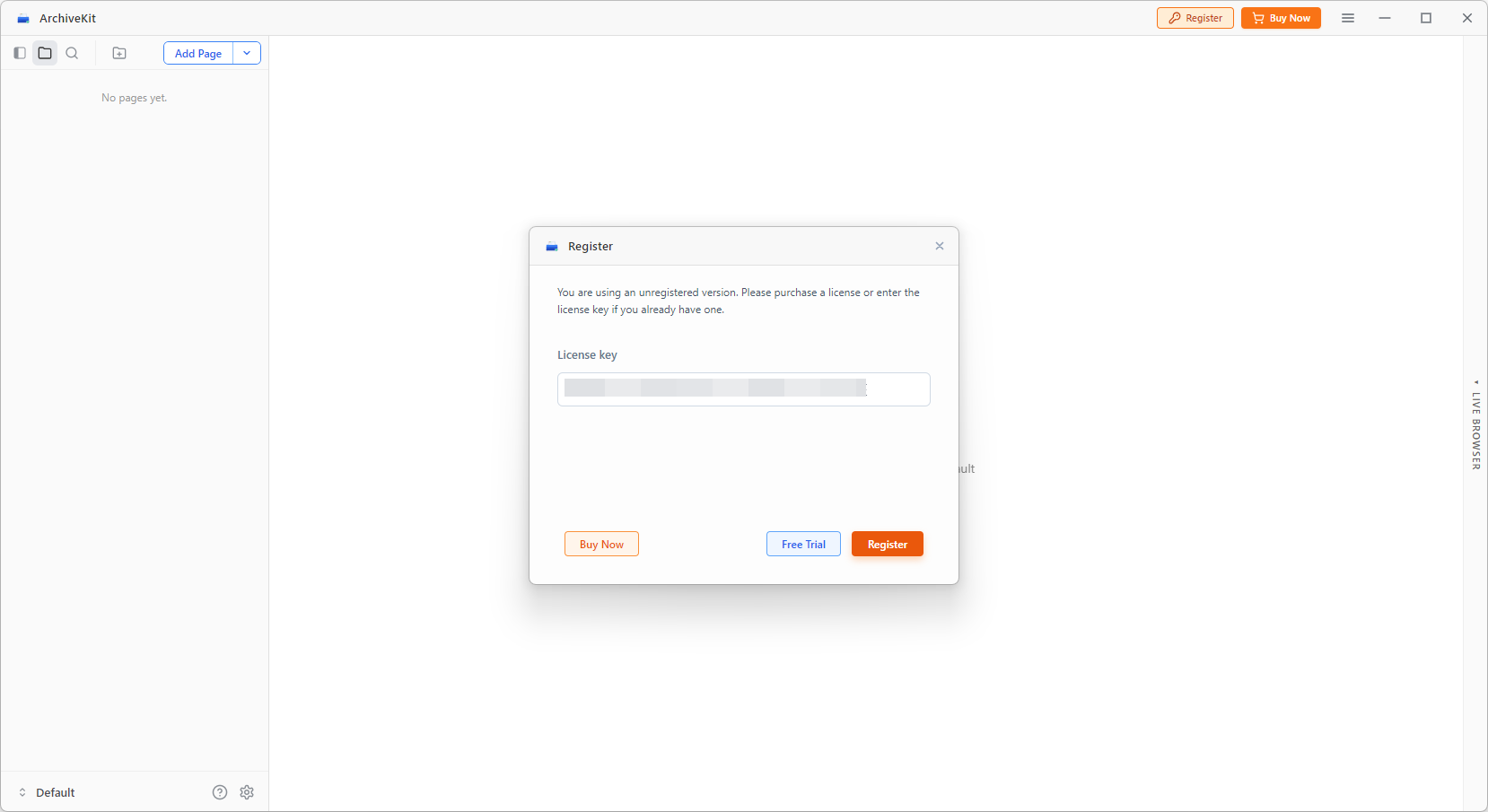
Check your email for your license key, then open ArchiveKit, enter the key, and click “Register“. Your account will be activated and ready to use.
3. How to Use ArchiveKit?
3.1 Copy the Webpage Link
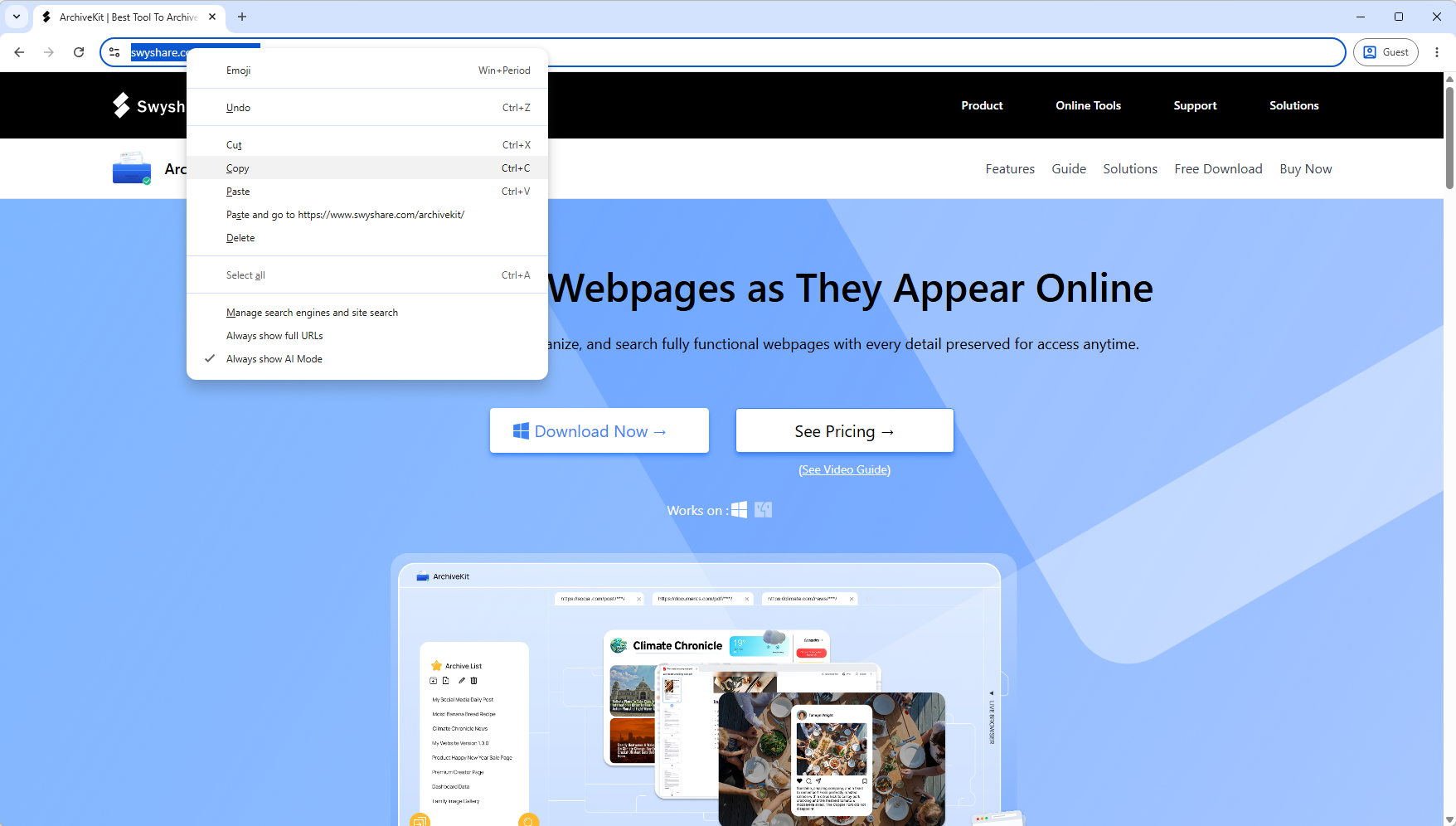
Copy the URL of the webpage you want to archive.
3.2 Open in ArchiveKit to Load Content
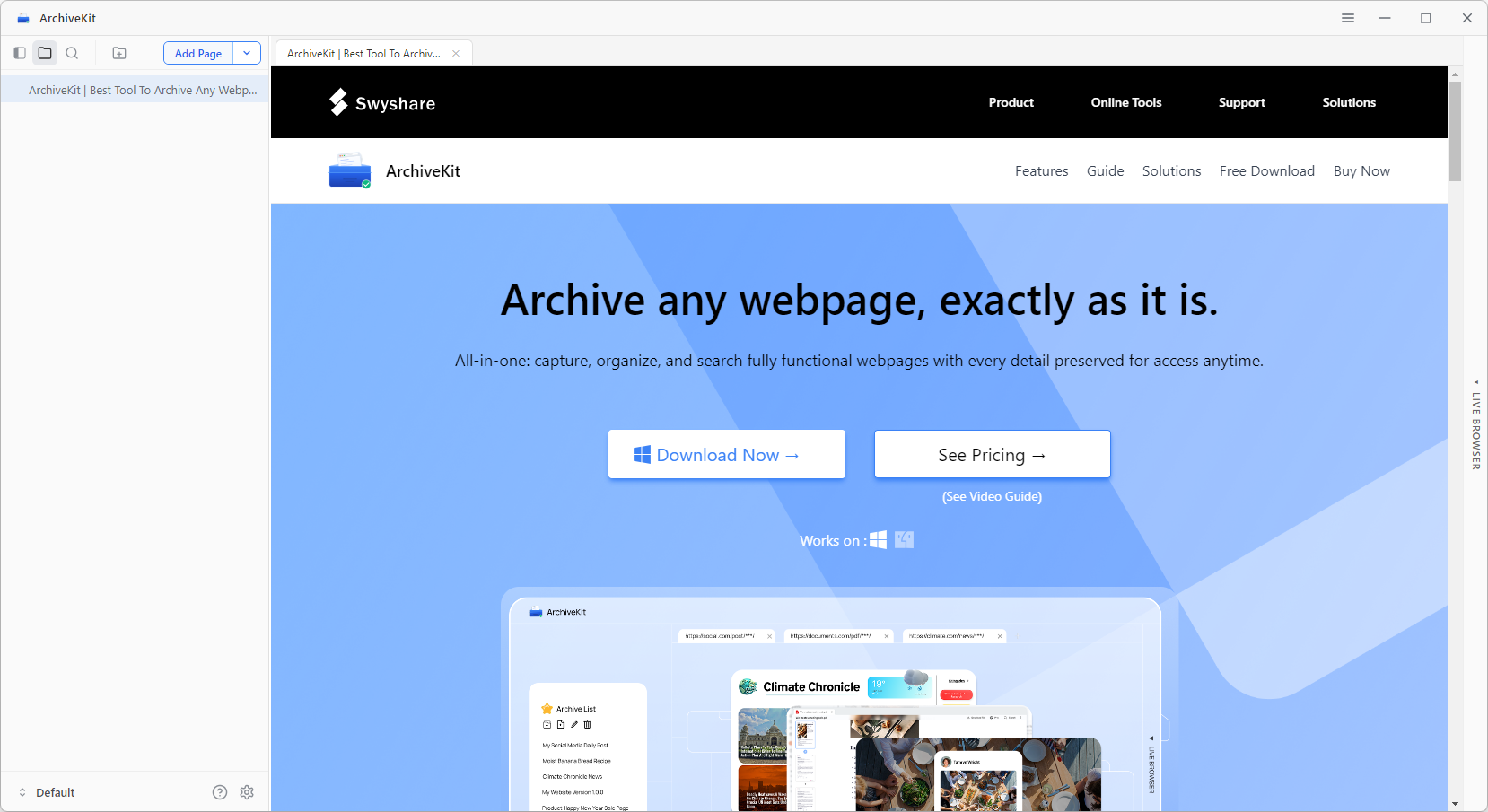
Return to ArchiveKit, click “Add Page” and the software will open the page inside its built-in browser.
Scroll through the page slowly to fully load all content, ArchiveKit will then archive the complete page.
3.3 Batch URL Import
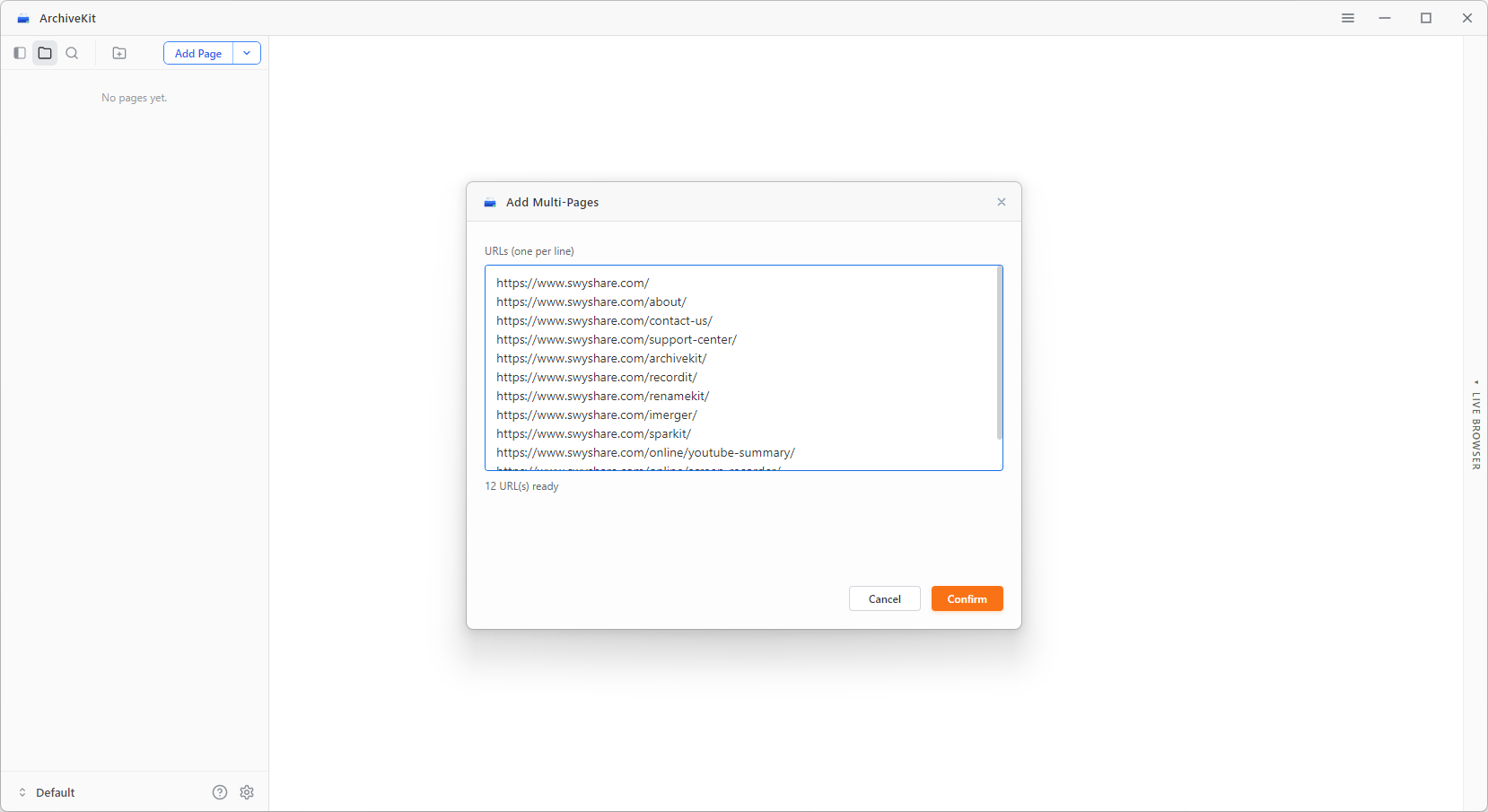
You can also copy a list of the page URLs, click “Add Multi-Pages” and paste them into ArchiveKit, then click “Confirm” to archive all pages in one-click.
3.4 Organize Your Archived Pages
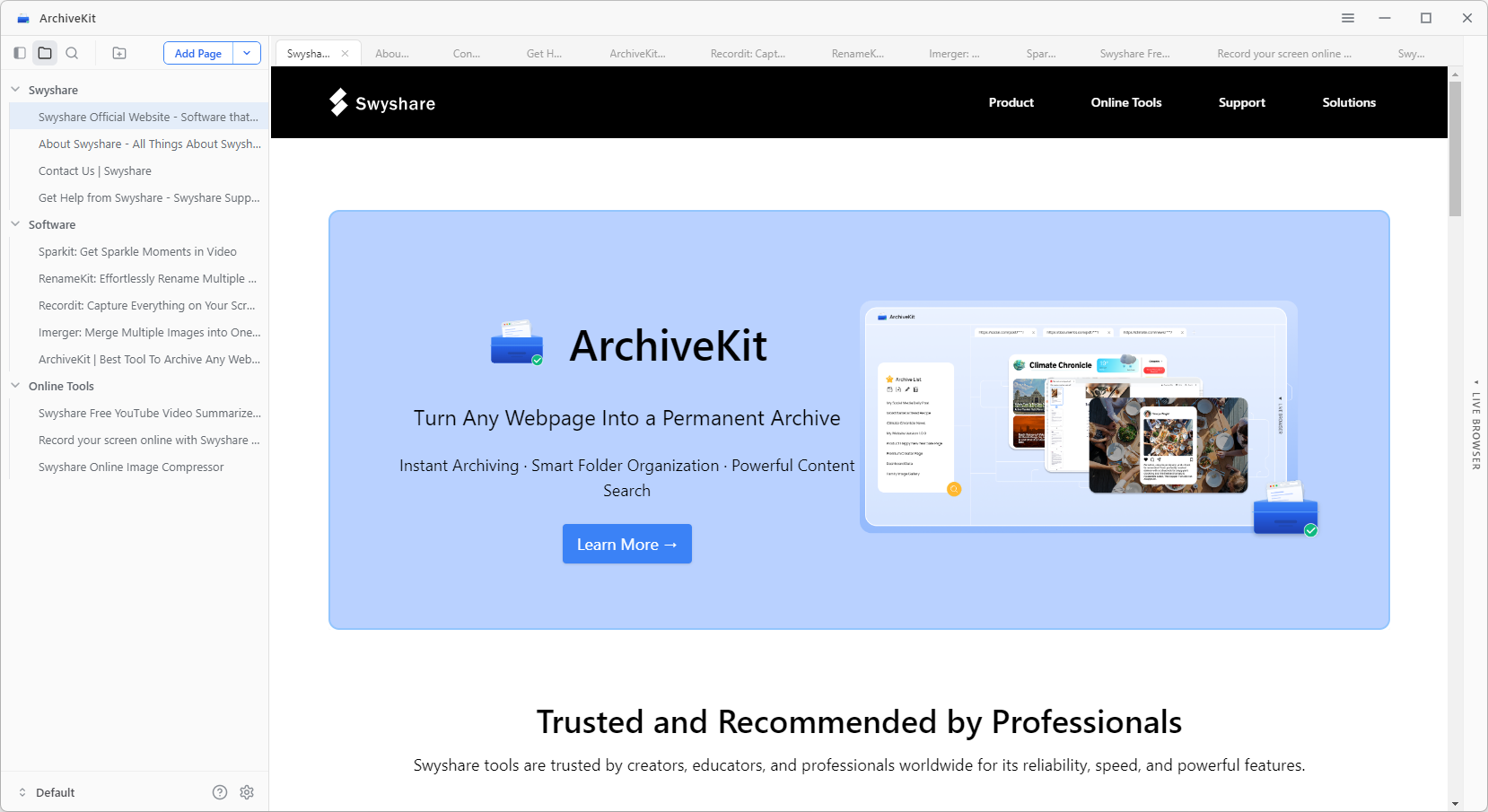
After saving pages, you can keep everything structured:
- Rename each archived page for clarity.
- Group pages into folders or projects.
- Delete unnecessary folders for pages.
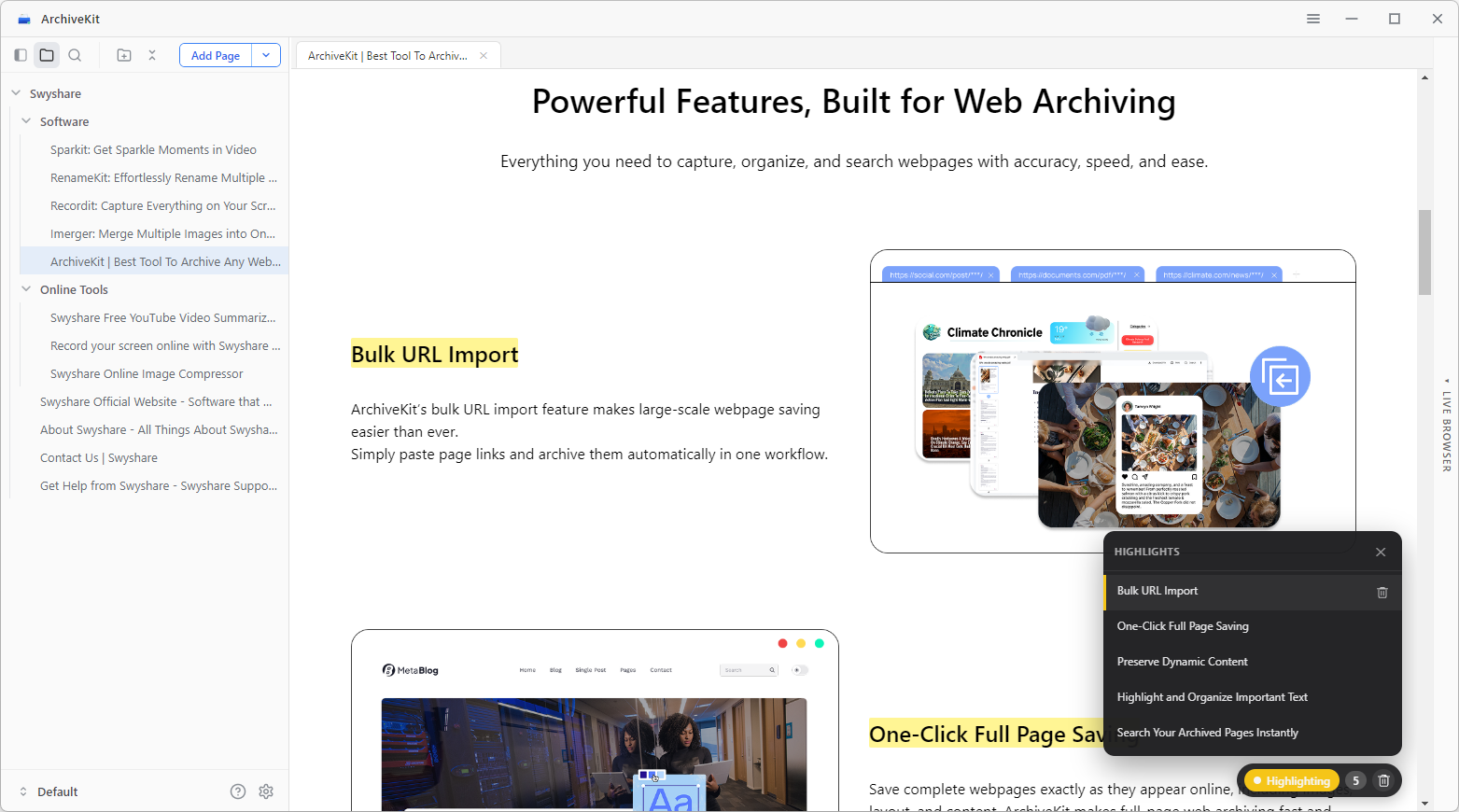
3.4 Highlight Text Inside Archived Webpages
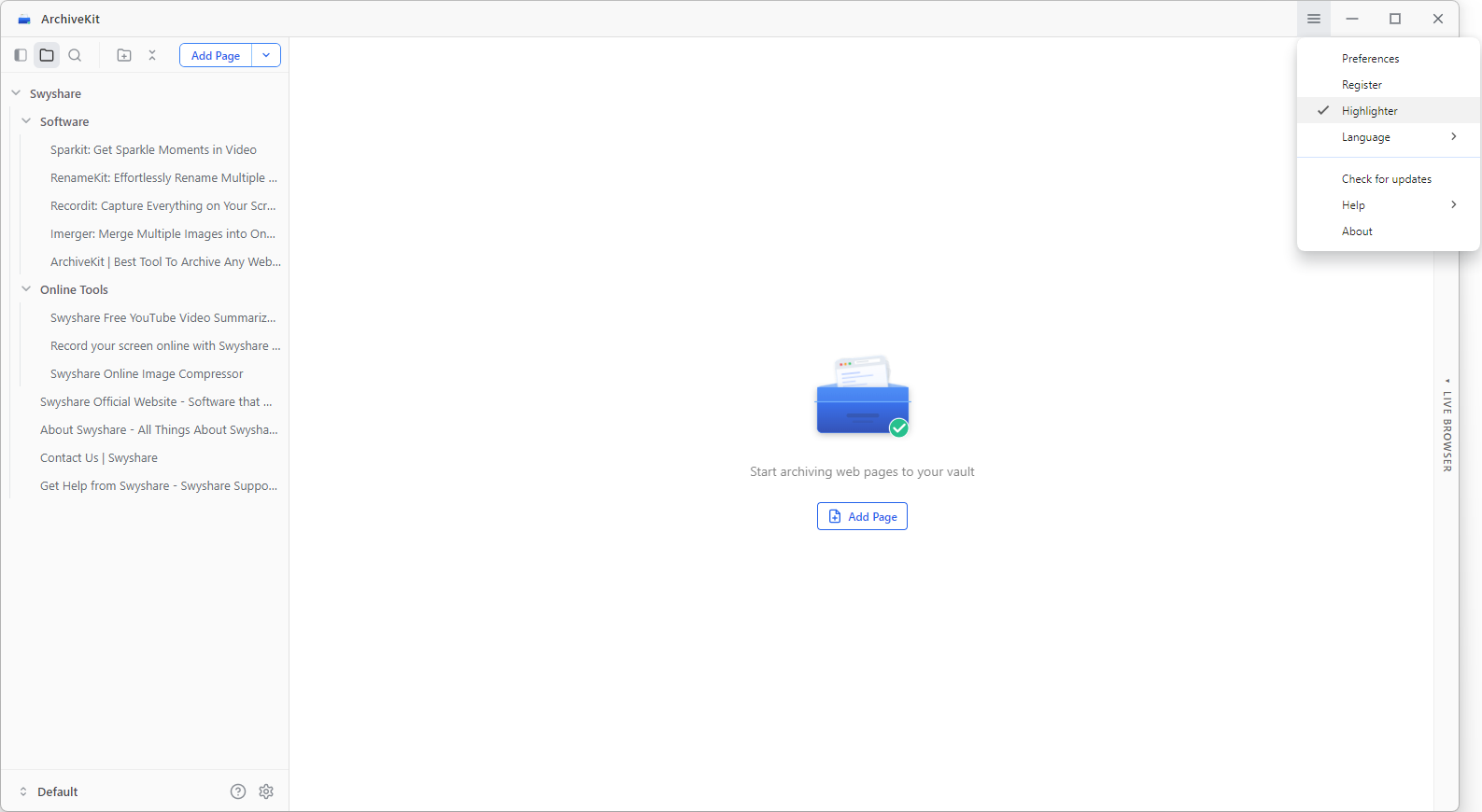
Click the ArchiveKit “≡” menu and enable Highlight Mode.
Scan the archived webpage, select the text you want to save, then click the Highlight button to mark important content instantly.
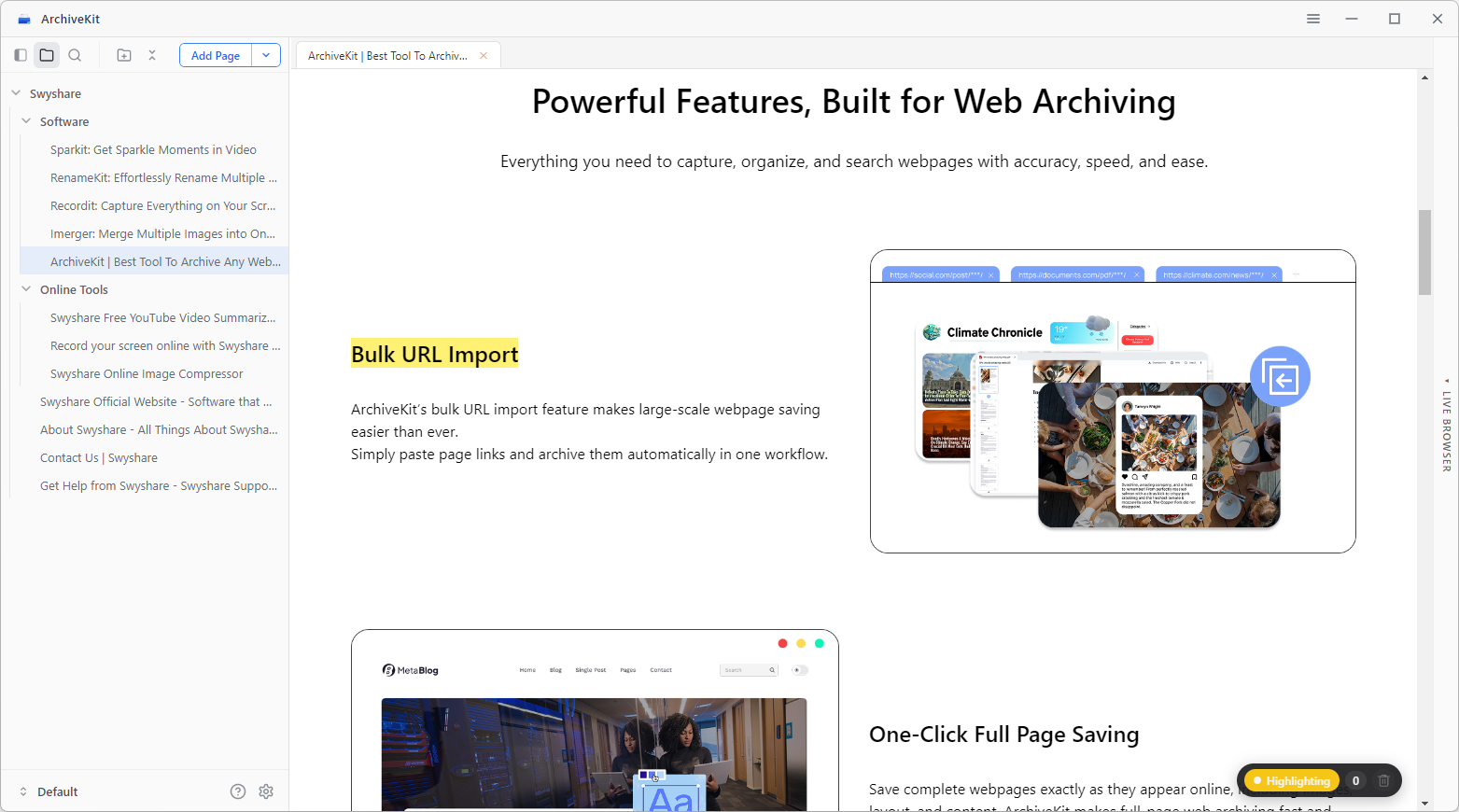
View, manage, organize, or delete highlights anytime from your archive.
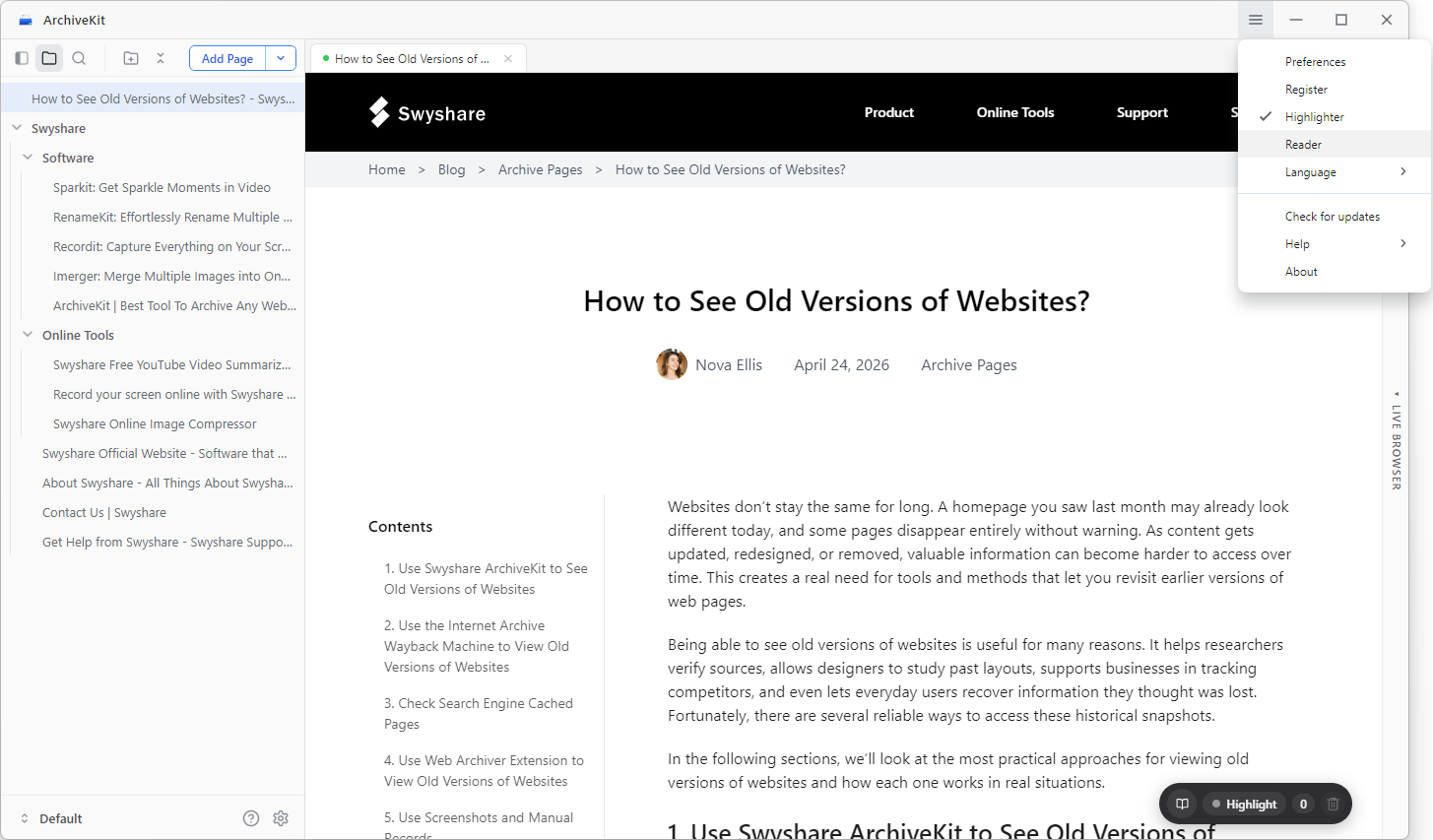
3.5 Reader Mode
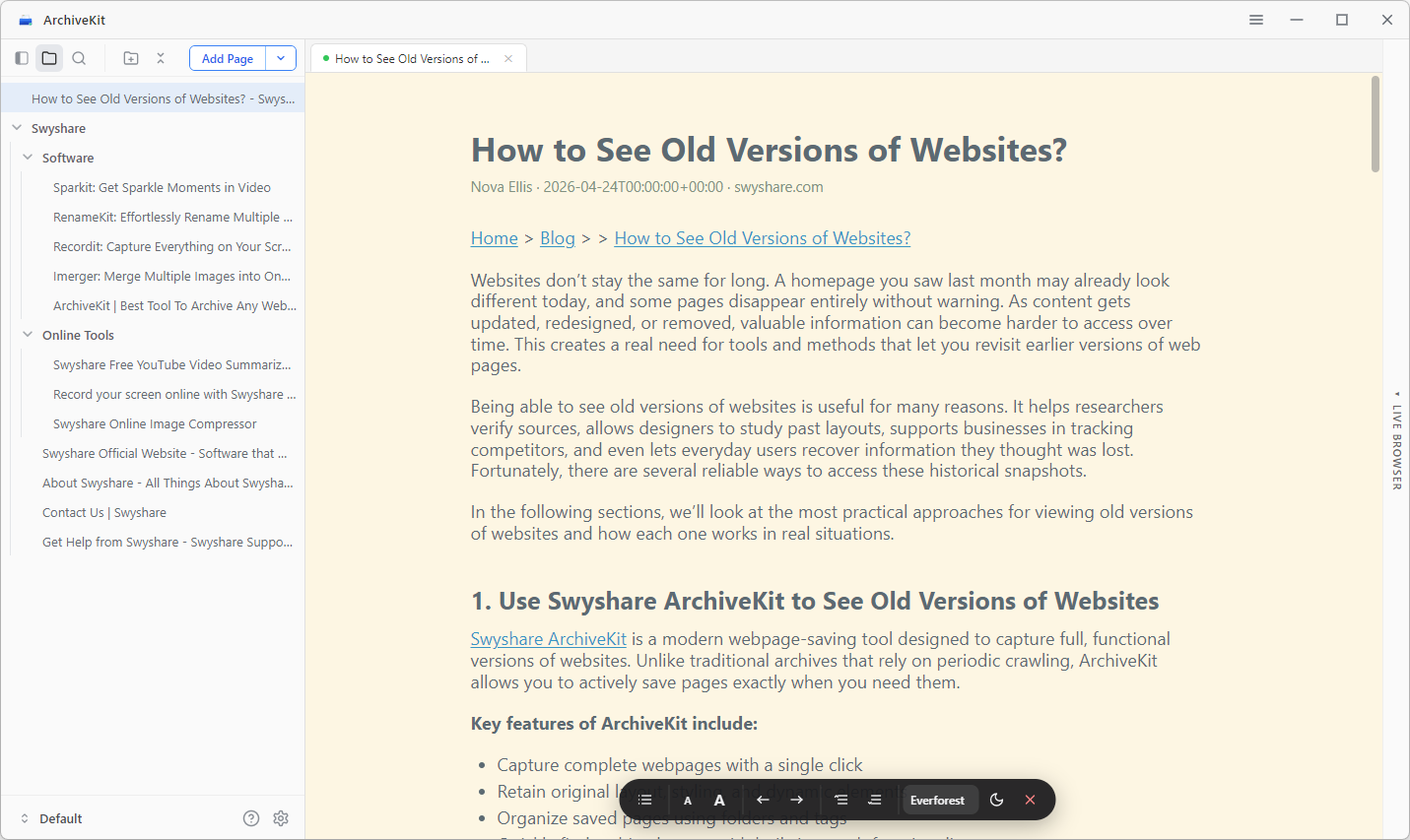
Click the ArchiveKit “≡” menu and press Reader mode.
ArchiveKit will remove ads, pop-ups, sidebars, and clutter so you can focus entirely on the content that matters.
3.6 Search Archived Content
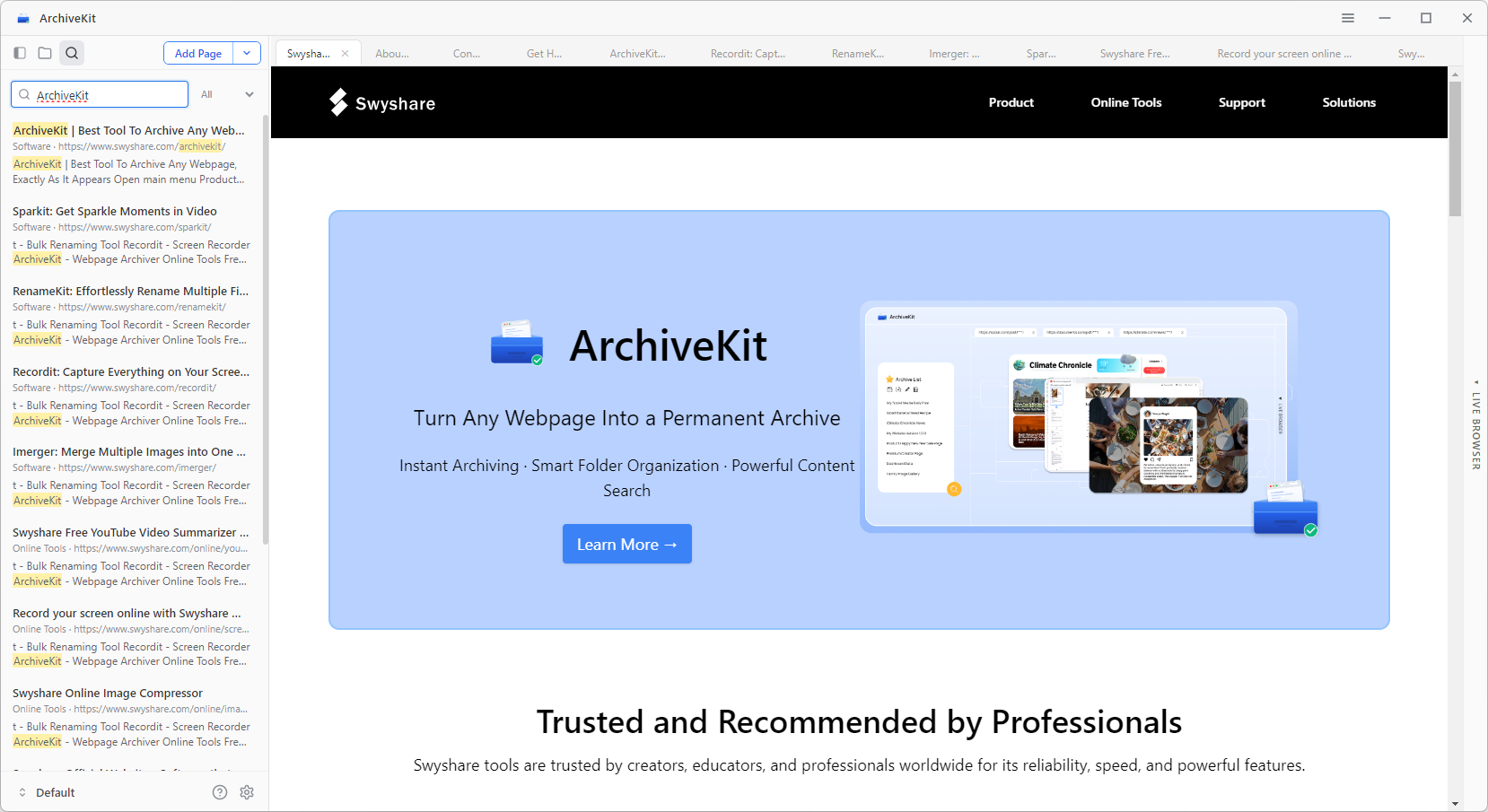
You can use the ArchiveKit search feature to quickly locate anything you’ve saved, even across a large collection of archived pages.
3.7 Archive Logged-in Pages (Live Browser Mode)
If the page requires login:
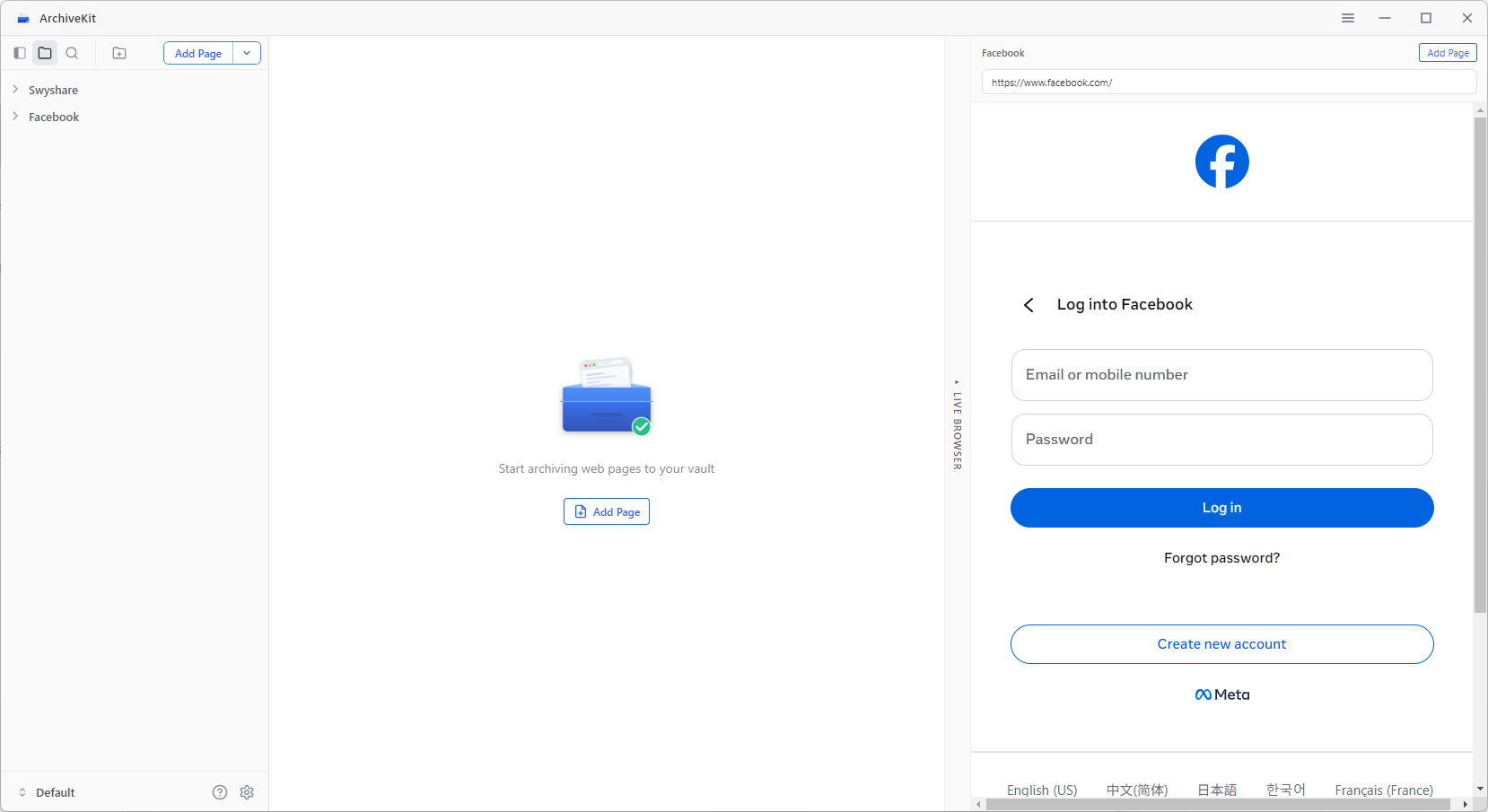
- Open “Live Browser” inside ArchiveKit.
- Enter the website URL directly and log into your account if needed.
- Navigate to the desired page, scroll to load all visible content.
- Click “Add Page” to save it into your archive collection.
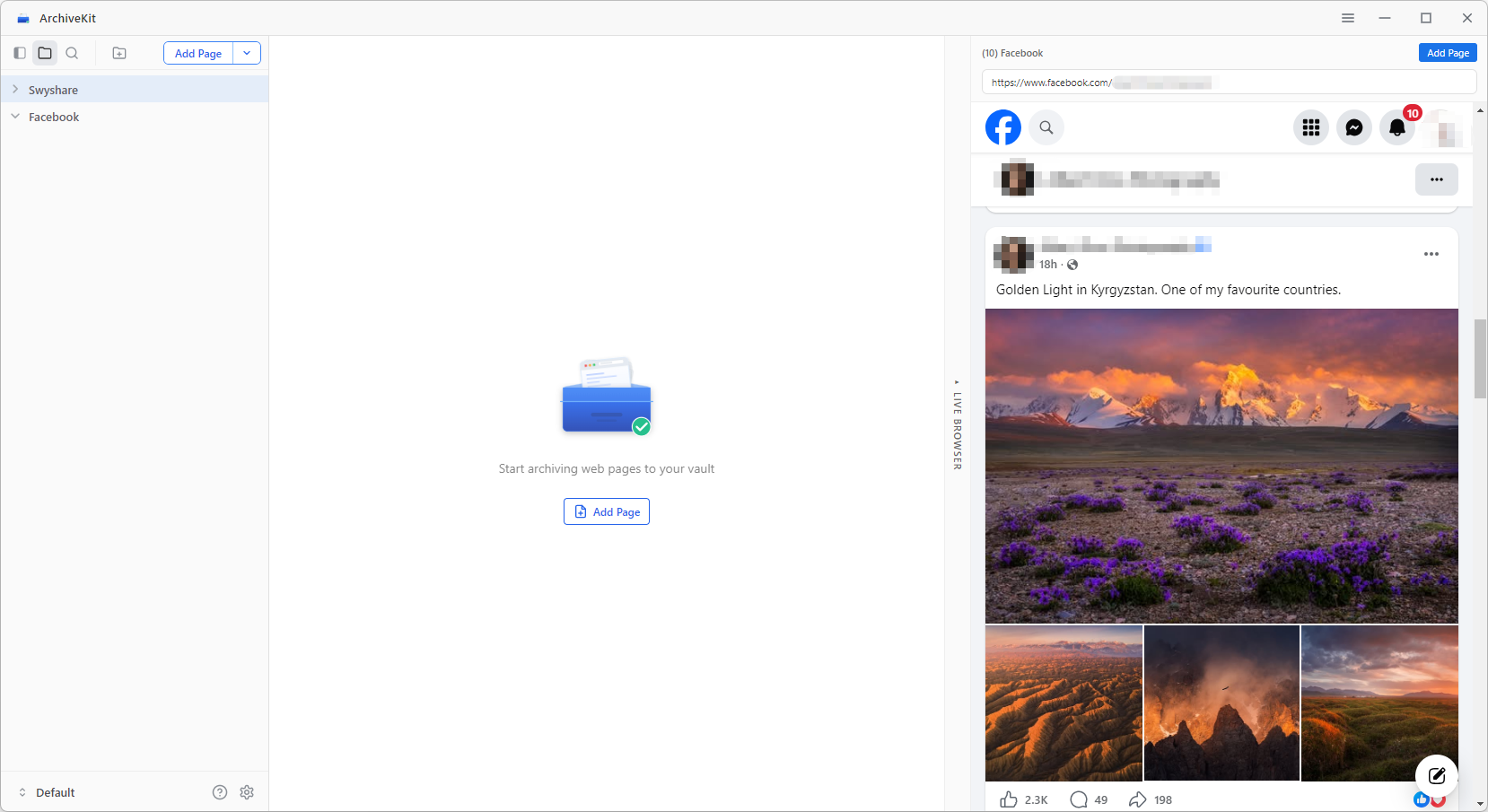
After a page is archived in ArchiveKit, it becomes permanently accessible whenever you need it.
3.8 Choose Archive Type
ArchiveKit gives you different capture modes depending on the page type:
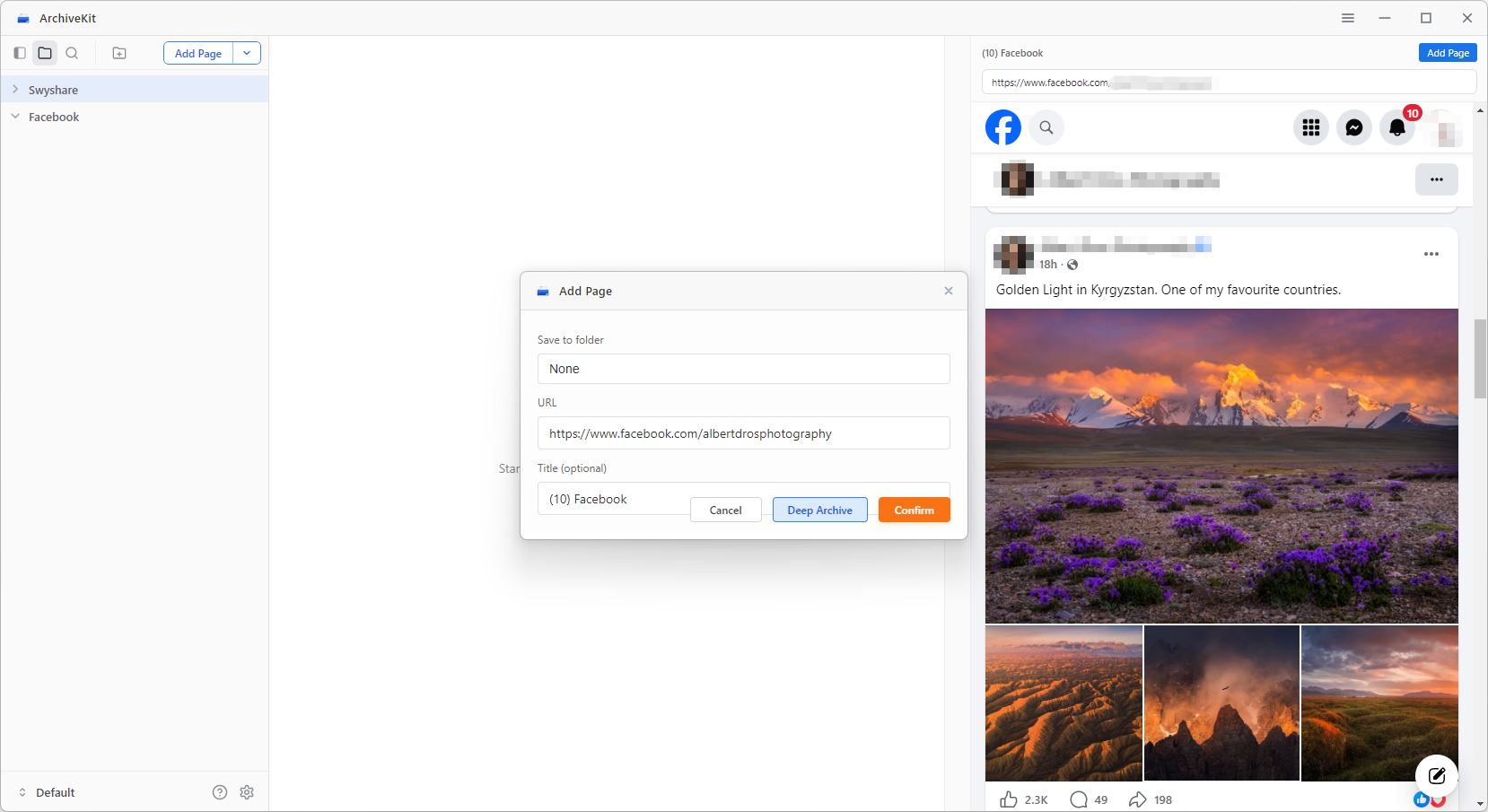
- Deep Archive (Dynamic Content): Use for pages with videos, scripts, interactive elements, or frequently changing content
- Update (Static Archive): Use for simple webpages like articles, blogs, or static pages
3.9 Update Archived Page
ArchiveKit’s Live Browser lets you not only capture pages, but also refresh and update existing archived content when the source page changes.
Here’s how the update process works:
- Navigate to the previously archived page or enter its URL again.
- Open Live Browser inside ArchiveKit to load the latest version of the webpage.
- Scroll through the page to ensure all updated content is fully loaded.
- Click “Update Cache” to overwrite or refresh the existing archive.