How to Fix Filenames with Spaces?

Filenames with spaces are perfectly valid on modern operating systems, but they can still cause unexpected issues when you’re working with scripts, programming languages, command-line tools, cloud storage, or web servers. A file named Project Report 2026.pdf is easy to read, yet many applications require spaces to be escaped or enclosed in quotation marks. This can make automation more complicated and increase the risk of errors.
Whether you’re a developer managing source code, a photographer organizing thousands of images, or simply someone trying to keep files tidy, replacing spaces with a more compatible format—such as underscores (_) or hyphens (-)—can save time and improve compatibility across different platforms.
In this guide, we’ll explain why spaces in filenames can be problematic, explore several ways to fix them on Windows, macOS, and Linux, and introduce an advanced batch-renaming solution that can rename thousands of files in just a few clicks.

1. Why Are Spaces in Filenames a Problem?
Although spaces are supported in modern operating systems, they can cause compatibility issues with command-line tools, scripts, programming languages, and web servers. Many applications interpret spaces as separators rather than part of a filename, which may lead to errors, broken automation, or failed file operations unless the filename is enclosed in quotation marks or escaped. Replacing spaces with hyphens (-) or underscores (_) creates cleaner, more consistent filenames that are easier to use across different platforms and applications.
2. How to Fix Filenames with Spaces?
Fortunately, fixing filenames with spaces is easy, with the ideal solution depending on the number of files you want to rename.
Method 1: Rename Files Manually
If you only have a handful of files, simply rename them using your operating system’s file manager.
Replace spaces with:
- Hyphens (-)
- Underscores (_)
- No spaces at all
For example:
Annual Report.docx can become: Annual-Report.docx or Annual_Report.docx
This approach is simple but becomes impractical when working with hundreds of files.
Method 2: Use Windows PowerShell
PowerShell provides a quick way to replace spaces across multiple filenames.
Replace spaces with underscores:
Get-ChildItem | Rename-Item -NewName {$_.Name -replace " ","_"}Replace spaces with hyphens:
Get-ChildItem | Rename-Item -NewName {$_.Name -replace " ","-"}These commands work well for folders containing many files.
Method 3: Use macOS or Linux Terminal
Both macOS and Linux support shell loops for batch renaming.
For example:
for file in *\ *; do
    mv "$file" "${file// /_}"
done
This script automatically replaces every space with an underscore.
You can also substitute hyphens by replacing _ with -.
Method 4: Use Python
Python is ideal if you regularly automate file management.
import os

for filename in os.listdir():
    new_name = filename.replace(" ", "_")
    os.rename(filename, new_name)
The script scans the current folder and renames every file by replacing spaces with underscores.
3. One-Click Fix Filenames with Spaces with RenameKit
If you frequently work with large media libraries, downloaded files, business documents, or archived projects, command-line scripts and manual renaming can become tedious. A dedicated batch renaming application like Swyshare RenameKit offers a faster and more user-friendly solution.
Swyshare RenameKit is a powerful file renaming tool that makes bulk file organization quick and effortless. Instead of creating scripts or memorizing terminal commands, you can rename thousands of files using an intuitive interface.
Some of its key features include:
- Replace spaces with underscores, hyphens, or custom characters.
- Batch rename thousands of files and folders simultaneously.
- Preview all filename changes before applying them.
- Offer flexible renaming with text edits, numbering, prefixes, suffixes, and case conversion.
- Rename images, videos, documents, music files, and more.
Steps to Fix Filenames with Spaces Using Swyshare RenameKit:
- Download Swyshare RenameKit and complete the installation process on your Windows or Mac system.
- Launch the program and drag the files or folders containing filenames with spaces into the application.
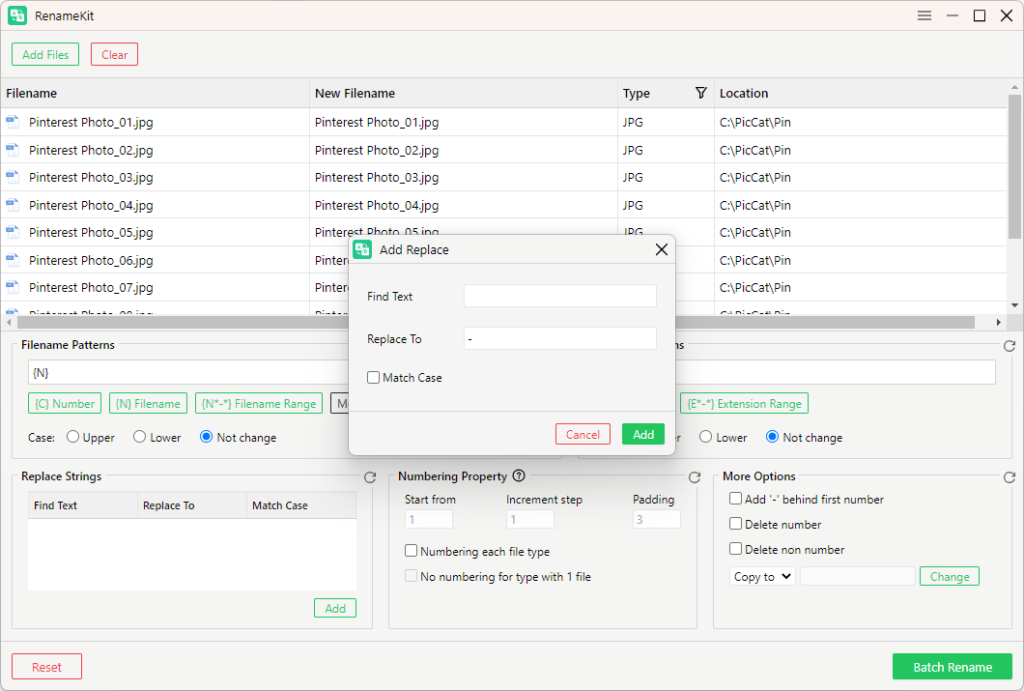
- Choose the Replace Strings renaming mode, enter a single space in the Find Text field, and type an underscore (_), hyphen (-), or another preferred character in the Replace To field, then click Add.
- Preview the updated filenames to confirm the changes, then click Batch Rename. RenameKit will instantly process all selected files while preserving their extensions and directory structure.
4. Conclusion
While spaces in filenames are supported by modern operating systems, they can still create compatibility issues with command-line tools, scripts, programming environments, web servers, and automation workflows. Replacing spaces with underscores, hyphens, or removing them entirely makes filenames easier to manage and more reliable across different platforms.
For occasional use, built-in tools like File Explorer, Finder, PowerShell, Terminal, or Python scripts are effective solutions. However, if you regularly need to rename hundreds or thousands of files, Swyshare RenameKit provides a much more efficient approach. With simple controls, advanced batch processing, and customizable renaming options, RenameKit lets you quickly fix and organize filenames without using command-line tools. Whether you’re organizing media collections, preparing files for development projects, or cleaning up business documents, Swyshare RenameKit is a reliable and time-saving solution for fixing filenames with spaces.