How to Stop Chrome from Blocking Downloads?

Google Chrome is one of the most popular web browsers, but downloading files does not always go smoothly. Sometimes Chrome blocks an installer, ZIP archive, document, or other file with a security warning. In other cases, downloads fail because of website permissions, unstable internet connections, antivirus software, or browser settings.
Although these restrictions can be frustrating, Chrome uses security checks to protect users from malware, suspicious files, and unsafe download links. Fortunately, there are several ways to troubleshoot blocked downloads without unnecessarily compromising your computer’s security.
In this guide, we’ll explain how to stop Chrome from blocking downloads, troubleshoot common download errors, and introduce a free download manager that helps you download large files more efficiently.
1. How to Stop Chrome from Blocking Downloads?
1.1 Check Chrome’s Download History
The first step is to identify why Chrome blocked your file.
- Open Chrome and press Ctrl + J to access the Downloads page.
- Locate the blocked file and read the warning message.
- Check whether Chrome provides additional details or an option to keep the file.
- If you trust the source, verify the file’s legitimacy before deciding whether to proceed.
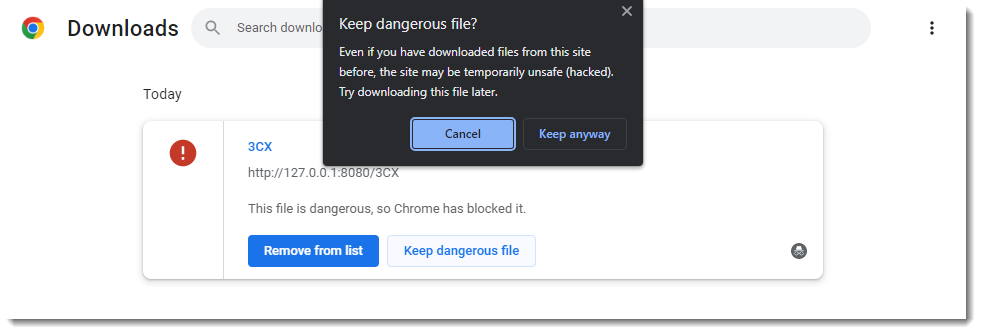
Chrome may classify downloads as dangerous, suspicious, or insecure depending on the file and its source. If Chrome identifies malware or another serious threat, cancel the download rather than bypassing the warning.
1.2 Check Automatic Download Permissions
Chrome allows users to control whether websites can download multiple related files automatically. Incorrect permissions can prevent a website from downloading several files in succession.
To review these settings:
- Enter
chrome://settings/content/automaticDownloadsin Chrome’s address bar. - Review the default behavior for automatic downloads.
- Check whether the website appears under the blocked list.
- If you trust the website, change its permission to allow automatic downloads.
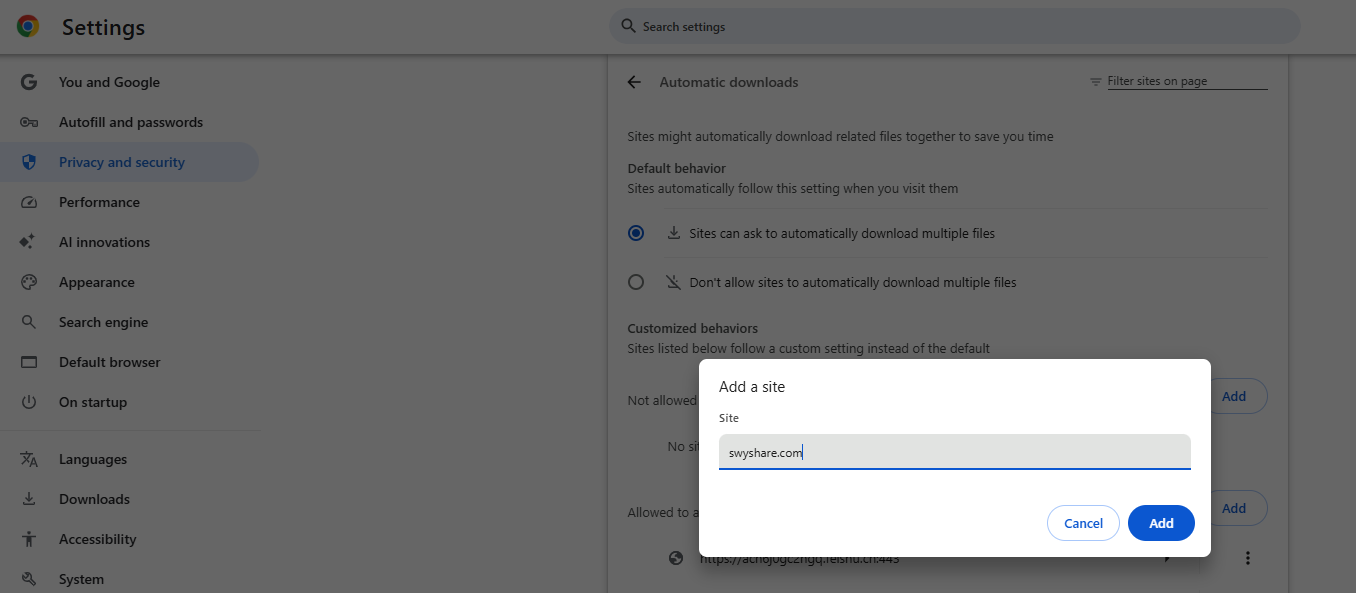
This setting is particularly useful for websites that provide several files at once. However, it does not override malware warnings or other security restrictions.
1.3 Review Chrome’s Security Settings
Chrome’s Safe Browsing feature checks websites and downloads for potential security threats. Occasionally, a legitimate file may trigger a warning because it is unfamiliar or has a questionable download reputation.
To review your security settings:
- Open
chrome://settings/security. - Locate the Safe Browsing section.
- Check which protection level is enabled.
- Keep an appropriate protection level enabled and investigate the warning before downloading the file again.
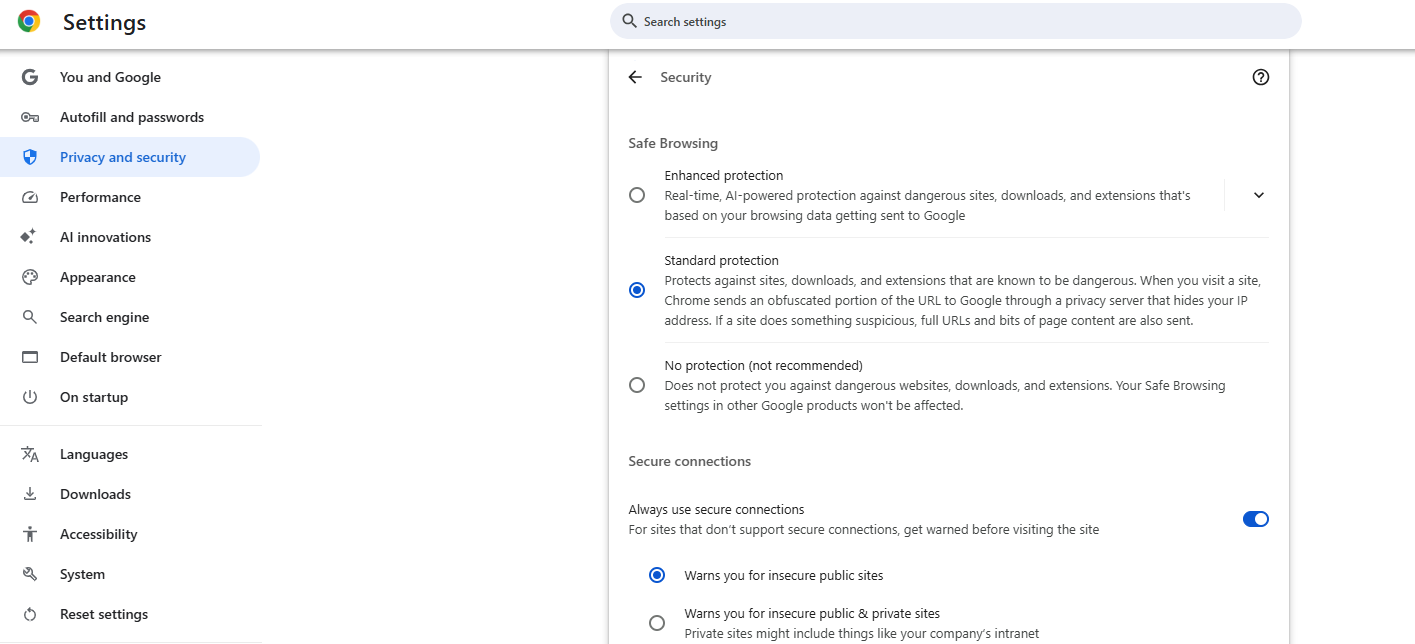
Disabling Safe Browsing is not recommended because it also reduces protection against malicious websites and dangerous downloads. If you believe a legitimate file has been incorrectly flagged, check the publisher’s official website and verify the file before proceeding.
1.4 Check Antivirus and Windows Security
Sometimes the problem is not Chrome itself. Antivirus software or Windows Security may quarantine a file after Chrome starts downloading it.
Try these steps:
- Open Windows Security or your installed antivirus application.
- Check the protection history or quarantine section.
- Review the detected file and the reason it was blocked.
- If the file is confirmed to be safe, follow the security software’s official recovery procedure.
Do not restore a quarantined file simply because you want to complete the download. If the file is genuinely malicious, leaving it blocked is the safest choice.
1.5 Fix Common Download Errors
If Chrome continues to fail when downloading ordinary files, try the following troubleshooting methods:
- Check your internet connection: Switch to a stable connection if downloads repeatedly stop.
- Change the download folder: Open
chrome://settings/downloadsand select a folder where you have permission to save files. - Free up disk space: Remove unnecessary files if your storage is nearly full.
- Resume the download: Open the Downloads page and select Resume if the option is available.
- Update Chrome: Install the latest available browser update and restart Chrome.
- Try the official download link: If the original link is broken or redirects unexpectedly, obtain a fresh link from the publisher.
These fixes can resolve common problems such as network failures, missing files, insufficient permissions, and interrupted downloads. They will not necessarily resolve a genuine security block.
2. Try the Free Download Manager – Swyshare Downwave
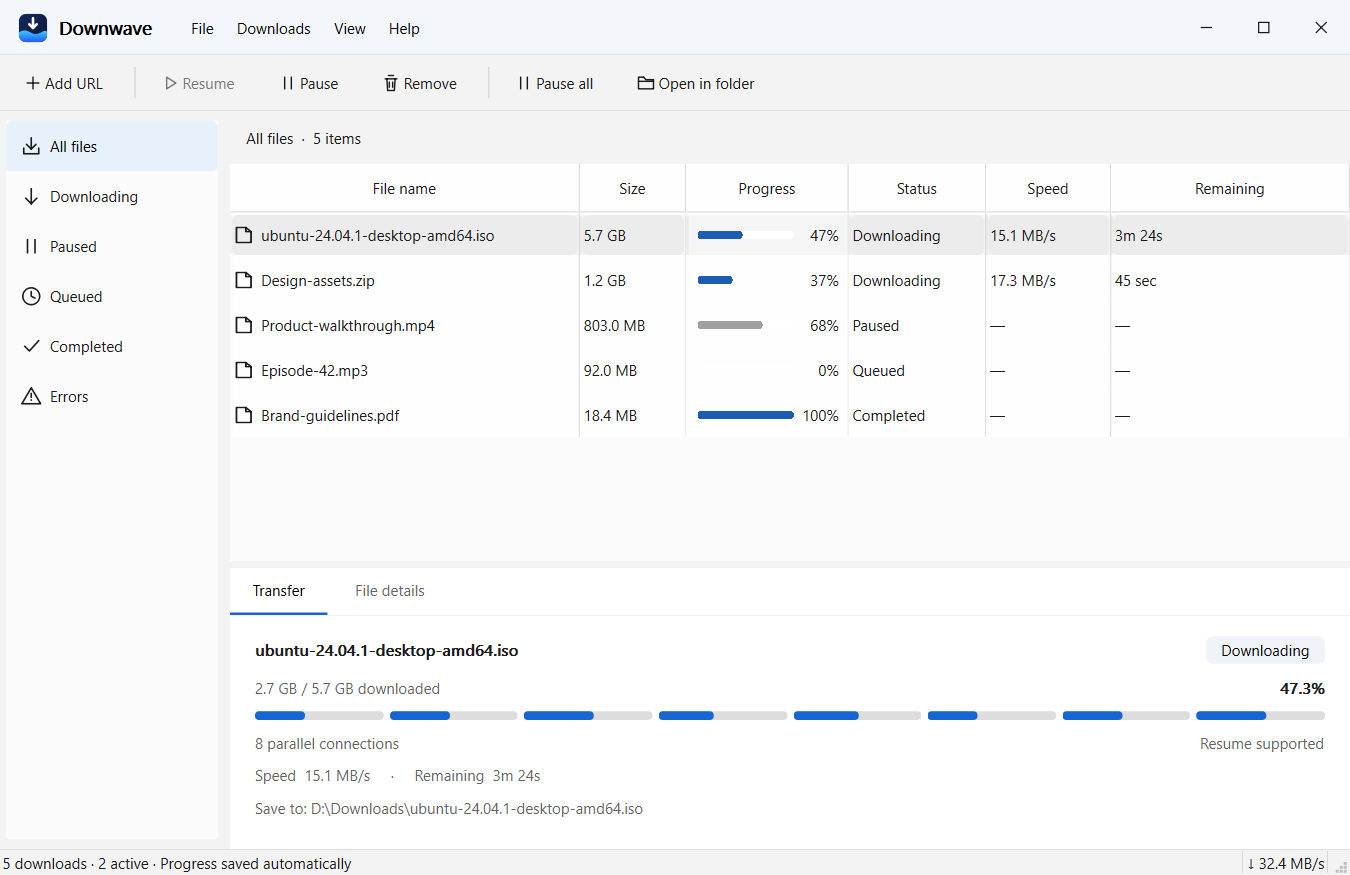
If you frequently download large installers, disk images, ZIP archives, videos, or other files, a dedicated download manager can make the process easier. Swyshare Downwave is a free download manager for Windows that supports parallel downloads, pause-and-resume functionality, and integration with Chrome.
Instead of relying entirely on Chrome’s built-in download interface, you can use DownWave to manage supported direct file downloads in a dedicated application.
Key features of Downwave:
- Fast Downloads: Uses parallel connections to improve download speeds.
- Pause & Resume: Easily continue interrupted downloads.
- Chrome Integration: Send download links directly from Chrome.
- Download Management: Organize multiple downloads in a queue.
- Free & Ad-Free: No account or subscription required.
How to download files using Downwave:
- Download and install Swyshare DownWave on your Widnows, and launch it.
- Copy a direct download link and paste it into DownWave, or send it from Chrome using the supported extension.
- Choose your save location and start the download. Pause or resume it whenever needed.
3. Conclusion
Chrome may block downloads because of security warnings, website permissions, antivirus restrictions, or ordinary download errors. By checking your download history, reviewing automatic download permissions, keeping Chrome updated, and troubleshooting your connection, you can resolve many common issues without disabling essential security features.
For users who regularly download large files, Swyshare DownWave is a useful free download manager to consider. Its parallel connections, Chrome integration, download queue, and pause-and-resume features make downloading and managing files more convenient. Visit the official Downwave website to get started and enjoy a more flexible download workflow while keeping your computer protected.