How to Download File from URL Online?

Downloading a file from a URL is one of the simplest ways to save online content for offline use. Whether you need a PDF, image, document, video, ZIP archive, or another type of file, a direct download link can often let you save it to your computer with just a few clicks. However, not every URL points directly to a downloadable file. Some links lead to webpages where the actual files are embedded, while others contain multiple resources that need to be saved separately.
In this guide, we’ll explain how to download files from URLs online and introduce an advanced option for backing up webpages and their resources.
1. How to Download File from URL Online?
Method 1: Download the File Directly from Your Browser
The easiest method is to open the file URL in your web browser. If the URL points directly to a downloadable file, your browser may automatically begin downloading it or display the file with a download button.
To download a file:
- Copy the URL pointing to the file you want to download.
- Open Chrome, Edge, Firefox, Safari, or another browser.
- Paste the URL into the address bar and press Enter.
- If the file opens in the browser, look for the Download button.
- Click it and choose a destination folder if prompted.
- Wait for the download to finish.
This method works well for common file types such as PDFs, images, documents, and ZIP files. However, it may not work as expected when the URL points to a webpage rather than the file itself.
Method 2: Use an Online URL Downloader
Another option is an online URL downloader. These services allow you to paste a file URL into a webpage and download the corresponding resource.
The general process is straightforward:
- Find a reliable online URL downloader like filegrab.net.
- Copy the URL of the file and paste the URL into the downloader’s input field.
- Start the download or processing task.
- Choose the generated download option and save the file to your computer.
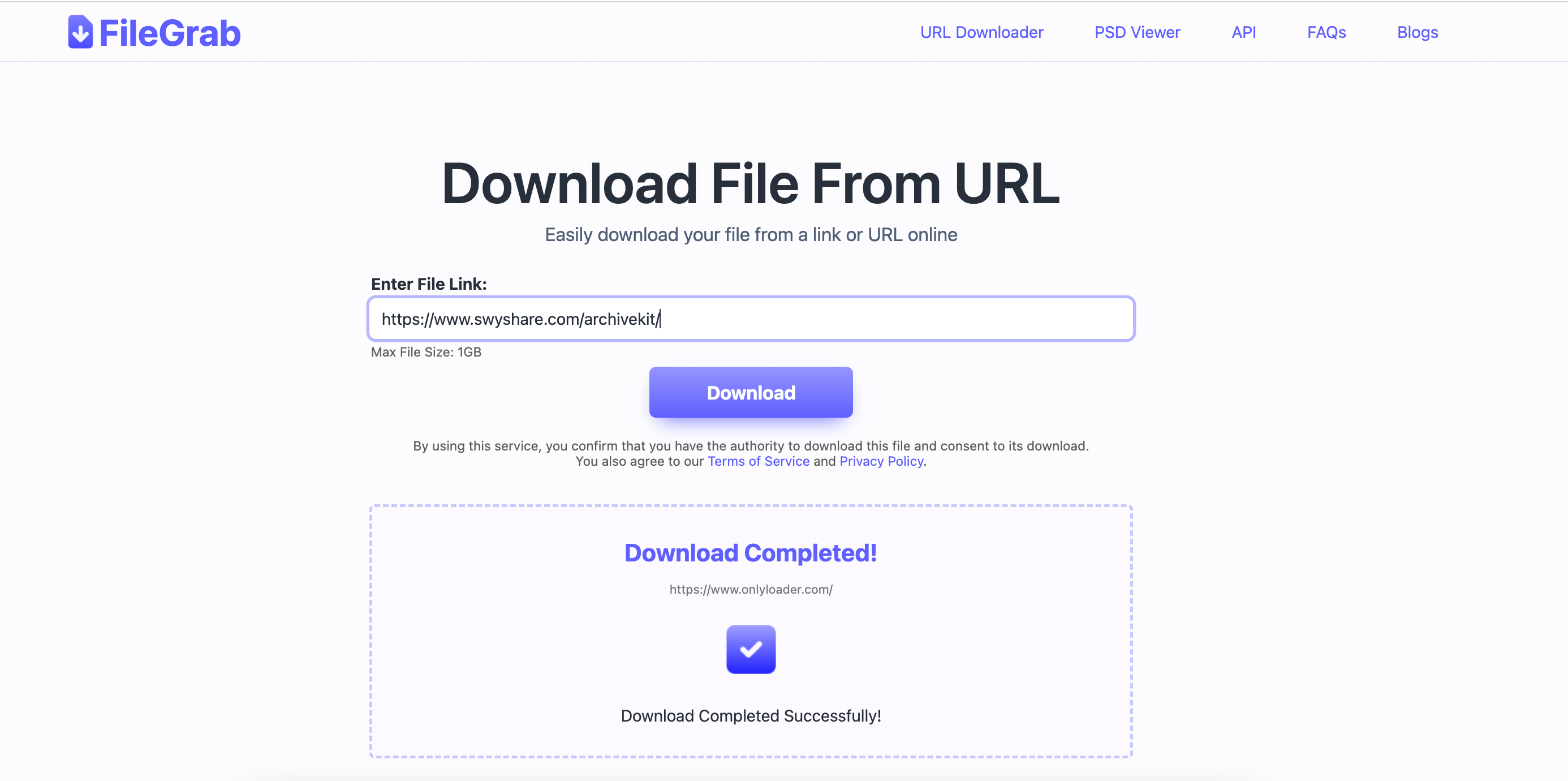
Online tools can be convenient because they usually don’t require software installation. They can also be useful when you’re working on a computer where you cannot install additional applications.
However, online downloaders can have limitations. Some may restrict file sizes, supported formats, or download speeds. Others may not work with protected, dynamically generated, or complicated URLs. You should also avoid submitting private or sensitive URLs to services you do not trust.
Method 3: Use the Browser’s Save Options
If you want to save content displayed directly on a webpage, your browser may provide additional options.
For example, when viewing an image, you can usually right-click it and select Save Image As.
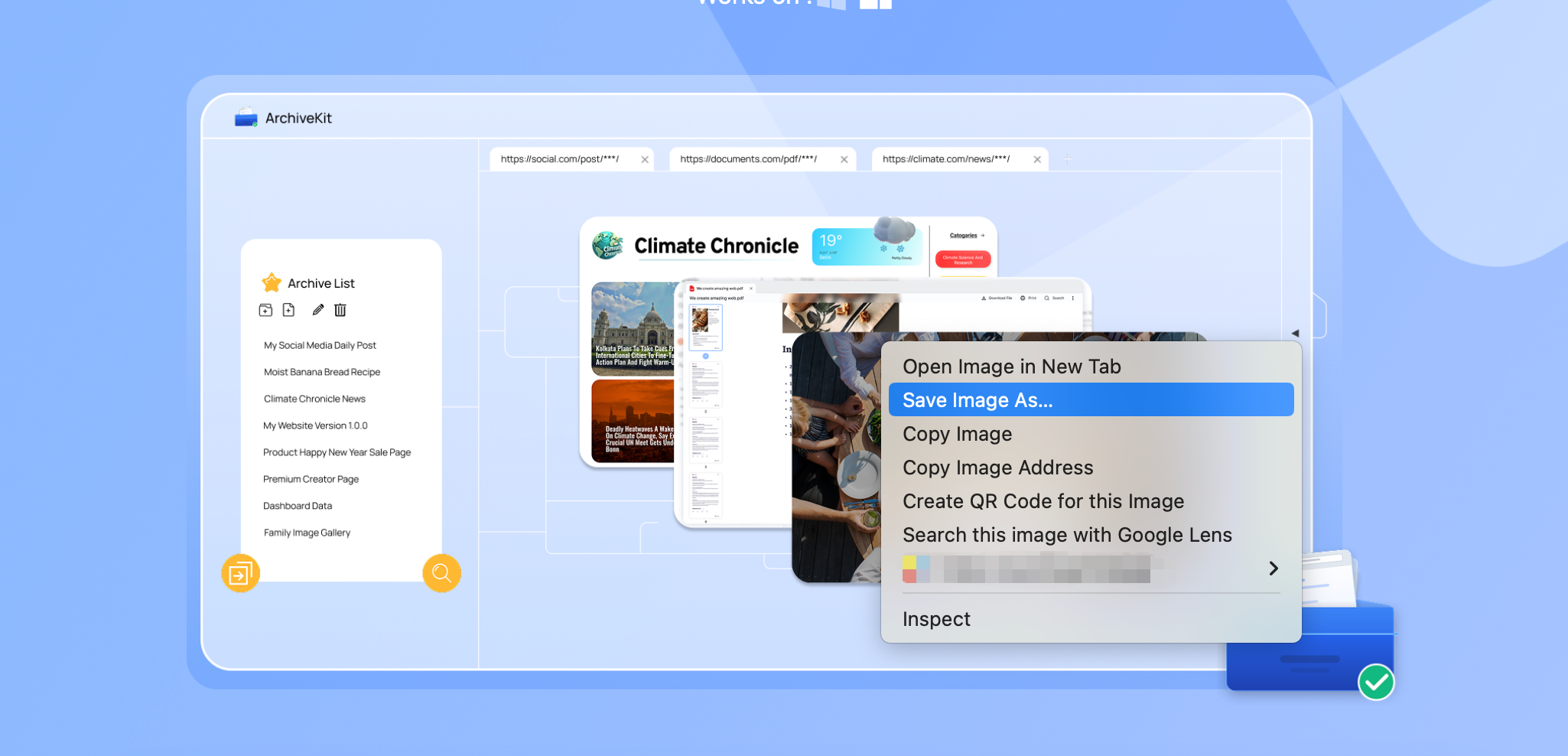
For a PDF, you may be able to use the browser’s download icon. For a webpage, you can use the browser’s Save Page As function.
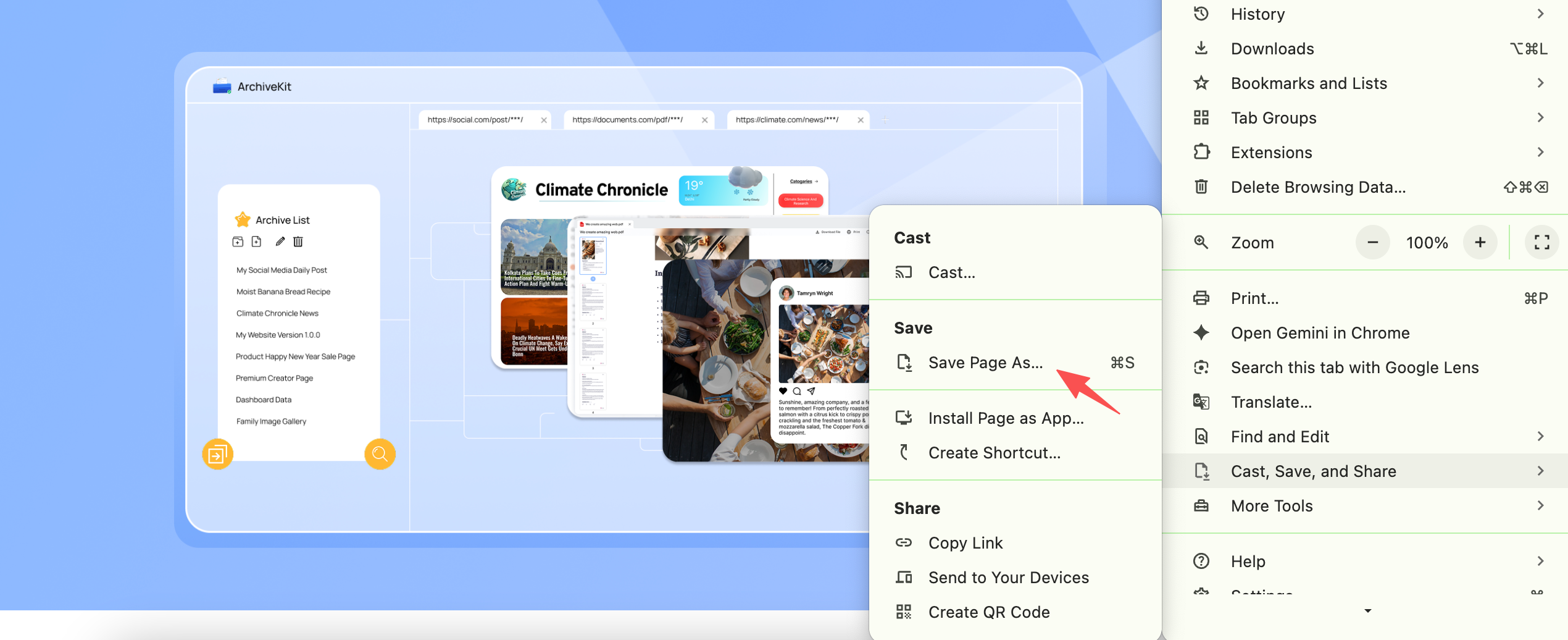
This approach is useful when you only need one resource. However, saving a webpage this way does not necessarily create a complete backup. A page may depend on images, CSS files, JavaScript, fonts, videos, or other resources stored separately.
2. Advanced: Backup Webpages with Swyshare ArchiveKit
When you need more than a single file download, Swyshare ArchiveKit provides a convenient way to back up complete webpages. Instead of manually saving individual images, documents, and other resources, you can use ArchiveKit to preserve webpage content and its related files in one organized backup. This makes it useful for saving online references, research materials, documentation, and webpages you may need to access later.
Key features of ArchiveKit:
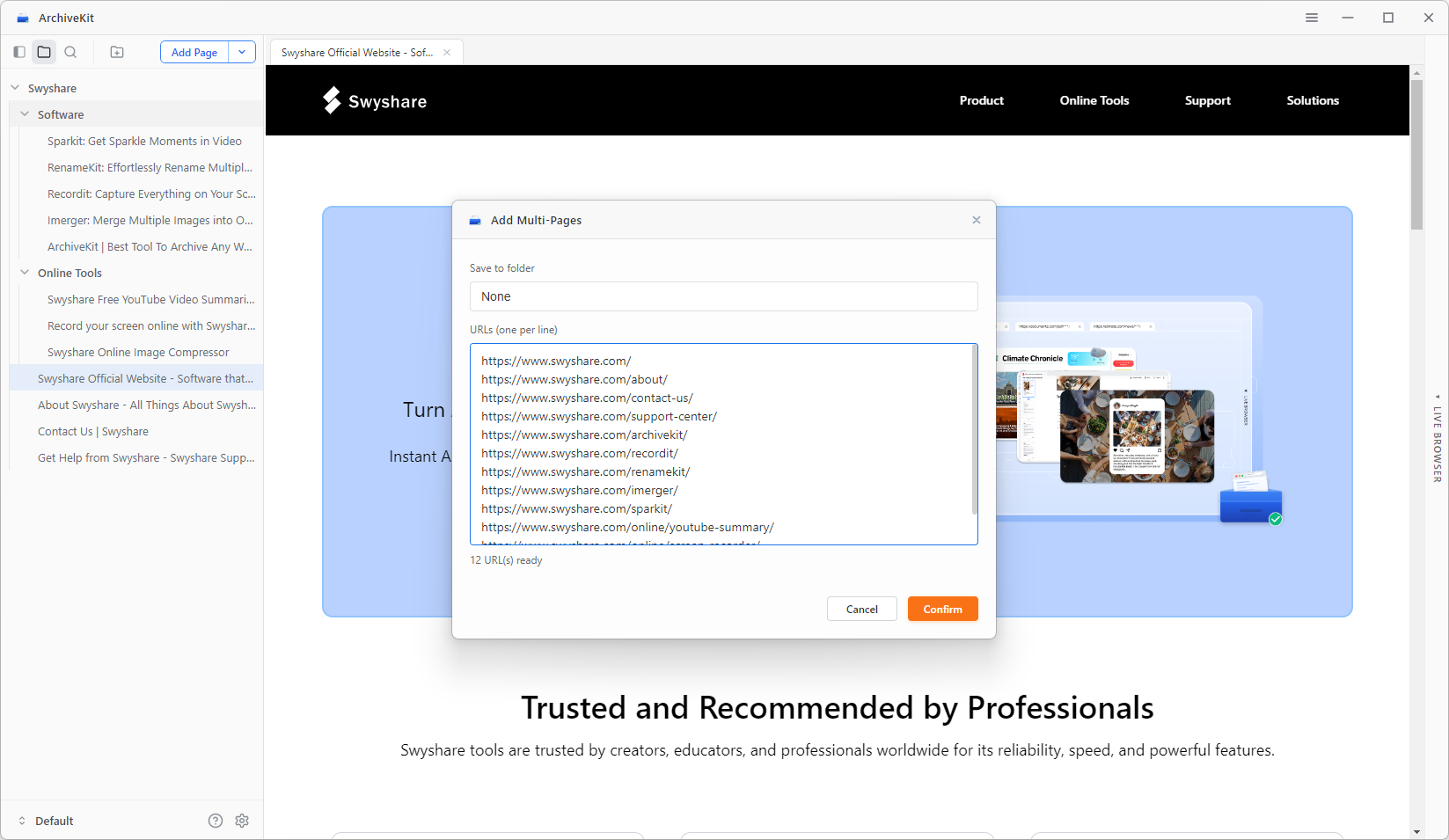
- Bulk URL Import – Archive multiple webpages at once.
- Full Page Saving – Save complete webpages and their resources.
- Dynamic Content Support – Preserve JavaScript-based content.
- Instant Search – Quickly find archived pages.
- Webpage Organization – Sort saved pages into folders.
Steps using ArchiveKit:
- Download and install Swyshare ArchiveKit on your computer, then launch the software.
- Copy the webpage URLs you want to save and paste them into ArchiveKit.
- Scroll all pages to load the full content; Once the process finishes, reopen the archived webpages to make sure the required content has been preserved.
3. Conclusion
Downloading a file from a URL can be quick and easy when the link points directly to the content you need. Browser downloads, online URL downloaders, and built-in save options are all useful for individual files, but they may not be enough when you want to preserve an entire webpage and its related resources.
For more advanced webpage backups, Swyshare ArchiveKit is a convenient option. With features such as bulk URL import, full-page saving, dynamic content support, instant search, and webpage organization, it makes it easier to save and manage webpages for offline access. If you regularly need to back up webpages rather than just download individual files, ArchiveKit is worth trying.