The Full Guide to Screenshotting Instagram Posts

Instagram is one of the most popular social media platforms for sharing photos, videos, artwork, memes, and inspirational content. While Instagram allows users to save posts within the app, many people still prefer taking screenshots of posts for quick access, reference, sharing, or archiving purposes. Whether you want to save a recipe, keep a favorite photo, document a business post, or preserve content before it disappears, screenshotting is often the fastest solution.
However, many users have questions before taking screenshots. Can you screenshot Instagram posts? Will Instagram notify the other person? Are there any drawbacks? Are there better ways to save Instagram content?
This guide covers everything you need to know about screenshotting Instagram posts. Let’s dive in.
1. Can You Screenshot Instagram Posts?
Yes, you can screenshot Instagram posts.
Instagram does not prevent users from taking screenshots of public or private posts that appear in their feeds (provided they have access to view them). Whether it’s a photo post, carousel, caption, profile page, comment section, or Reel thumbnail, you can capture it using your device’s built-in screenshot function.
Screenshotting is supported on:
- Windows PCs
- Mac computers
- iPhones and iPads
- Android smartphones and tablets
Instagram does not disable screenshot functionality, making it easy for users to capture content whenever needed.
2. How to Screenshot Instagram Posts?

Follow the appropriate screenshot instructions for your device.
2.1 Screenshot Instagram Posts on iPhone
- Open Instagram and navigate to the desired post.
- Ensure the entire post is visible on your screen.
- Press the Side Button + Volume Up Button simultaneously.
- Release both buttons quickly.
- Once captured, the screenshot will be available in your Photos app.
2.2 Screenshot Instagram Posts on Android
- Open the Instagram post.
- Press and hold the Power and Volume Down buttons simultaneously, then release them.
- The screenshot will be saved to your Gallery app.
2.3 Screenshot Instagram Posts on Windows
If you’re using Instagram in a web browser:
Using Snipping Tool
- Open the Instagram post.
- Launch Snipping Tool and click New.
- Choose the portion of the screen you want to capture and save it.
Using Print Screen
- Open the post and press PrtScn.
- Paste the screenshot into Paint or another image editor.
- Save the image.
2.4 Screenshot Instagram Posts on Mac
- Open Instagram in your browser.
- Press Command + Shift + 4.
- Drag your cursor to select the post area.
- Release the mouse button.
- After capturing the screenshot, it will be available on your desktop.
3. Does Instagram Notify When You Screenshot a Post?
No, Instagram does not notify users when you screenshot a post.
You can freely take screenshots of:
- Feed posts
- Carousel posts
- Profile pages
- Comments
- Reels thumbnails
- Explore page content
- Stories highlights
The content creator will not receive any notification.
4. Pros & Cons of Screenshotting Instagram Posts
Pros:
- Quick and easy to do.
- No additional software required.
- Saves content instantly for offline viewing.
- Useful for capturing important information or inspiration.
Cons:
- Image quality may be lower than the original.
- Screenshots can clutter your photo gallery.
- Requires manual cropping and organization.
- Does not preserve post links, captions, or metadata.
- Inefficient for saving multiple posts.
5. Archive Instagram Posts Instead of Screenshotting
While screenshots are useful for quick saves, archiving Instagram posts provides a more organized and efficient solution.
ArchiveKit is designed to help users archive online content efficiently, including social media pages and web content.
Key advantages of ArchiveKit include:
- Save any webpage exactly as it appears online.
- Archive multiple pages at once by importing URLs.
- Quickly search, organize, and manage saved pages.
- Highlight important content for easy reference.
- Use Reader Mode for a clean, distraction-free reading experience.
How to save Instagram posts with ArchiveKit:
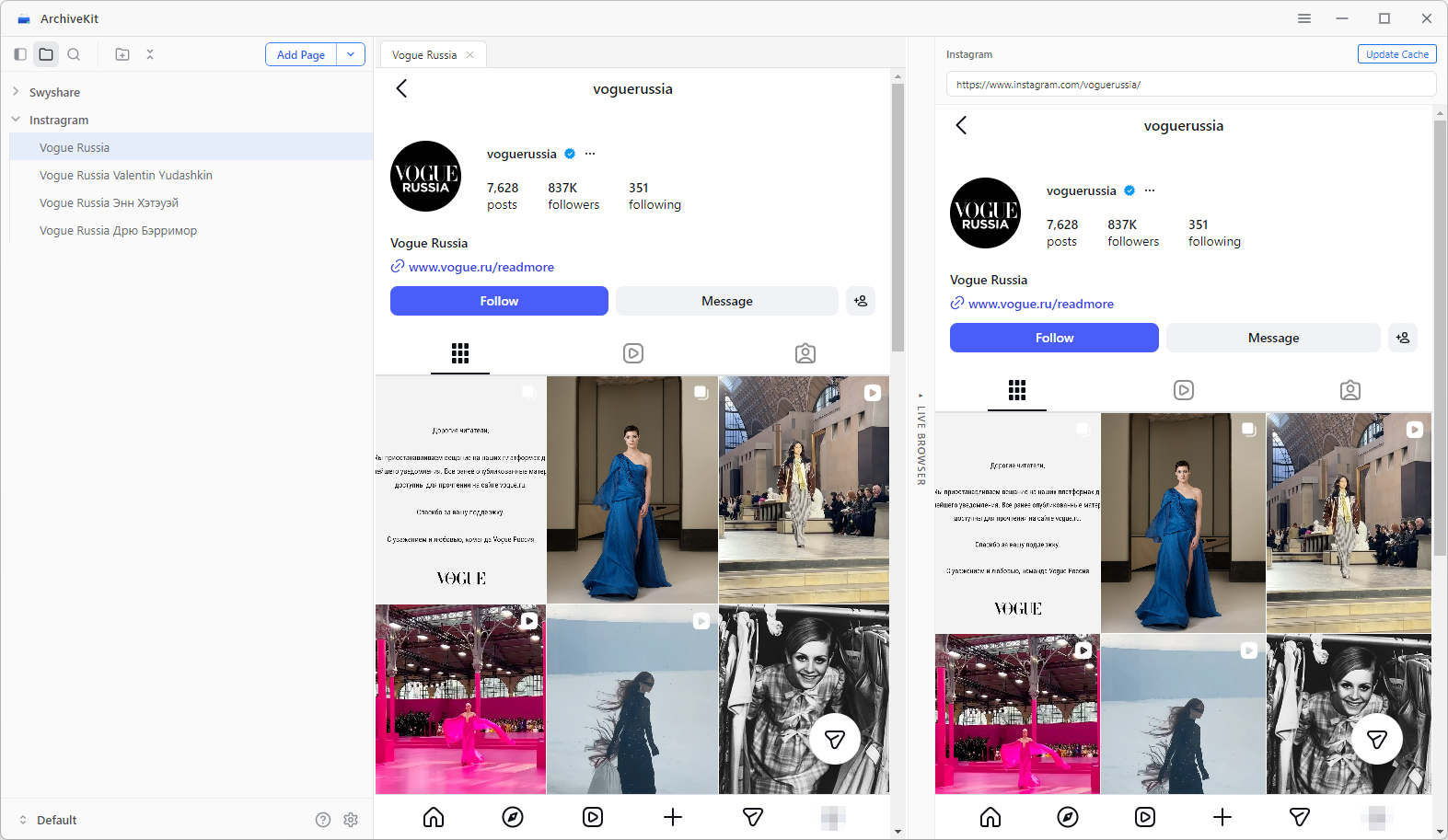
- Launch ArchiveKit and use the Live Browser mode to visit the Instagram page you want to save (Log in if required).
- Scroll the full page, click Add Page, select Deep Archive to capture the post and its content.
- Add highlights and turn on Reader mode if needed.
- Access, search, and manage your saved Instagram posts anytime from ArchiveKit.
6. Conclusion
Screenshotting Instagram posts is quick, simple, and supported on virtually every device. You can capture posts, profiles, and other visible Instagram content without notifying the content creator in most situations. For occasional use, screenshots remain a convenient way to save information and images.
However, screenshots have limitations, including lower image quality, missing metadata, and poor organization when dealing with large numbers of posts. If you regularly save Instagram content for research, inspiration, business, or personal archiving, a dedicated archiving solution is often the better choice.
For a more organized and reliable way to preserve Instagram posts, captions, and related information, ArchiveKit is highly recommended. It helps you archive content efficiently, keep everything searchable, and avoid the clutter that comes with managing countless screenshots.