How to Fix “Application Cannot Be Captured” in OBS?

OBS Studio is a popular tool for recording screens, applications, games, and live streams. However, you may sometimes encounter an issue where OBS fails to capture a specific application. Instead of showing the application normally, the preview may remain black, display a blank window, or show an error such as “Application cannot be captured.” In this guide, we’ll briefly explain why OBS may not capture an application and introduce several ways to fix the problem.

1. Why Application Cannot Be Captured in OBS?
There are several possible reasons why OBS cannot capture an application:
- Incorrect capture source: Window Capture may not work properly with certain applications.
- Permission conflicts: OBS and the target application may be running with different administrator privileges.
- GPU conflicts: OBS and the application may be using different graphics processors.
- Hardware acceleration: Some applications use hardware acceleration that can interfere with capture.
- Fullscreen mode: Certain games and applications may not work correctly with Window Capture in fullscreen mode.
- Outdated software: Older versions of OBS or graphics drivers may cause compatibility problems.
Once you know the possible cause, you can try the following solutions.
2. How to Fix “Application Cannot Be Captured” in OBS?
2.1 Restart OBS and the Application
Start with the simplest solution. Close both OBS and the application you want to record. Then reopen the application first and launch OBS afterward. Add the capture source again and check whether the application appears.
This can fix temporary capture or detection problems without changing any settings.
2.2 Try a Different Capture Source
OBS provides several capture options, including Window Capture, Display Capture, and Game Capture. If Window Capture doesn’t work, try Display Capture instead.
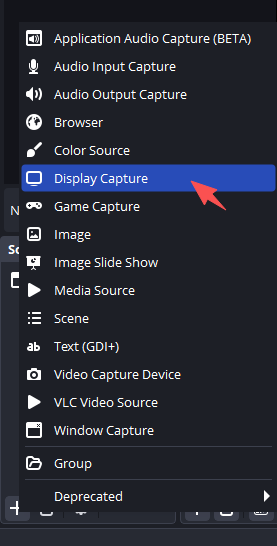
For games or applications with 3D rendering, Game Capture may work better. Simply add a new source and select the capture method that matches the content you’re recording.
2.3 Run OBS as Administrator
If OBS doesn’t have sufficient permissions to access the target application, running it as administrator may help.
Close OBS, right-click its shortcut, and select Run as administrator. Then add the application capture source again.
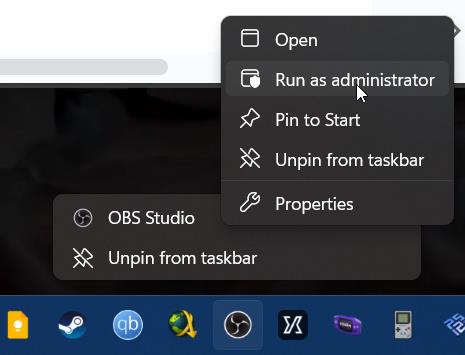
For the best results, try to run OBS and the target application with similar permission levels.
2.4 Change the Window Capture Method
If you’re using Window Capture, open the source’s properties and look for the Capture Method setting.
Try the available capture methods one at a time. Some applications work better with one method than another, so changing this option may resolve a black or missing preview.
2.5 Check Your GPU Settings
GPU conflicts can cause capture problems, particularly on laptops with integrated and dedicated graphics.
Check your Windows graphics settings and make sure OBS and the application you’re recording are configured appropriately. If they are running on different GPUs, try changing the graphics preference and restart both programs.
2.6 Disable Hardware Acceleration
Some browsers and desktop applications use hardware acceleration to improve performance. In some cases, this can prevent OBS from capturing the application correctly.
Open the application’s settings and look for a Hardware Acceleration option. Disable it if available, restart the application, and try capturing it again in OBS.
2.7 Switch the Application to Windowed Mode
Fullscreen mode can sometimes interfere with application capture.
If you’re trying to record a game or another fullscreen program, switch it to windowed or borderless windowed mode. Then restart the Game Capture or Window Capture source in OBS.
2.8 Use Display Capture
When other methods don’t work, Display Capture is a useful workaround. It captures everything displayed on a selected monitor instead of trying to capture an individual application window.
Add a Display Capture source in OBS and select the monitor where the application is running. Keep in mind that other content visible on the monitor will also be recorded.
2.9 Update OBS and Graphics Drivers
Compatibility issues can sometimes be caused by outdated software. Make sure OBS Studio is updated to the latest available version and check whether your graphics card has a newer driver.
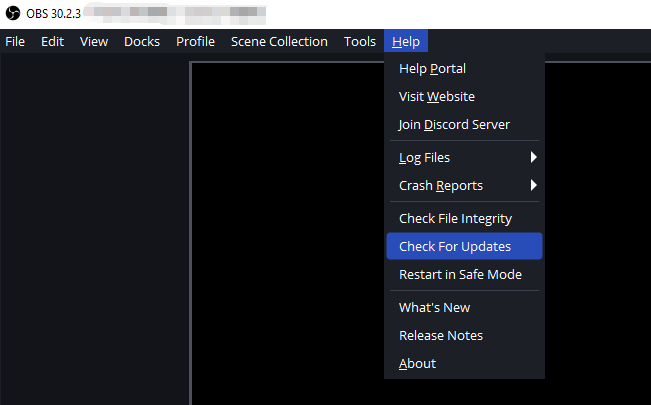
After updating, restart your computer and try the capture again.
2.10 Recreate the Capture Source
If the existing source has become misconfigured, deleting it and creating a new one may help.
Remove the problematic Window Capture or Game Capture source from OBS, add a new source, and select the target application again. This is a quick solution worth trying before changing more advanced settings.
3. Try the Simple Screen Recorder – Swyshare Recordit
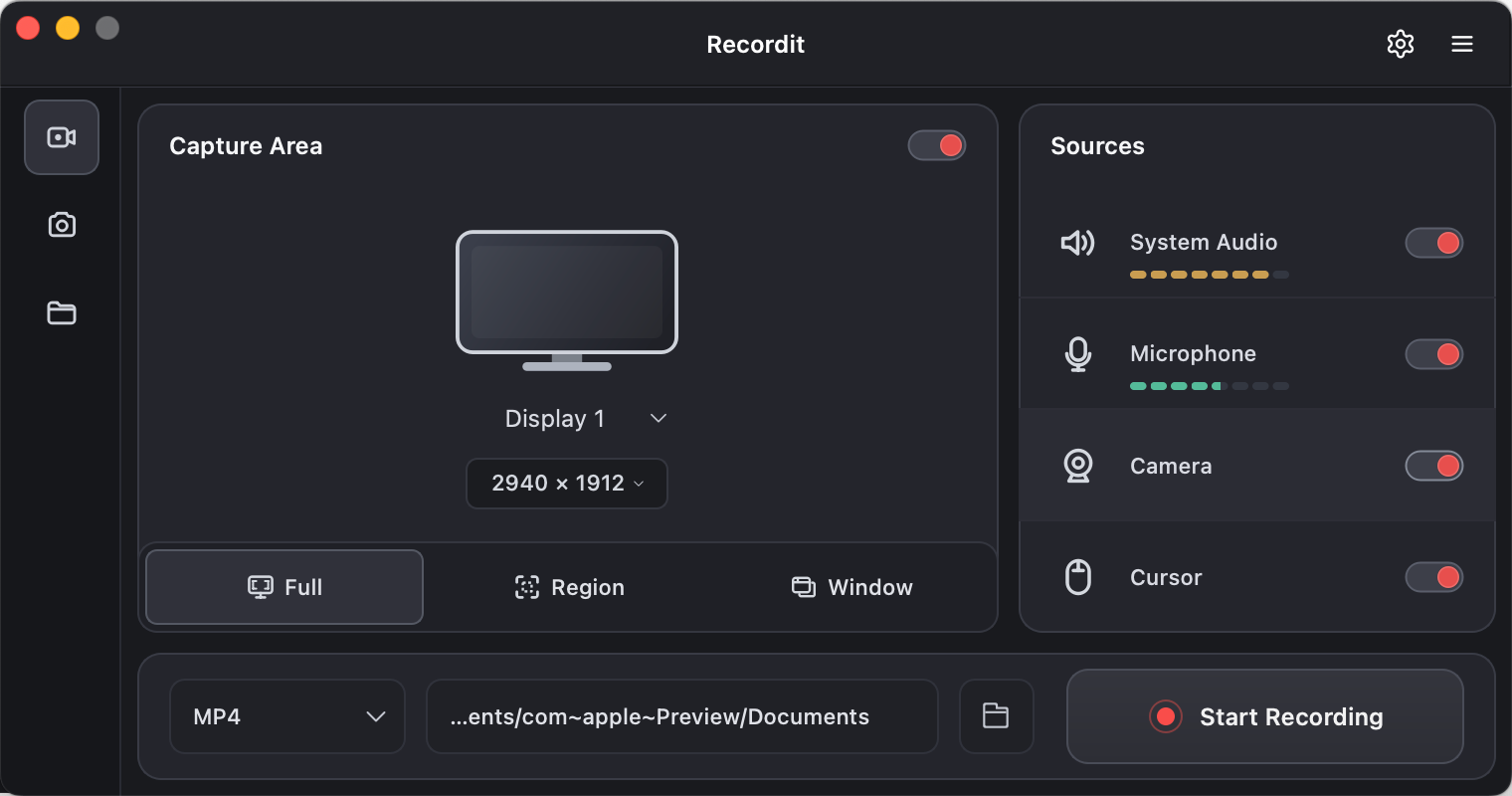
If you’ve tried the solutions above and OBS still cannot capture your application, Swyshare Recordit provides a simpler option for screen recording. Instead of configuring multiple OBS capture sources, Recordit offers a straightforward workflow for recording your screen, a selected area, or an application window.
Key features of Recordit:
- Offer flexible PC/ Mobile screen recording, webcam capture, and system/microphone audio recording.
- Record your screen in HD or up to 4K resolution.
- Export recordings in formats such as MP4, GIF, and MP3.
- Save the last few seconds of screen activity when needed.
- Set a specific time for Recordit to automatically start and stop recording.
- Built-in video editor to resize the canvas, adjust resolution, add backgrounds or watermarks.
4. Conclusion
The “Application Cannot Be Captured” issue in OBS can result from incorrect capture sources, permission conflicts, GPU settings, hardware acceleration, fullscreen modes, or outdated software. Fortunately, solutions such as changing the capture method, running OBS as administrator, disabling hardware acceleration, switching to windowed mode, and using Display Capture can often resolve the problem.
However, if you prefer a simpler approach, Swyshare Recordit is a convenient alternative for everyday screen recording. With support for full-screen, region, and window recording, as well as system audio, microphone, webcam, and cursor capture, it provides an easier workflow with fewer settings to configure. If OBS troubleshooting is taking too much time, Recordit is a practical screen-recording option to try.