How to Resolve OBS Won’t Stop Freezing Camera?

OBS Studio is one of the most popular free streaming and screen recording applications, trusted by millions of content creators, educators, gamers, and business professionals. Its flexibility, powerful customization options, and support for numerous video sources make it an excellent choice for recording and live streaming.
However, many users encounter a frustrating problem: OBS won’t stop freezing the camera. The webcam may suddenly freeze while recording, display a still image instead of live video, freeze after a few minutes, or stop responding completely until OBS is restarted. This issue can ruin livestreams, interrupt video conferences, and waste valuable recording sessions.
In this guide, we’ll explain the most effective ways to fix OBS camera freezing. If the problem continues despite troubleshooting, we’ll also introduce a lightweight screen recorder that offers a much simpler and more stable recording experience.
1. How to Resolve OBS Won’t Stop Freezing Camera?
1.1 Restart OBS and Your Webcam
Before trying advanced fixes, completely close OBS Studio and unplug your webcam.
Wait about 30 seconds before reconnecting the camera and reopening OBS. This refreshes the camera connection and often resolves temporary glitches.
If you’re using a laptop webcam, simply restart your computer.
1.2 Close Applications Using the Camera
Only one application can fully control many webcams at a time.
Programs that commonly interfere include:
- Zoom
- Microsoft Teams
- Discord
- Skype
- Google Meet
- Camera app
- Browser tabs using the webcam
Close these applications before launching OBS.
1.3 Update OBS Studio
Older OBS versions may contain bugs affecting webcam compatibility.
Download the latest version from the official OBS website and install any available updates.
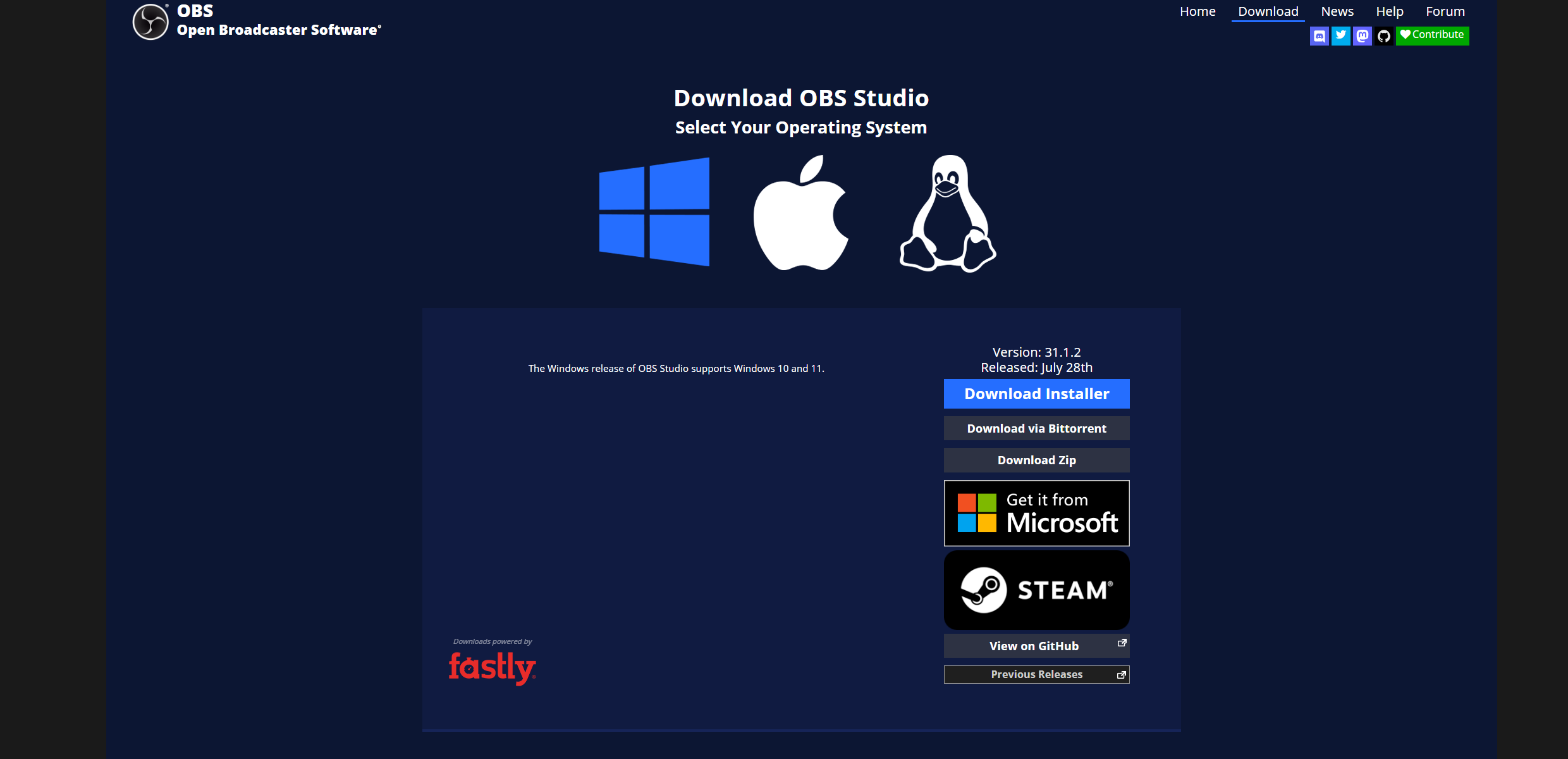
New releases often include:
- Camera compatibility improvements
- Bug fixes
- Better hardware support
- Performance optimizations
1.4 Update Webcam Drivers
Outdated or corrupted webcam drivers frequently cause freezing.
To update:
- Open Device Manager.
- Expand Cameras or Imaging Devices.
- Right-click your webcam.
- Choose Update Driver.
- Install the latest available version.
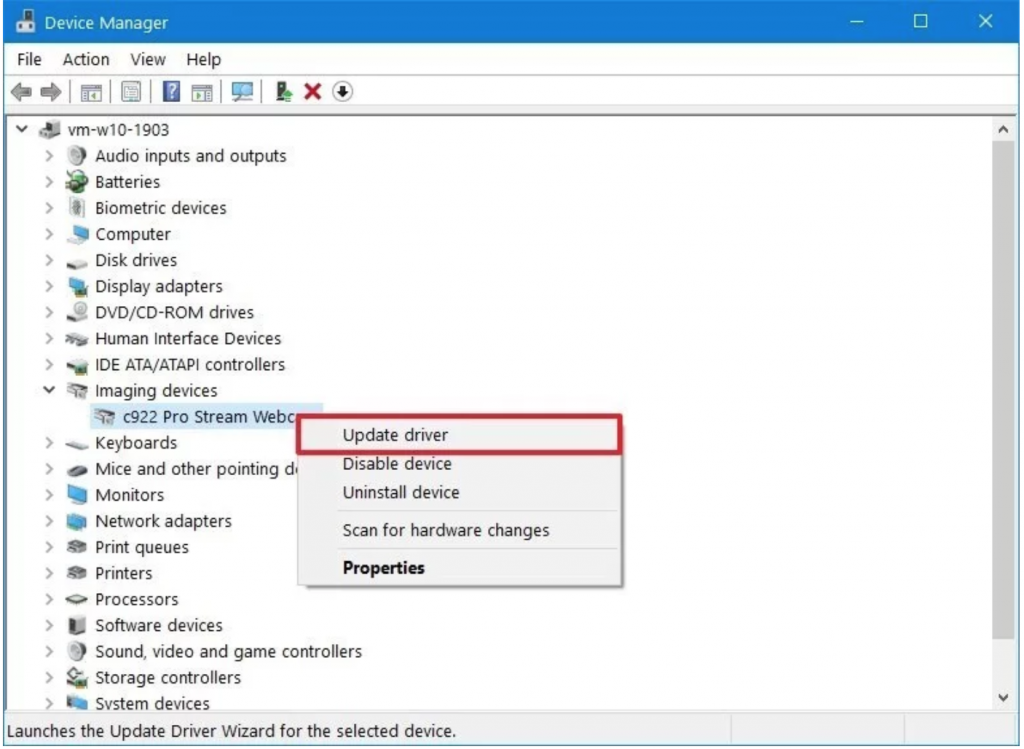
If the issue began after a driver update, try rolling back to a previous version.
1.5 Lower Camera Resolution
High-resolution webcams consume significant system resources.
For example:
- 4K at 60 FPS
- 1080p at 60 FPS
- HDR recording
If your computer struggles to process these settings, OBS may freeze the video feed.
Try lowering the webcam settings to:
- 1920×1080 @ 30 FPS
- 1280×720 @ 30 FPS
Many users find these settings much more stable.
1.6 Disable Hardware Acceleration in Conflicting Apps
Applications running in the background with hardware acceleration enabled can compete for GPU resources.
Try disabling hardware acceleration in:
- Discord
- Chrome
- Edge
- Firefox
- Teams
This may reduce GPU conflicts that cause OBS camera freezes.
1.7 Check USB Connections
USB bandwidth limitations can affect webcam performance.
For external webcams:
- Connect directly to the computer.
- Avoid USB hubs.
- Try another USB port.
- Switch between USB 2.0 and USB 3.0 ports.
- Replace damaged USB cables.
Some webcams perform better on specific USB controllers.
1.8 Reduce OBS Resource Usage
Running multiple sources simultaneously increases CPU and GPU load.
Consider:
- Removing unnecessary browser sources
- Closing unused scenes
- Reducing output resolution
- Lowering recording FPS
- Disabling unused plugins
Less system load often results in smoother camera performance.
1.9 Disable Webcam Filters
OBS filters such as:
- Chroma Key
- LUTs
- Color Correction
- Sharpen
- Noise Reduction
can increase processing demands.
Temporarily remove filters to see whether one of them is causing the freezing.
1.10 Re-add the Camera Source
Sometimes the camera source becomes corrupted.
To recreate it:
- Delete the existing Video Capture Device.
- Restart OBS.
- Add a new Video Capture Device.
- Select your webcam again.
- Configure the resolution manually.
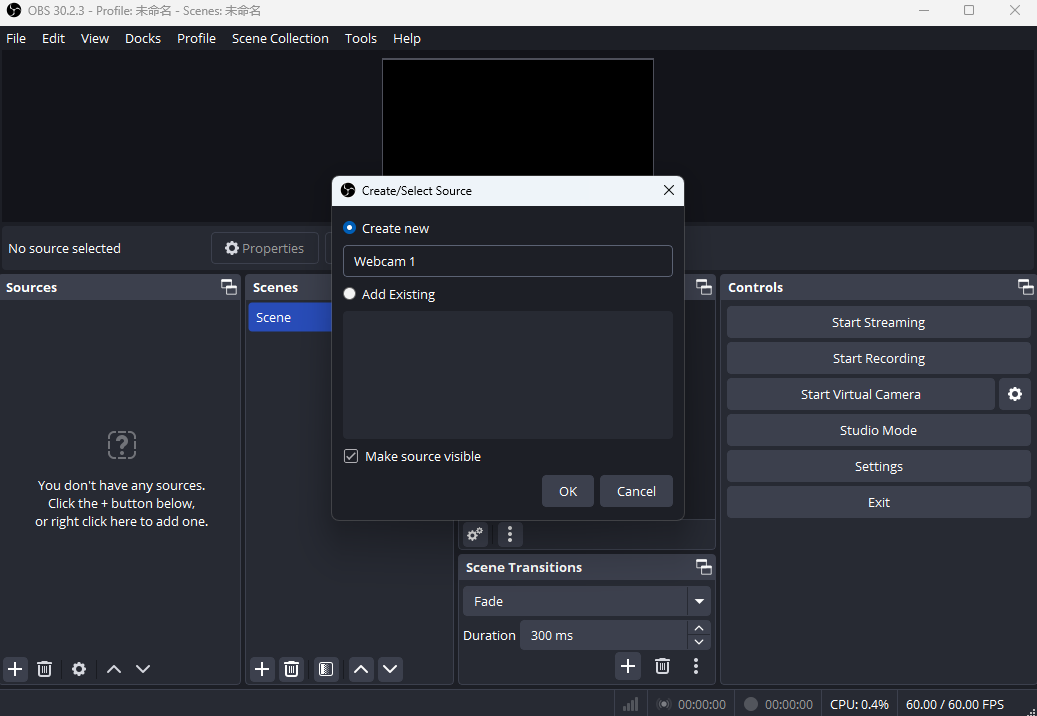
This often clears configuration issues.
1.11 Test the Camera Outside OBS
Open your webcam using:
- Windows Camera
- Zoom
- Teams
- Discord
If the camera freezes everywhere, the webcam itself or its driver may be the problem.
If it only freezes inside OBS, the issue is likely with OBS settings.
1.12 Run OBS as Administrator
OBS may have trouble accessing camera hardware without sufficient permissions.
Right-click OBS and select Run as Administrator.
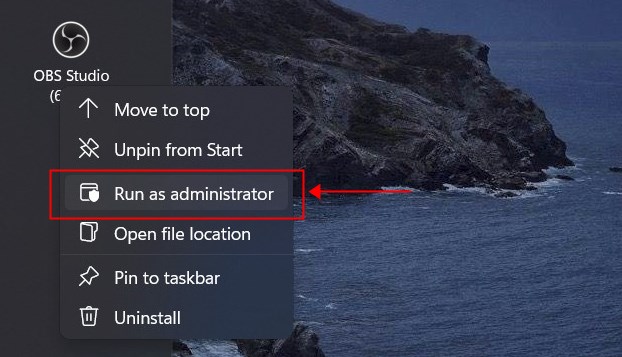
This simple step can resolve permission-related camera issues.
2. Try the Simple Screen Recorder – Swyshare Recordit Instead
If you’ve spent hours adjusting OBS settings and your camera continues freezing, it may be worth switching to a recorder that’s designed for simplicity rather than extensive customization.
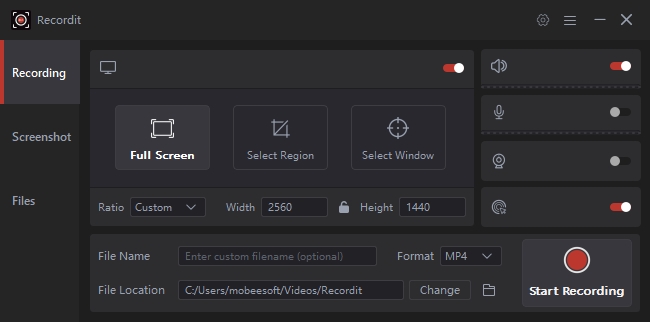
Swyshare Recordit is a lightweight screen recorder that focuses on stable recording performance without the complexity of OBS. It’s ideal for tutorials, gameplay, online meetings, presentations, webinars, and everyday screen capture.
Key features:
- Capture your full screen, focus on specific application windows, or define a custom area to record
- Capture webcam, system audio and microphone together
- Support high-quality HD and 4K recording
- Scheduled recording support
- Export recordings in popular video formats
How to Record with Swyshare Recordit:
- Install and launch Swyshare Recordit.
- Select the recording area, enable your webcam if needed, then choose microphone and system audio.
- Click to start recording and begin the screen activity.
- Finish recording and save the video.
3. Conclusion
OBS camera freezing can result from outdated drivers, software conflicts, overloaded hardware, USB connection issues, incorrect camera settings, or excessive resource usage. In many cases, updating OBS, lowering webcam resolution, closing conflicting applications, and recreating the camera source will resolve the problem.
However, if OBS continues freezing despite multiple troubleshooting attempts, switching to a simpler recording solution can save both time and frustration. Swyshare Recordit provides a streamlined recording experience with stable webcam support, high-quality video capture, and an easy-to-use interface, making it an excellent alternative for users who simply want reliable recordings without the complexity of OBS.