Why Does OBS Make My Mouse Disappear? Causes and Fixes

Have you ever started recording with OBS Studio only to discover that your mouse cursor is missing from the final video? This issue can occur when recording the desktop, capturing a specific window, or playing games, making it harder for viewers to follow your on-screen actions. Fortunately, several settings and troubleshooting methods can help restore cursor visibility. In this guide, we’ll explore the common reasons OBS makes your mouse disappear, explain how to fix the problem, and introduce a simple screen recording alternative with mouse effect features.

1. Why Does OBS Make My Mouse Disappear?
Several factors can cause the mouse cursor to disappear when using OBS. Understanding the possible causes can help you choose the right solution.
- Capture Cursor is disabled: OBS may record the screen without including the mouse pointer if the cursor-capture option is turned off.
- Capture source limitations: Display Capture, Window Capture, and Game Capture handle cursor capture differently. Some applications may not display the cursor correctly in the recording.
- Fullscreen game compatibility: Certain games use exclusive fullscreen mode or custom cursors that OBS may not capture properly.
- Conflicting sources or overlays: Multiple capture sources, overlays, and other applications may interfere with how the cursor appears in the final recording.
- Windows mouse settings: Options such as hiding the pointer while typing or using pointer trails can affect cursor visibility.
- Permission or graphics issues: Differences in application permissions, outdated graphics drivers, or compatibility problems may cause unexpected capture behavior.
2. How to Fix the Missing Mouse Cursor in OBS?
Try these solutions to restore your missing mouse cursor:
2.1 Enable Capture Cursor
If your cursor is visible on your desktop but missing from your recording, check the capture settings first.
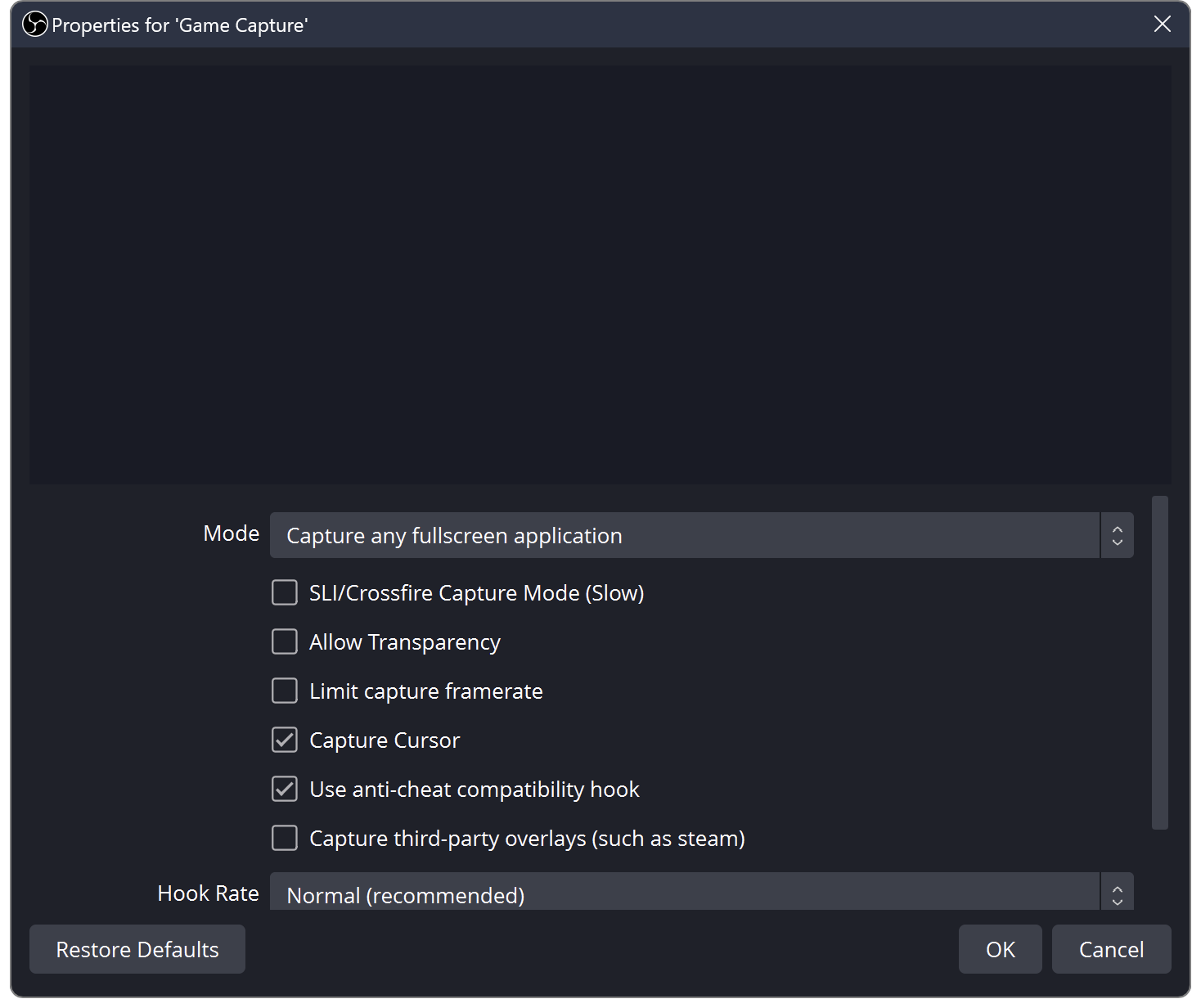
Open OBS, right-click your Display Capture or Game Capture source, and select Properties. Enable Capture Cursor if the option is available, then click OK and test your recording. For Window Capture, check its available cursor-capture settings as well.
2.2 Check Your Capture Source
Different capture sources may behave differently depending on the application.
If the cursor disappears when using Game Capture, try switching to Display Capture or Window Capture. If the cursor appears correctly with another source, the issue may be related to the original capture method or the application being recorded.
2.3 Switch to Borderless Windowed Mode
Some games and full-screen applications do not work well with OBS cursor capture.
Open the game’s display settings and change the display mode from exclusive fullscreen to Borderless Windowed. Restart the capture and check whether the cursor appears in the recording.
2.4 Disable Hide Pointer While Typing
Windows includes an option that automatically hides the mouse pointer while typing. Although this feature is intended to reduce visual distractions, it may contribute to cursor visibility problems in certain situations.
Open Windows Settings and navigate to Bluetooth & devices > Mouse > Additional mouse settings. Under the Pointer Options tab, uncheck Hide pointer while typing, apply the changes, and test OBS again.

2.5 Check Your OBS Sources and Overlays
If you have multiple capture sources, one source may cover another or produce unexpected visual results.
Temporarily hide unnecessary sources, including overlays and additional window captures. Keep only your primary capture source active and test the recording. If the cursor returns, re-enable the other sources one at a time to identify the conflict.
2.6 Run OBS as Administrator
Some applications use different permission levels from OBS, which can interfere with capturing their content.
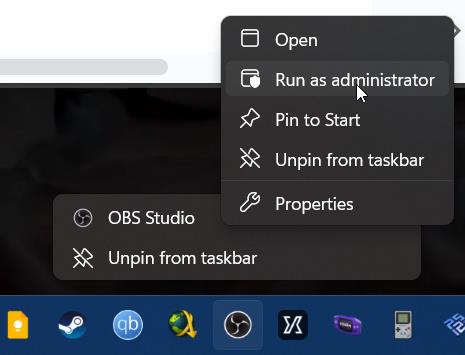
Close OBS, right-click its shortcut, and select Run as administrator. Reopen your project and test the problematic application. This can help with certain capture compatibility issues, although it will not resolve every cursor problem.
2.7 Update OBS and Graphics Drivers
Outdated software or graphics drivers may cause screen capture glitches, especially after a Windows or application update.
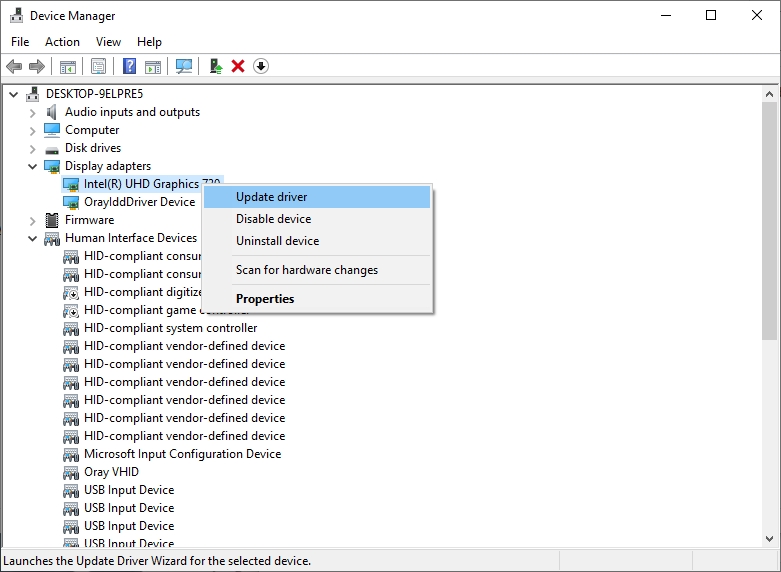
Check for the latest stable OBS version and install compatible graphics driver updates from your GPU manufacturer’s official website. Restart your computer afterward and test the recording again.
3. Try the Simple Screen Recorder Alternative to OBS – Swyshare Recordit
If OBS continues to make your mouse disappear or its numerous settings feel complicated, consider Swyshare Recordit, a screen recording alternative designed to simplify everyday recording tasks.
Instead of spending time troubleshooting multiple capture sources, you can use Recordit to record screen activity through a more straightforward workflow.
Key features of Recordit:
- Capture Windows, Mac, Android and iPhone screen.
- Show mouse in video, highlight mouse clicks and movements.
- Capture system sound, microphone input, and webcam footage.
- Customize recording resolution and export videos in multiple formats.
- Trim recordings, add watermarks or backgrounds, and insert a mouse image.
- Automatically start screen recordings at specified times.
How to record screen with mouse effects using Recordit:
- Download, install Recordit’s latest version and launch it on your computer.
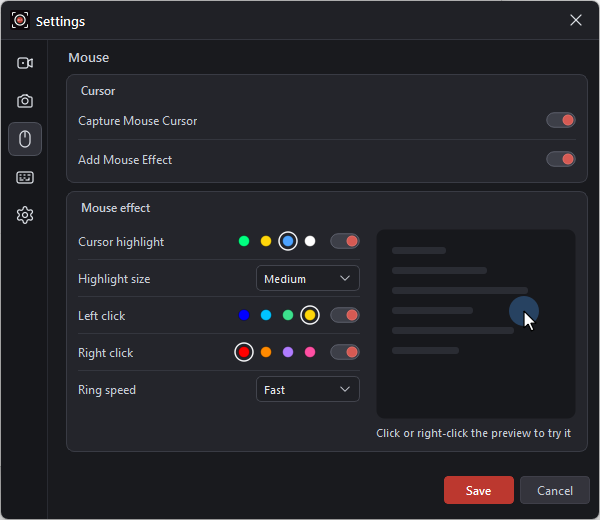
- Open Settings and navigate to the Mouse tab, turn on Capture Mouse Cursor and customize the mouse effects id needed.
- Set more recording options, then click the Record button and perform the on-screen actions you want to capture.
- Stop recording and review the video to ensure the mouse movements and effects are visible.
4. Conclusion
OBS may make your mouse disappear because of disabled cursor-capture settings, incompatible capture sources, fullscreen applications, Windows pointer options, or software conflicts. Enabling Capture Cursor, switching capture methods, checking mouse settings, and updating OBS can often resolve the problem.
However, if you want a simpler way to record tutorials and software demonstrations, Swyshare Recordit is a practical alternative to consider. Its straightforward recording workflow and available mouse effect features can help make on-screen actions easier to follow without requiring you to manage OBS’s more complex configuration. Try Recordit if you prefer a more convenient screen recording experience.