How to Record Nintendo Switch Gameplay on PC?

Recording Nintendo Switch gameplay on a PC is a great way to save exciting gaming moments, create YouTube videos, share walkthroughs, or capture memorable achievements. Whether you’re playing Mario Kart, The Legend of Zelda, Animal Crossing, or other popular Switch games, recording your gameplay allows you to preserve and share your gaming experiences.
In this article, we’ll introduce several effective ways to record Nintendo Switch gameplay on a PC and compare the pros and cons of each method.
1. Record Nintendo Switch Gameplay Using a Capture Card and OBS Studio
One of the most popular ways to record Nintendo Switch gameplay on a PC is by using a capture card with OBS Studio. A capture card transfers video and audio signals from your Nintendo Switch to your computer, while OBS Studio records the incoming footage.
What You Need:
- Nintendo Switch device and compatible dock.
- HDMI capture card.
- HDMI cable.
- Windows PC or Mac.
- OBS Studio software.
Steps to Record Nintendo Switch Gameplay with OBS Studio:
- Connect your Switch: Dock your console and connect its HDMI output to a capture card.
- Connect to your PC: Plug the capture card into your computer via USB.
- Install OBS Studio: Download and install OBS on your PC.
- Add a capture source: In OBS, click + under Sources and select Video Capture Device.
- Select your capture card: Choose the connected device to display your Switch gameplay.
- Adjust settings: Configure the resolution, frame rate, audio, and output format.
- Start/stop recording: Click Start Recording to capture gameplay and Stop Recording when finished.

Pros:
- Free recording software with extensive customization options.
- Supports long gameplay recordings.
- Allows you to capture game audio and microphone input.
- Provides advanced streaming and recording features.
Cons:
- Requires an additional capture card.
- Initial setup can be complicated for beginners.
- Recording performance depends on your computer hardware.
2. Record Nintendo Switch Gameplay Using Swyshare Recordit
If you prefer an easier way to record Nintendo Switch gameplay on your PC, Swyshare Recordit is another option worth considering. It is a screen recording application that combines screen capture, instant replay, and video editing features, making it useful for gamers who want to record and manage gameplay footage in one workflow.
Main Features of Swyshare Recordit for Gameplay Recording:
- Capture gameplay in up to 2K or 4K resolution at 60 FPS with GPU acceleration.
- Capture entire PC screen, a specific window, or a selected area.
- Automatically save the last few seconds of gameplay to capture exciting moments.
- Capture system audio, microphone commentary, and webcam footage simultaneously.
- Trim unwanted footage, resize videos, adjust resolution, and add backgrounds or watermarks.
- Save gameplay recordings as MP4 or GIF for easier sharing and editing.
Steps to Record Nintendo Switch Gameplay Using Swyshare Recordit:
- Connect your Switch: Dock your console and connect it to an HDMI capture card.
- Connect to your PC: Plug in the capture card and open its preview software to display gameplay on your computer.
- Download and install Recordit: Download Recordit and install it on your Windows PC.
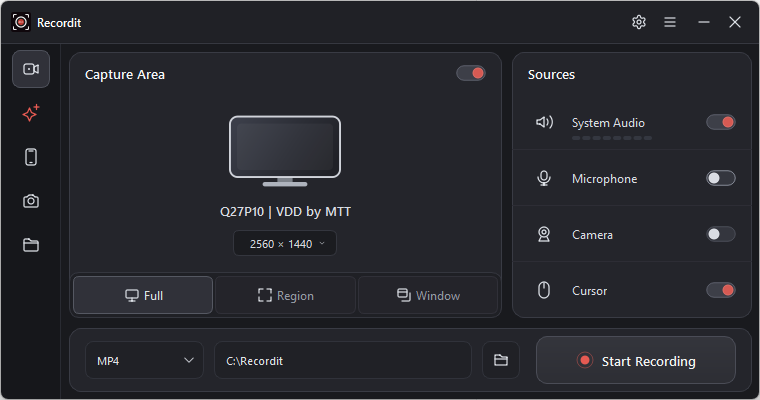
- Choose the recording area: Open Recordit, select screen recording mode, and choose the gameplay area.
- Configure audio settings: Enable system sound to capture game audio and microphone input if you want to add live commentary.
- Start recording or use Instant Replay: Click the recording button to capture your gameplay. Alternatively, use Instant Replay to save recent gameplay moments when something exciting happens.
- Edit your recordings: After capturing gameplay, use Recordit’s built-in video editing features to refine your footage and prepare it for sharing.
Pros:
- Easy-to-use screen recording interface.
- Instant Replay makes it convenient to save memorable gameplay moments.
- Built-in video editing tools for refining recordings.
- Supports capturing game audio and microphone input.
- Useful for recording gameplay and other desktop activities.
Cons:
- Requires a capture card to display standard Nintendo Switch gameplay on a PC.
- Some advanced streaming features may require other dedicated software.
3. Record Short Gameplay Clips Using the Nintendo Switch Built-in Feature
If you only need to save short gameplay moments, you don’t necessarily need a capture card or third-party recording software. The Nintendo Switch includes a built-in video capture feature that lets you save up to 30 seconds of recent gameplay in supported games.
Steps to Record Short Nintendo Switch Gameplay Clips:
- Open a compatible game on your Nintendo Switch.
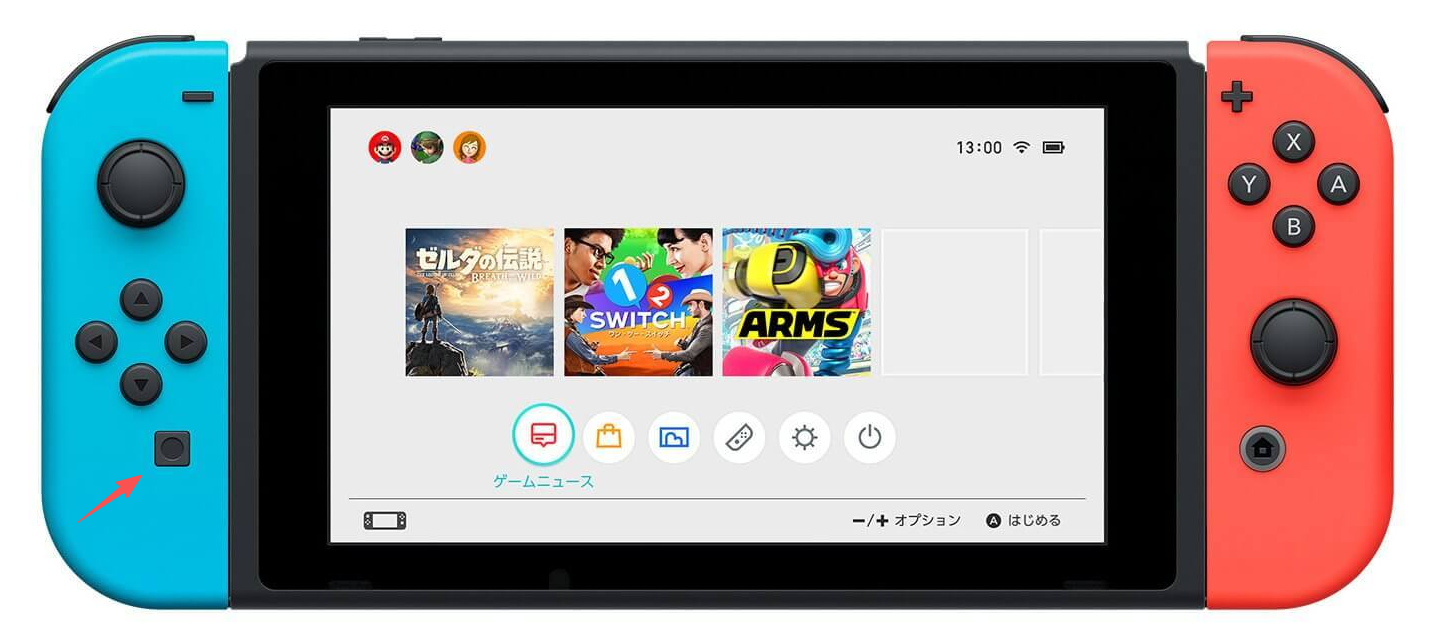
- Press and hold the Capture button on the left Joy-Con to save the previous 30 seconds of gameplay.
- Wait for the console to finish saving the video clip.
- Return to the HOME Menu and open the Album.
- Select the recorded gameplay video you want to transfer.
- Transfer the clip to your computer using a supported method, such as USB transfer or a compatible microSD card.
Pros:
- No additional recording software required.
- No capture card needed.
- Convenient for saving short gameplay highlights.
- Easy to use directly from the console.
Cons:
- Limited to 30-second clips.
- Only works with supported games and compatible gameplay situations.
- Not suitable for full-length gameplay recordings.
- Requires transferring clips to a PC for further editing.
4. Comparison of Nintendo Switch Recording Methods
Each recording method has different advantages depending on your recording needs, budget, and technical experience. Here’s a quick comparison to help you choose.
| Feature | OBS Studio + Capture Card | Recordit + Capture Card | Built-in Recording |
|---|---|---|---|
| Capture card required | Yes | Yes | No |
| PC recording | Yes | Yes | No |
| Recording duration | Long | Long | Up to 30 seconds |
| Ease of use | Moderate | Easy | Very easy |
| Instant Replay | Yes | Yes | No |
| Video editing | External editor recommended | Built-in editing | Limited |
| Audio recording | Yes | Yes | Supported in saved clips |
| Best for | Advanced recording and streaming | Recording, replaying, and editing gameplay | Short gameplay highlights |
5. Conclusion
There are several ways to record Nintendo Switch gameplay on a PC, depending on your recording requirements. OBS Studio is a powerful option for gamers who need advanced recording and streaming controls, while the Switch’s built-in recording feature is convenient for saving short gameplay highlights.
However, if you want a more flexible recording solution, Swyshare Recordit is worth trying. With its convenient screen recording workflow, instant replay capabilities, and video editing tools, Swyshare Recordit is a practical choice for gamers who want an easier way to capture, edit, and share their Nintendo Switch gameplay on PC.