Best Firefox Screen Recorders to Capture Your Browser Screen

Whether you want to create tutorials, record online meetings, capture website demonstrations, or document technical issues, a screen recorder makes it easy to save your Firefox activities as videos. However, finding the right tool can be challenging because different screen recorders offer different capture modes, audio options, and editing capabilities.
Fortunately, Firefox users have several options. In this guide, we’ll explore the best Firefox screen recorder extensions and online tools, explain how to use them, and compare their pros and cons.
1. Does Firefox Have a Built-in Video Screen Recorder?
No. Firefox does not have a dedicated built-in video screen recording feature. It does, however, include a screenshot utility that allows users to capture visible webpage content, selected areas, or entire webpages as static images.
To record videos of browser activities, you’ll need a third-party screen recording extension, an online recording service, or desktop recording software.
2. Best Firefox Screen Recorder Extensions and Add-ons
Firefox screen recorder extensions add recording capabilities directly to your browser. Once installed, you can usually start recording from the toolbar, select a screen or window, and save the resulting video locally.
Popular Firefox Screen Recorder Extensions:
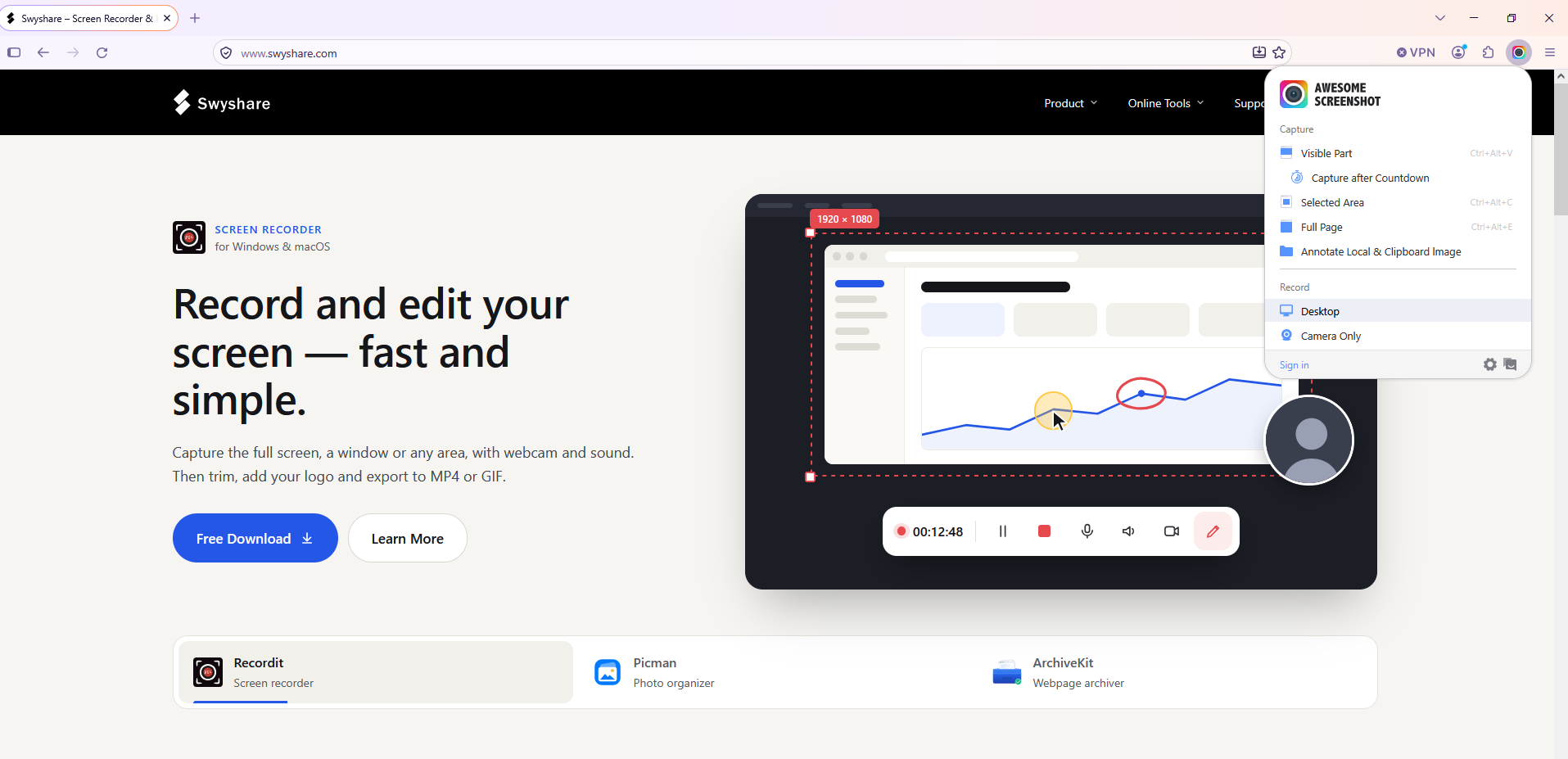
- Awesome Screenshot & Screen Recorder: Combines screen recording and screenshot capture with annotation tools, webcam recording, and sharing options.
- Screen Recorder by Alexey Kuznetsov: A lightweight extension for capturing desktop activities and saving recordings locally or to Google Drive.
- Screen Recorder by Bernard: Allows users to record browser tabs, application windows, or the entire screen and save recordings in WebM format.
- Screen Recorder Lite: A simple, privacy-focused extension that records an entire screen, a window, or a browser tab and saves videos locally without watermarks or time limits.
How to Use Firefox Screen Recorder Extensions:
- Find a reliable recorder (like Awesome Screenshot & Screen Recorder) in Firefox Add-ons, click Add to Firefox, and pin it to the toolbar.
- Click the extension icon to open the recording interface, then select the available recording source, configure microphone and other available settings.
- Click Start Recording and grant Firefox the necessary screen-sharing permissions.
- When finished, stop the recording and save or download the video.
Pros:
- Easy to install and operate directly within Firefox.
- Some extensions combine screenshot and video recording features.
- Many offer free basic recording functionality.
- No separate desktop application is necessary.
Cons:
- Recording capabilities vary between extensions.
- Some older add-ons may have compatibility issues.
- Audio recording may be restricted by Firefox’s capture capabilities.
- Advanced editing and annotation options are limited.
- Certain tools require accounts or cloud uploads for sharing.
3. Best Firefox Online Screen Recorders
If you don’t want to install browser extensions, online screen recorders provide another convenient way to capture Firefox activities. These tools operate through websites and use browser screen-sharing permissions to record your screen, application windows, or other supported sources.
Popular Firefox Online Screen Recorders:
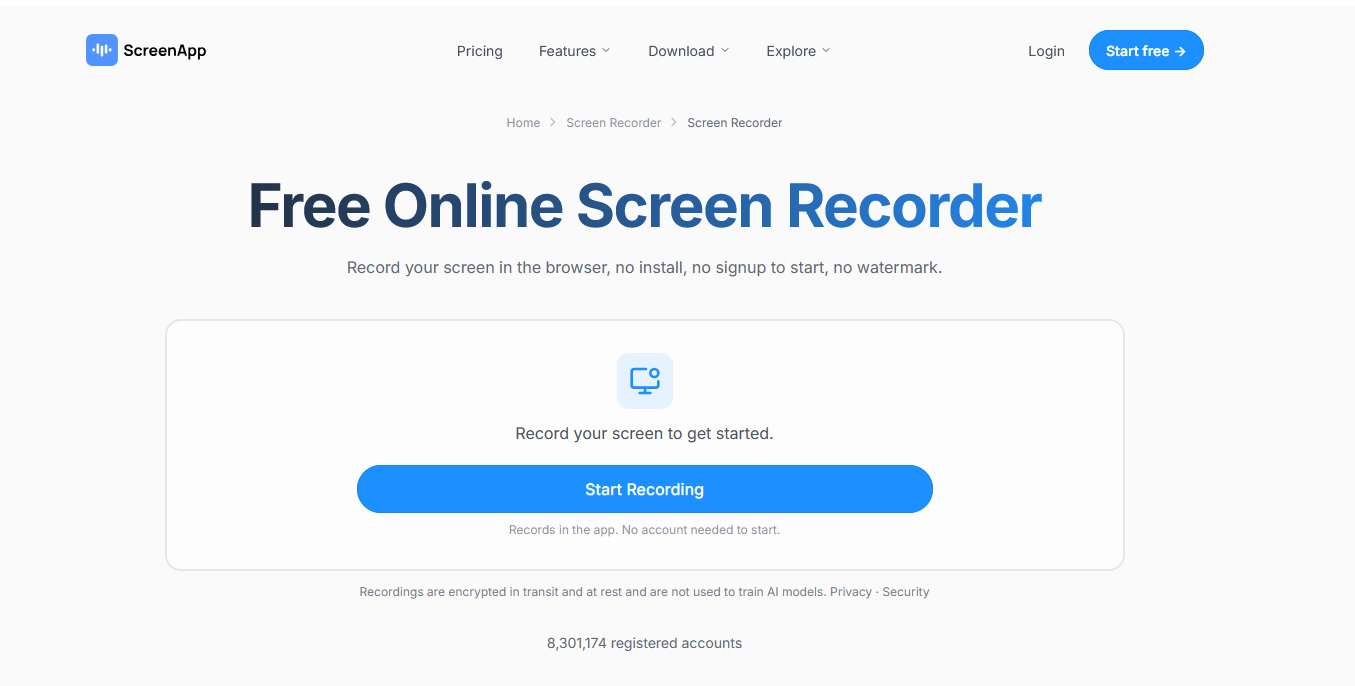
- ScreenApp: An online screen recorder that captures browser tabs, application windows, and entire screens, with microphone and webcam recording options.
- VEED: A browser-based screen recorder with webcam support, a built-in video editor, subtitles, and other editing tools.
- ScreenPal: An online recording tool that captures screen activities and webcam footage, with options to preview, save, and share recordings.
- Loom: A screen and webcam recording platform that supports video narration, editing, and instant sharing. Its desktop application is the recommended option for recording Firefox directly.
- RecordCast: An online screen recording tool that offers screen, webcam, and combined recording modes, along with a built-in video editor.
How to Use Online Firefox Screen Recorders:
- Open your preferred online screen recorder’s official website like ScreenApp in Firefox.
- Find the screen recording tool and click Start Recording or a similar option.
- Choose to record your screen, webcam, or both, grant microphone and camera permissions if needed, and select a Firefox tab, application window, or your entire screen.
- Click Share to start recording your activities, then click Stop when finished.
- Preview the video, make any available edits, and download or share it.
Pros:
- No browser extension installation is necessary.
- Accessible through a browser on supported operating systems.
- Some offer webcam recording and built-in editing tools.
- Certain services provide direct video sharing and cloud storage.
Cons:
- Some services require account registration.
- Free plans may have recording, storage, or export restrictions.
- Uploading and processing videos may take additional time.
- Advanced editing features may require a paid subscription.
4. Try the Professional Screen Recorder – Swyshare Recordit
If Firefox extensions and online screen recorders cannot meet your recording requirements, Swyshare Recordit is a professional desktop alternative worth considering. Available for Windows and macOS, it provides flexible screen capture and recording features for creating tutorials, recording online meetings, demonstrating software, and capturing other desktop activities.
Main features of Swyshare Recordit:
- Record PC, iPhone and Android screens directly on your computer.
- Capture videos up to 2K or 4K at 60 FPS.
- Capture system sound, microphone input, or both.
- Add webcam footage to tutorials and presentations.
- Trim clips, resize videos, adjust resolution, and add backgrounds or watermarks.
- Export videos as MP4 or GIF and audio as MP3 or AAC.
How to use Swyshare Recordit to record your Firefox screen:
- Download and install Swyshare Recordit on your Windows PC or Mac.
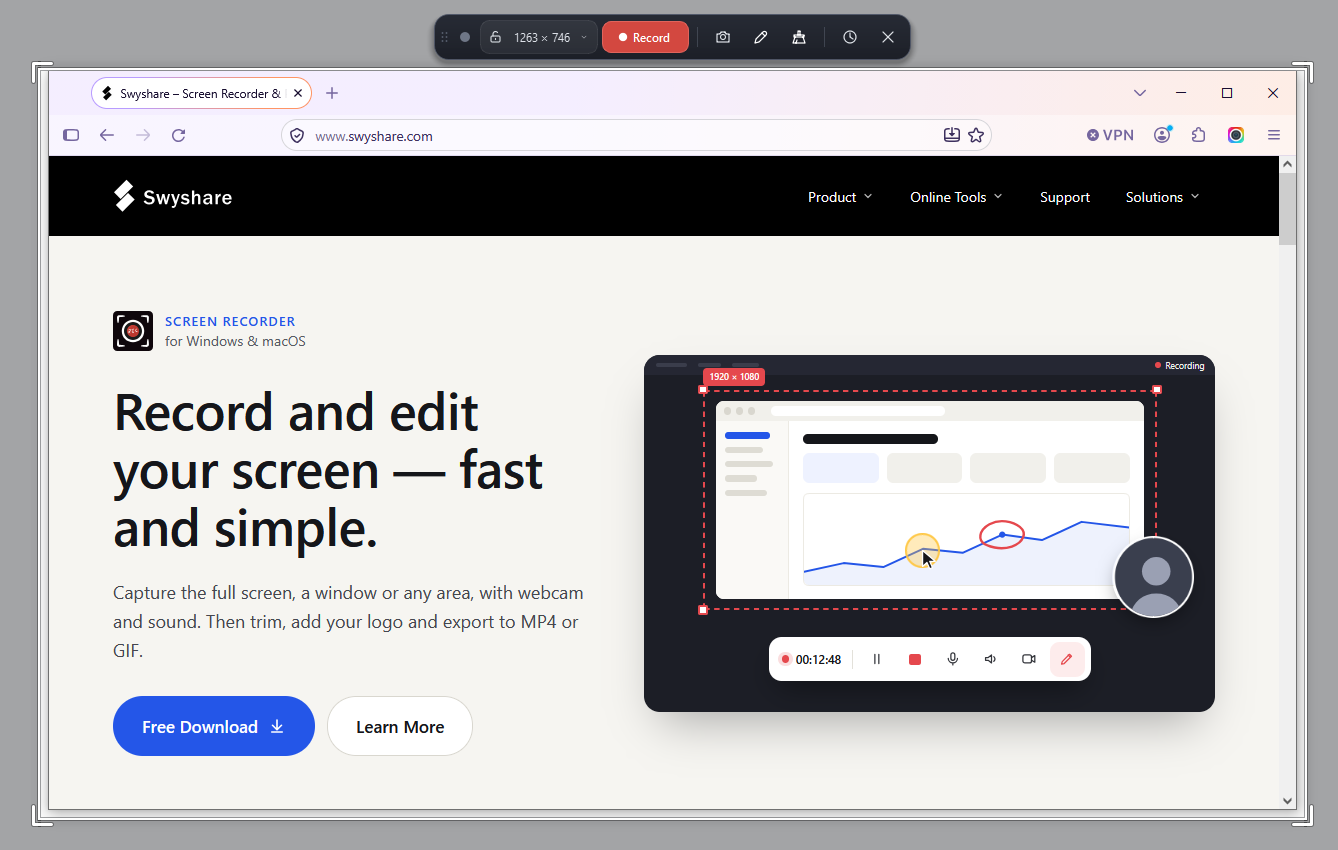
- Open Firefox and navigate to the webpage or content you want to capture, then launch Recordit and select Window recording mode.
- Configure system audio, microphone, webcam, and other recording settings.
- Click Start Recording to capture your Firefox activities, then click Stop Recording to save the video.
- Preview the recording and use the built-in editor to trim or adjust it before sharing.
5. Conclusion
Firefox extensions and online screen recorders make it easy to capture browser activities without complicated setups. However, they may have limitations in recording quality, features, or editing options. If you need a more powerful and flexible solution, Swyshare Recordit is worth trying. It offers high-quality screen recording, audio and webcam capture, and convenient recording management, making it a practical choice for capturing Firefox activities and other on-screen content.